Expandi CRM Integration with HubSpot, Pipedrive & Salesforce

LinkedIn outreach only works if it turns into pipeline.
For many sales teams though, this is where things break. Leads reply on LinkedIn, interest is clear, but the data never makes it cleanly into the CRM. Then, context gets lost, follow-ups get delayed, and sales teams end up working from partial information or spreadsheets.
Expandi’s native CRM integrations fix that gap.
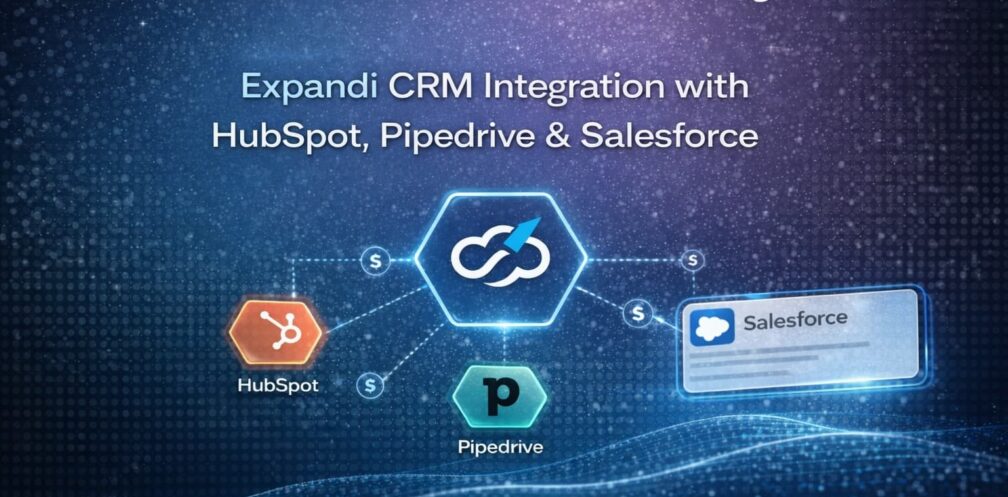
The Expandi CRM integration connects LinkedIn outreach directly with your sales CRM, so conversations turn into real pipeline instead of lost context.
With direct integrations to HubSpot, Pipedrive, and Salesforce, Expandi automatically syncs qualified LinkedIn leads and every engagement touchpoint straight into your CRM. Connection requests, replies, messages, profile visits – everything gets logged where your sales team already works.
In this guide, we’ll break down:
- Why CRM is the missing link in most LinkedIn outreach workflows
- What makes Expandi’s CRM integrations different from contact-only syncs
- How HubSpot and Pipedrive integrations work in practice
- How LinkedIn leads flow from first message to closed deal
- When and why to use Expandi CRM integrations for lead generation and sales teams
This is about connecting LinkedIn outreach to real pipeline activity without manual handoffs, Zapier workarounds, or missing context.
Here’s how this works.
Why CRM Is the Missing Link in LinkedIn Outreach
Many LinkedIn outreach workflows break after the reply.
SDRs book interest on LinkedIn, but the moment a prospect says “sounds interesting,” everything turns manual. Someone screenshots a chat for Slack, copies details into a CRM, or doesn’t log the interaction.
Meanwhile, according to Voiso, responding within 5 minutes can increase conversion rates by up to 100x, compared to a 30-minute delay. For high-value inquiries, many top performers reply within 5 minutes (gold standard for SaaS companies). However, the industry average is 42 hours.
By the time someone from sales picks up the conversation, context is gone or time is lost.
This creates three core problems:
1. LinkedIn activity lives outside the sales workflow.
Replies, connection history, and message context stay locked inside LinkedIn inboxes. Sales teams working in HubSpot or Pipedrive have no visibility into what actually happened before the handoff.
2. Manual handoffs kill speed and accuracy.
Copy-pasting contacts and notes leads to delays, missing data, and inconsistent records.
High-intent leads often cool off before they’re even contacted.
3. Sales teams lack context before outreach.
When a deal finally appears in the CRM, reps don’t know:
- What message triggered the reply.
- How warm the relationship is.
- What objections were already addressed.
That’s how “interested” leads turn into awkward first calls.
LinkedIn is where conversations start. But CRMs are the system of record for outreach.
Expandi’s CRM integrations exist to close that gap. Contacts are easy to sync. Context isn’t.
This makes sure the context shows up where sales teams already work.
What Makes Expandi CRM Integrations Different
Many CRM “integrations” in LinkedIn tools stop at pushing a contact into the CRM.
This is not enough in 2026.
A name and profile URL without context doesn’t help sales move faster. It creates more work and friction as reps still have to dig through LinkedIn to understand what happened before the handoff.
Expandi’s CRM integrations work differently.
This is part of Expandi integrations designed to turn LinkedIn outreach into a measurable, CRM-driven sales motion. Instead of syncing contact data, Expandi also syncs LinkedIn activity.
That means when a lead lands in HubSpot, Pipedrive, or Salesforce, sales can see:
- When the connection request was sent.
- Whether it was accepted.
- Which messages were sent.
- How the prospect replied.
- Ongoing LinkedIn interactions as they happen.
All of this shows up directly on the contact’s CRM timeline.
As a result, sales don’t need to open LinkedIn, manually share screenshots, or Slack messages from SDRs explaining what happened.
The context is already there.
Why use Expandi CRM integrations for lead generation teams
Expandi integrations for lead generation teams are designed to move qualified LinkedIn conversations into CRM pipelines with full context. This makes the CRM the natural continuation of LinkedIn outreach, instead of a separate system.
Here’s what that means in practice:
- Cleaner pipelines – Only qualified, engaged leads get pushed into the CRM. Can be automatic or manual, based on your setup.
- Faster follow-ups – Reps can act immediately with full context, instead of waiting for notes or explanations.
- Better prioritization – Sales can see which prospects replied, how they replied, and how engaged they are without guessing.
- No manual exports – Replaces spreadsheets, copy-pasting, and missing sales activity.
For SDR teams, agencies, and lead generation teams, LinkedIn stops being a silo and becomes part of the same workflow as email, calls, and deals.
How to Integrate Expandi with HubSpot: Step-by-step Guide (For 2026)
The Expandi HubSpot integration 2026 is built to automatically move qualified LinkedIn conversations into HubSpot, preserving full message history and engagement context without manual work.
Once connected, Expandi sends qualified LinkedIn contacts and their interaction history directly into HubSpot. This gives your sales teams visibility into the full relationship history, so follow-ups are always timely and relevant.
Note: Admin access to HubSpot is required in order to be able to link Expandi to HubSpot.
That said, here’s how to integrate Expandi with HubSpot CRM.
- Log in to your Expandi account.
- Go to your Workspace.
- Click Integrations.
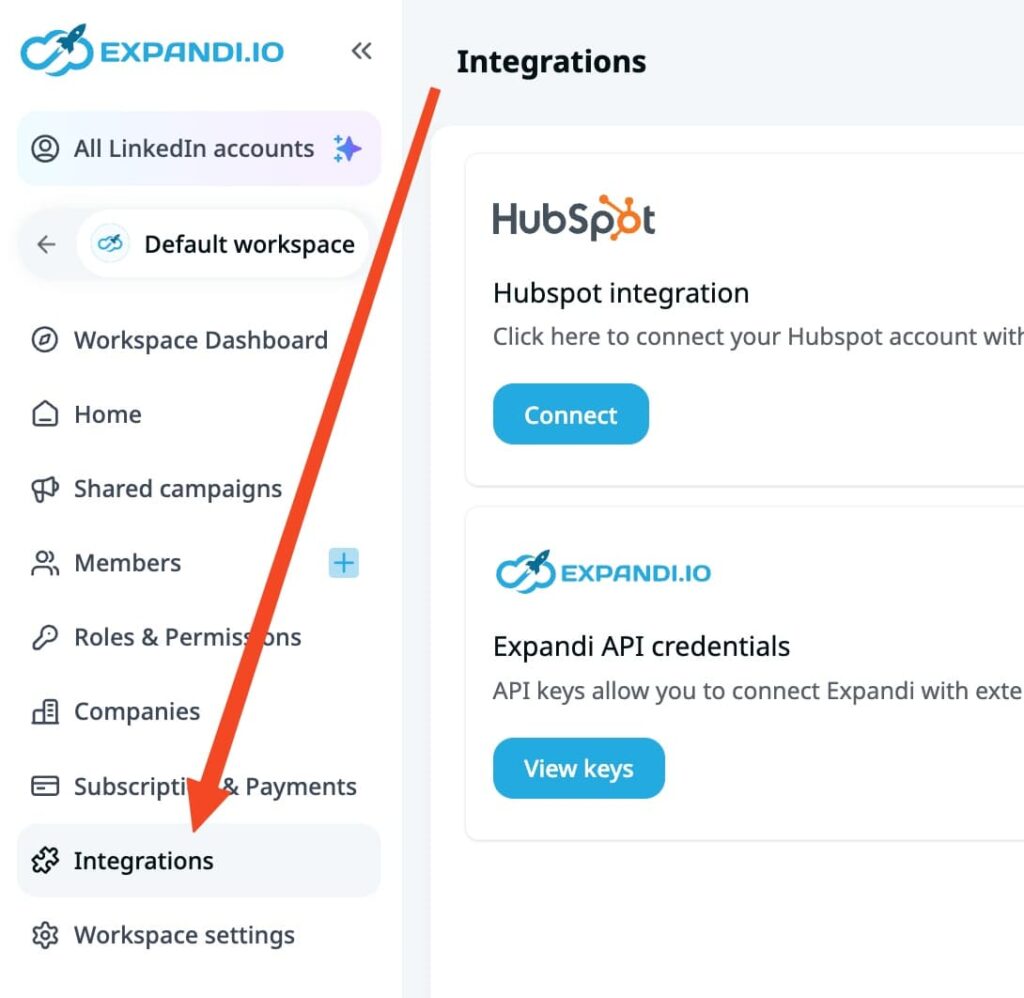
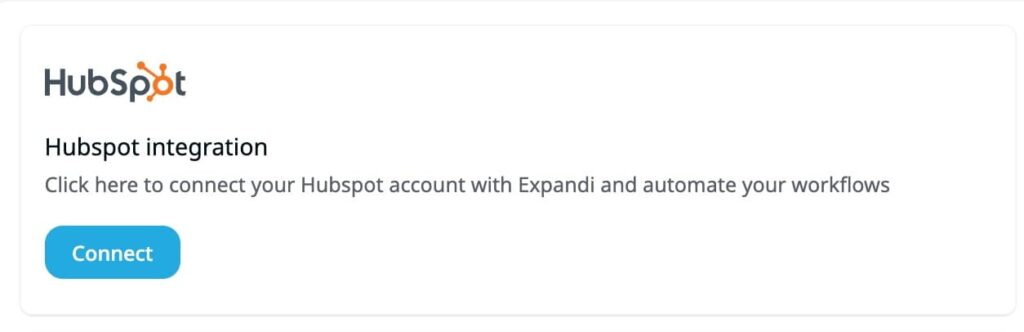
- Find the HubSpot integration section and click Connect.
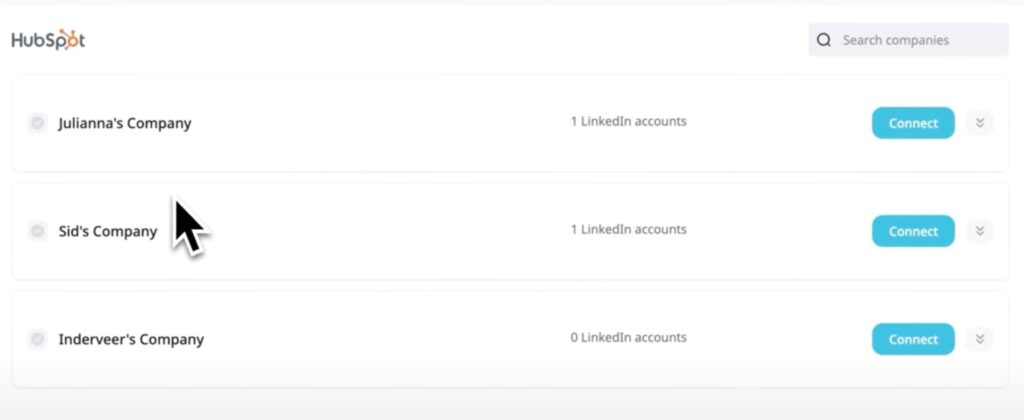
- Then, select the company or companies you want to link your HubSpot integration to.
- Then, a HubSpot authentication window will open, log in and give Expandi the required access.

- Configure when contacts should be sent to HubSpot based on lead activity (examples: replies, accepted connections, sentiment).
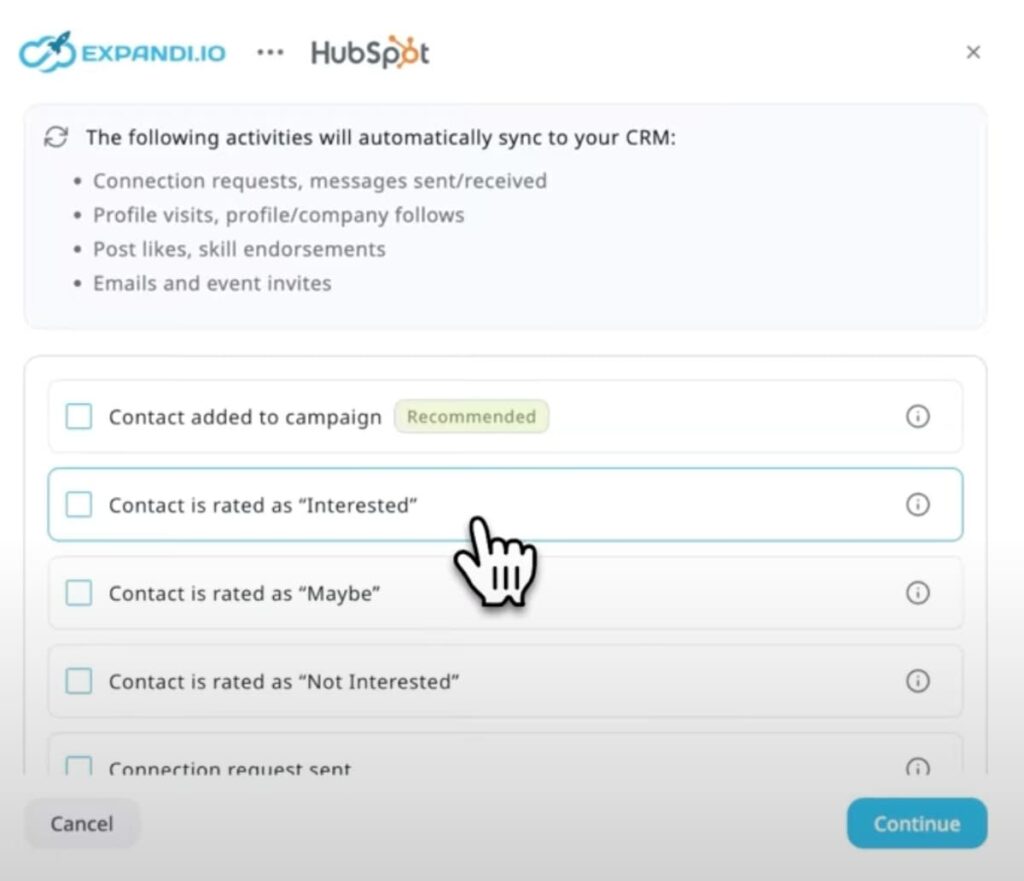
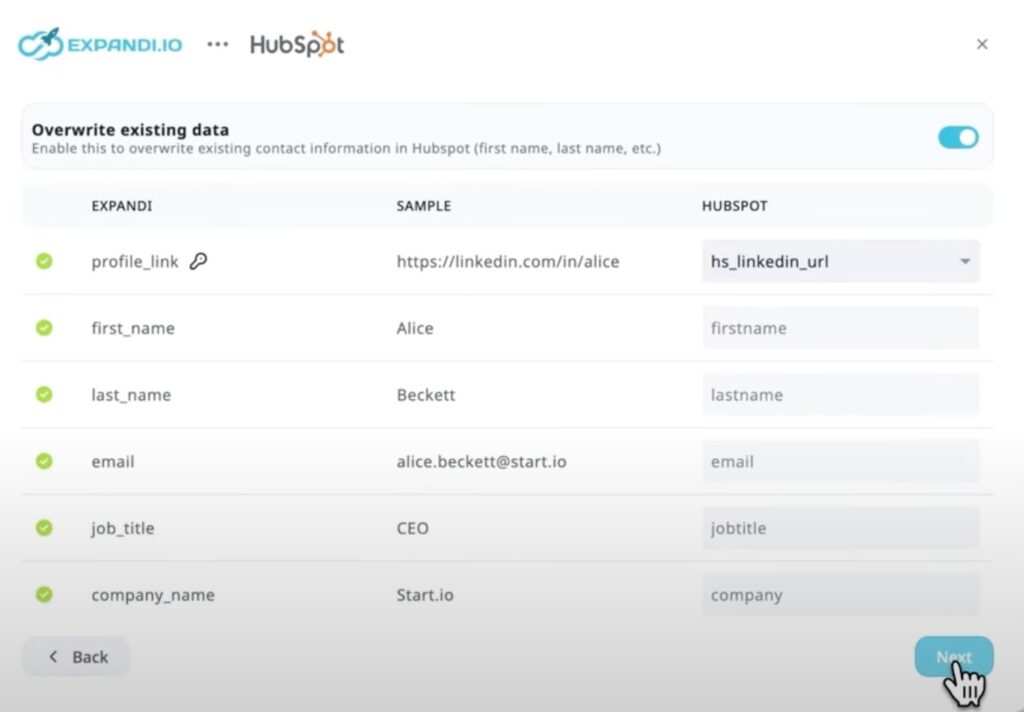
- Review and confirm how your contact data will sync using Field Mapping. Here, you review and confirm how your contact information from Expandi will be synced to HubSpot. Use this to map each Expandi field to the appropriate field in HubSpot property.
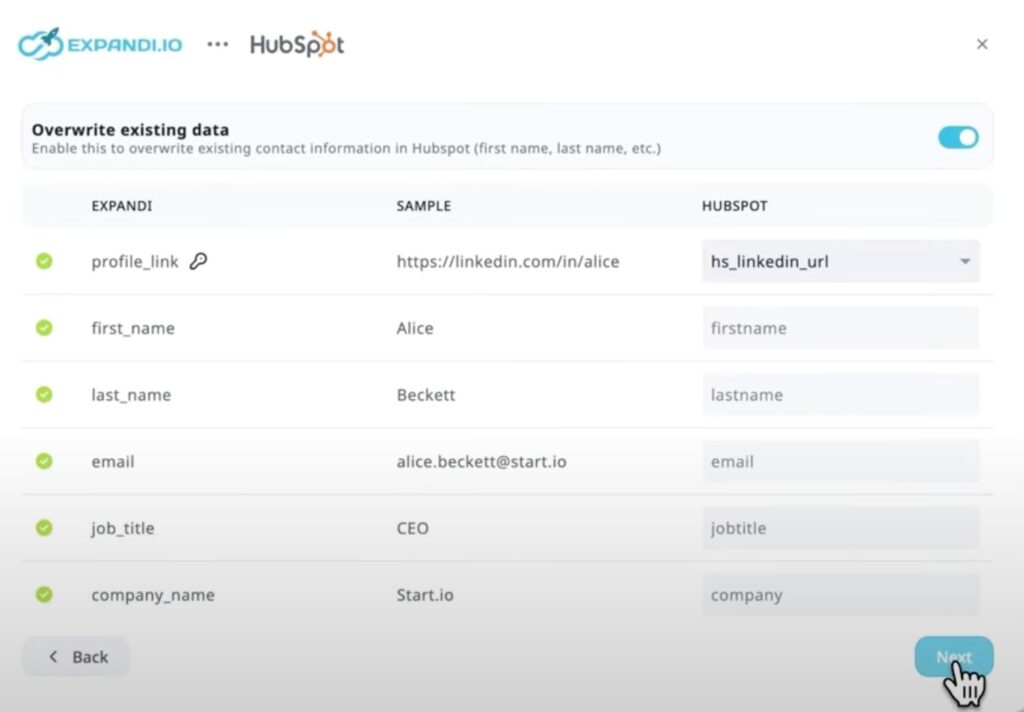
- And done, your leads will now sync into HubSpot automatically!
If you don’t want to rely on triggers, you can also send contacts manually:
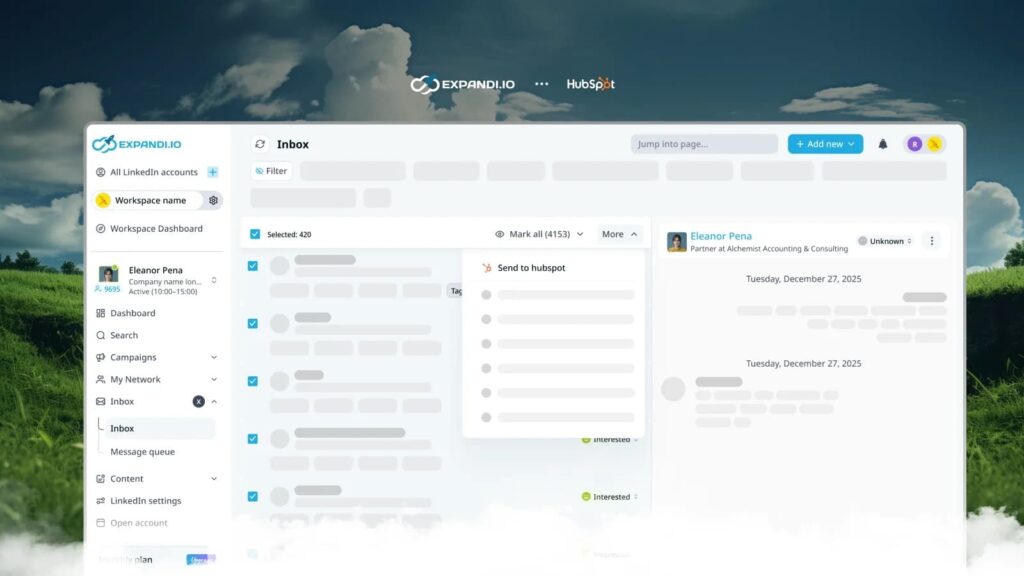
- Go to Inbox.
- Click on the HubSpot icon. Or send to HubSpot for a single lead.
- Or bulk-select multiple leads → click More → send them together.
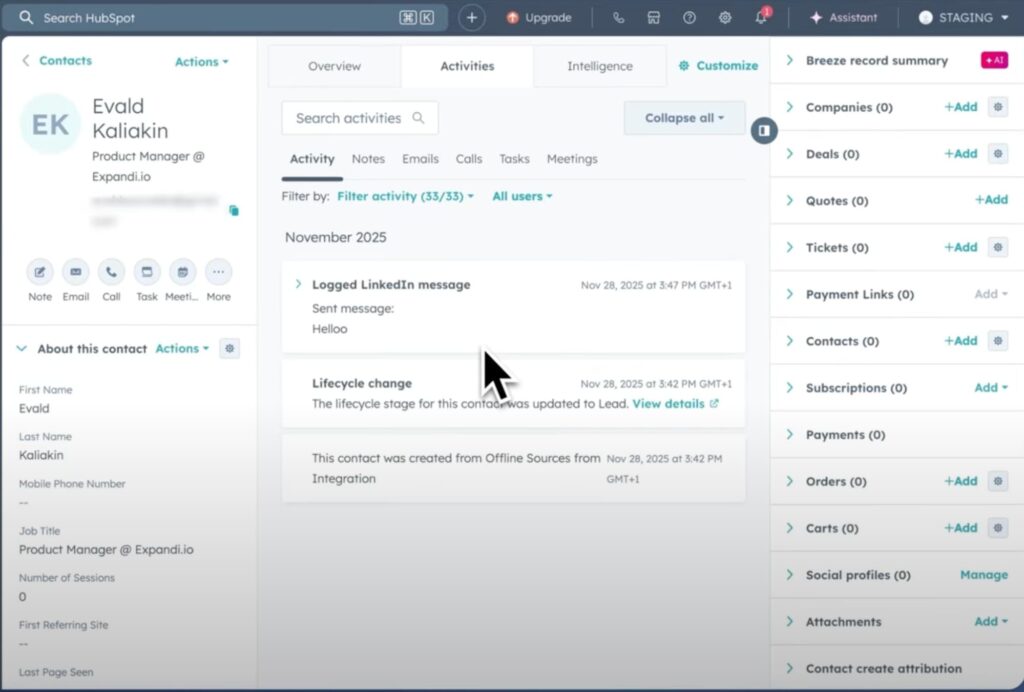
From the HubSpot side, you’ll instantly see the new contact record in the CRM with all the synced details, including:
- First name.
- Last name.
- Email.
- Job title.
- LinkedIn profile URL.
- Full interaction timeline.
- And more.
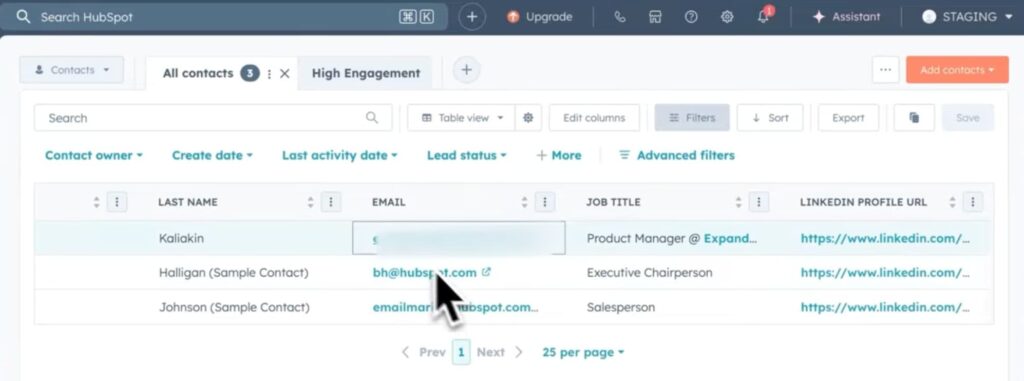
Then, to see the lead interaction timeline, click on the lead name and select View Record. Which looks like this:
Expandi HubSpot Integration: Who it’s for & how it helps
This Expandi HubSpot integration ensures sales teams never lose LinkedIn context when a lead enters the CRM.
It’s a strong fit if you’re:
- SDR teams are generating conversations on LinkedIn and handing qualified leads to AEs.
- Sales-led teams that live inside HubSpot and need full context before first contact.
- Agencies managing LinkedIn outreach for clients and pushing only engaged leads into CRM.
- RevOps or sales managers who want clean pipelines without manual data entry.
In all of these cases, the goal is the same. Turn LinkedIn conversations into CRM-ready leads with context, not just contact records.
Here’s how this works in practice.
Once HubSpot is connected, Expandi becomes the front end of your pipeline. LinkedIn outreach happens in Expandi, and HubSpot becomes the system where qualified intent is captured and acted on.
A typical flow might look something like this:
- An SDR runs LinkedIn outreach from Expandi.
- A prospect accepts a connection, replies, or shows buying signals.
- Based on your rules (reply, sentiment, manual action), Expandi sends the lead to HubSpot.
- A new contact is created in HubSpot with full LinkedIn context attached.
- Sales opens the contact and immediately sees the entire interaction history.
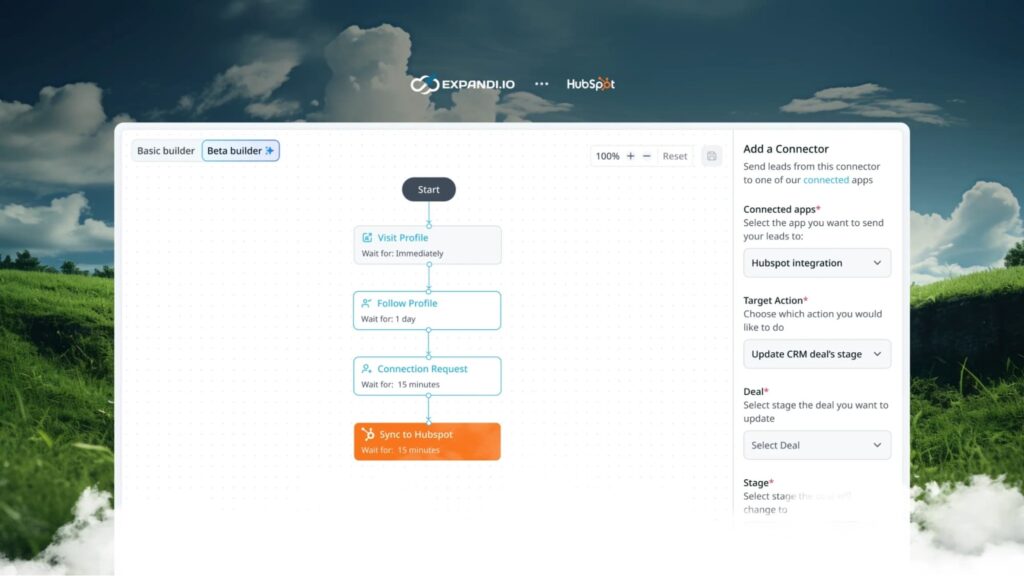
Instead of a cold CRM record, HubSpot shows:
- When the connection request was sent and accepted.
- What messages were sent.
- How the prospect replied.
- Ongoing LinkedIn interactions synced over time.
This means sales teams don’t have to jump back into LinkedIn to piece things together as the CRM already tells the whole story.
The result is faster follow-ups, cleaner pipelines, and fewer leads falling through the cracks. LinkedIn stops being a side channel and becomes a true top-of-funnel input to HubSpot, with context intact.
How to Integrate Expandi with Pipedrive: Step-by-step guide (For 2026)
The Expandi Pipedrive integration is built for deal-driven teams that need LinkedIn outreach reflected directly inside their pipeline, without manual exports or copy-pasting.
Once connected, Expandi can sync contacts automatically based on lead activity (replies, accepted connections, sentiment, etc.) or you can send them manually in one click. As soon as a lead is inside Pipedrive, Expandi keeps syncing LinkedIn actions to the lead’s timeline so sales has the full conversation history.
Note: Admin access to Pipedrive is required to link Expandi to Pipedrive.
Now, here’s how to integrate Expandi with Pipedrive:
- Log in to your Expandi account.
- Go to your Workspace.
- Click Integrations.
- Find the Pipedrive integration section and click Connect.
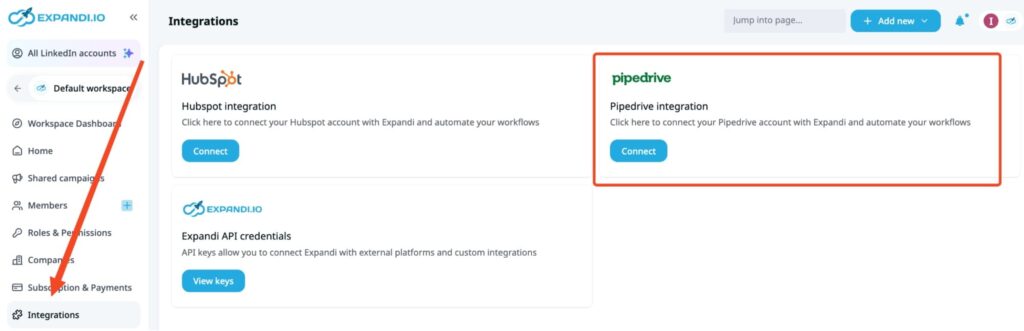
- Choose the Company or Companies you want to link to Pipedrive.
- A Pipedrive authentication window will open. Log in and grant Expandi access.
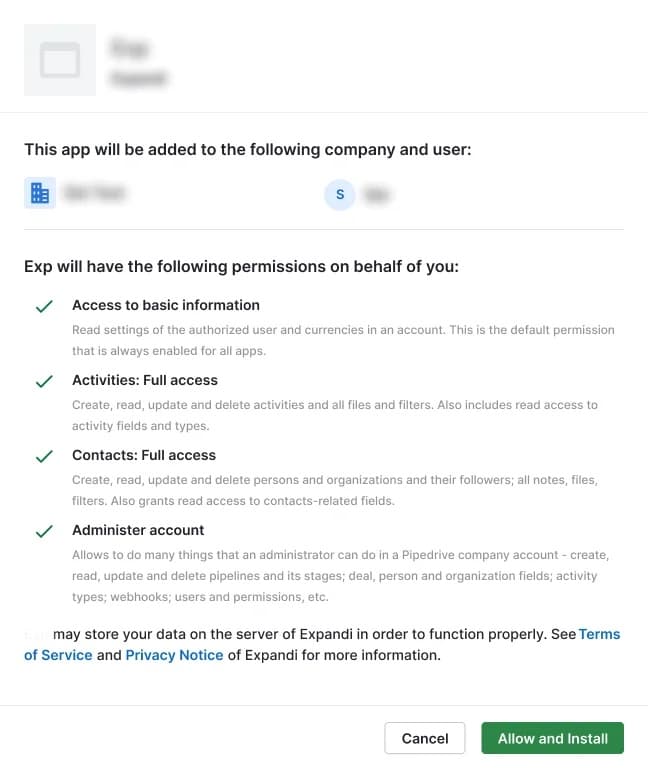
- Click Allow and Install, then confirm the Company/Companies you want connected.
- Configure when contacts should first be sent to Pipedrive based on lead activity
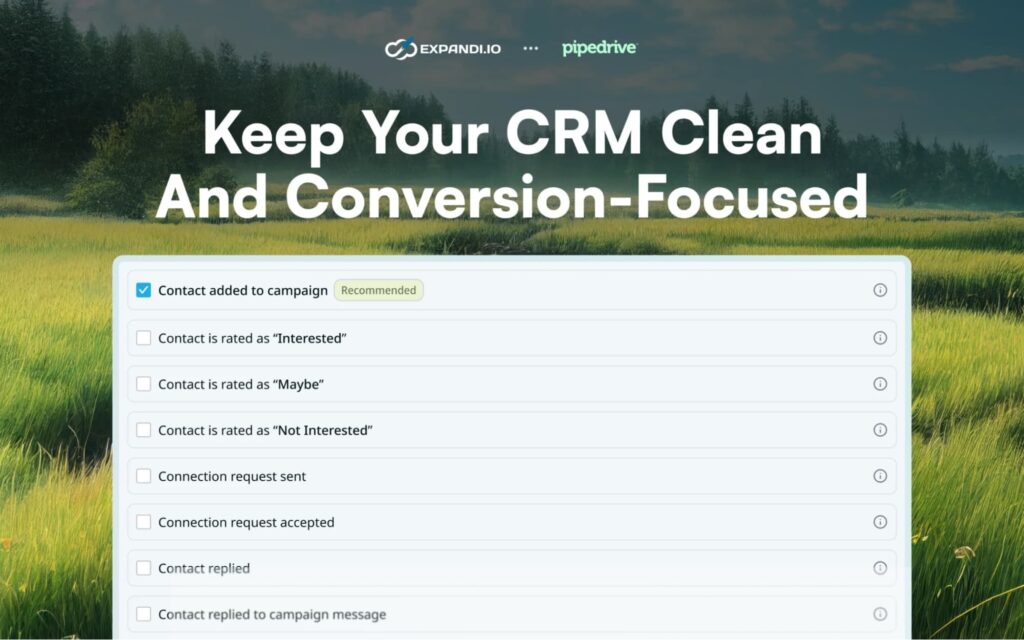
- Review and confirm how your contact information will sync using Field Mapping.
- Here, you map Expandi fields (name, title, LinkedIn URL, etc.) to the correct Pipedrive fields.
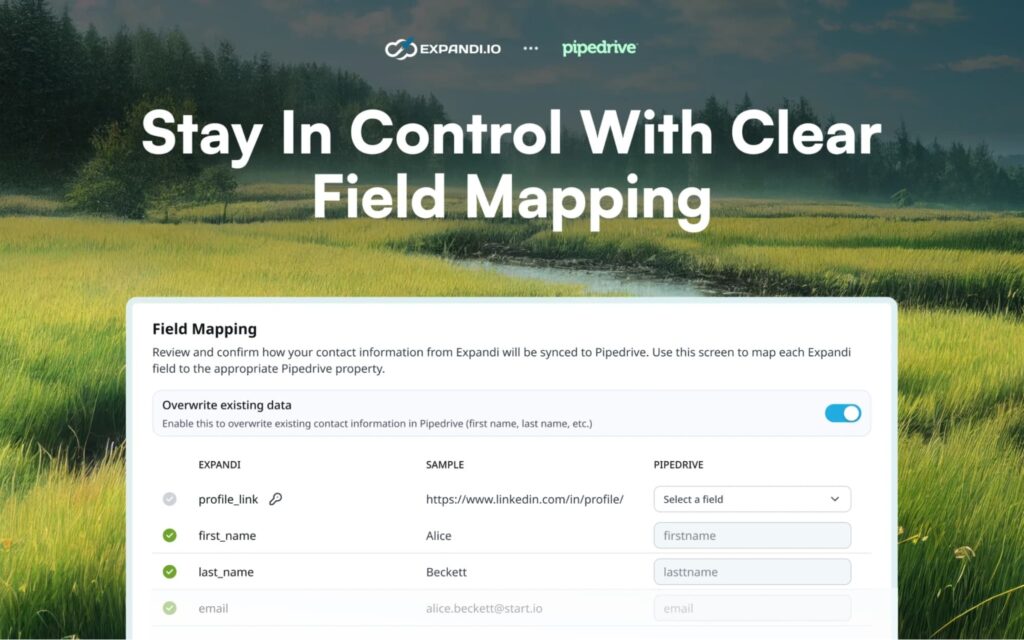
And done. Your leads will now sync into Pipedrive automatically.
If you don’t want to rely on triggers, you can also send contacts manually from Expandi:
- Go to Inbox
- Use Send to Pipedrive for a single lead
- Or bulk-select multiple leads → click More → send them together
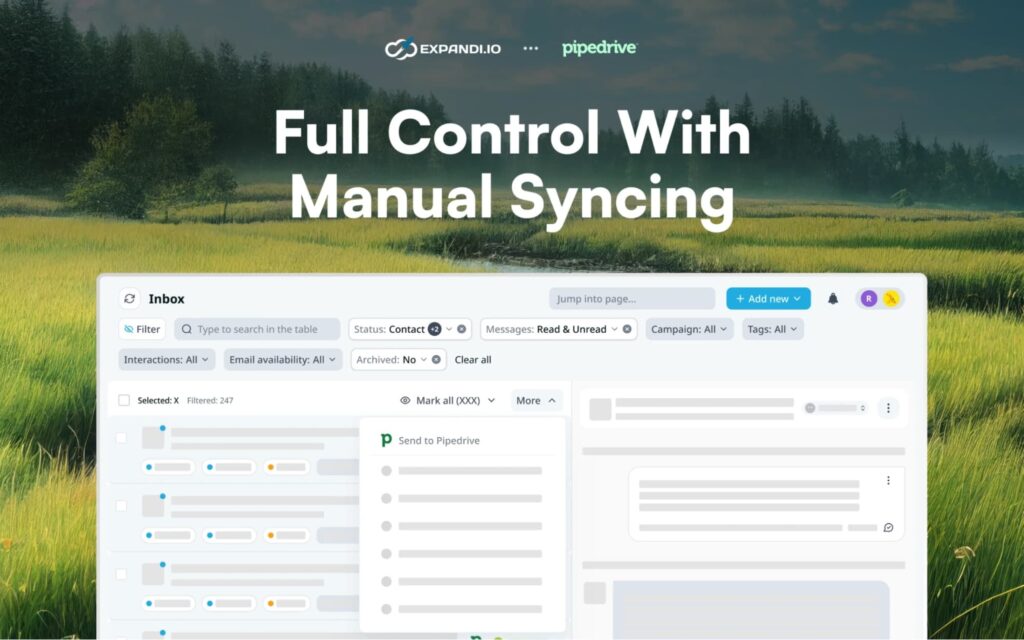
Once sent, you’ll see the contact in Pipedrive with synced details (like name, title, LinkedIn URL), plus the LinkedIn interaction history logged to their timeline.
Expandi Pipedrive integration – who it’s for & how it works
The Expandi-Pipedrive integration is best for teams that run outbound like a pipeline motion, instead of a regular marketing lifecycle.
It’s best suited for:
- Sales-led teams that live in deal stages and move fast.
- Deal-driven pipelines where speed and context directly impact conversion.
- Agencies using Pipedrive to manage client pipelines and demonstrate lead quality.
- Teams that want the full picture of LinkedIn engagement inside their CRM.
If your reps prioritize leads based on deal readiness and expect LinkedIn outreach to feed directly into pipeline activity, this integration fits naturally into that workflow.
Most tools stop at “create contact.” Expandi goes further.
Once a lead is synced, Expandi logs LinkedIn activity directly into the lead’s Pipedrive timeline.
This includes:
- Connection requests sent and accepted.
- Messages sent from Expandi.
- Prospect replies with full thread context.
- Ongoing LinkedIn interactions as they happen, and more.
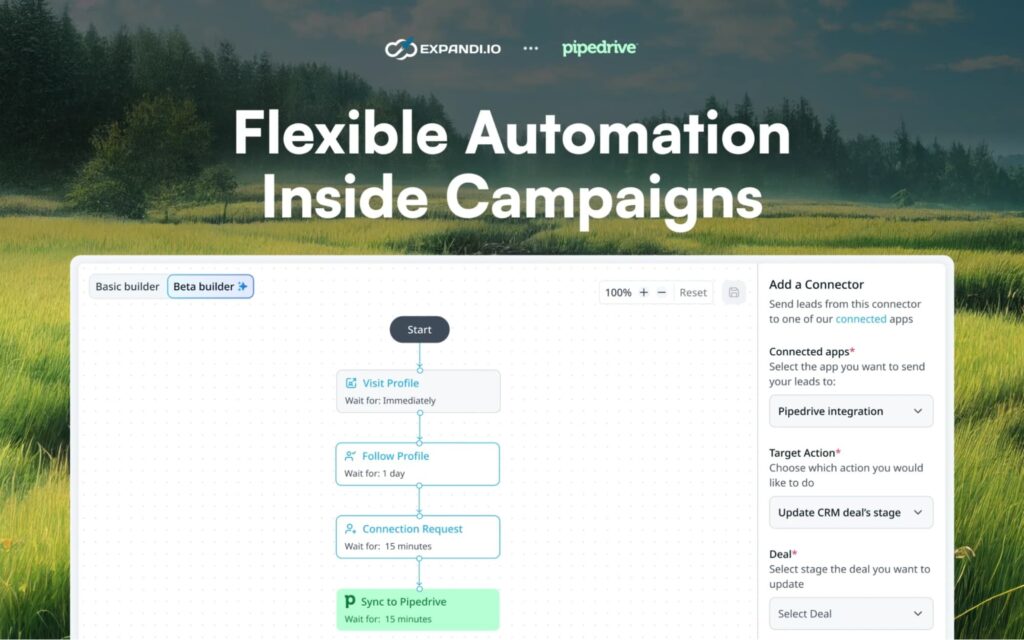
This turns LinkedIn outreach into deal context as reps can open Pipedrive and see the full relationship history immediately.
Then, follow-ups become faster, cleaner, and far less awkward, which is exactly how a sales CRM should work.
How to Integrate Expandi with Salesforce: Step-by-Step Guide (For 2026)
Expandi’s Salesforce integration lets you sync qualified LinkedIn leads and their full engagement history directly into Salesforce (automatically or manually) without breaking your existing sales workflow.
Once connected, Salesforce becomes the system of record for LinkedIn outreach, with every interaction logged as native CRM activity.
As with other CRMs covered above, Salesforce integration is configured at the company level in Expandi. Only the workspace owner can set it up or manage settings.
Step-by-step setup:
- Log in to your Expandi account and open the Workspace where your company is set up.
- Go to Integrations in the workspace menu.
- Find Salesforce and click Connect.
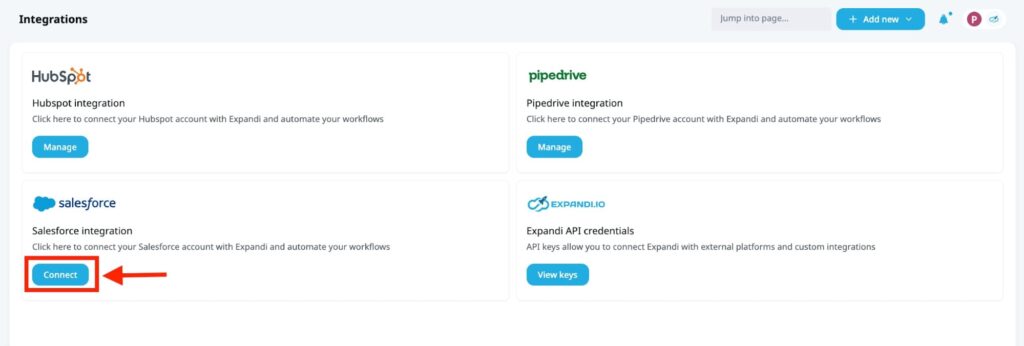
- Select the company that contains the LinkedIn accounts you want to connect.
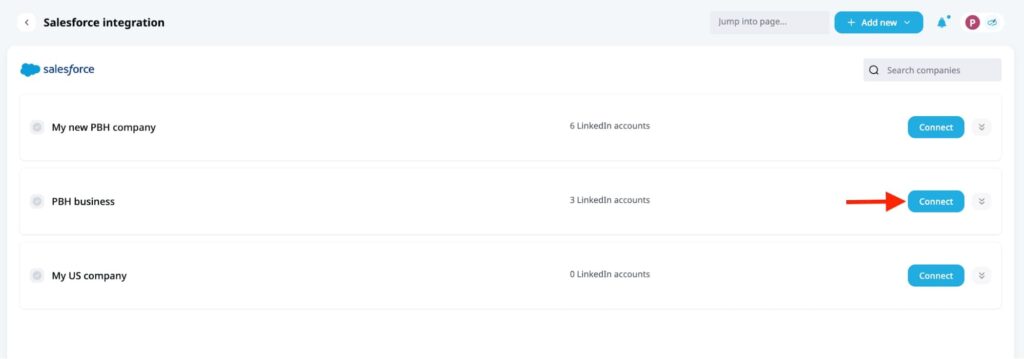
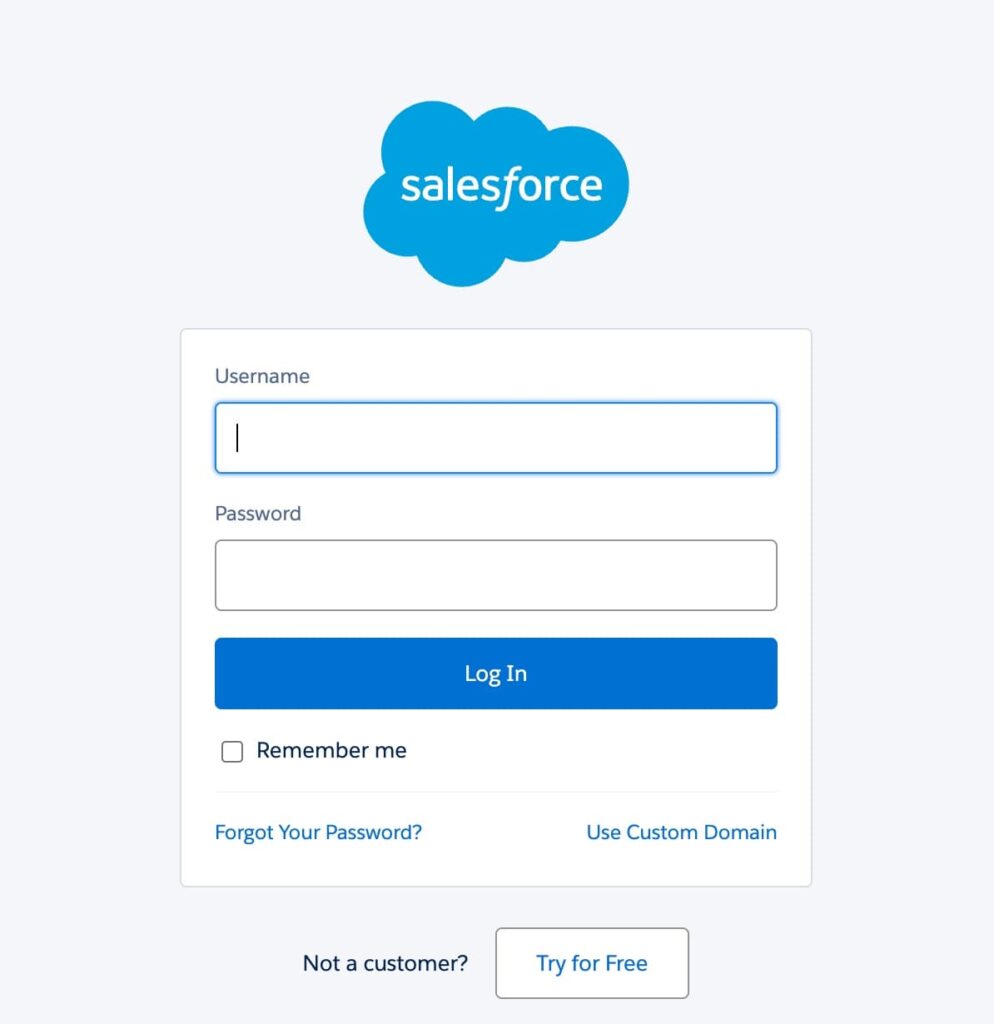
- A Salesforce authentication window will open.
- Log in to Salesforce and grant Expandi the required access.
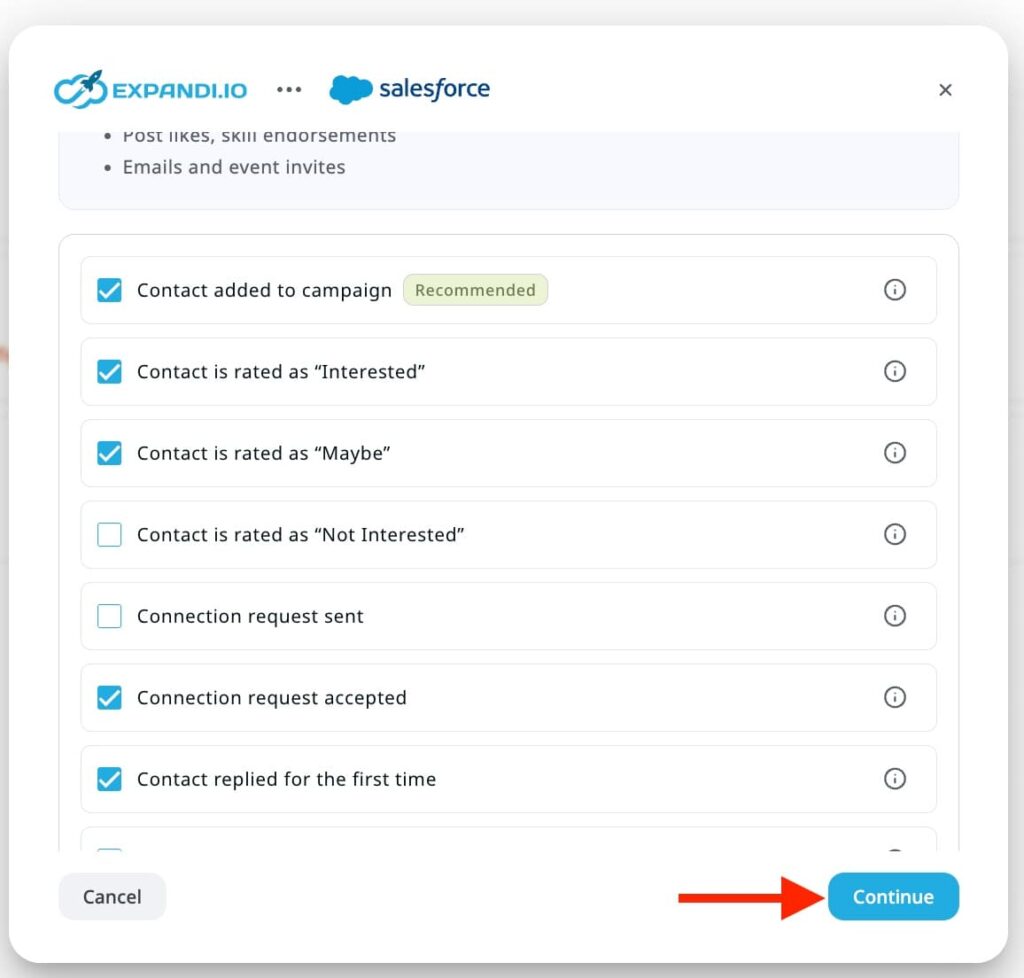
- Choose which Expandi actions should trigger automatic syncing to Salesforce. Examples include:
- Connection request sent or accepted.
- Message sent or received.
- Profile visit.
- Interest level updates (Interested, Maybe, Not Interested).
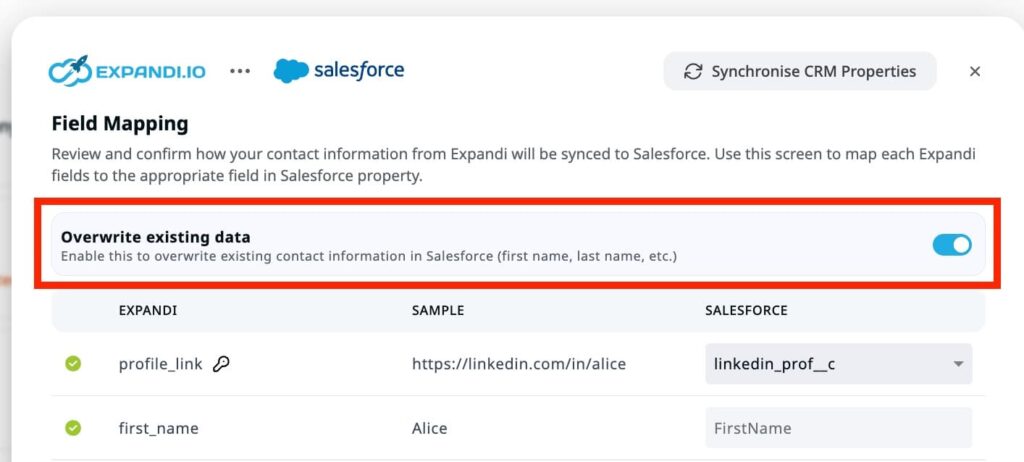
- Review field mapping to confirm how Expandi contact data syncs into Salesforce.
- Make sure the LinkedIn profile link field is mapped correctly to prevent duplicates.
You can also enable or disable the Overwrite existing data toggle depending on how you want Salesforce records updated.
Finally, review the setup summary and click Complete setup.
Once finished, Salesforce will show as connected, and syncing will begin based on your selected rules.
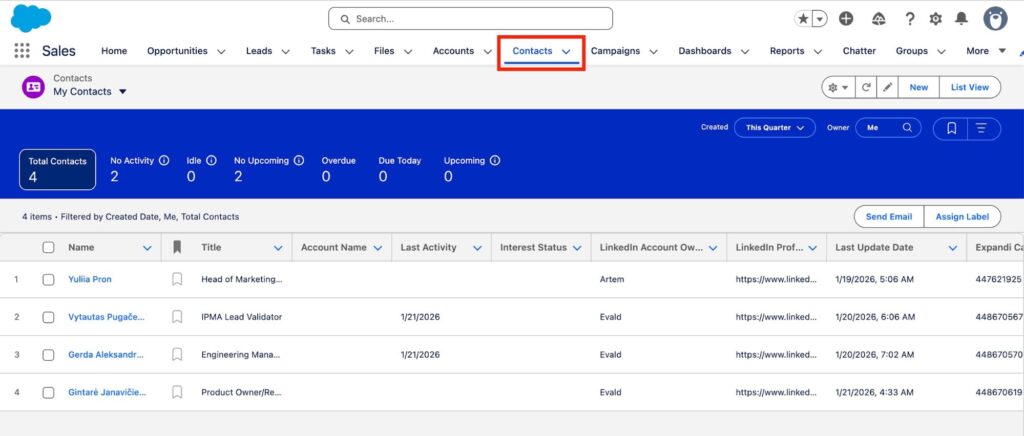
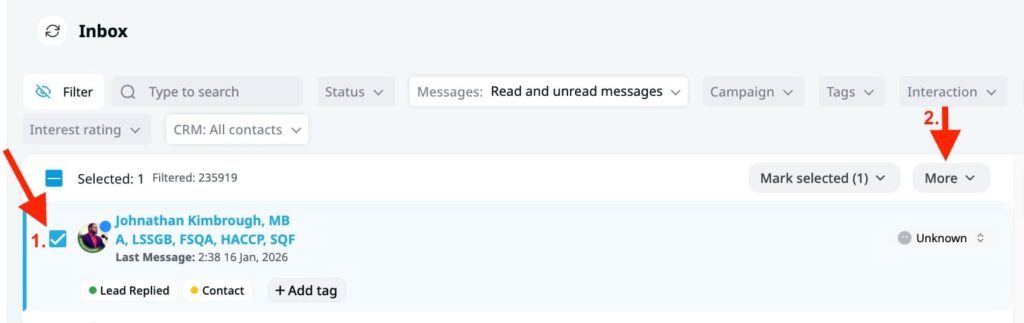
If you prefer more control, you can also send leads manually:
- Go to Inbox or the campaign People tab.
- Select a lead.
- Click More → Send to Salesforce.
Once a lead is synced, all future LinkedIn activity for that contact will continue syncing automatically.
Expandi Salesforce integration – who it’s for & how it works
The Salesforce integration is designed for teams where CRM hygiene, deal context, and qualification logic matter.
This integration is a strong fit for:
- Sales-led and enterprise teams using Salesforce as their single source of truth.
- SDR organizations that qualify leads before handing them to account executives.
- Teams using sentiment or interest scoring to control pipeline quality.
- Sales ops-driven teams that need overwrite control and structured activity logs.
If Salesforce is where deals are reviewed, prioritized, and forecasted, this integration ensures LinkedIn activity actually supports that process.
Most tools stop once a contact is created in Salesforce.
Expandi goes further by continuously syncing LinkedIn activity as Salesforce tasks, giving sales full context without leaving the CRM.
Once a lead is synced, Salesforce can show:
- Connection requests sent and accepted.
- Messages sent and received (with thread context).
- Profile and company follows.
- Profile visits.
- Post likes and skill endorsements.
- Emails sent from Expandi.
- And more.
All of this appears directly in the Contact activity timeline inside Salesforce.
Expandi can also sync leads automatically based on interest level.
When sentiment analysis is enabled, Expandi classifies replies as:
- Interested.
- Maybe.
- Not interested.
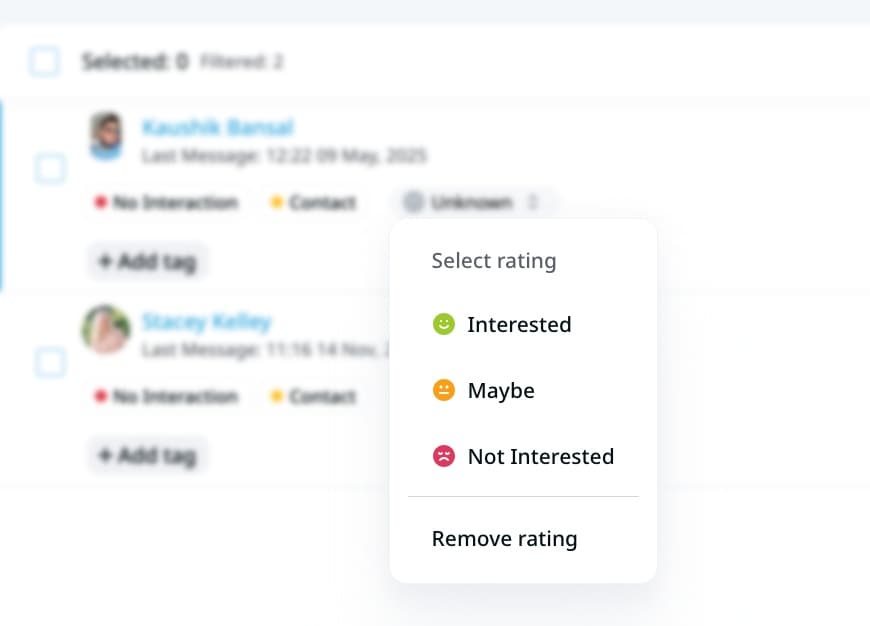
If a lead matches your selected criteria, it’s automatically sent to Salesforce, no manual tagging required.
This keeps your CRM clean and focused on sales-ready contacts, while lower-intent conversations stay out of the pipeline.
For a more detailed overview, see our full guide on Expandi Salesforce integration.
How Expandi CRM Integration Syncs Work (From LinkedIn Lead to Closed Deal)
This section shows how Expandi CRM integration connects LinkedIn outreach to HubSpot, Pipedrive, or Salesforce from first touch to active deal, with real examples.
At this point, you’ve seen how Expandi connects to HubSpot, Pipedrive, and Salesforce individually. Let’s zoom out a little.
Expandi is the layer that turns LinkedIn conversations into pipeline, regardless of which CRM you use. Under the hood, the workflow is still the same every time. Only the destination changes.
Here’s what the full journey might look like in practice:
- Prospect is identified on LinkedIn.
An SDR or growth team builds a targeted LinkedIn list based on role, company, seniority, or intent.
- Outreach is launched in Expandi.
Connection requests and follow-ups are sent from Expandi, not manually from LinkedIn.
- Engagement happens.
The prospect accepts the connection, replies to a message, clicks through, or shows buying signals. This is where intent starts forming.
- Qualification moment
Based on your setup, one of two things happens:
- A trigger fires automatically (reply, accepted connection, sentiment = interested).
- Or a human decides this lead is worth pushing to sales.
- Lead is synced to the CRM.
The contact lands in HubSpot, Pipedrive, or Salesforce with full LinkedIn context and not as a blank record.
- Activity timeline is already populated.
Sales sees:
- When the connection was sent and accepted.
- What messages were sent.
- How the prospect replied.
- Any ongoing LinkedIn interactions.
- Sales follows up with context.
No “warm intro” guesswork, Slack handoffs, or screenshots are needed.
The rep knows exactly where the conversation left off.
- Deal progresses inside the CRM
LinkedIn becomes a funnel channel feeding pipeline.
That’s the full loop, from first LinkedIn touch to active deal, without breaking context or switching between different tools.
Automatic vs manual sync – when to use each
As covered above, Expandi supports both automatic and manual CRM sync for a reason. Each serves a different operating model. This flexibility is what makes Expandi integrations adaptable across SDR teams, agencies, and enterprise sales workflows alike.
Automatic sync makes sense when:
- You run high-volume LinkedIn outreach (SDRs, agencies, outbound teams).
- You want only engaged leads entering the CRM.
- You use clear triggers like replies, accepted connections, or sentiment scoring.
- Speed matters more than manual review.
Manual sync can be better if:
- You run enterprise or high-ticket sales.
- AEs want tight control over what enters the CRM.
- Each lead is reviewed before handoff.
- LinkedIn is used more selectively, not at scale.
Here, Expandi still captures all LinkedIn activity, but a human decides when a lead is CRM-ready.
Both approaches preserve the same thing that actually matters: full activity context.
The difference is when the lead is pushed, not what sales sees.
That flexibility is what allows Expandi to work across SDR teams, agencies, and enterprise sales orgs without forcing one workflow.
Expandi CRM Integrations: FAQ
Yes. Expandi’s HubSpot integration is native, not a Zapier workaround.
With the Expandi HubSpot integration, you can automatically or manually sync LinkedIn leads into HubSpot along with full activity history – including connection requests, messages, replies, and ongoing LinkedIn interactions. This gives sales teams full context directly inside HubSpot before any follow-up happens.
In 2026, the Expandi HubSpot integration works by syncing both contacts and LinkedIn activity based on rules you control.
You can choose to:
• Automatically send leads when they reply, accept a connection, or show interest.
• Manually push selected leads into HubSpot.
• Map Expandi fields to HubSpot properties to keep data clean.
Once a lead is synced, all future LinkedIn interactions continue updating the HubSpot contact timeline automatically.
Yes. Expandi offers a native Pipedrive integration designed for sales-led and deal-driven teams.
The Expandi Pipedrive integration pushes qualified LinkedIn leads into your pipeline and logs LinkedIn activity directly to the contact’s timeline. This allows reps to see the full relationship history inside Pipedrive without switching tools or asking for context.
Most LinkedIn automation tools only sync basic contact data.
Expandi integrations go further by syncing every LinkedIn touchpoint into your CRM, including:
• Connection requests and acceptances.
• Messages sent and received.
• Replies and engagement context.
• Ongoing LinkedIn actions over time.
This makes Expandi one of the few LinkedIn automation platforms that supports pipeline-first workflows, not just lead capture.
Yes, Expandi integrations are built specifically for lead generation teams running outbound on LinkedIn.
They’re especially useful for:
• SDR teams handing off qualified leads to sales.
• Agencies managing LinkedIn outreach for clients.
• Sales-led teams that need context before first contact.
• Teams that want LinkedIn activity to feed directly into CRM pipelines.
By connecting LinkedIn outreach to HubSpot, Pipedrive, or Salesforce, Expandi removes manual handoffs and keeps lead generation and sales fully aligned.
Turning LinkedIn Outreach Into Real Pipeline
LinkedIn outreach only creates value when it translates into pipeline.
Without CRM integration, conversations stay trapped in inboxes, context gets lost, and sales teams are forced to work with partial information. That’s where most LinkedIn workflows break.
Expandi’s native CRM integrations solve that problem by connecting LinkedIn outreach directly to HubSpot, Pipedrive, and Salesforce, with full activity context preserved. Every connection request, reply, message, and interaction shows up where sales teams already work, so follow-ups are faster, cleaner, and far more effective.
Instead of treating LinkedIn as a side channel, Expandi turns it into a true funnel engine that feeds your CRM with qualified, sales-ready leads.
With Expandi CRM integration, LinkedIn outreach becomes a measurable pipeline channel inside HubSpot, Pipedrive, and Salesforce.
Ready to connect LinkedIn outreach to your CRM?
If you’re already using Expandi, you can enable CRM integrations in just a few clicks and start syncing qualified leads immediately.
And if you’re evaluating tools to power LinkedIn outreach end-to-end, from first message to closed deal, Expandi gives you the missing link between engagement and revenue.
Now, if you haven’t done so yet, claim your free, 14-day Expandi trial. Or talk to an expert here.






You’ve made it all the way down here, take the final step