Switching LinkedIn Automation Tools? Expandi Migration Guide [2026]


Most teams that switch LinkedIn automation tools do it wrong — they run both at once, get flagged, and blame the migration. That friction keeps a lot of teams stuck on tools they’ve outgrown.
The reality is simpler.
Your connected contacts live on LinkedIn, not inside any automation tool. Every major platform lets you export your lead data as a CSV. And if you follow a structured migration path: export first, disable the old tool cleanly, warm up before scaling — the switch takes one to three days.
To put this guide together, we teamed up with our Product Marketing Manager and our Technical AE & GTM Engineer at Expandi. It covers the exact migration process we’ve seen work across teams switching from Waalaxy, Buzz.ai, Linked Helper, HeyReach, Apollo, and CoPilot AI to Expandi.
We also spoke with three power users who’ve done this recently:
- Angel Andreu, who migrated 40 accounts from Waalaxy.
- David Kadish, who switched from Buzz.ai after pricing doubled.
- Kaito, who needed more control over daily limits than CoPilot AI allowed
Each tool has a specific failure mode that triggers the move, and each requires a slightly different export process. We’ll cover both.
Key Takeaways
- Switching LinkedIn automation tools doesn’t require downtime if you export lead data first, disable the old tool completely, and start Expandi at low volume for the first week.
- The most common migration triggers are tool-specific: Buzz.ai’s pricing spikes, Linked Helper’s browser instability at scale, Waalaxy’s lack of a centralized inbox, and Apollo pulling LinkedIn automation from its platform.
- Never run two LinkedIn automation tools simultaneously — LinkedIn detects the activity spike and flags your account.
- Most teams complete the full migration in one to three days. Only the warm-up period takes patience.
- Expandi lets you migrate and scale outreach without account disruptions: campaigns run 24/7 from a dedicated IP, with built-in warm-up that protects your LinkedIn account during the switch.
Switching LinkedIn Automation Tools? Expandi Migration Guide [2026]


What you gain in Expandi vs. each specific tool
Here’s a side-by-side breakdown of what changes when you switch.
| Coming from | Main pain point | What changes with Expandi |
|---|---|---|
| Buzz.ai | Surprise billing, price hikes, 31-day cancellation notice | Flat $99/seat/month, every feature included, no billing surprises |
| LinkedIn Helper | Campaigns stop when your computer does | Cloud-based, runs 24/7 from a dedicated IP per account |
| Waalaxy | Inbox management costs extra, can’t respond across accounts | Global inbox included: all LinkedIn conversations, all accounts, one view |
| Apollo | LinkedIn automation discontinued in January 2026 | Full LinkedIn automation and native scraping from Sales Nav, groups, and post engagers — works alongside your lead source or on its own |
| CoPilot AI | No control over daily pacing or warm-up schedule | Full control over daily limits, warm-up curve, and campaign volume |
Below is the full breakdown — what specifically goes wrong with each tool, the step-by-step migration process, and what to watch out for during the switch
Why people switch LinkedIn automation tools
Every tool switch starts with a specific breaking point. Here’s what we hear most often from teams migrating to Expandi — backed by G2 reviews and the real migration conversations we’ve had.
From Buzz.ai — pricing doubled overnight
Buzz.ai’s current pricing starts at $225/month for three seats on the Team Starter plan and jumps to $450/month on Team Accelerate — both billed annually. But the real issue isn’t the sticker price. Multiple G2 reviewers report unexpected billing charges and aggressive auto-renewal policies that catch teams off guard. One reviewer described escalating a cancellation request to the Head of Customer Service and still receiving an invoice.
A verified G2 user wrote in 2024: “The price just kept increasing from $99/month to $125/month…”. Buzz.ai has since moved to a team-based model starting at $225/month for three seats, billed annually.
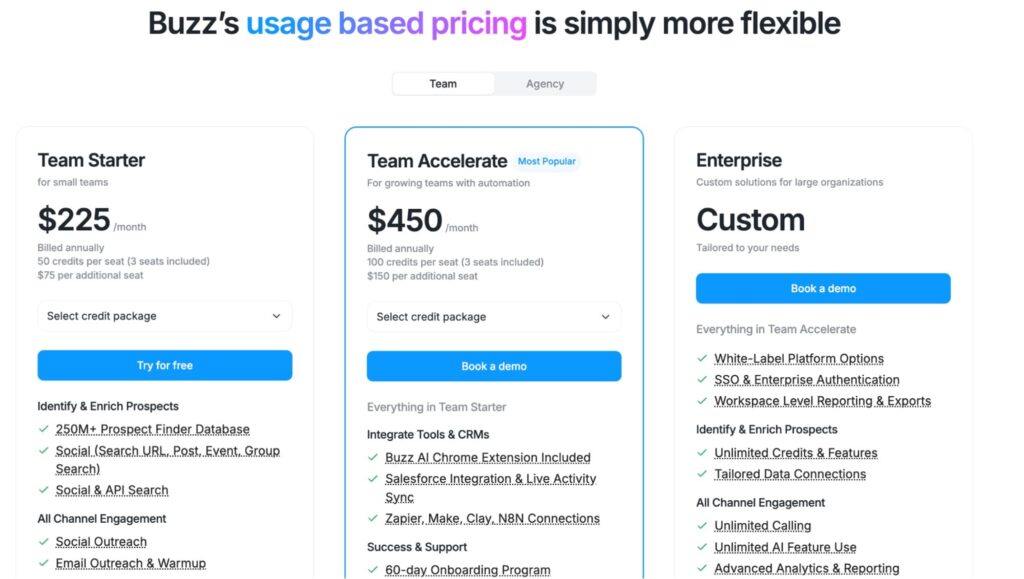
We spoke with David Kadish, who switched to Expandi after Buzz.ai’s pricing doubled with minimal notice. According to David, the value proposition no longer held up. Expandi’s flat $99/seat/month pricing gives every user every feature at one price, with predictable billing and no surprise charges.
See how Expandi compares to Buzz.AI in detail here.
From Linked Helper — browser crashes at scale
Linked Helper is a desktop-based tool. Your computer has to stay on for LinkedIn campaigns to run, and the software runs as a browser extension that processes actions locally. For individual users this might work, but for teams managing more than a handful of accounts, it falls apart at scale.
A G2 reviewer describes the tool as “really heavy” and reports that it “sometimes makes my computer stop and crash.” The desktop architecture means every account consumes local system resources: CPU, memory, and browser tabs. Other verified reviews note that Linked Helper causes their computers to slow down, as it’s a huge software you run locally.
We spoke with Dmytro Lovin, who hit exactly this ceiling. At 15-20 accounts, things were slowing down. Past 25, the crashes became regular — and when a desktop tool crashes mid-campaign, he’d lose whatever was in progress. According to Dmytro, the browser-based architecture made scaling past a handful of accounts unsustainable.
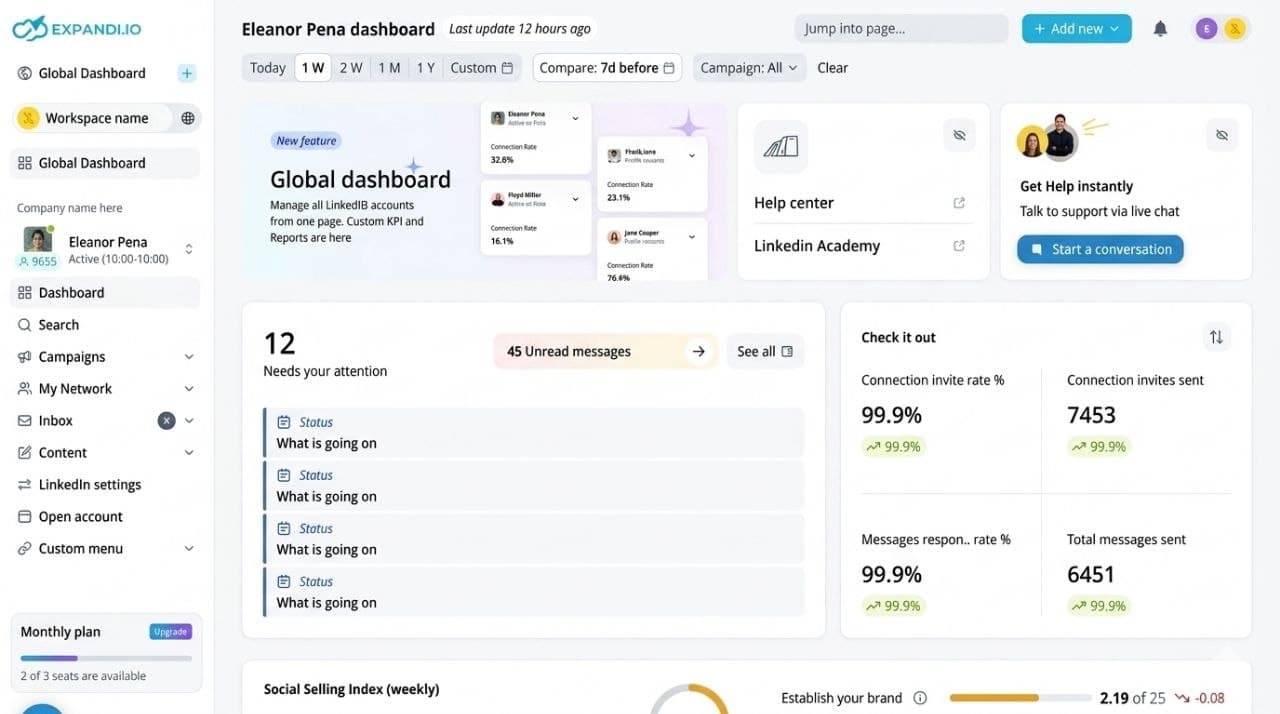
Expandi runs in the cloud. Campaigns execute 24/7 from a dedicated country-based IP per account, with no machine left running overnight. Whether you’re managing five accounts or fifty, performance stays consistent through Expandi’s workspace system
See how Expandi compares to Linked Helper in detail here.
From Waalaxy — no centralized inbox
Waalaxy’s pricing looks attractive on paper — plans start at $19/month per user.
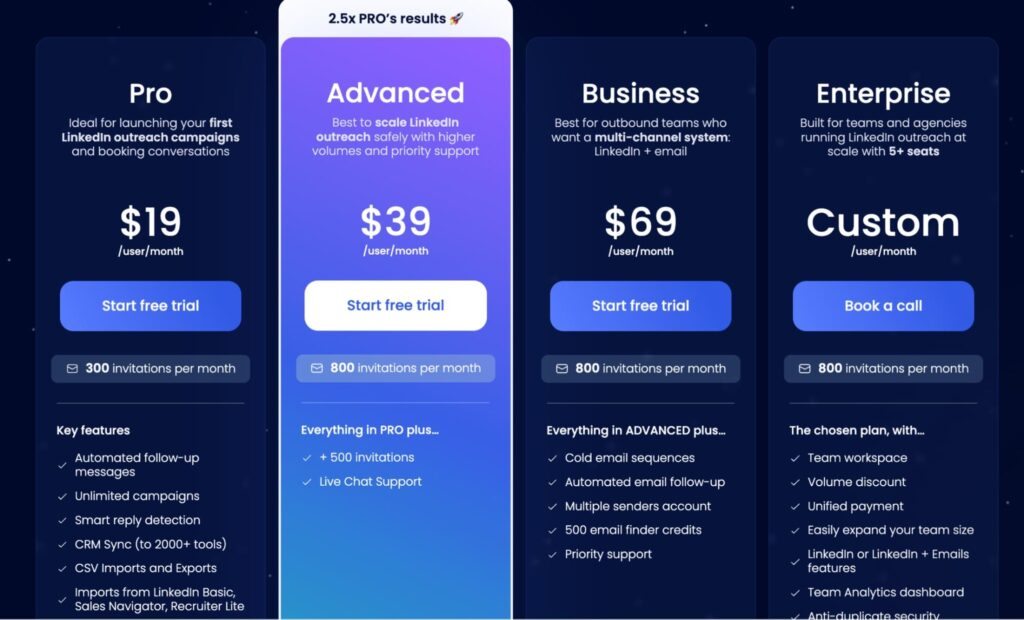
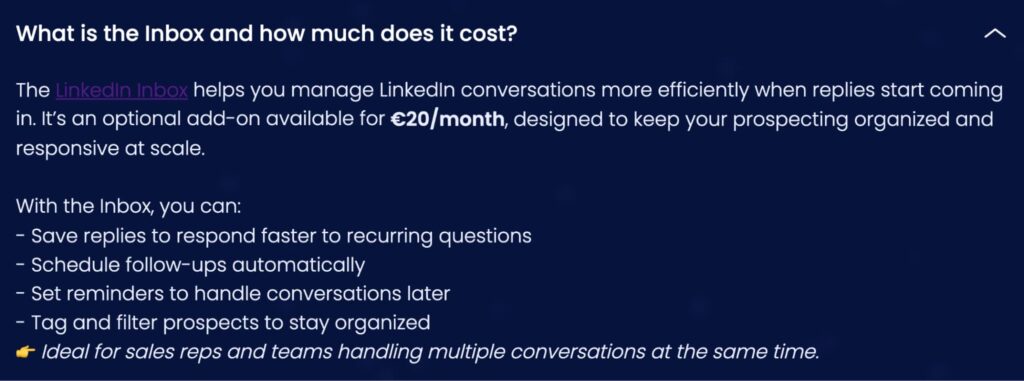
But teams managing multiple LinkedIn accounts hit a wall fast: there’s no centralized inbox included in the base plans. Inbox management costs an extra €20/month (~$23/mo), and even with it, you can’t respond on behalf of team members.
For agencies and sales teams running outreach across five, ten, or twenty accounts, inbox fragmentation is where deals get lost. A reply comes in on account 7 while your team is focused on accounts 1 through 5. By the time someone checks, the conversation has gone cold.
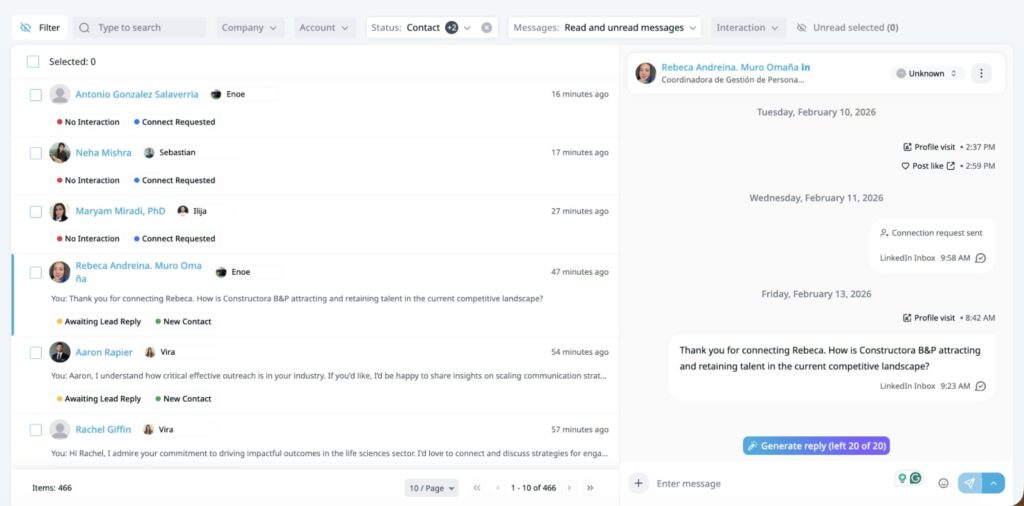
Angel Andreu migrated 40 accounts from Waalaxy to Expandi specifically because of this. Expandi’s global inbox pulls all LinkedIn conversations across every connected account into one view, included in the base plan. That’s one place to see every reply, across every account, managed by anyone on the team.
See how Expandi compares to Waalaxy in detail here.
From Apollo — LinkedIn automation discontinued
Apollo built a strong reputation as a sales intelligence platform with a massive contact database. But in January 2026, Apollo removed all automated LinkedIn actions from its platform. Connection requests, messages, profile views — everything now requires manual execution and manual logging back into Apollo. For teams running multichannel sequences, this broke the workflow overnight.
We spoke with Juan Trujillo, who dropped Apollo when LinkedIn automation was pulled and active sequences were left with no migration path. Starting from scratch mid-campaign meant rebuilding sequences, re-importing leads, and losing whatever momentum had been built.
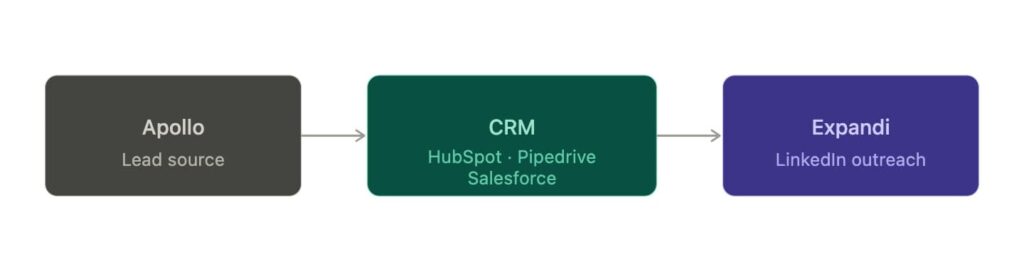
If LinkedIn automation was the main reason you were on Apollo, or you’re looking to replace it now that Apollo no longer offers it — Expandi is the dedicated tool for that job. And if you want to keep Apollo in your stack as a lead source, the two work together: pull your prospects from Apollo, push them into your CRM, and run LinkedIn outreach through Expandi from there.
From CoPilot AI — limited control over daily activity
CoPilot AI positions itself as an AI-powered LinkedIn outreach tool, with pricing starting at $149/month per user on the Core plan (billed monthly) — and it requires a separate LinkedIn Sales Navigator subscription on top of that, adding another $99/month per user.
The friction point is limited control over outreach volume and daily activity settings. CoPilot handles outreach end-to-end through its AI agents. But that means users give up granular control over daily pacing, warm-up schedules, and volume adjustments when engagement is high.
We spoke with Kaito, who switched from CoPilot AI to Expandi because of the limited control over daily activity and warm-up pacing. With Expandi, you set the pace yourself.
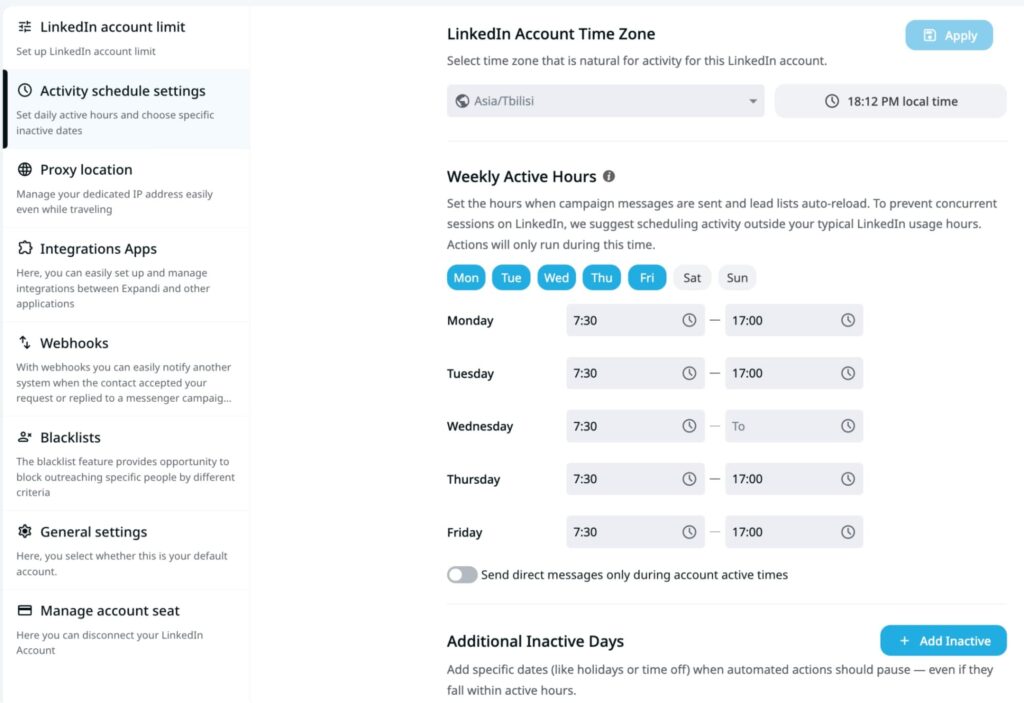
New accounts warm up gradually, starting at a conservative daily action count and increasing over time as the account builds a natural activity pattern. Once warmed up, you control exactly how many connection requests, messages, and profile visits run each day — and you can adjust that number any time based on how a campaign is performing. If a sequence is converting well, push volume. If an account needs to stay under the radar, pull it back. That kind of control doesn’t exist in CoPilot’s model.
See how Expandi compares to CoPilot AI in detail here.
What to export before you switch LinkedIn automation tools
Before touching Expandi, get your data out of the current tool. Here’s what’s portable and what isn’t.
What you can export:
- Lead lists: every major tool supports CSV export. Export all active lead lists, segmented by campaign if possible.
- Campaign contact state: who’s been messaged, at what step, and whether they replied. This is critical for avoiding duplicate outreach.
- Message templates and sequences: copy the text of your best-performing sequences. You’ll rebuild them in Expandi’s builder campaign, which supports 19 actions and 11 conditions for if-then logic.
What stays behind (and why it doesn’t matter):
- Connected contacts: these live on LinkedIn. Once someone accepts your connection request, that relationship exists on the platform regardless of which automation tool you use. You can always check your new connections on LinkedIn under My Network -> Connections -> Sort by recently added.
- LinkedIn conversation history: same story. Your inbox is tied to your LinkedIn account, not the tool.
- Analytics from the old tool: export any reports you need before canceling. Historical data won’t transfer, but your lead data does.
The migration checklist
Follow these steps in order. Skipping ahead, especially running both tools at the same time, is the most common cause of account disruptions during a migration
Step 1: Exporting all lead data from your current tool
The export process varies by platform, but here’s what the process looks like typically for each tool:
- Waalaxy: Go to your campaign, select the lead list, and export as CSV. Repeat for each active campaign. Waalaxy exports include contact status (connected, pending, replied) which is useful for filtering during import.
- Buzz.ai: Navigate to your contact lists and export as CSV. Include all campaign-associated contacts. Note: Buzz.ai’s cancellation process requires 31 days notice on some plans, so initiate the export before starting the cancellation clock.
- Linked Helper: Open the tool, go to your Lists section, and export each list as CSV. Since Linked Helper runs locally, make sure your computer is on and the browser extension is active during export.
- HeyReach: Export lead lists from the Contacts section. HeyReach organizes contacts by sender account, so export from each sender separately if you’re running a multi-account setup.
For all tools: Once exported, label each file clearly with the tool name, campaign name, and date. You’ll need these during the Expandi import step.
Step 2: Create your Expandi workspace and connect your LinkedIn account
For this step, you’ll need an Expandi account. The 14-day free trial requires no credit card — and by the end of this step, you’ll have a fully configured workspace ready to launch your first campaign.
Once inside, create your workspace and connect your LinkedIn account. Expandi assigns a dedicated country-based IP to each LinkedIn seat, so your activity appears to come from a consistent location from day one.
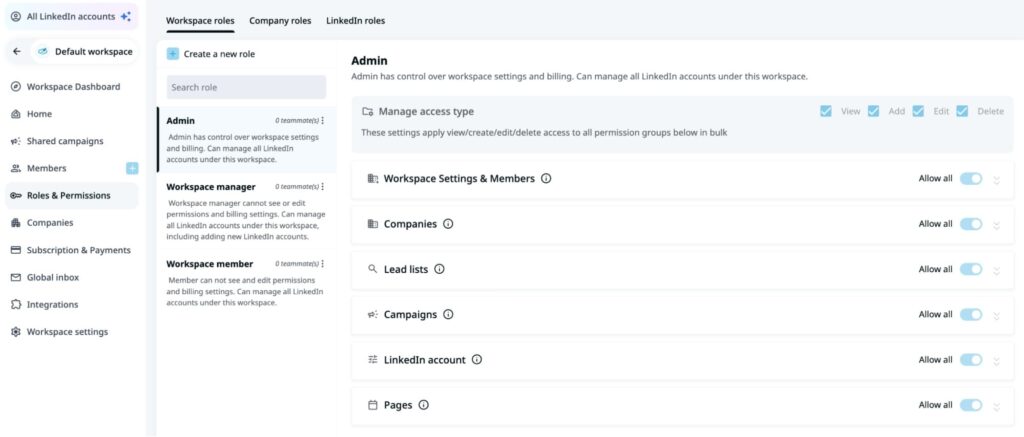
If you’re migrating a team, you can invite teammates to the Expandi workspace at no additional cost. Expandi’s 100+ permission settings let you control exactly who sees and manages what across accounts.
Step 3: Do NOT run both tools simultaneously
This is the single most important rule of tool migration: never run two LinkedIn automation tools at the same time on the same LinkedIn account.
LinkedIn tracks activity patterns across sessions — including login locations. If your account suddenly shows double the normal connection requests, profile visits, and messages from two different tools running simultaneously, or logs in from inconsistent IP addresses, that’s a detectable anomaly. The result ranges from temporary restrictions to a full LinkedIn account suspension.
The safe sequence:
1. Pause all campaigns in your current tool.
2. Wait 24 hours for any queued actions to complete.
3. Fully disable or uninstall the old tool.
4. Only then begin setting up campaigns in Expandi.
Once the old tool is fully disabled, you’re clear to set up campaigns in Expandi.
Step 4: Start Expandi at low volume for the first week
Expandi includes an automatic account warm-up that gradually increases daily actions from a conservative baseline to safe operating limits. This matters even more during a tool switch.
When you move from one automation tool to another, LinkedIn may notice a change in activity patterns — different timing, different IP, different action intervals. Starting at low volume (5-15 actions per day) and gradually increasing over the first week tells LinkedIn’s systems that nothing unusual is happening.
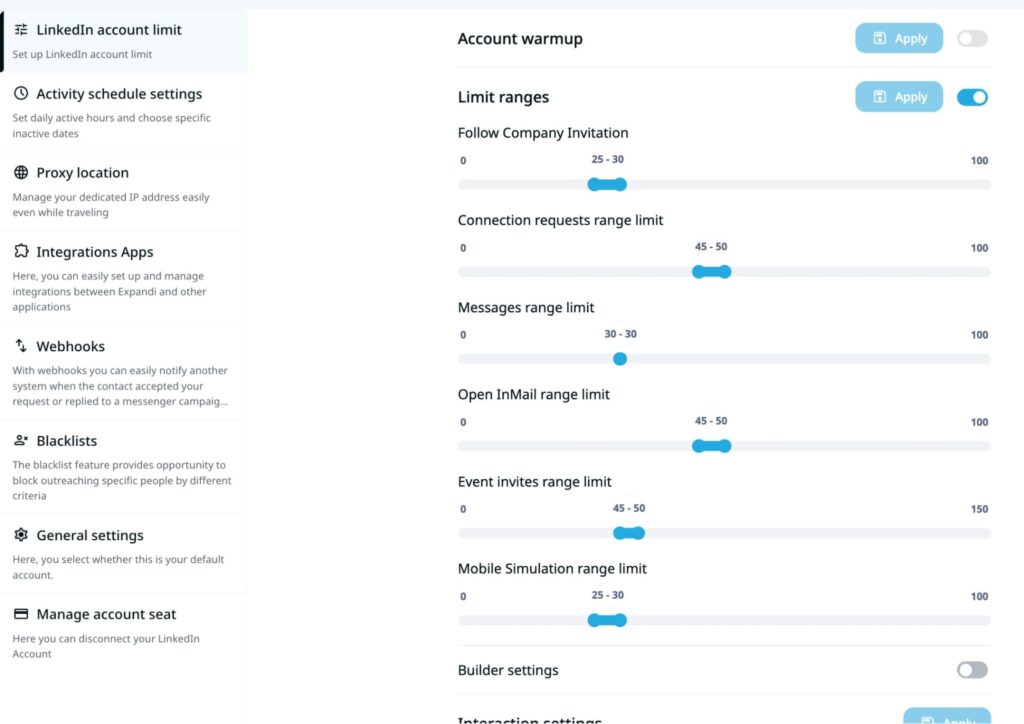
Expandi’s smart daily limit algorithms handle this automatically. Set your desired daily limits, and the warm-up system ramps up to those targets over days, not hours.
Resist the urge to import your full lead list and blast 100 connection requests on day one. The warm-up period is the price of account safety — and it’s a price worth paying.
Step 5: Import your CSVs and rebuild campaigns
Once Expandi is connected and warmed up, import your exported lead lists.
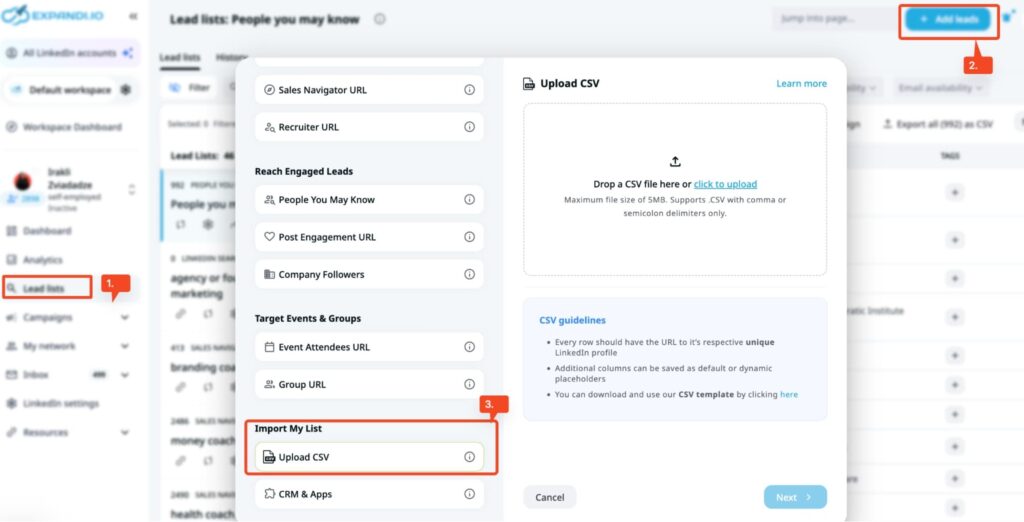
In Expandi, go to Lead Lists and create a new list. Select CSV upload and map your exported fields to Expandi’s format. The key fields: first name, last name, LinkedIn profile URL, company, job title.
Filter out leads who already replied or connected in your previous tool — you don’t want to send them a cold connection request from a “new” tool. Use the campaign contact state data you exported in Step 1 to create clean segments.
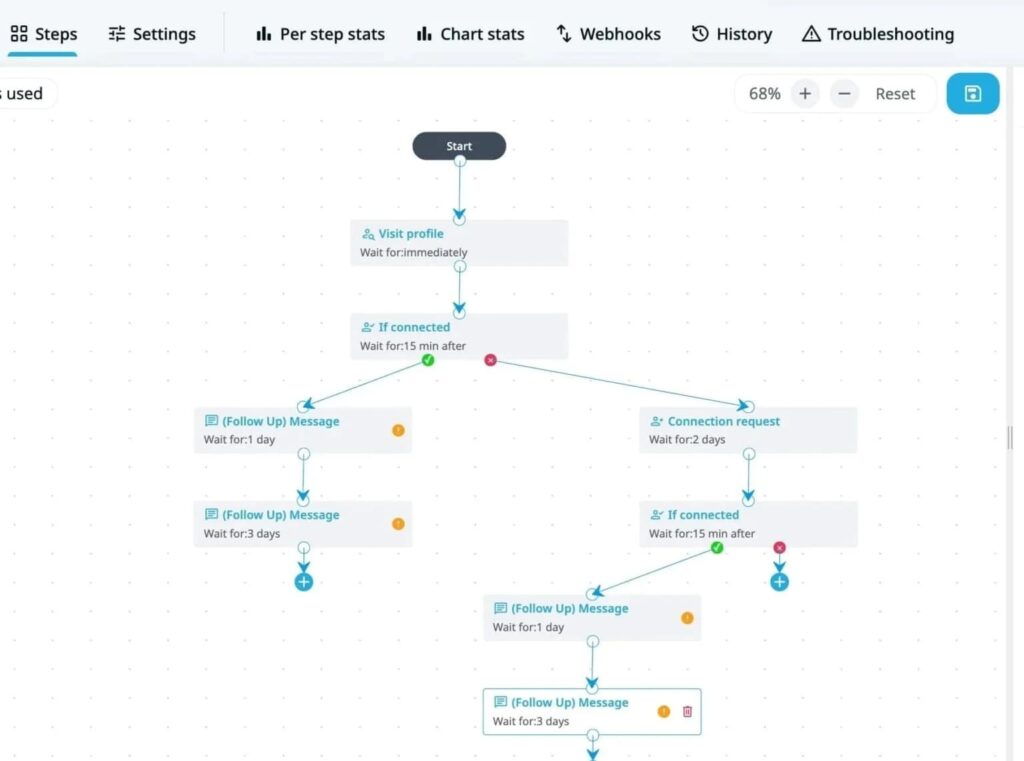
Then rebuild your sequences using Expandi’s builder campaigns. The builder supports 19 actions (connection requests, messages, profile visits, email follow-ups, InMail, and more) and 11 conditions (if connected, if replied, if email opened, custom conditions) — so you can recreate most sequences from other tools with equivalent or better logic.
For personalization, Expandi supports dynamic text placeholders and image and GIF personalization through Hyperise.
Step 6: Cancel the old subscription
Once Expandi is live and replies are coming in, at least a full week of active campaigns — you’re clear to cancel. Before you do, confirm:
- Warm-up period is complete.
- At least one campaign is live and generating replies.
- All lead data has been imported.
- Team members have workspace access.
- No campaigns are still running on the old tool.
Before hitting cancel, do a final export from the old tool. Pull your campaign logic and sequence structure, message templates, campaign results and reply history, and any lead lists not already transferred.
Then disconnect the old tool from your LinkedIn account completely. Two tools with active LinkedIn permissions on the same account is a risk even if neither is running campaigns.
How long does switching LinkedIn automation tools take?
For a single account with a few active campaigns, migration takes less than a day. Export in the morning, set up Expandi by lunch, start your warm-up by afternoon.
For teams with 10-25 accounts, plan for two to three days. The time issue is in the data organization. Exporting and mapping lead lists across multiple accounts, rebuilding sequences to match your current logic, and setting up workspace permissions takes coordination.
Some other variables to consider that might extend the timeline:
- Account count: more accounts means more exports and more warm-up cycles running in parallel.
- Active campaign complexity: simple connect-and-message sequences transfer in minutes. Multi-step builder campaigns with conditional branching take longer to recreate.
- Team coordination: if multiple people need access and training, add a day for onboarding.
- CRM integration setup: if you’re connecting HubSpot, Pipedrive, or Salesforce to Expandi, budget time for webhook configuration and field mapping.
The warm-up period (five to seven days at reduced volume) runs in the background and doesn’t require active work. It just means your first week of Expandi won’t be at full capacity — which is expected and safe.
Your next move
Most teams that switch LinkedIn tools do it in under three days. The export takes an hour, the setup is straightforward, and the checklist above covers everything in order.
If you’re managing multiple accounts or migrating a team, it helps to talk through the setup before you start — especially if you have active campaigns running on another tool. Book a demo and the Expandi team will walk you through the migration. Or claim your free, 14-day trial today, no credit card required.

You’ve made it all the way down here, take the final step