Manage Multiple LinkedIn Outreach Accounts in One Workspace
Team up for seamless outreach with Workspaces
Outreach made easy, flexible, and secure—tailored for teams ready to scale
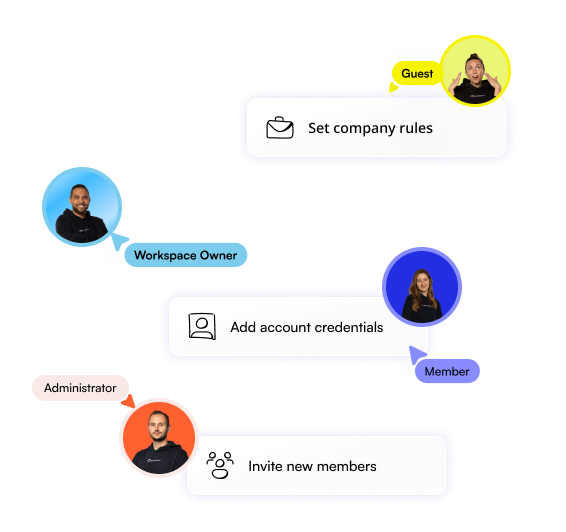
Easy
Workspace access
Invite teammates or customers to your Workspace at no additional cost
Access management
Invite users to your workspace or share a specific account to view and manage Billing
Billing
Manage your paid seats and subscriptions transparently
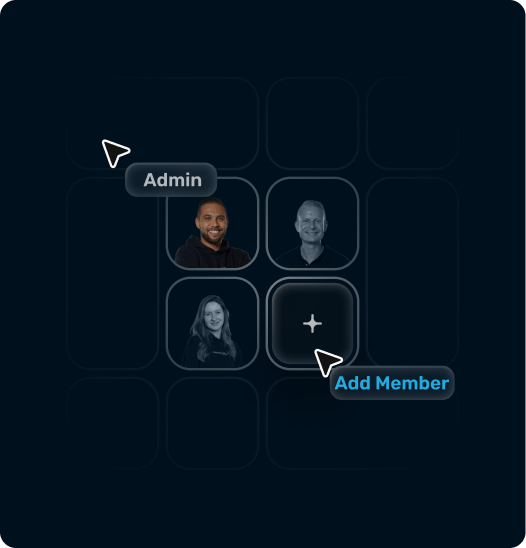
Flexible
Roles
Assign users predefined system roles or create your own custom roles
Permissions
Manage the permissions of your custom roles and decide what users can view, edit or delete
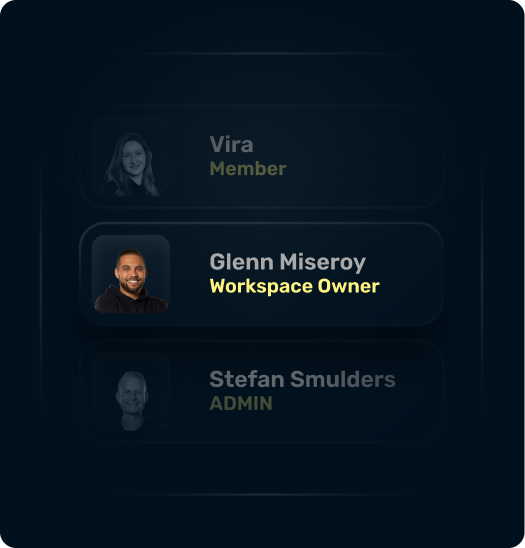
Safe
Adding new accounts
Invite your coworkers or clients to add their account via Expandi
Profile access
Share all accounts or just select a few with other users
Admin control
Add admins to your workspace to manage billing, workspace settings, and permissions

Get your next leads in 3 simple steps
Contact your prospects via smart automated sequences. Launch your first campaign in 15 minutes and see results in 24 hours.
Sign-up and create your Workspace
Create your Expandi account and your Workspace for collaboration
Invite people to your Workspace and add seats
Invite teammates, customers, collaborators to your Workspaces to maximize your
Assign and change roles
Manage access and set control and visibility levels for invited users
Frequently Asked Questions
Frequently Asked Questions
You create a Workspace in your sign-up process. You can also create additional Workspaces or accept invites to other Workspaces if needed. Switch between your Workspaces in your account without needing to relogin.
Use our invite feature and share access to your accounts in your Workspace. You can also share access to a company (use the role Company Manager), so the users will have access to all the accounts that fall under that company. You can share access to one account, multiple accounts (from various companies or a single company) and/or all accounts under the workspace.
Click the Add new button in your Expandi account, select Invite member. From there you can choose what invitation type to send. You can also invite members using the “Members” section [+] button.
Workspaces have predefined roles you can use for invited users. Like Admin or Workspaces member on the Workspace level. You can also create a new role and select the permissions you want for that role. Expandi has 100+ permission settings that can be customized to your needs.
Only the Workspaces owner has access to billing and payments in Expandi. You can transfer Workspace ownership to a different user.
Please check out our Help Center articles to learn more about Workspaces. Also feel free to reach out to our support team if you have any question or need assistance.
You’ve made it all the way down here, take the final step