Evergreen LinkedIn Campaigns: A Sales Navigator Guide

Most LinkedIn outreach runs on static lists. You build one, scrape it, upload it, run the campaign, and then start over. By the time you loop back, half the people on your list have changed roles, gone quiet, or already been contacted.
I ran into this constantly managing outreach at scale through Expandi. The list-rebuild cycle was eating hours every month for results that kept getting worse.
The fix I landed on was simple: Stop treating lead lists as one-time exports.
Sales Navigator has dynamic filters that refresh your results daily based on real activity signals.
Pair that with Expandi’s auto-reload feature, and you’ve got a campaign that pulls fresh, relevant leads in the background without you touching it again. I’ll show you exactly how to set it up below.
Here’s what we’ll cover:
- Why static lead lists often break down during LinkedIn outreach.
- How LinkedIn Sales Navigator dynamic lists work.
- How to build an evergreen, always-on lead list in Sales Navigator: Step-by-step.
- How to connect your dynamic list to Expandi for an evergreen outreach campaign.
- How recruiters can create an evergreen outreach campaign targeting candidates.
- What to watch out for when running evergreen outreach campaigns.
Key Takeaways
- Static lead lists degrade within weeks. Role changes and inactivity make them unreliable faster than most people realize.
- Sales Navigator’s Spotlight filters (Changed Jobs, Posted on LinkedIn) are time-based signals that keep your search results refreshing daily without manual work.
- Recruiters can run the same setup using LinkedIn Recruiter’s Open to Work filter as the dynamic signal.
- One saved search connected to Expandi’s auto-reload and auto-assign is all you need for a fully evergreen outreach campaign – new leads flow in continuously without manual list rebuilding
Evergreen LinkedIn Campaigns: A Sales Navigator Guide

Why Static Lead Lists Often Break Down During LinkedIn Outreach
A static list is like a snapshot. It captures who matched your filters on the day you ran the search. After that, it’s already degrading.
Here’s what can happen over the next 30-60-90-day window:
- People change jobs. Your “VP of Sales at Company X” is now at a different company.
- Decision makers go inactive on LinkedIn. No posts, no activity, no response to outreach.
- New prospects who fit your ICP perfectly join the platform or meet your criteria for the first time.
- You’ve already messaged many of the people on the list from a previous campaign.
The manual fix is to re-run the search, deduplicate, re-upload, and restart. That works, but it’s a maintenance loop that adds no strategic value.
Evergreen, dynamic lists solve this issue by keeping the search live. Instead of a fixed export, you’re running a saved query that updates as new people match your criteria and get added to the list.
What Makes a Sales Navigator List Dynamic
Sales Navigator organizes its filters into a few categories. Most define your ICP and stay fixed – job title, company size, industry, geography. The ones that make a list dynamic are called Spotlight filters – they’re time-based and track recent activity or events, so who appears in your results changes daily.
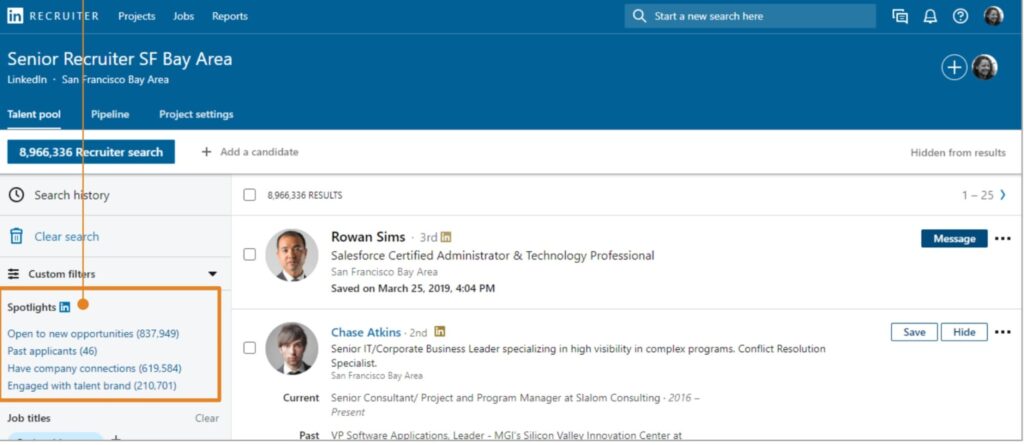
Static filters (job title, company size, industry, geography) define your ICP. They don’t change.
Dynamic filters are time-based. They change who appears in your results on a daily basis because they track recent activity or events.
The two most useful dynamic filters for outreach are:
- Changed Jobs in Past 90 Days – Surfaces decision makers who recently started a new role. New executives are evaluating vendors, have fresh mandates, and aren’t locked into existing contracts. This is one of the highest-intent signals in Sales Navigator.
- Posted on LinkedIn in Past 30 Days – Filters for people who are actively using the platform. If someone hasn’t posted in months, your message is less likely to be seen. Active posters are more likely to respond.
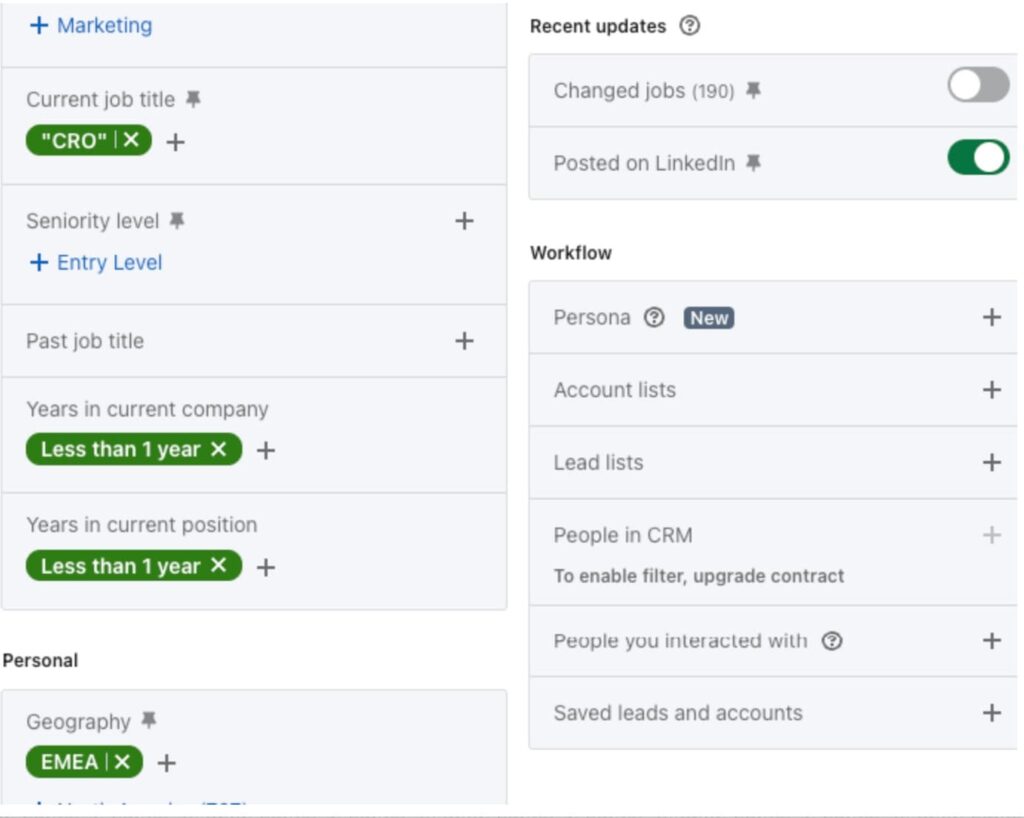
The logic: layer these dynamic filters on top of your standard ICP filters and the resulting list refreshes itself. Every day, new people who changed jobs or become active on LinkedIn get pulled into your search.
💡Pro tip – layer both Spotlight filters together. Targeting someone who changed jobs AND posted recently in the last 30 days is the highest-intent combination you can build in Sales Navigator
For a full breakdown of every filter available, see our guide on LinkedIn Sales Navigator filters.
How to Build An Evergreen, Always-on Lead List in Sales Navigator
The goal is a saved search that continuously produces new, relevant results, not a one-time export. Here’s how.
Step 1: Define your static ICP filters
Start with the filters that define who you’re targeting:
- Job title / function.
- Seniority level (Director, VP, C-suite, etc.).
- Company headcount.
- Industry.
- Geography.
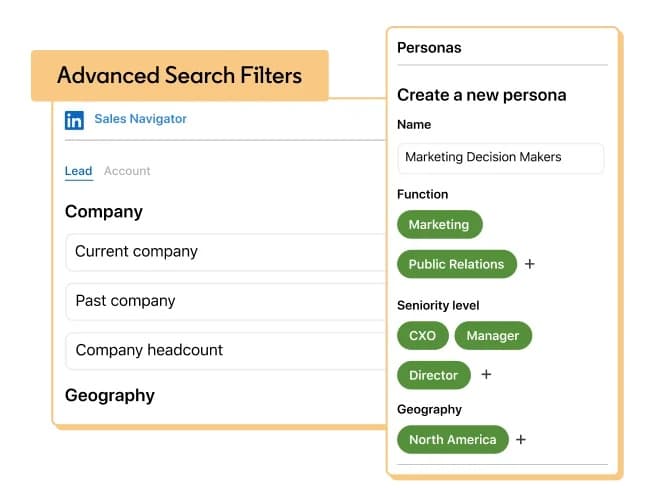
These stay fixed. They’re the baseline for your ideal customer profile.
Step 2: Layer in at least one dynamic filter
Add one or both of these Spotlight filters on top of your ICP filters:
- Changed Jobs in Past 90 Days – best for selling to new executives evaluating vendors
- Posted on LinkedIn in Past 30 Days – best for targeting active users most likely to see and respond to outreach
Example search for selling an outreach automation tool:
- Job title: Head of Growth, VP Sales, Sales Director, Founder.
- Seniority: Director, VP, C-Level, Owner.
- Company headcount: 11-500.
- Industry: SaaS / Computer Software / Marketing.
- Spotlight: Posted on LinkedIn in Past 30 Days OR Changed Jobs in Past 90 Days.
This gives you a list of decision makers at mid-sized software companies who are either newly in role or actively on the platform. Both signals indicate higher-than-average intent.
Step 3: Save the search
Once your filters are set, save the search in Sales Navigator. Saved searches auto-update every time you open them. Sales Navigator shows a count of new profiles added since you last checked. You don’t need to re-run anything manually.
For more on building and segmenting prospect lists, see our guide on how to build a prospect list.
Connecting Your Dynamic List to Expandi
This is where the evergreen setup actually comes together. Expandi lets you connect a Sales Navigator search URL directly to a campaign, then auto-reload the list on a schedule and auto-assign new leads as they appear.
Here’s how to set it up.
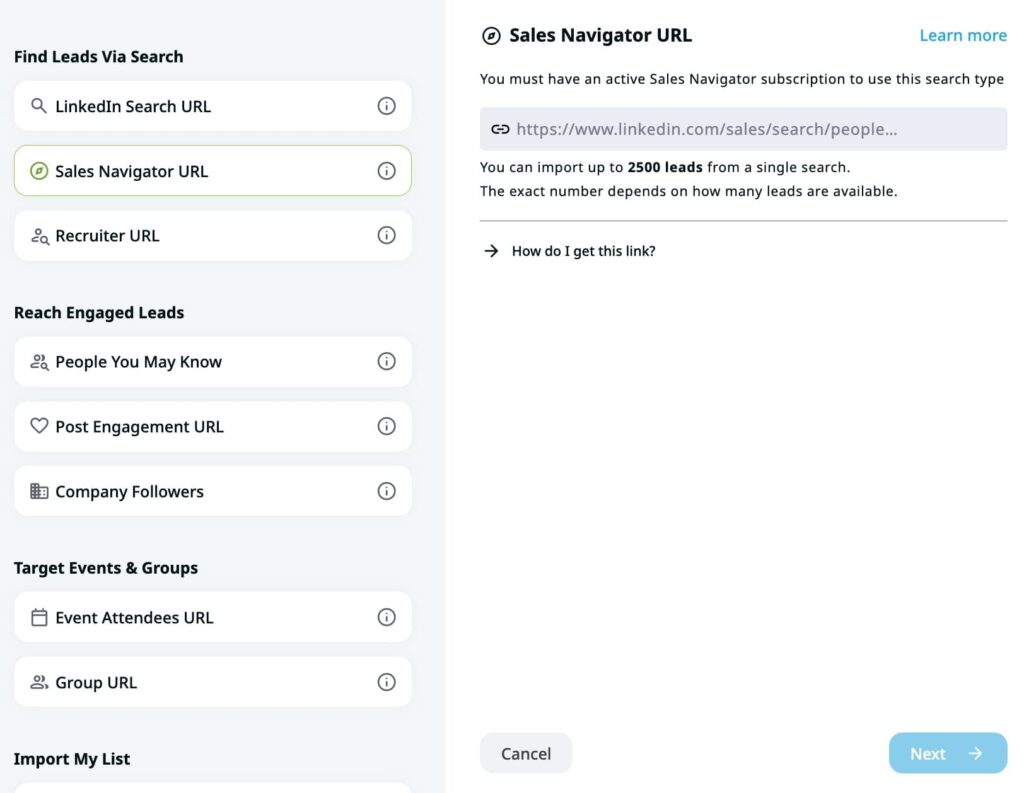
Step 1: Create a new lead list from your Sales Navigator URL
- In Expandi, go to Lead Lists and create a new list.
- Select Sales Navigator URL as the lead list type and copy the URL.
- Paste the URL of your saved Sales Navigator search.
- Run the initial import. Expandi will pull up to 2,500 leads depending on your Sales Navigator plan.
Step 2: Enable auto-reload
Once the lead list is created, click the Settings icon under the list name. Enable the “Auto-refresh list” checkbox and set the reload frequency (daily, weekly, etc.).
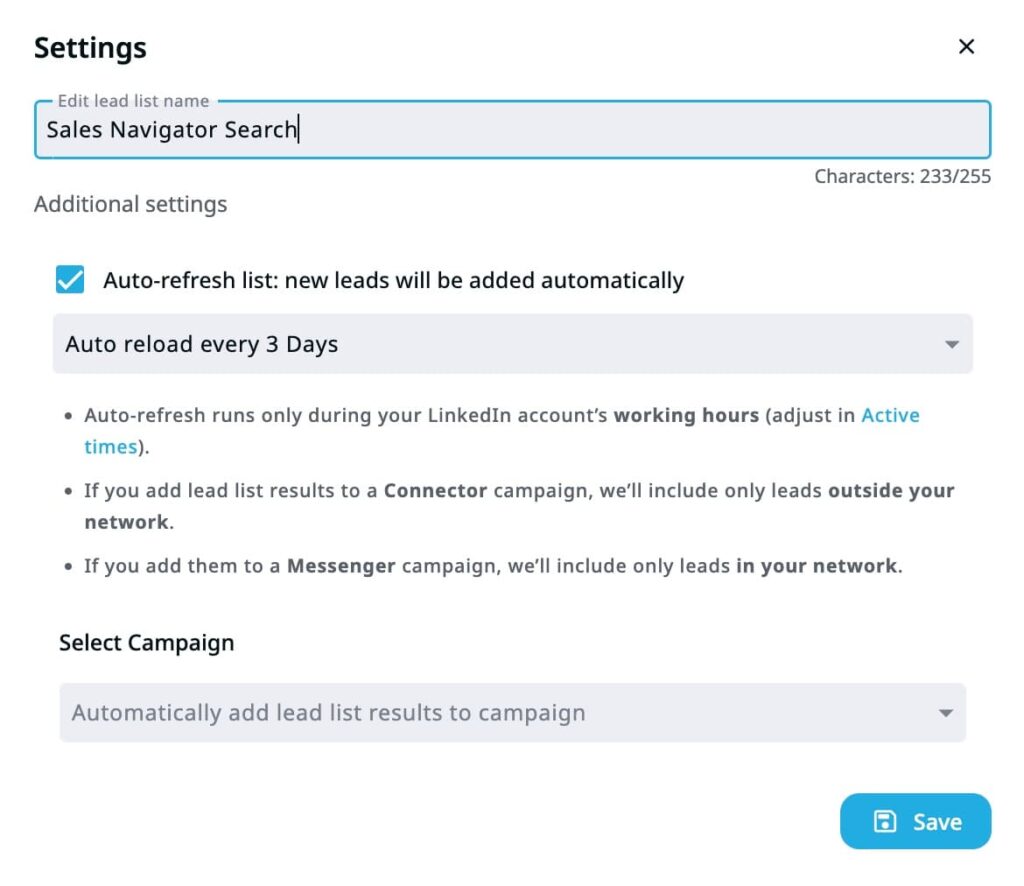
What auto-reload does: it re-runs the same search against your saved filters and retrieves profiles that match your criteria from the latest reload.
Note: LinkedIn lead lists can retrieve between 1,000 and 2,500 leads at a time. If your search has more total results than this cap, you may see some overlap between reloads. If you notice few new leads appearing after a reload, slightly adjust your filters in Sales Navigator to surface a fresh page of results.
Step 3: Enable auto-assign
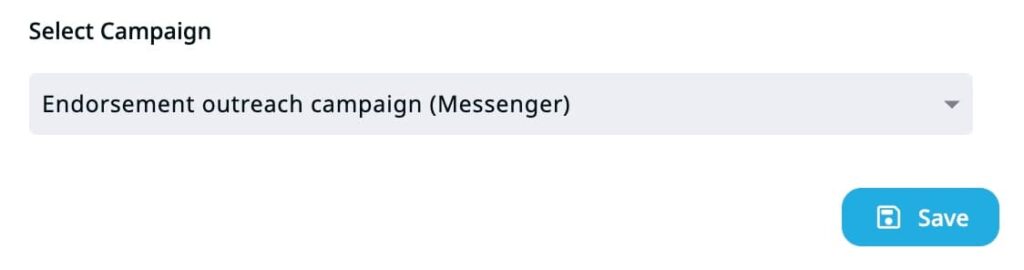
In the same settings panel, turn on auto-assign. This tells Expandi to automatically push any new leads from each reload directly into your outreach campaign.
From this point on, the loop runs itself:
- Sales Navigator surfaces new matches daily (job changers, active posters).
- Expandi reloads the list on your set schedule.
- New leads get assigned to the campaign automatically.
- Your outreach sequence runs on them.
Step 4: Set up the campaign sequence
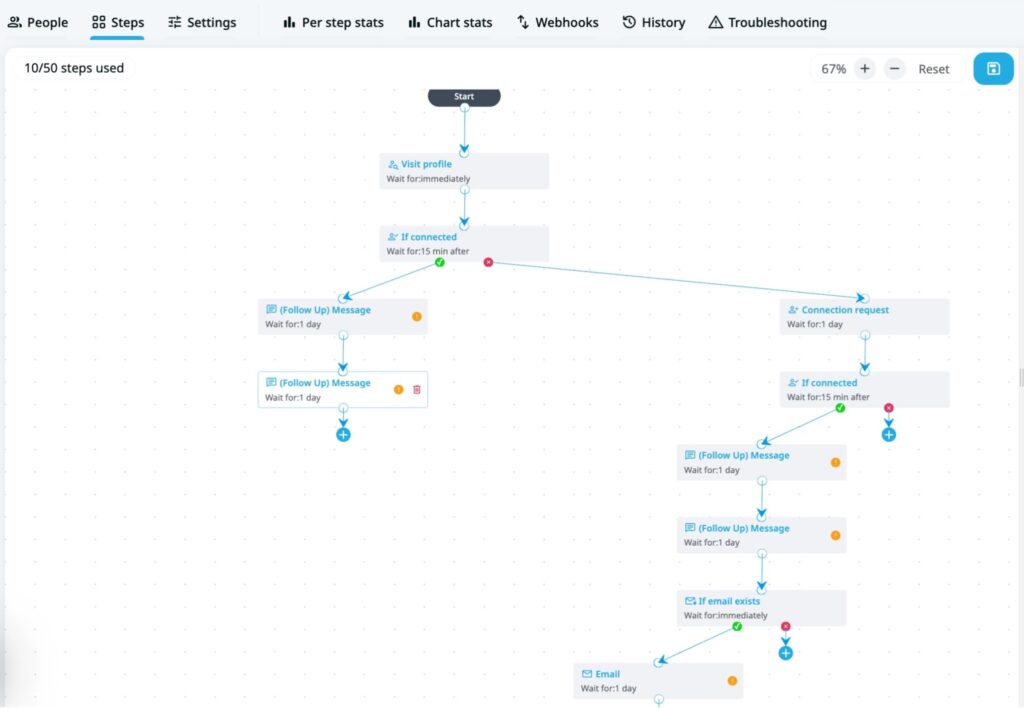
The sequence itself doesn’t need to be complicated. A solid evergreen flow for this use case:
- Visit profile.
- Send connection request with a short, personalized note.
- If accepted → follow-up message.
- If no reply after 3–5 days → second follow-up.
- If no reply → check for email and send via that channel.
Tailor your connection request message to the dynamic signal. Someone who just changed jobs should get a different opener than someone who just posted about a relevant topic.
For templates and sequence structures, see our guide on outreach sequence templates.
Using This With Manual Prospecting in Sales Navigator
The auto-reload setup isn’t limited to saved searches. If your sales team manually prospects and saves contacts to Lead Lists in Sales Navigator, here’s how it works.
A salesperson browses LinkedIn, finds someone who fits the ICP, and saves them to a Lead List. That list has a URL. You can connect that URL to Expandi the same way you would a saved search: create a lead list from the Sales Navigator URL, turn on auto-reload, and enable auto-assign.
Every time a rep adds someone new to that Lead List, Expandi picks them up on the next reload cycle and pushes them into the campaign automatically.
This is useful when your team is doing targeted, one-by-one prospecting, such as engaging with someone’s post, checking their profile, deciding they’re a fit, and saving them. It’s a more intentional approach than filter-based searches, and it pairs well with personalized sequences since the rep has already looked at the prospect before they enter the campaign.
Evergreen Outreach Campaigns: LinkedIn Recruiter Version
The same logic applies to LinkedIn Recruiter, with a different dynamic signal.
“Open to Work” is a flag candidates toggle on and off. Someone who wasn’t open to opportunities last week may be this week. That makes it a daily-refreshing signal – similar in behavior to the job change and activity filters in Sales Navigator.
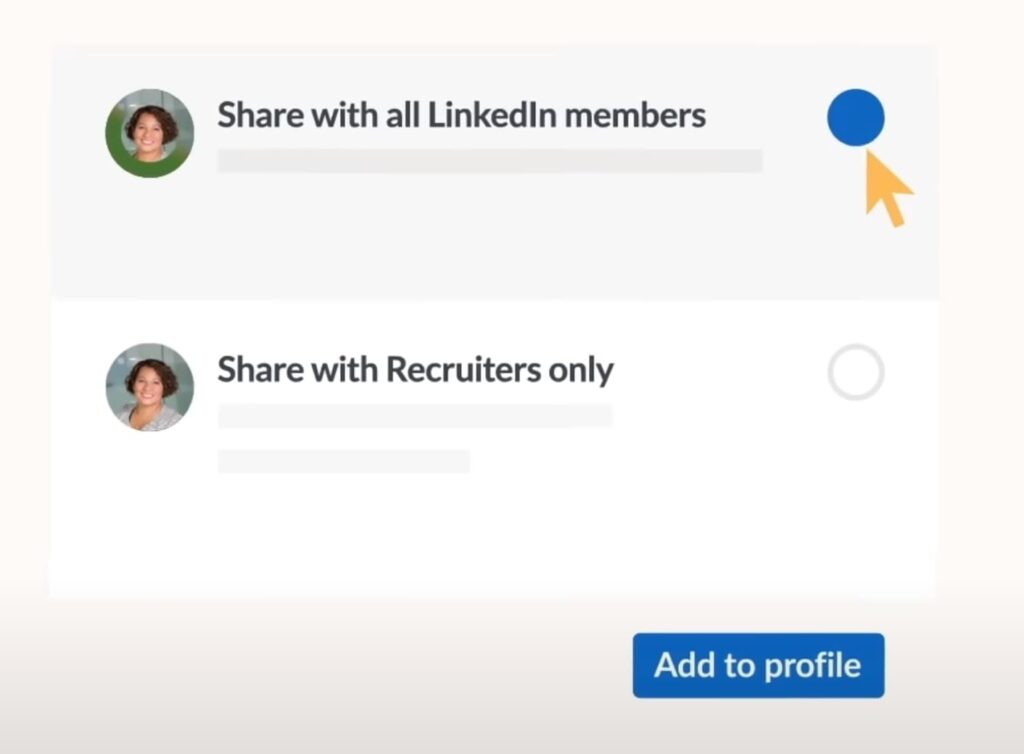
A recruiter with a Recruiter license can build an equivalent always-on list by filtering for:
- Open to Work candidates.
- Specific job functions and titles.
- Location and years of experience.
- Current or previous company.
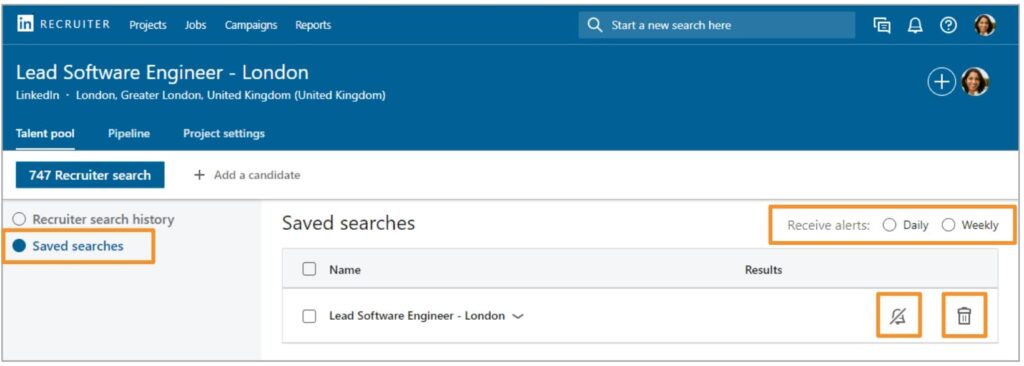
LinkedIn Recruiter supports saved searches natively – the system re-runs them every 24 hours and alerts you when new candidates match your criteria. You can pair that saved search URL with Expandi’s auto-reload setup the same way you would with Sales Navigator.
The result is a continuously-refreshed pool of Open to Work candidates feeding directly into your outreach campaign.
Pro tip – Don’t have a Recruiter license? The same always-on logic applies to Sales Navigator’s “Following Your Company” filter – people who follow your company page are warm prospects and the list refreshes as new followers come in.
What to Watch Out For When Running Evergreen Campaigns
A few things to keep in mind before setting this and forgetting it.
- Daily action limits still apply – Auto-reload and auto-assign keep leads flowing in, but your outreach volume is still governed by LinkedIn connection limits. This is where Expandi’s safety infrastructure matters – built-in warm-up, smart daily limit algorithms, and a dedicated country-based IP mean the always-on setup runs without putting your account at risk. Don’t turn on auto-reload and immediately max out your connection requests though. You should let the warm-up do its job first.
- Match your message to the signal – If you’re using the Changed Jobs filter, your opener should acknowledge the transition. If you’re targeting active posters, reference their content or the topic they’ve been posting about. A generic message sent to a signal-filtered list misses most of the personalization opportunity.
- Audit your search filters periodically – Your ICP may shift. What made sense six months ago might no longer fit your targeting. Set a reminder to review your saved search filters every 30-60-90 days to make sure you’re still pulling the right people.
If you’re seeing few new leads on each reload, adjust your Sales Navigator filters slightly. This pushes the search to surface a fresh set of profiles from LinkedIn’s index.
Pro tip – New to Expandi? Run the profile warm-up for at least 1-2 weeks before enabling auto-reload on a high-volume search. Starting slow protects your account and sets a natural activity baseline.
Evergreen LinkedIn Campaigns: FAQ
Not automatically. When using a Sales Navigator URL lead list with auto-assign, Expandi may add leads that are already part of another campaign. To avoid contacting the same person twice, periodically check for overlapping leads across campaigns or use the Workflow filters in Sales Navigator to exclude people you’ve already contacted.
Yes. You can create multiple lead lists in Expandi, each pointing to a different Sales Navigator search URL, each with its own auto-reload schedule and assigned campaign. A common setup is one campaign per ICP segment. For example, one targeting job changers and one targeting active posters, with different message sequences for each.
Sales Navigator updates saved searches in near real-time as new profiles match your filters.
You’ll see a green indicator next to saved searches showing how many new results have appeared since you last checked. The frequency depends on LinkedIn’s indexing, but for active filters like “Posted on LinkedIn” and “Changed Jobs,” new results typically appear daily.
A saved search is a stored set of filters in Sales Navigator that updates automatically as new profiles match. A lead list is a manual collection of profiles you’ve explicitly saved. For evergreen campaigns, you want to use a saved search URL – not a manually curated lead list, which is static by nature.
The “Changed Jobs” and “Posted on LinkedIn” Spotlight filters are available on all paid Sales Navigator plans (Core, Advanced, Advanced Plus). The Advanced and Advanced Plus plans unlock additional features like buyer intent signals and CRM integration, but the core dynamic filters work on Core as well.
Setting Up Your Own LinkedIn Evergreen Campaigns
If you want to set this up but aren’t sure where to start, the quickest path is to pick one dynamic filter, build a single saved search around your ICP, and connect it to a campaign in Expandi with auto-reload on.
You don’t need to overhaul your whole outreach process – one evergreen campaign running in the background is enough to see whether the approach works for you.
Following this guide, you’ll have a similar evergreen, always-on campaign live within an hour.
See if Expandi fits your outreach workflows or claim your free, 14-day trial here.

You’ve made it all the way down here, take the final step