How to Cancel LinkedIn Premium (and What to Do Instead for Lead Generation)

Canceling your LinkedIn Premium subscription takes no more than 30 seconds and a few clicks. When you do so, your access runs to the end of the billing cycle, and your profile, connections, and posts stay untouched.
At Expandi, we run LinkedIn outreach campaigns for sales teams across every paid tier — Premium Career, Business, All-in-One, Sales Navigator Core, Advanced.
The question that comes up before every renewal is the same: “Is this still worth it?”
In our experience, the answer almost always turns on whether you’re properly using what you’re already paying for. Especially on Sales Navigator, where the filters and saved searches earn the price tag only if the leads they produce actually get worked.
Below you’ll learn:
- Cancellation steps for every LinkedIn premium (desktop, mobile, App Store, Google Play).
- A tier-by-tier breakdown of which Premium plan earns its price.
- What Sales Navigator does for lead gen and where it stops.
- How to make Sales Navigator pay off before you decide if you really want to cancel.
Key Takeaways
- To cancel LinkedIn Premium on desktop: Me icon, Premium features, Subscription details, Purchases, Cancel subscription. Access runs until your billing cycle ends.
- Where you cancel depends on where you bought it. App Store and Google Play subscriptions cancel through Apple or Google. LinkedIn handles only its own direct subscriptions.
- Canceling reverts you to a free account. You keep your profile, connections, and posts; you lose InMail credits and advanced search filters.
- Premium Business is the dead zone — too thin for outbound, too expensive for casual networking. For outbound, Sales Navigator is the only tier that earns its price, and only if you use the filters.
- Sales Navigator finds the right people but stops there. Pairing it with an outreach tool like Expandi turns a filtered lead list into booked conversations.
How to Cancel LinkedIn Premium (and What to Do Instead for Lead Generation)

4 ways to cancel LinkedIn Premium
You cancel LinkedIn Premium wherever you bought it.
If you subscribed directly through LinkedIn, cancel from the Me menu on desktop or in the mobile app. If you subscribed through the Apple App Store or Google Play, cancel through Apple or Google.
A charge from “LinkedIn,” “Apple,” or “Google” on your card statement can tell you if you’re not sure where you subscribed from.
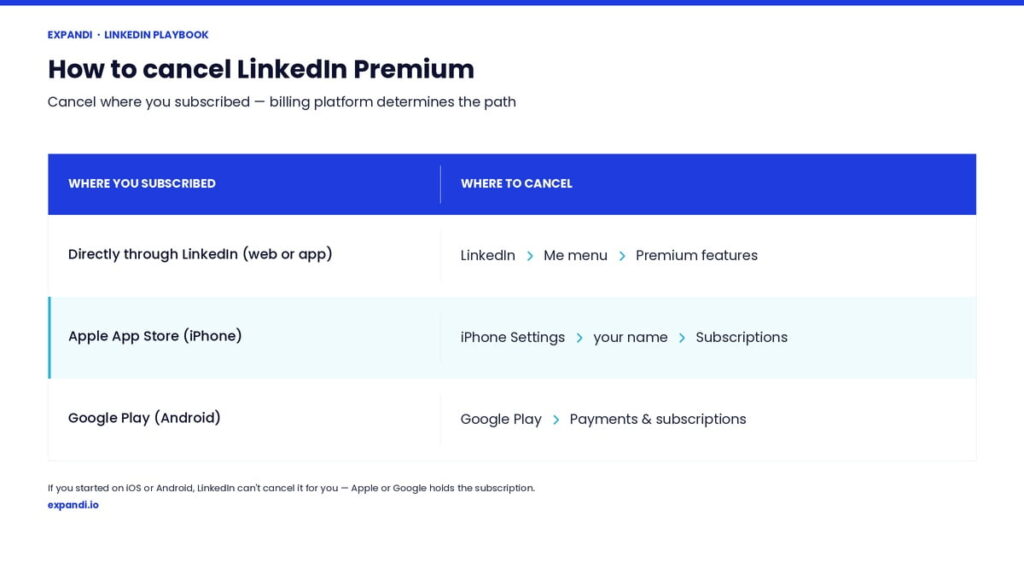
Whichever route applies, Premium stays active until the end of your billing cycle and then reverts to a free account. Cancel at least a day before your renewal date to avoid one more charge.
Cancel LinkedIn Premium on desktop
The desktop route is the most reliable, and it works for every direct LinkedIn subscription: Premium Career, Business, and All-in-One.
To cancel LinkedIn Premium on desktop:
- Click the Me icon at the top-right of your LinkedIn homepage.
- Select Premium features from the dropdown.
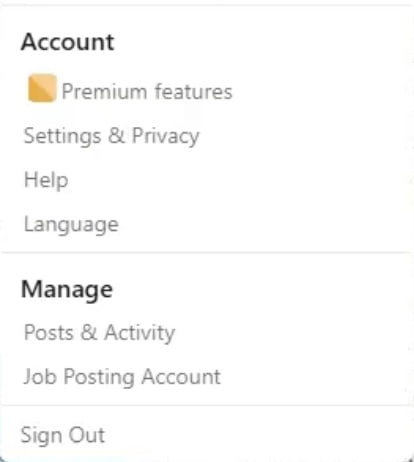
- In the left pane, click Manage subscription under Subscription details.
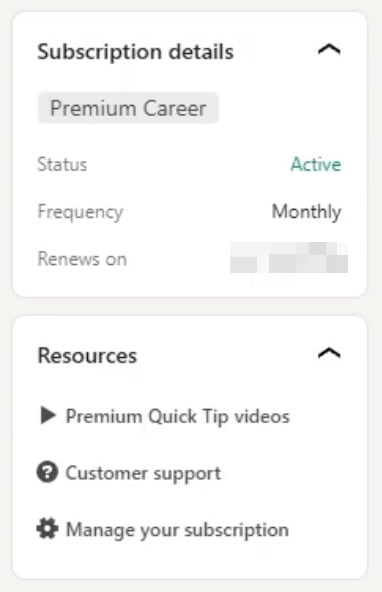
- Click Purchases.
- Select your active subscription.
- Under Actions, click Cancel subscription.
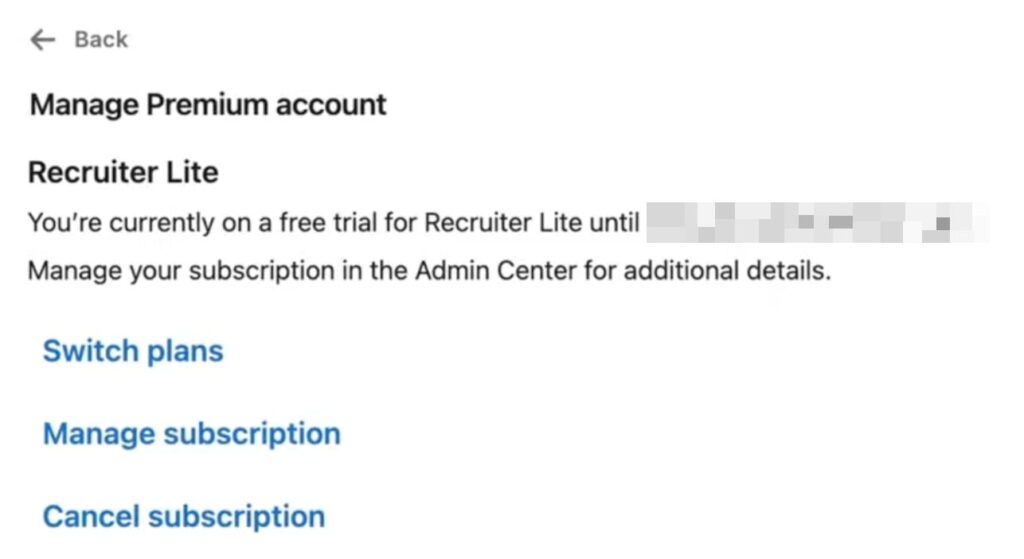
- Confirm. LinkedIn sometimes offers a discount or cheaper plan first, so decline both to finish if you want to fully cancel.
Or you can access the premium cancellation page directly.
How to cancel LinkedIn Premium on the mobile app
The LinkedIn mobile app cancels direct LinkedIn subscriptions only. If you subscribed through the App Store or Google Play, your purchase lives with Apple or Google — see the next two sections for those routes.
To cancel LinkedIn Premium in the mobile app, follow the same steps as on desktop:
- Tap your profile photo at the top of the app.
- Tap Premium features.
- Tap Manage your subscription.
- Tap Cancel subscription and follow the prompts.
How to cancel a LinkedIn Premium subscription through the App Store (iPhone)
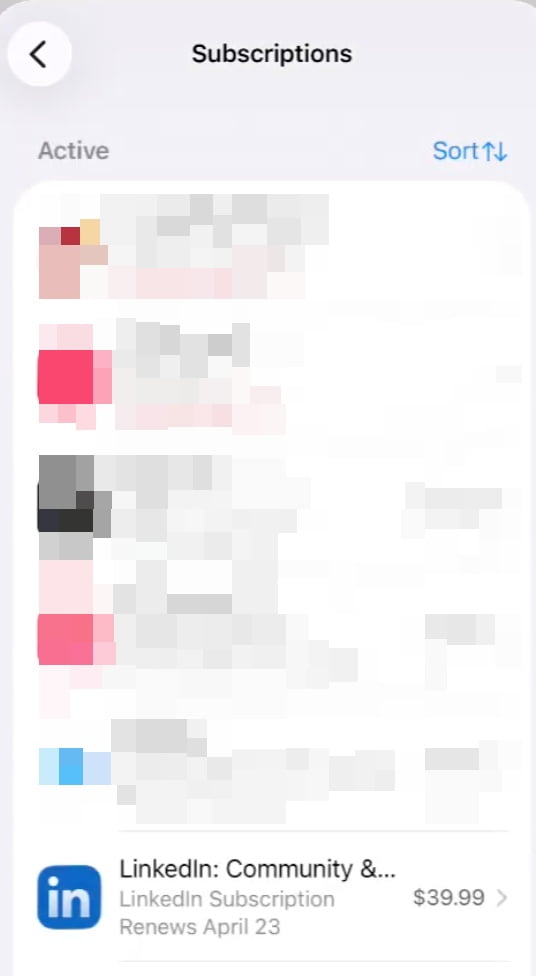
When you subscribe through the Apple App Store, Apple handles the billing — and only Apple can process the cancellation. The cancel option is missing from LinkedIn itself for these purchases, and LinkedIn has no view into App Store subscription history either.
To cancel a subscription bought through the Apple App Store:
- Open Settings on your iPhone or iPad.
- Tap your profile picture at the top right to open your Apple Account.
- Tap Subscriptions.
- Tap LinkedIn, then tap Cancel Subscription.
How to cancel a LinkedIn Premium subscription through Google Play (Android)
When you subscribe through Google Play, Google handles the billing and only Google can process the cancellation. Same logic as the App Store route above.
- Open the Google Play Store app.
- Tap your profile icon, then Payments & subscriptions, then Subscriptions.
- Tap LinkedIn, then Cancel subscription.
The 5 LinkedIn Premium tiers and which one earns its price
Five LinkedIn Premium tiers serve very different jobs, and only one is built for outbound lead generation (Sales Navigator Core). Premium Career is for active job searches. Premium Business is overpriced for what it includes. All-in-One bundles ads credits for solo founders. Sales Navigator Advanced adds team features.
Tier-by-tier breakdown below.
| Tier | Monthly price | Annual price | InMail credits | Built for |
|---|---|---|---|---|
| Premium Career | $29.99/mo | ~$240/yr | 5/mo | Job seekers |
| Premium Business | $59.99/mo | ~$576/yr | 15/mo | General networking |
| Premium All-in-One | ~$99/mo | ~$900/yr | 5/mo | Solo founders |
| Sales Navigator Core | $119.99/mo | ~$1,080/yr (~$90/mo) | 50/mo | Sales prospecting |
| Sales Navigator Advanced | $159.99/mo | ~$1,800/yr | 50/mo | Sales teams |
Premium Career
LinkedIn Premium Career ($29.99/month) is built for job seekers and comes with:
- 5 InMail credits.
- Extended “Who’s viewed your profile” history.
- Top-applicant insights.
- And LinkedIn Learning.
It earns its price during an active job search. Once that search ends, the Learning library alone is too thin to justify $30 a month.
Premium Business
LinkedIn Premium Business ($59.99/month) is the dead zone. You get 15 InMail credits and unlimited profile browsing.
No advanced search filters, no saved searches, no lead recommendations. Free LinkedIn plus a Boolean search query reproduces the search and browsing capability Business adds — except the 15 InMail credits. And 15 messages a month is thin for the $60 price tag.
LinkedIn’s Premium All-in-One bundle
LinkedIn Premium All-in-One (around $99/month) adds advertising and job-posting credits aimed at solo founders. If you’re on Premium Business right now, the move worth considering is dropping to the free account or upgrading straight to Sales Navigator.
Sales Navigator Core
Sales Navigator Core ($119.99/month, or about $90 billed annually) is the only tier built for lead generation and comes with:
- 50-plus advanced filters.
- Saved searches with alerts.
- Lead and account lists.
- Lead recommendations.
- And 50 InMail credits a month.
For a salesperson, a founder doing outbound, or an agency, this is the tier that can pay for itself.
Sales Navigator Advanced
Sales Navigator Advanced ($159.99/month) includes everything in Core and also adds TeamLink and team reporting. The $40/month premium over Core only pays off if you’re running outbound as a team.
If you’re solo selling, Core is enough. Once you have two or more reps and need to avoid duplicate prospecting, Advanced earns its keep.
For a detailed breakdown of each LinkedIn Premium type, see our full guide to LinkedIn account types.
What Sales Navigator does for lead generation, and where it stops
Sales Navigator is the strongest research tool LinkedIn ships.
The 50-plus filters, saved searches with alerts, and lead recommendations let you build a precise list of the right people in minutes. Where it stops is reaching them: outreach stays manual, connection requests cap near 100 a week and InMail caps at 50 a month.
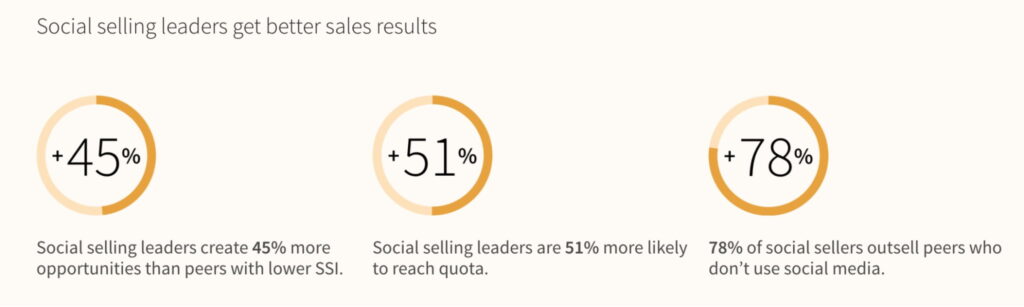
The investment pays back for serious sellers. LinkedIn’s own social selling research found that social selling leaders are 51% more likely to hit quota than peers with low Social Selling Index scores. Sales Navigator is the workspace built for that kind of work.
Sales leader Morgan Ingram, in his Sales Navigator filter breakdown, names the five he relies on to get responses:
- People who recently viewed your profile.
- People who follow your company.
- People who posted in the last 30 days.
- Job title.
- And time in role.
The first three surface prospects who are already signaling interest. Ingram rates time in role highest: target people 4 to 10 months into a job. Earlier than that, they’re still onboarding. Past month 10, they’ve already locked in their tools.
The Groups filter layers in psychographics that a job title misses: the groups a prospect joins reveal what they care about and what they’re trying to solve. Saved searches keep the list fresh, alerting you as new prospects match.
Our guide to Sales Navigator’s advanced filters covers how to combine them.
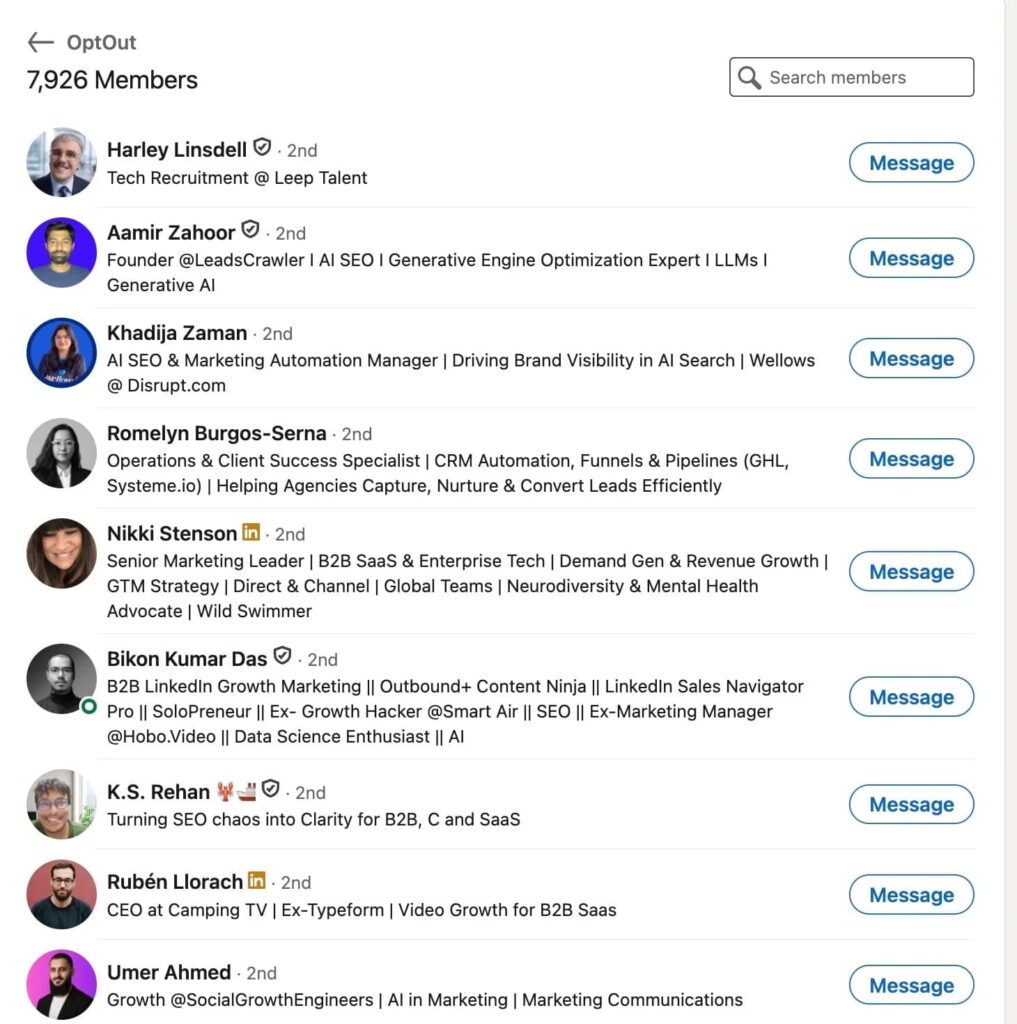
Then the workflow stalls. Sales Navigator is a research tool — outreach is where it hands off to you.
Sales Navigator hands you a 500-person list and stops there. You send connection requests one at a time, hitting LinkedIn’s roughly 100-a-week limit. InMail caps at 50 a month. Replies scatter across LinkedIn messaging, the Sales Navigator inbox, and email — and nothing pulls them into one view.
Working a perfect 500-lead list takes five-plus weeks of manual sending.
How to turn Sales Navigator lists into pipeline with Expandi
Expandi closes the gap between research and outreach.
Paste a Sales Navigator search URL and Expandi runs structured campaigns against that exact list:
- Connection requests.
- Conditional follow-ups.
- Emails and InMails.
- Profile visits.
- And other signal-based triggers and actions.
Sales Navigator handles research; Expandi handles the conversations at scale. Two halves of the same workflow.
Here’s how it works:
- You build the filtered search and run it in Sales Navigator.
- Copy its URL, and paste it into Expandi as a campaign source.
- Expandi pulls the full lead list automatically.
The list you spent time filtering becomes a live campaign audience in a couple of clicks.
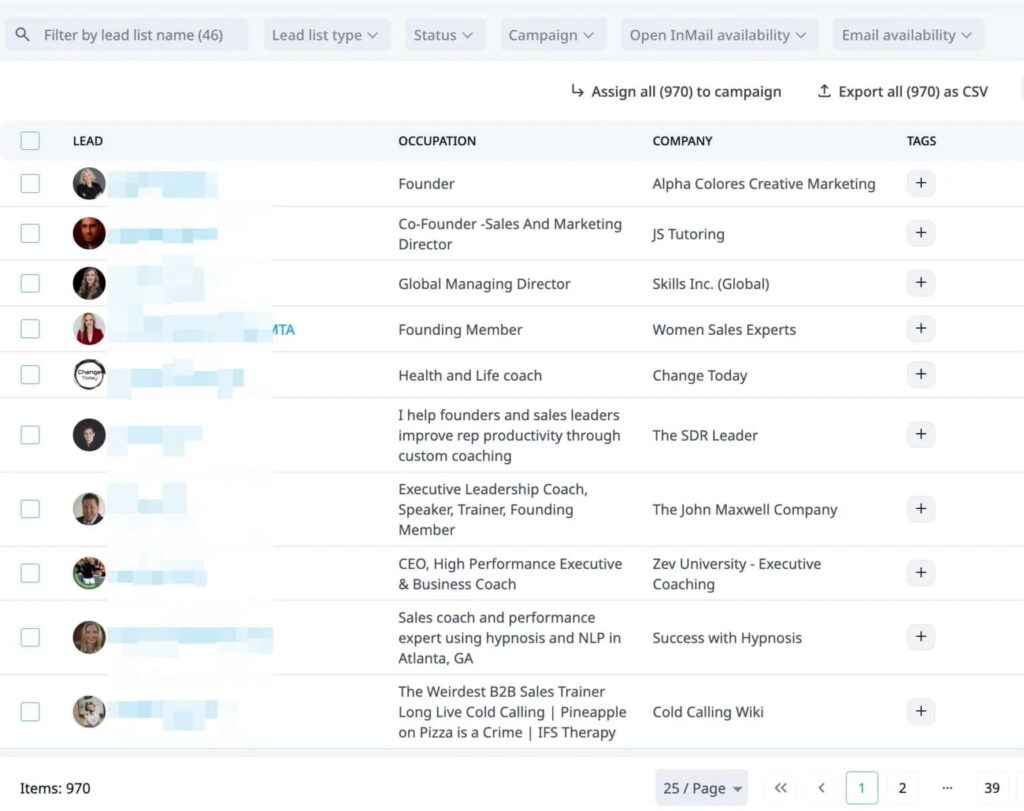
From there, four features handle the work that manual sending breaks on:
- Smart Sequences. Expandi’s Builder runs conditional if-then flows. Visit a profile, send a connection request, follow up with a DM on acceptance, escalate to email after a 5-day silence window. This is trigger-based outreach that branches on each prospect’s response.
- Signals. Expandi triggers outreach based on lead behavior — the moment a Sales Navigator lead likes a post, comments, or views your profile. Signal-based outreach reaches people right after they’ve shown interest, with warm context as the opener.
- Campaign Builder. A saved Sales Navigator search becomes a repeatable campaign, so every time new people match your filters, the same proven sequence runs against them — the way evergreen campaigns with Sales Navigator are meant to run.
- Global Inbox. Every reply across every connected LinkedIn account lands in one multi-account inbox. Follow-up runs from a single view, regardless of which account the reply came in on.
How to know whether to cancel or keep your LinkedIn Premium
Two questions decide:
- Are you using your tier’s defining features?
- Are those features producing pipeline?
If either answer is no, cancel or change tiers. If both answers are yes, keep the plan.
| Your situation | What to do |
|---|---|
| On Premium Career, not job hunting | Cancel — the features don’t earn $30 a month |
| On Premium Career, job hunting now | Keep it until you sign, then cancel |
| On Premium Business, no outreach | Cancel and go free; Boolean search covers casual networking |
| On Premium Business, running outreach | Move up to Sales Navigator — Business has no advanced filters or saved searches |
| On Sales Navigator, only using basic search | Keep it — learn the filters and add an outreach layer before you cancel |
| On Sales Navigator, pipeline is flowing | Keep it and scale what works |
| Paying any tier mainly for InMail | Reconsider — InMail volume is small and reply rates trail warm outreach |
Premium Business is the dead zone we covered earlier. It’s too thin for outbound, too expensive for casual networking. Paying any tier mainly to get InMail credits is also a hard sell: 15 to 50 messages a month is low volume, and InMail reply rates trail a well-warmed connection request.
Cancel the tier you don’t need, keep the one that works
Cancel Premium Career once you’ve signed an offer. Cancel Premium Business if six months in, the InMail credits haven’t moved a deal — both are easy calls.
Sales Navigator is the one to weigh carefully. If you’re running outbound, the filters are worth keeping, and the fix in our experience is to add the outreach layer on top — turning those lists into conversations and keeping the most useful research tool LinkedIn ships.
Start a free 7-day Expandi trial and turn your Sales Navigator lists into connection requests, follow-ups, and booked conversations.
Canceling LinkedIn Premium: frequently asked questions
On desktop, click the Me icon, open Premium features, then Manage Subscription, Purchases, and Cancel subscription, and confirm through the prompts. Your features stay active until the end of your billing cycle. You can also cancel in the LinkedIn mobile app — but if you subscribed through the Apple App Store or Google Play, you cancel through Apple or Google instead.
No. Your connections, messages, profile, and posts are all tied to your free LinkedIn account. Canceling Premium removes only the paid features — InMail credits, advanced search filters, and “Who’s viewed your profile” history. Your network stays intact.
Yes — if you use the advanced filters and pair it with an outreach tool. Sales Navigator’s 50-plus filters let you build precisely targeted lead lists, but outreach stays manual. Adding a tool like Expandi closes that gap, pulling leads from Sales Navigator straight into structured campaigns.
LinkedIn Premium (Career and Business) adds InMail credits and broader profile browsing. Sales Navigator adds 50-plus advanced search filters, saved searches with alerts, lead recommendations, and CRM integration. Premium is built for networking and job seeking; Sales Navigator is built for sales prospecting and lead generation.
Yes. Expandi works with a free LinkedIn account. It pulls leads from standard LinkedIn search, post engagement, events, and groups. Sales Navigator makes targeting more precise, but Expandi’s campaigns, smart sequences, and unified inbox work regardless of your LinkedIn tier.
You lose them. When a Sales Navigator subscription ends, your saved leads, lead lists, and saved searches are removed — and LinkedIn’s help center says that if you resubscribe later, none of that data comes back. Sales Navigator has no native export either, so move anything you need into a CRM or record it manually before you cancel.


You’ve made it all the way down here, take the final step