The Multi-Account Operating System: A Complete Guide to Expandi Workspaces

TL;DR
Expandi Workspaces groups multiple LinkedIn accounts into one shared operating environment. It includes five capabilities: a unified Dashboard, Global Inbox, Shared Campaigns, workspace-level integrations, and role-based access. Teams running two or more accounts use it to remove coordination overhead, build agency-client transparency, and run cross-account tests. Setup takes about 30 minutes for a five-account team.
The cost of running multiple LinkedIn accounts is not the seats, but the coordination tax: separate inboxes, separate campaign lists, separate integrations, separate reporting, all of it growing with every new account. Workspaces removes this tax that you pay manually, in Slack threads, shared docs, and someone’s head.
This guide is the complete reference for Workspaces: what each capability does, how to set it up, and how to choose the right structure for your team. The reward is a compounding learning advantage that solo operators structurally can’t access.
What Workspaces Is and Why It Exists
A Workspace is a container. It groups your LinkedIn accounts, your team members, your campaigns, and your integrations into one operating layer.
The default state is the opposite. You start with one owner, then add accounts as they grow. Each new account brings its own inbox, its own campaign list, its own integration setup. The operational basics of running multiple LinkedIn accounts are well-trodden ground. Coordination across them is the part handles manually, in Slack, in shared docs, in someone’s head.
This works at one or two accounts. The friction compounds with each new one. By the time most agency-style operations reach five to ten, the manual coordination starts costing meaningful hours per week.
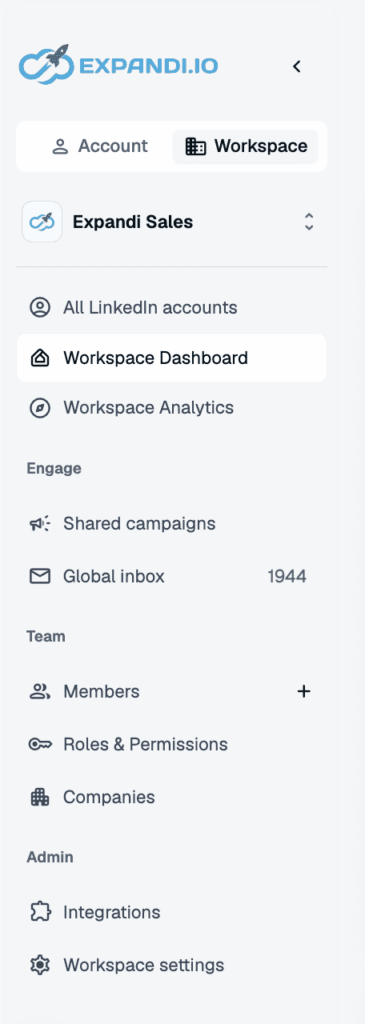
Workspaces is the alternative. Five capabilities (Dashboard, Global Inbox, Shared Campaigns, Workspace Integrations, Role-Based Access) plus a structural concept called Companies that lets you group accounts by client or department.
The strategic point: more accounts should make your team smarter. Workspaces is the infrastructure that makes that possible. The rest of this guide walks through how.
The Five Capabilities of Workspaces
Capability 1: Workspace Dashboard
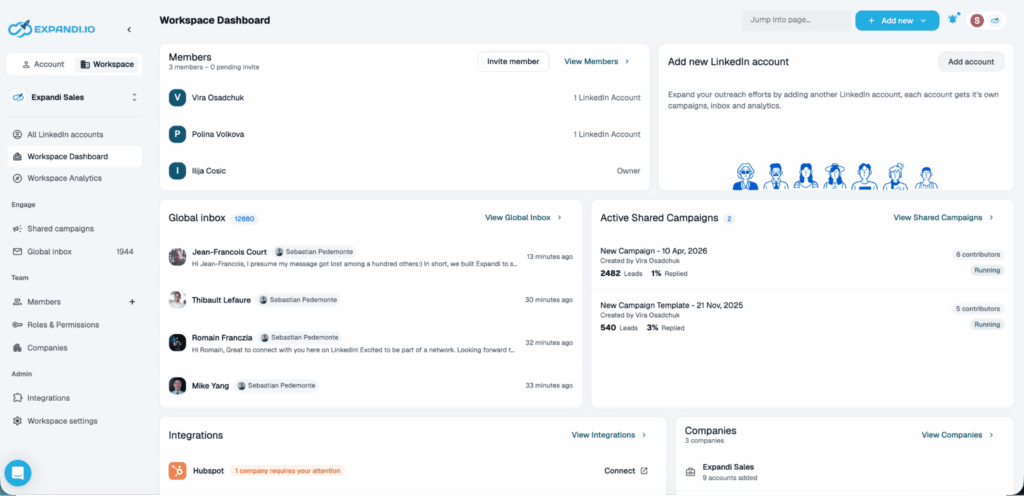
The Workspace Dashboard is a single overview screen showing performance and activity across every LinkedIn account in your Workspace: notifications, up to six KPIs, daily activity per account, active campaigns, and Social Selling Index scores
It shows notifications across every account: warm-up status, trial expirations, lead depletion, account restrictions, unread message counts. No need to check each account to see which one needs attention.
It shows up to six KPIs at once, drawn from three categories. Connection metrics include acceptance rate and total connection requests sent. Engagement metrics include company follows and event invitations. Messaging metrics include response rates and follow-up performance.
It shows daily activity per account: requests sent, messages exchanged, profile visits, post likes, endorsements. It shows active campaigns and their connection rates side by side. It shows Social Selling Index per account.
Capability 2: Global Inbox
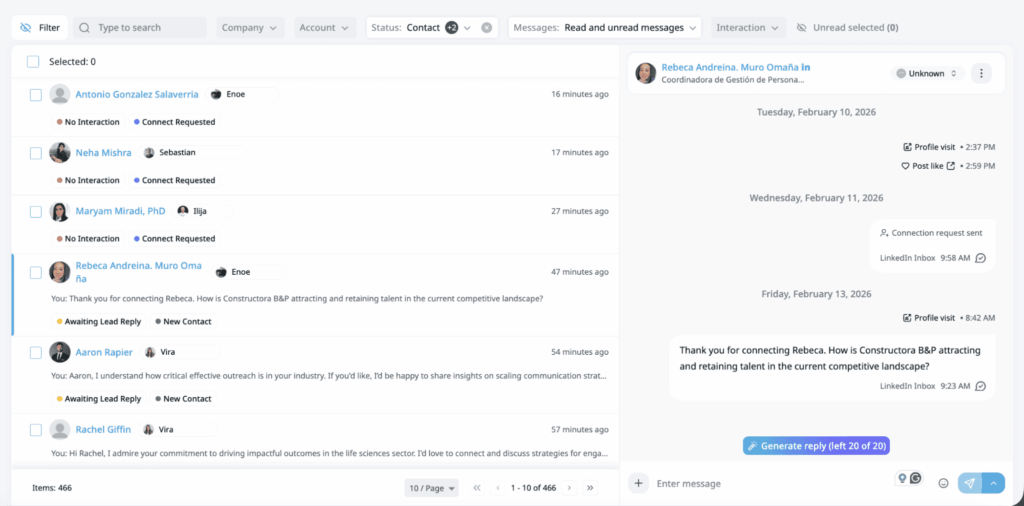
The Global Inbox is one inbox for every conversation across every account in the Workspace.
Conversations sort newest-to-oldest. Each row shows the lead, the last message snippet, and a time indicator. You reply directly from this view without switching accounts.
The filters are where the inbox earns its place. Search by name, title, or company. Filter by Company. Filter by individual LinkedIn account. Filter by Status: Contact, Searched, New contact, Imported, Connect Requested, Revoked, Disconnected. Filter by Messages (read or unread). Filter by Interaction: No Interaction, Awaiting reply, Lead replied, Email required to connect.
What this does: the most time-sensitive replies surface to the top regardless of which account they came in on. You stop missing conversations because they sat in an account view you weren’t in.
Access depends on role. Workspace Admins and Members see everything. LinkedIn Account Managers see only their assigned accounts. Company Managers see only their managed companies.
Setup is automatic. The Global Inbox works the moment your Workspace has more than one connected account.
Capability 3: Shared Campaigns
A Shared Campaign is one campaign that runs across multiple LinkedIn accounts in the Workspace.
You build it once. You designate which contributor accounts will run it. You import leads through CSV or profile links. You configure the sequence. You activate. The campaign runs on every contributor’s account simultaneously, while reporting tracks each account’s contribution centrally.
Supported types: Connector, Messenger, Builder, Open InMail. Builder campaigns have action limitations in shared mode (a few specific actions like tag additions and certain integrations are not yet available there).
The duplicate prevention is worth understanding. If your contributor accounts belong to the same Workspace company, the system distributes different leads to each contributor automatically. Two of your accounts will not message the same person.
The lead distribution is batched. People are added to contributor accounts every 24 hours, in batches sized to each account’s daily limit. Contributors will not see the full lead list immediately. This is expected behavior.
Permission to activate or deactivate a Shared Campaign sits with the campaign creator and the Workspace owner. This matters for agencies: a client-facing manager who needs control should be the creator.
Capability 4: Workspace-Level Integrations
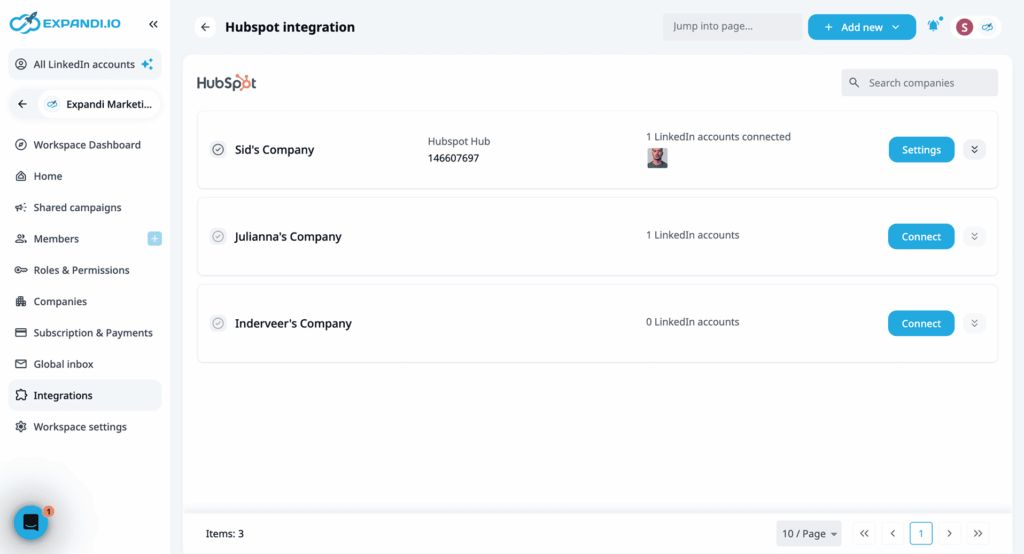
Workspace-level integrations are CRM connections (HubSpot, Pipedrive, Salesforce) and API credentials configured once at the Workspace level and applied automatically across every LinkedIn account inside it.
Every connected LinkedIn account in the Workspace then uses the same integration. You stop maintaining separate integrations per account. You stop debugging which account stopped syncing while the others kept working.
Setup lives in the Workspace > Integrations tab. Configuration is done once. No per-account drift.
Capability 5: Role-Based Access
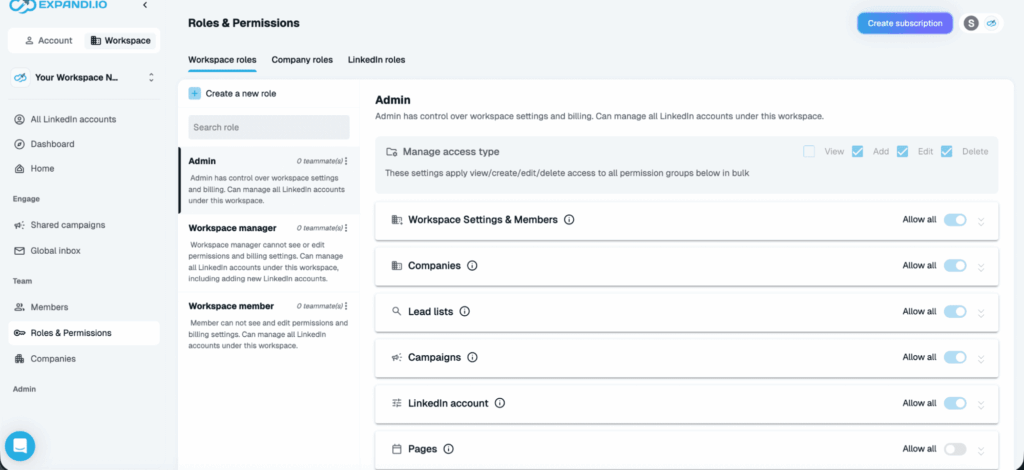
Role-based access is the permission system that controls what each user can see and manage inside a Workspace, applied at two levels: the Workspace itself, and individual LinkedIn accounts inside it.
Three preset workspace roles ship by default.
- Admin controls settings, roles, permissions, billing, and every account.
- Workspace Manager manages all accounts and can add new LinkedIn accounts; cannot edit billing or permissions.
- Workspace Member manages accounts but can’t add new ones; can’t edit roles, permissions, or billing.
You can also create custom workspace roles with tailored permission sets.
LinkedIn-account-level roles narrow access further.
- Company Manager sees only managed companies.
- LinkedIn Account Manager sees only assigned accounts. View-only variants exist for client transparency setups (an agency showing a client what is happening on the client’s accounts, for example).
The choice of role is operational. A client invited as Workspace Member would see every account in the Workspace, including other clients. An agency-client setup needs a LinkedIn-account-level view-only role instead.
Try Workspaces with your existing accounts!
[Start trial now]
How to Set Up Workspaces Step by Step
This section walks through Workspace setup from a fresh start. Each step takes one to a few minutes. The whole sequence takes about 30 minutes for a five-account team.
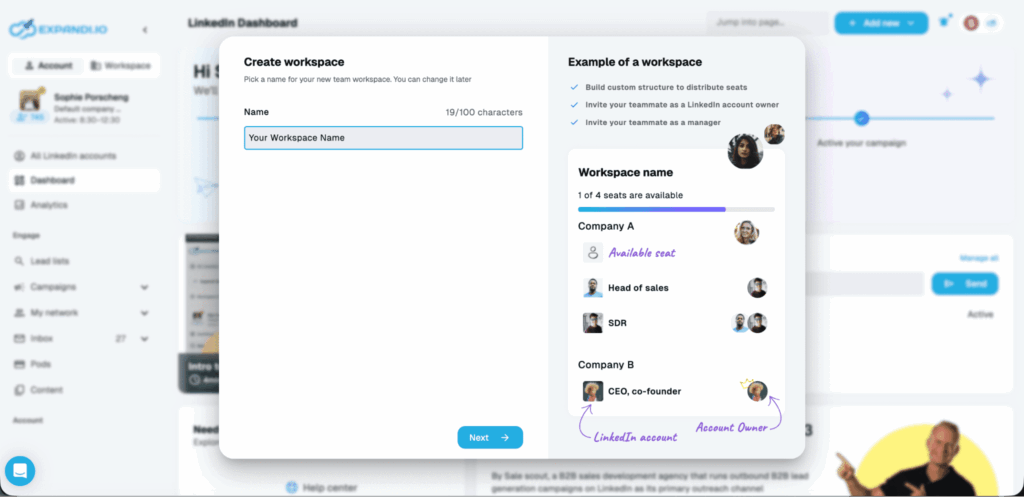
Step 1: Create the Workspace
Open the user/workspace menu in the top-right corner of Expandi. Select “Create a New Workspace.”
Name your Workspace. Click “Next.”
Choose your plan and select the number of seats. One seat per LinkedIn account you intend to manage. Enter payment and billing details, apply any coupon, click “Create card and pay.” Workspaces are paid per seat, so plan capacity accordingly.
The next screen prompts you to invite team members. Skip with “I’ll do it later” if you want to configure structure first.
Step 2: Add LinkedIn accounts and (optionally) organize them by Company
With the Workspace active, add your LinkedIn accounts.
If you manage multiple clients or run multiple departments, group accounts into Companies inside the Workspace. A Company is a sub-grouping of accounts under a shared label.
Companies unlock Company-level filtering across the Dashboard, the Global Inbox, and Shared Campaigns. They also enable LinkedIn-account-level role assignments scoped to a single Company. Agencies need this, while in-house teams may not.
Step 3: Invite members and assign roles
Open the Members tab. Click “+Add new” then “Invite member” (or the “+” icon next to Members).
Choose the invitation type. “Invite to join the entire Workspace” gives full visibility across every account. Alternative invitation types exist for narrower scopes (single Company or single account).
Enter the invitee’s Expandi email. Pick a role: Admin, Workspace Manager, Workspace Member, or a custom role you have created. Click “Invite and continue.”
Verify status in the Members menu. Pending invitations show pending; accepted ones show accepted.
Note: A Workspace Member can’t add new LinkedIn accounts. If a teammate needs that capability, give them Workspace Manager.
Step 4: Configure workspace-level integrations
Open the Integrations tab. Connect HubSpot, Pipedrive, Salesforce, or generate API credentials.
Once configured here, the integration applies across every account in the Workspace. No per-account setup, no per-account debugging.
Step 5: Build your first Shared Campaign
Open Shared Campaigns. Click “Create” and select a campaign type (Connector, Messenger, Builder, Open InMail).
Add contributor LinkedIn accounts. Import leads via CSV or profile links. Configure the outreach sequence. Review the placeholders for each variable. Activate.
Three things to expect:
- Lead distribution is batched in 24-hour cycles. Contributors will not see the full list on day one.
- Builder campaigns drop a few action types in shared mode (tag additions and certain integrations are not yet available).
- Only the campaign creator and the Workspace owner can activate or deactivate.
Step 6: Open Global Inbox and apply filters
Workspaces menu > Global Inbox.
Apply filters that match your daily reply work. A typical agency setup filters by Company first, then Status (Lead replied) or Messages (unread). A growth team filters by Account first, then Interaction (Awaiting reply).
Set a default filter view that you open every morning. The Global Inbox is most valuable as a daily habit.
Workspace Setup by Team Type
The same five capabilities support very different operating models. Pick the structure that matches your team.
Agency: 20 client accounts, one operating layer
One Workspace. One Company per client. LinkedIn accounts grouped under each Company.
Roles:
- Workspace Admin for the agency lead.
- Workspace Manager for client-facing managers.
- Custom view-only roles for clients who want visibility into their own accounts (scoped to their own Company).
Shared Campaigns built per client at Company scope, often as evergreen, always-on structures that keep pipeline moving without manual reactivation. Global Inbox filtered per Company for daily reply work.
The unlock for agencies: client transparency stops being a manual report. The view-only role gives clients a live read of their own outreach without exposing other clients’ data.
Growth team: 5 SDR accounts, shared playbook
One Workspace. One Company (the team). Five LinkedIn accounts inside it.
Roles:
- Workspace Admin for the manager.
- Workspace Member for SDRs.
One Shared Campaign carries the active playbook. The Global Inbox lets the manager oversee all replies. Workspace integrations sync everything to the team’s CRM at one configuration point.
The unlock for growth teams: ramp time for new SDRs collapses, and the team can scale personalized outreach without adding headcount. A new hire joins, runs the existing Shared Campaign, and learns the playbook in production rather than in onboarding.
Recruiting agency: 3 sourcer accounts, time-sensitive replies
One Workspace. One Company per recruiting team or client. Sourcer accounts grouped under it.
Roles:
- Workspace Admin for the team lead.
- Workspace Member for sourcers.
Global Inbox is the daily reply tool. Recruiting reply windows are short, sometimes minutes, and speed to reply matters more than volume. Scattered inboxes cost candidates. One unified view stops that.
Shared Campaigns work for repeat sourcing patterns (the same role profile, the same outreach sequence, across clients).
Why Multi-Account Becomes a Learning Advantage
The setup work above buys back time. The capabilities above reduce switching. But the strategic case for Workspaces is bigger.
Multi-account teams have access to a learning advantage solo operators structurally can’t access. Three mechanisms drive it.
Cross-account A/B at real sample size. A single LinkedIn account doesn’t generate enough volume for most A/B tests to reach statistical significance in a useful timeframe. Five accounts pool enough volume to test message variants reliably. Twenty accounts reach reliable conclusions in days instead of weeks.
Message portability across ICPs. A script that wins on Account A might fail on Account D, but you only learn that if you can see both. Single-account view hides which scripts cross ICPs cleanly and which break. A unified view turns every account into a portability test.
Operation-specific benchmarks. Industry-average reply rates are loose at best. Your own multi-account dataset is more reliable than any external benchmark, and the underlying pipeline attribution problem gets easier when every reply lives in one system. You can compare your real performance against your real distribution rather than against numbers from a different team running a different ICP.
None of this works at single-account resolution. None of this works when accounts are silos. All of it works the moment accounts are nodes in one operation.
Real Benchmarks: Workspace vs Per-Account Operation
Internal data shows two patterns worth flagging.
Multi-account users currently use Workspace features less than single-account users. Workspace Dashboard, Global Inbox, Shared Campaigns: solo users open all three more often than the multi-account users they were built for. Discovery is the gap.
Once multi-account users find the features, retention is high. Teams that adopt Global Inbox keep using it. Agencies that move to Shared Campaigns rarely revert to per-account campaigns.
The honest direction: Workspaces produces a meaningful time saving on coordination work and a discontinuous improvement in reply visibility. Specific numbers vary by team size, account count, and ICP. The qualitative pattern holds.
Advanced: Combining Workspace Capabilities for Compounding Lift
Each capability is useful alone. They compound when combined.
Shared Campaigns plus Workspace Integrations. CRM connectors may push leads and stop there. Expandi pushes the full activity trail behind each lead: connection requests, messages, replies, profile visits, sequence stage, contributor account. A Shared Campaign feeds all of that into one CRM pipeline. Your CRM stops showing “this lead came from LinkedIn” and starts showing the real outreach-to-pipeline journey.
Global Inbox plus Role-Based Access. Different roles need different reply views. An SDR needs a focused inbox of their own conversations. A team manager needs a cross-account view for coaching and pattern-spotting. An agency manager needs a client-scoped view, because mixing client conversations is a trust problem. Role-Based Access scopes the same Global Inbox to each of those realities.
Workspace Dashboard plus Role-Based Access for managers. The Workspace Dashboard shows performance across every account and contributor at once: acceptance rates, response rates, daily activity, active campaigns. Combined with Role-Based Access, a manager gets a holistic read on the team without logging into individual accounts. The point is signal: which account is plateauing, which campaign needs help, which client deserves an early-warning conversation.
Companies plus Shared Campaigns. Agencies use Companies to scope a Shared Campaign to one client’s accounts. The same campaign template runs across five client groups, each with its own contributor list, without cross-client lead leakage. Reporting stays scoped too: each client’s Dashboard, Global Inbox, and CRM connection. One architecture, multiple client operations.
Cross-account search plus Global Inbox. Cross-account search surfaces the same person twice if they were imported into two campaigns by different contributors. Shared Campaigns’ duplicate prevention catches this on outbound, but not on inbound replies or inherited contact lists. The manual cross-account search is your catch, and one catch saves a confusing conversation with a lead who already knows your team.
The pattern: combine the capabilities to remove failure modes that single capabilities can’t remove alone.
Set up your Workspace today
Workspaces is included in every Expandi plan. There is no upsell, no add-on, no separate billing line for Global Inbox or Shared Campaigns. If you have an Expandi seat, you have Workspaces.
Set-up time is approximately 30 minutes for a five-account team and a few hours for a 20-account agency. The compounding starts as soon as the Global Inbox sees its first cross-account reply.
Start your 7-day Expandi trial and set up your Workspace today.
FAQs about Expandi Workspaces
A Workspace is the top-level container that groups your LinkedIn accounts, team members, Shared Campaigns, and integrations into one operating environment. A Company is a sub-grouping inside a Workspace — typically used to organise accounts by client (for agencies) or by team or department (for in-house operations). One Workspace can contain multiple Companies; one Company can contain multiple LinkedIn accounts.
Not if roles are scoped correctly. By assigning each client a view-only role at the LinkedIn-account-level, or limiting them to a single Company, they only see the accounts inside their own scope. Workspace-level roles like Admin or Workspace Member shouldn’t go to clients, since those roles see every account in the Workspace.
Workspaces is included in every Expandi plan. The cost model is per seat, where one seat equals one connected LinkedIn account, so the cost scales with the number of accounts you run, not with the number of Workspace features you use. Inviting teammates, clients, or guests to your Workspace doesn’t add seats.
About 30 minutes for a five-account team and a few hours for a 20-account agency. The fastest path: create the Workspace, add LinkedIn accounts, group them into Companies if you’re running multi-client, invite members with the right roles, then configure integrations and your first Shared Campaign. The Global Inbox works automatically once two or more accounts are connected.



You’ve made it all the way down here, take the final step