How to Use ChatGPT Effectively

ChatGPT remains a vital tool in many business functions today. Whether it’s automating sales processes or workflows, it helps with repetitive tasks, enabling users to focus on high-impact duties.
This also extends to LinkedIn lead generation experts who identify, qualify, and engage leads to grow businesses. Take us, for example: we used AI to drive growth from $0 to $1.8 million in ARR within 2 years.
In this article, you’ll learn how to use ChatGPT effectively as a beginner. You’ll also learn how to use the tool as a LinkedIn lead generation expert to advance your business’s growth. Let’s get started.
What’s ChatGPT and How Does it Work?
ChatGPT is an artificial intelligence (AI) chatbot developed by OpenAI to process information from various sources, such as text, images, and audio, and generate human-like responses.
In practice, ChatGPT takes in your questions or requests, processes them, and generates an answer. In other words, the AI chatbot can:
- Hold a text or voice-based conversation to generate relevant answers on related topics.
- Brainstorm ideas, such as marketing campaigns or creating a buyer persona
- Analyze and generate insights from large amounts of data
- Generate and modify images based on your request
- Find specific information from the internet
- Create charts and graphs based on your inputs
In short, ChatGPT can take on whatever role you want it to play, whether as a researcher, data analyst, copywriter, strategist, image generator, or anything else.
And what do you gain? Hours of tedious work cut down to minutes. Ideas generated at your fingertips. This gives you time to focus on other quality work.
But how exactly does ChatGPT work?
ChatGPT is trained on vast amounts of data. Books, articles, website codes, graphs, name it. With these resources, it has a deeper understanding of the language and generates coherent responses during conversations.
The best part is you don’t need to be tech-savvy to use the tool. Just describe what you need, and it will help generate a relevant response.
The AI chatbot also learns from patterns and examples in the data it’s seen to provide helpful responses to real-world situations.
However, it’s essential to note that ChatGPT may make mistakes or generate inaccurate responses, so exercise caution while relying on its responses. Nonetheless, it’s a vital tool adopted by users in everyday situations.
How to Use ChatGPT Effectively? A Beginner’s Guide
As a beginner, here is how to use ChatGPT effectively in five simple steps.
1. Create an OpenAI account
You can use ChatGPT without signing up. Visit chatgpt.com to ask your questions. However, this version is limited.
It’s best for one-off questions or performing quick tests. Basically nothing deep. Plus, your conversations don’t get saved, and your chats could be used to train the AI.
So, what do you do? Create an account so ChatGPT can remember your chats and adapt to your style.
Simply click “Sign up.” Use your email address or sign in with your Google, Microsoft, or Apple account. If you use an email address, you’d have to verify your phone number to confirm whether you’re really a human.
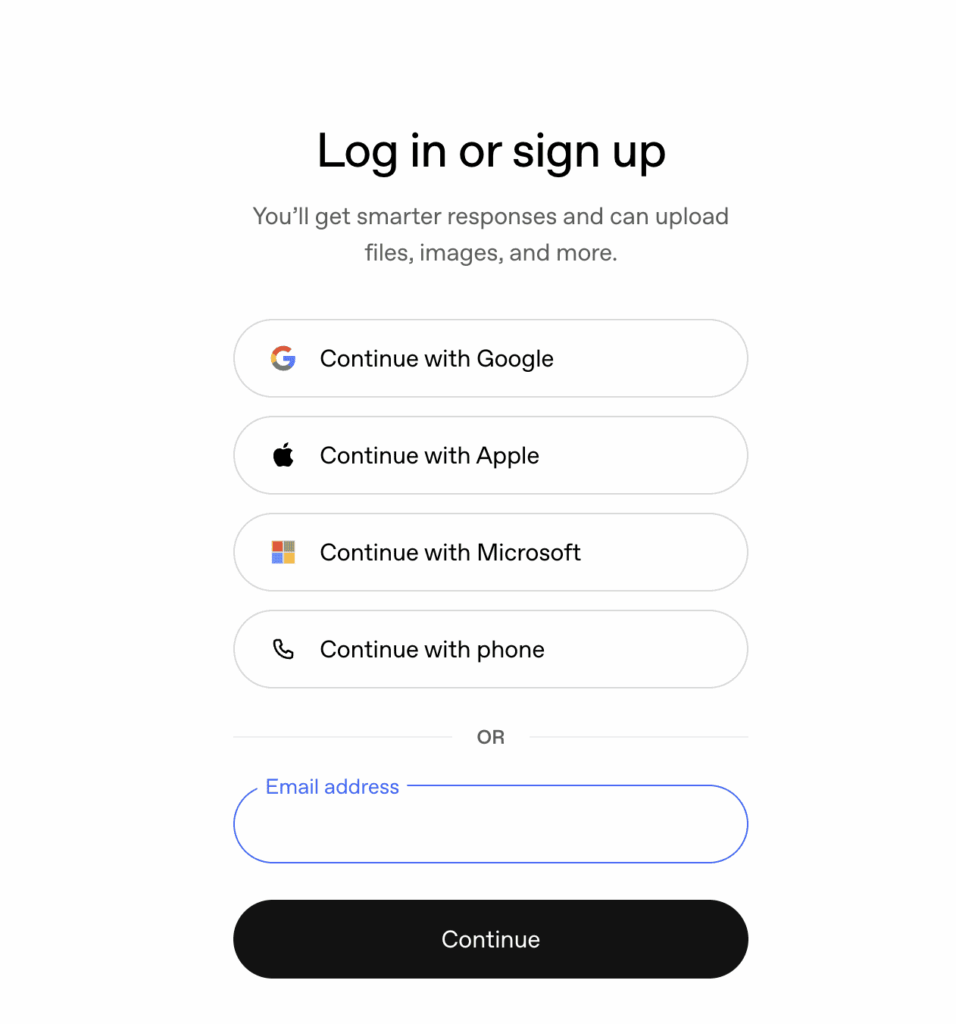
If you already have a ChatGPT account, skip these steps. Simply “Log in” to continue with the chatbot.
2. Choose a Plan (Free or Paid Version)
ChatGPT offers a free plan for all users. However, this free plan comes with lots of limited features. For instance, you get only 10 messages with the advanced model within a 5-hour window. Plus, it generates 2-3 images per day, file upload is limited, and you can’t create your own GPT.
So, paying for a premium version depends on how often you use the tool.
- Choose the free version if it’s for occasional, casual, or personal use.
- Choose the paid plans if you’re a small team, a large organization, or a high-demand user such as a researcher or data analyst.
Here’s an overview to help you decide on which plan to opt for.
| Plans | Key Features |
|---|---|
| Free | Access to GPT -5 but limited usage in terms of reasoning, image generation, and uploads. |
| Plus ($20 per month) | Extended access to GPT -5 and core features; extended limits to file uploads, deep research, voice modes, video generation, and ChatGPT agent mode. |
| Pro ($200 per month) | Everything in the Plus plan: unlimited access to core features and priority performance. |
| Business ($25-$30 per user/month) | Everything in the Plus plan: dedicated workspace, integration with third-party platforms, centralized memory |
| Enterprise (custom) | Everything in Business: enterprise-grade security, 24/7 data support, unlimited usage or users. |
3. Choose Your AI Model
ChatGPT automatically selects a model based on your prompt. However, if you’ve reached your free plan limit, it switches to a slower model.
As of the time of this writing, ChatGPT offers two models to its users:
- ChatGPT -5.2 model (for broad world knowledge, complex tasks, and multi-step agentic projects)
- ChatGPT Plus for more usage.

4. Interact with ChatGPT
Next, ask the AI tool questions. You can do this in various ways through these ChatGPT features:

- Type your prompt in the message bar and click the arrow facing up or hit Enter on your keyboard to generate an answer.
- Use the Web search feature to surf the web to inform its answers. Otherwise, the generated answers will rely on the data it’s trained on. To access the feature, click the plus (+) button, select More, and choose Web search.
- Use Deep Search to comb through various online sources to generate a comprehensive response backed by cited sources to verify its claims. To access this, click the plus (+) button, click Deep research, and enter your prompt.
- Use the Voice mode feature to talk to ChatGPT. Click the microphone icon to record your speech as a prompt and generate a response.
- Use the shopping assistant feature to find the right products or services, compare prices, review quality sources, and make an informed purchase decision. To access this, click the plus (+) button and select Shopping Research to help with your shopping experience.
- Upload images or files by dragging them into the message bar or selecting them manually from your device’s storage. Click “Add photos & files” to generate the image.
- Finally, describe the image you want to generate for your needs. Click the plus button and select “Create image” to access this feature.
5. Refine ChatGPT’s Responses
Once you do any of the above, ChatGPT will generate a response within seconds. But you don’t have to always settle for the first response. Improve with follow-up questions.
You can request real-world examples, ask alternative angles, ask for pros and cons, or rephrase the response. For example, you can enter any prompt like the screenshot below, and it will generate an answer.

Then, edit your prompt to modify your response. For instance, I asked it to list the answer in bullet points. So you can tweak the details to suit your preferences.
Ask it to give you a response in a humorous or confident tone, in long- or short-form content, to write emails or messages, to put the response in a table, or to summarize the information.

The more you tweak your prompt, the more concise the information will be.
How to Use ChatGPT Effectively for Business as A LinkedIn Lead Generation Expert?
As mentioned earlier, you can use ChatGPT for different purposes such as research, data analysis, copywriting, and more. But that’s not all.
You can also use ChatGPT effectively for business, as a LinkedIn lead-generation expert. Whether it’s to find leads, craft outreach messages, or drive meaningful conversations, ChatGPT is an excellent tool for generating qualified leads and booking meetings. Let’s find out.
1. Use ChatGPT to Find Qualified Leads
Combine ChatGPT with LinkedIn Sales Navigator to identify and pinpoint prospects that align with ICP. To do this, build a list of leads in Sales Navigator and import it with a tool like Expandi. Then, upload the data to ChatGPT and ask it to use Boolean search operators to find the most relevant leads for your business.
These Boolean search operators include:
- AND operator
Use the “AND” operator to pinpoint leads that meet specific criteria in your lead list. This helps to create a targeted search that achieves real business results.
Prompt example:
Identify leads that align with these specific job criteria:
Job Title (CEOs or Heads of Growth) AND Industry (SAAS) AND Company size (50-500 employees).
- OR operator
Use the “OR” operator to expand your search scope within the lead list. This helps to find a broader, yet targeted search that aligns with your needs.
Prompt example:
Find CMOs in the IT OR healthcare OR Automobile industry
- NOT operator
Remover unwanted leads or clutter from your search results with the “NOT” operator. This helps to keep your search focused and relevant.
ChatGPT Prompt example:
Exclude leads that do not fit these criteria:NOT (Job Title contains Assistant OR Intern)
- Combined operators
Merge all these operators to achieve a specific outcome and targeted result. For instance, set custom instructions as shown below.
ChatGPT Prompt example:
Score leads where
(Job Title contains Head of Growth OR VP)AND (Industry = Fintech OR Retail)
AND NOT (Company size < 50).
2. Craft Hyper-Personalized Messages with ChatGPT
Once you’ve found qualified leads, it’s time to engage them. Use ChatGPT to craft messages that initiate conversations and nurture meaningful relationships. Here is how to use ChatGPT effectively for writing on LinkedIn.
- LinkedIn Connection Requests
Generic messages don’t cut it anymore. Use ChatGPT to add a personal touch that addresses your prospect’s interests, making your connection request stand out. You can also use a LinkedIn connection request template to guide ChatGPT in crafting your request.
ChatGPT prompt example:
Write a LinkedIn connection request message (300 characters max) for this lead:
Name: {{First name e.g., Alex}}Role: {{Job title e.g., CEO}}
Industry: {{SaaS or Fintech}}
Company: {{Company e.g., Google}}Make the message friendly and professional. For you: highlight a relevant insight related to their role, LinkedIn post, or industry.
If you have to send these connection requests to hundreds or thousands of leads in your list manually, that’d be time-consuming.
That’s why we recommend using a LinkedIn automation tool like Expandi to streamline the process. Expandi lets you pull relevant data from a prospect’s LinkedIn profile and add personalization tags, tailoring your messages to their needs and increasing the chances of your connection request being accepted.
- LinkedIn Messages
Once they’re connected, it’s time to craft personalized LinkedIn messages. This goes beyond messaging their first name or job titles. Instead, make your message relevant to your prospect’s needs.
Offer relevant recommendations that can solve their problems or align with their interest. Give specific instructions that will prompt the large language model to act effectively. ChatGPT can help with this process.
Describe the message, state the tone it should convey, generate creative ideas, whether you want long-form or short-form content, and what you intend to achieve in the conversation. Here is a prompt example to generate concise answers when crafting LinkedIn messages for your intended audience.
ChatGPT prompt example:
Craft a LinkedIn message for this newly connected lead using the detailed instructions below:
{{Name}}{{Job title}}
{{Company}}
{{Industry}}
{{Pain point}}
Keep the tone conversational and friendly. Start with a catchy opener and acknowledge the relevant challenge they may face. Keep it under 125 words. Avoid sounding salesy.
Refine your message over time to get the desired result. To streamline these mass messages on LinkedIn into a single place, consider using Expandi. Our LinkedIn outreach feature lets you build a LinkedIn sequence that automates and scales your bulk messages, helping you build rapport with your potential customers.
- LinkedIn InMails
LinkedIn InMails are another way to reach out to any prospects you’re not directly connected with. Fortunately, ChatGPT helps to craft compelling InMail messages that prompt responses from your recipients.
Just like your regular messages, you must personalize your LinkedIn InMails. Offer value that your prospects find useful and avoid being non-salesy to them.
Prompt example:
Write a LinkedIn InMail message for a cold prospect with these details — {{name}}, {{job title}}, {{company}}, {{industry}}. Personalize the opening line, state the pain point {{e.g., reduce churn rate}}, and end with a low-pressure CTA.
3. Drive Engaging Conversations on LinkedIn with ChatGPT
After you’ve sent the initial message, continue engaging with prospects through social media posts. Post helpful content and make engaging comments that position you as an expert and warm the relationships with your prospects. This helps to create qualified opportunities that fill your sales pipeline.
Prompt example:
Write a LinkedIn post for SDRs on why outbound sales fail when the team prioritizes volume over relevance. Start with a sharp hook that challenges the “sending mass messages” mindset. Highlight one outbound mistake (e.g., poor ICP definition or generic messaging).
Share a quick insight on how to improve outbound sales. End with a reflective question that sparks conversations. Keep the message under 140 words and write in a clear, confident tone. Avoid any salesy terms or jargon that can confuse or distract prospects.
By writing effective prompts, you give the AI tool more context and a detailed explanation, helping it generate text for the appropriate target audience.
Limitations of ChatGPT to Keep in Mind
If you want to learn how to use ChatGPT effectively for work, there are some limitations you should keep in mind.
1. Lack of context
Without human oversight, ChatGPT crafts messages that lack a personal touch. It struggles with nuances like humor, irony, or sarcasm, making them feel less human. We don’t just say this; the stat backs it up, showing that 68% of salespeople agree that generative AI lacks human context.
To combat this, it’s essential that human SDRs review and validate decisions or recommendations to help the tool generate accurate responses. This helps in using ChatGPT more effectively for business.
2. Data privacy and security
Many businesses use AI technologies, such as ChatGPT, to process vast amounts of data. As a result, data often gets leaked through these tools. Research revealed that 77% of employees share sensitive company data through ChatGPT, creating significant security risks and compliance issues.
Hence, businesses must implement robust security measures to safeguard sensitive data and comply with local laws and regulations. Otherwise, you could face severe legal sanctions or pay hefty fines for violating laws such as GDPR or the CAN-SPAM Act.
3. Lack of real-time information
ChatGPT relies on existing data to generate outputs, which could be incomplete or outdated. In fact, if you’re using the free version of ChatGPT, it doesn’t browse the web at all but instead generates its response from the training data. This can limit the AI sales tool’s performance and disrupt your sales workflow.
Combine ChatGPT with Expandi to Supercharge Your Lead Generation Efforts.
ChatGPT acts as a great personal assistant for B2B sales professionals. But it shouldn’t work in isolation. Combine the AI tool with Expandi to accelerate your lead generation. As ChatGPT generates the content, use Expandi to automate the outreach sequence in bulk.
With Expandi, you can create and automate targeted outreach campaigns and smart follow-up sequences to nurture leads effectively. Together, we make the perfect execution system to fill your sales pipeline with qualified opportunities. Sign up for a free trial today!






You’ve made it all the way down here, take the final step