How to Use LinkedIn Automation Without Getting Banned in 2026


Key Takeaways
- LinkedIn’s own restriction pages address rapid invitation activity, poor recipient response, prohibited automated tools, and suspicious account access
- LinkedIn doesn’t publish one numeric invitation allowance, so plan for no more than 100 invitations per week
- Start much lower on a new, dormant, or recovered account
- Cloud-based software removes the local browser-extension footprint, but LinkedIn can still evaluate the account’s behavior and may restrict it.
How to Use LinkedIn Automation Without Getting Banned in 2026


LinkedIn automation helps save hours of manual work while growing your sales pipeline. However, improper use risks account restrictions that can cut off access to your network.
To use LinkedIn automation safely without getting banned, maintain steady activity levels, target prospects with a clear reason to connect, and implement technical safeguards against account restrictions.
Note that LinkedIn’s User Agreement strictly prohibits unauthorized automation – no tool or setting guarantees complete protection. While this guide outlines strategies to minimize risk, it cannot entirely eliminate it.
Is LinkedIn automation safe?
LinkedIn automation involves account risk because LinkedIn’s User Agreement bars unauthorized bots and automated methods from accessing the service, adding contacts, sending messages, or driving engagement. Its prohibited software policy covers crawlers, bots, plug-ins, browser extensions, and other third-party software that scrapes or automates activity.
LinkedIn may see different signals depending on where the automation runs. A browser extension operates inside the same browser you use for LinkedIn, which leaves a local footprint. A cloud-based tool avoids that extension footprint and can keep sending times and sign-in patterns consistent. Neither setup changes LinkedIn’s terms or guarantees continued access.
LinkedIn lists 4 comprehensive reasons for account restrictions: content, profile information, identity, and automated tools. A “ban” may be a temporary invitation block, a timed automation suspension, or a permanent account restriction. If access has already been limited, use our guide on what to do if your LinkedIn account is restricted.
This article is more to do with prevention and early action.
LinkedIn automation policy: what gets accounts restricted in 2026
LinkedIn doesn’t publicly share its detection logic. What it does publish is the behaviors and tools that can lead to restrictions, which gives us a practical set of signals to watch.
Volume and sudden spikes
A burst of invitations from a new or quiet account is easy to set apart from its earlier activity. LinkedIn says accounts may be restricted after sending many invitations in a short period or when excessive activity suggests automation.
There’s no official “safe” daily number. So, build a weekly budget and spread it across active days. Stop when LinkedIn gives you a limit notice. A lower starting point is sensible for a new, dormant, or recently recovered account.
How recipients respond
LinkedIn says invitation restrictions can follow when many requests are ignored, left pending, marked as spam, or tagged with “I don’t know this person.” That makes audience fit an account health issue and a conversion issue.
Across 13.2 million connection requests in Expandi’s State of LinkedIn Outreach H2 2026, the platform-wide acceptance rate was 28.5%. Industry results ranged from 17.5% to 40.1%, so the platform average offers a general benchmark, though the relevant industry range is more useful for judging a campaign.
If one campaign sits far below its segment for several weeks as pending requests accumulate, pause it and check the list against the profile positioning and reason for connecting.
Sign-in location and active sessions
LinkedIn records the location, IP address, browser, and device type for active sessions. It may ask for security verification after a sign-in from an unfamiliar location or device, or after suspicious web activity.
Check Settings & Privacy > Sign in & security > Where you’re signed in before launch. End sessions you don’t recognize and change the password if any of them looks suspicious. Avoid country-hopping VPNs, shared credentials, and tools that open parallel sessions. LinkedIn’s Professional Community Policies also prohibit using another person’s account or sharing your own.
Browser extensions
LinkedIn’s Help Center explicitly forbids browser extensions that scrape, alter, or automate the site. A separate 2026 investigation sharpened the technical concern.
Specifically, Fairlinked’s BrowserGate investigation reported that LinkedIn code scanned for 6,222 Chrome extensions, including 762 LinkedIn-specific tools. LinkedIn disputes Fairlinked’s characterization of the practice, and the report doesn’t prove that every detected extension leads to enforcement.
But it does demonstrate that an installed extension can create a browser-side signal. Our BrowserGate report breakdown explains the findings and their limits.
Repetitive messages and timing
LinkedIn’s Professional Community Policies prohibit untargeted, irrelevant, unwanted, or gratuitously repetitive messages. Identical copy sent at exact intervals also makes a campaign look mechanical to recipients, which can lead to ignores and reports.
Vary the message around a detail the recipient can verify and give each message follow-up a job. Timing variation can’t rescue weak targeting or unwanted copy. Read our ethical LinkedIn outreach best practices before increasing volume.
Safe LinkedIn automation limits for 2026
LinkedIn doesn’t publicly share a universal allowed daily or weekly invitation number. Do note that the ranges below are Expandi planning guidance. LinkedIn hasn’t approved them, and following them can’t guarantee that an account will avoid restrictions.
| Account state | Planning range for connection requests | How to use it |
|---|---|---|
| Brand-new account | Spend at least 3 to 5 days on normal manual use first. When automation starts, begin around 5 invitations per active day. | Connect manually with people you know, complete the profile, publish or engage normally, then begin the 14-day gradual warm-up. |
| Dormant or recovered account | Start around 5 per active day and increase only after stable activity. | Give the account 2 to 4 weeks of cautious use. Pause immediately if LinkedIn shows a limit or verification prompt. |
| Established free account | About 15 to 20 per active day across no more than 5 days, with a ceiling of 100 requests per week. | Treat 100 as Expandi’s planning maximum. Do note the account may be limited sooner. |
| Established Premium or Sales Navigator account | Use the same 15 to 20 per active day and 100-per-week planning ceiling. | LinkedIn says Basic and Premium members are subject to invitation limits. It doesn’t promise paid accounts a higher allowance. |
For the full distinction between LinkedIn’s published rules and working guidance, see our LinkedIn weekly invitation limit guide.
LinkedIn also doesn’t publicly share one numeric limit for messages to first-degree connections. So, configure messages separately, use Expandi’s Safe Preset if you are unsure, and watch for LinkedIn prompts or unusual recipient responses. A high message setting doesn’t create extra invitation capacity.
There’s no official safe number of pending invitations either. LinkedIn names a large outstanding queue as a restriction trigger. Review requests after 21 to 30 days and withdraw stale ones selectively. Expandi can automate that cleanup.
Keep in mind that a withdrawn recipient can’t be invited again for up to 3 weeks, and withdrawal doesn’t restore an active invitation allowance.
How to set up LinkedIn automation safely
Account safety starts before the first campaign. Use these steps to create a steady baseline and keep the person who owns the account in control.
1. Get the profile ready
Use the account owner’s real name and an accurate work history, with a current photo and role. The headline and About section should tell a prospect why the connection makes sense. Our guide to improving your LinkedIn profile covers each section.
Turn on two-factor authentication as well. LinkedIn recommends it for account security and requires it for Sales Navigator users. Keep the government ID and profile name aligned in case LinkedIn asks for identity verification through Persona or another supported provider.
2. Warm up new, dormant, and recovered accounts
A brand-new profile needs some normal use before automation. Expandi’s current setup guide recommends 3 to 5 days of manual activity, including connection requests to people you genuinely know. Then use the 14-day gradual warm-up, which starts at 5 actions per day and adds 3 actions every 2 days until it reaches a figure of 21 actions.
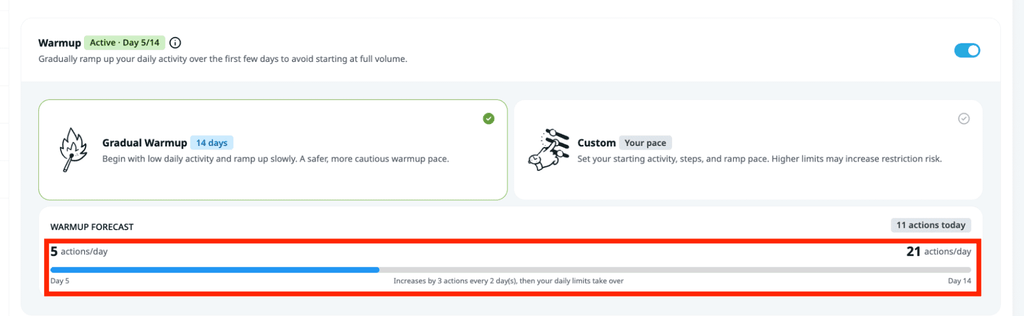
For a dormant or recently recovered account, allow 2 to 4 weeks and review the account after each increase. Combine the LinkedIn warm-up sequence with a credible LinkedIn content strategy and measured outreach to familiar contacts.
3. Use one cloud-based tool with a country-matched IP
One tool gives you one set of limits and one automation session to audit. Stacking products can cause overlapping actions and makes it difficult to see which system created a sudden burst.
Expandi runs in the cloud and assigns each account a dedicated country-based IP. The point is session consistency, as the automation login stays in the country selected for that account. It doesn’t make activity invisible to LinkedIn, though.
Agency teams should give every client account its own setup and avoid sharing LinkedIn credentials. Expandi Workspaces provides roles and account-level management, and the LinkedIn account remains tied to its real owner. Our guide to managing multiple LinkedIn accounts covers the agency workflow.
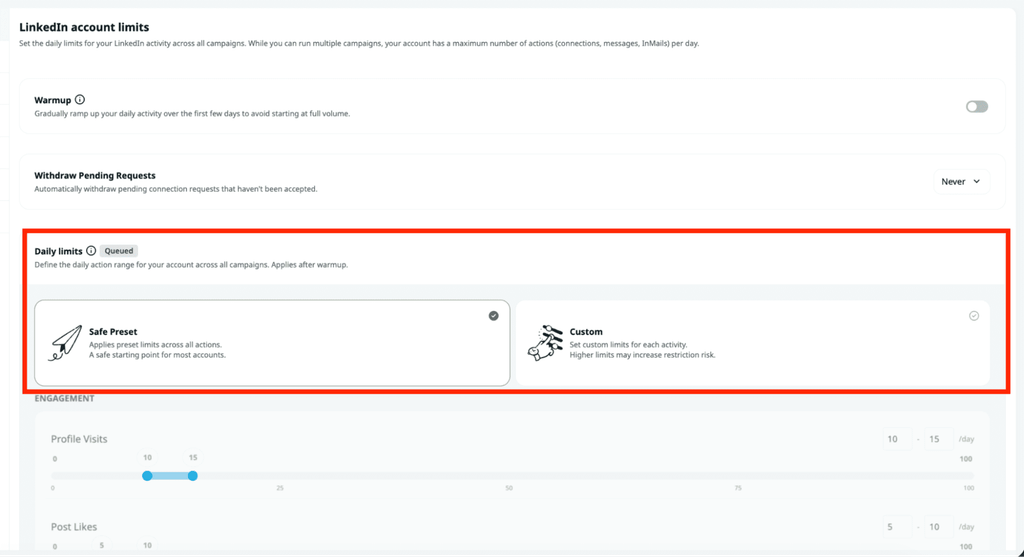
4. Set daily ranges inside the weekly budget
Choose the weekly invitation budget first. Divide it across the account’s active days, then configure a range so the daily total isn’t identical.
Expandi’s Safe Preset locks the platform’s recommended daily ranges. Custom mode lets you set a range for each action, including connection requests, messages, profile visits, and InMail. Several campaigns still draw from the same account-level limits, so review the combined scheduled task total.
5. Schedule activity during normal working hours
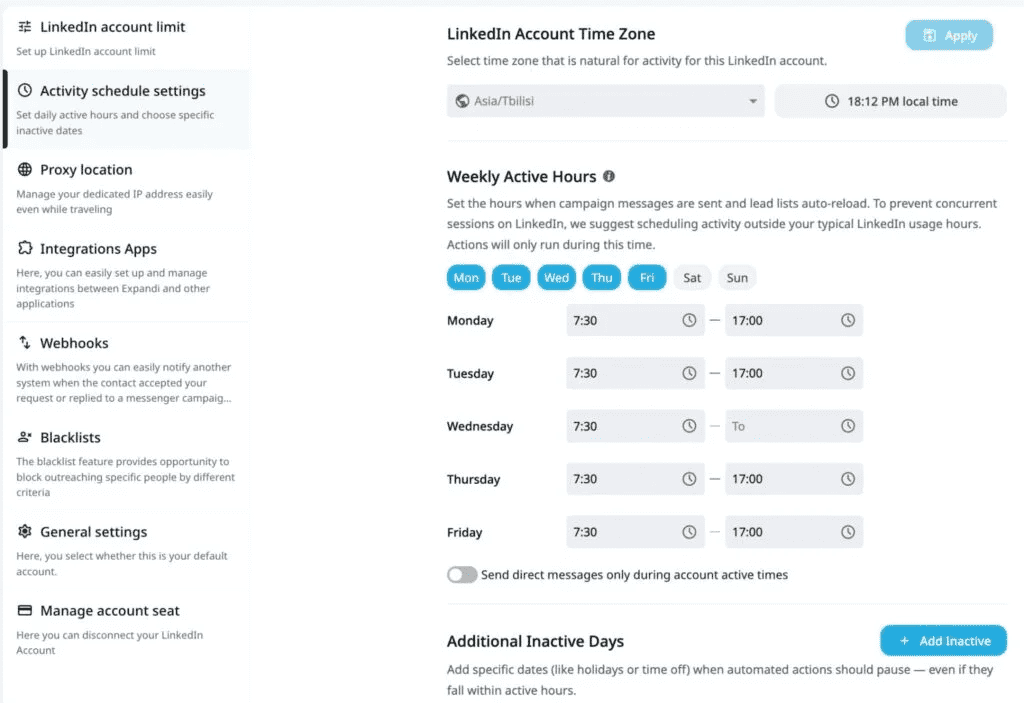
Set the account’s timezone, active days, and sending windows to match the owner’s normal work pattern. Expandi recommends no more than 5 active days per week for a new account, with at least 2 inactive days. Vary the window from day to day and mark holidays as inactive. Keep delays between actions randomized within reasonable ranges.
The H2 2026 report observed 32% to 37% acceptance for connection requests sent between 7 and 11 a.m. Amsterdam time, compared with 23% to 24% in the evening. The figures describe conversion performance, and LinkedIn hasn’t set them as a safety threshold. Use it as a scheduling test, then keep the account’s local routine credible.
6. Target people with a reason to accept
The best invitation is one the recipient can place in context. Shared groups, a recent follow, a post interaction, or a genuine professional overlap can supply that context.
“Making sure that you’re reaching out to the right ICP is critical. Beyond that, I’d say ensuring that your offer is relevant to that ICP.” – Sergio Apollo, co-founder and CEO of Better Match
In the H2 2026 data, connection notes that referenced an existing tie reached 1.8 to 2.7 times the 30.2% baseline acceptance rate. The result came from the campaigns in that dataset and won’t predict every account. Use signal-based campaigns or other verified context to choose the audience, and never claim an interaction that didn’t happen.
7. Keep sequences concise and review stale invitations
Long pursuit sequences create more chances for a recipient to ignore or report the outreach. In Expandi’s H2 dataset, campaigns with 3 messages produced a 9.8% reply rate. Campaigns with 5 or more fell to 5.0%. LinkedIn hasn’t adopted these figures as safety limits, but they make a strong case for restraint.
“Be personal, be you, and just have normal conversations and do not try to pitch everything away or everybody away.” – Philip Braches, head of sales at Planted at the time of the interview
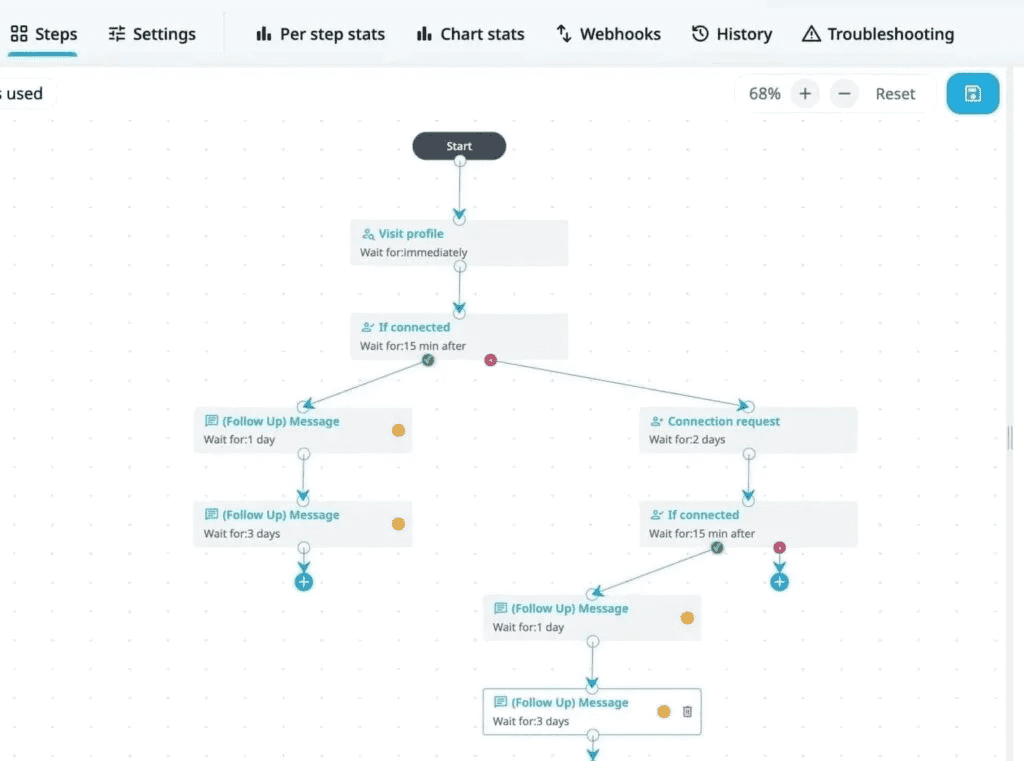
Write each message for the stage of the conversation and stop the sequence after a reply. Smart Campaigns can branch on recipient behavior. Check pending invitations each week and withdraw requests that no longer have a clear reason to remain open.
Cloud-based LinkedIn automation tools vs. browser extensions
Architecture controls the technical footprint. Audience fit and pacing still determine how people respond. Each message also needs a credible reason to connect.
| Question | Browser extension | Cloud-based platform |
|---|---|---|
| Where does it run? | Inside the browser used to open LinkedIn | On the provider’s remote infrastructure |
| Local browser footprint | The extension can be visible to browser-side scanning | No local outreach extension is installed |
| Session and IP | Often follows the operator’s browser, device, and current network | Can use a dedicated country-matched IP for one account |
| Pacing controls | Depend on the extension and local session | Can centralize warm-up, daily ranges, schedules, and inactive days |
| Main remaining risk | LinkedIn policy, extension detection, behavior, and recipient reports | LinkedIn policy, account behavior, sign-in pattern, and recipient reports |
| Guarantee against restrictions | None | None |
Cloud-based execution removes the extension-specific signal documented by BrowserGate. LinkedIn can still review invitation volume and account sessions. Reports from members can also prompt enforcement.
When comparing safe LinkedIn automation tools, check the controls as carefully as the architecture. Expandi’s LinkedIn outreach platform combines cloud execution with a dedicated country-based IP, profile warm-up, configurable daily ranges, active-time scheduling, and automatic pending-invitation withdrawal.
The current features are listed on the Expandi pricing page. LinkedIn still prohibits unauthorized automation, so use of Expandi remains at the account owner’s risk.
Warning signs that your LinkedIn account needs attention
Some prompts are direct restrictions. Others are security checks or campaign-health signals. Treat each one as a reason to stop and inspect the account.
| What you see | What it may mean | What to do now |
|---|---|---|
| “Invitation limit reached” or sending is unavailable | The account reached LinkedIn’s invitation allowance or triggered an invitation restriction | Pause every campaign that sends invitations. Follow the time shown in LinkedIn; the block typically lasts about a week. |
| CAPTCHA or a sign-in security prompt | LinkedIn noticed an unfamiliar device, location, or suspicious web activity | Stop automation, complete the prompt, and inspect active sessions. Change the password if any session is unfamiliar. |
| Identity verification request | LinkedIn wants to confirm the account owner | Use LinkedIn’s on-screen process. Make sure the profile name matches the valid ID being submitted. |
| Automation suspension notice | LinkedIn detected activity it classifies as automated | Disable the relevant software, save a screenshot of the notice, and wait for the time stated by LinkedIn. |
| Acceptance keeps falling whereas pending requests rise | The audience may not recognize the sender or see a reason to connect | Pause the campaign. Review the source list, profile, opening context, and recent changes before resuming at a lower pace. |
If LinkedIn has already restricted access, don’t keep testing new tools or devices. Follow the full LinkedIn account restriction recovery process.
What not to do
Most preventable problems come from shortcuts that hide the real cause. Here’s what you shouldn’t do:
- Run two automation tools on one account. Overlapping schedules can create unexpected volume and parallel sessions.
- Buy, borrow, or create a replacement identity. Read why buying LinkedIn accounts creates more risk.
- Use a VPN that moves the account between countries or share the password across an agency team.
- Open a second personal account after a restriction. LinkedIn’s policies require a true identity and prohibit using another person’s account.
- Try to work around an active invitation block through another device or campaign type.
- Give LinkedIn false information if it asks about account activity. Follow the official prompt and explain the facts accurately.
Case study: Provoke Agency
The Provoke Agency case study says the agency grew from $0 to $1.8 million in annual recurring revenue in under 2 years using Expandi’s white-label platform. It also states that none of Provoke’s working accounts had been suspended or banned during the period described.
Having said that, this is an attributed customer result from one agency, not a controlled safety study. It doesn’t guarantee the same outcome for another account. Provoke’s process is more useful here: the agency paired account-level controls with an experienced team that managed client campaigns consistently.
Pre-launch LinkedIn automation safety checklist
Run this check before activating a new campaign and after any change to the account, tool, or audience.
- The profile uses the real account owner’s name, photo, role, and current experience.
- Two-factor authentication is enabled and the owner can complete an identity check.
- A new account has had at least 3 to 5 days of normal manual use before automation.
- Gradual warm-up is enabled for a new, dormant, or recovered account.
- Only one automation tool is connected to the LinkedIn account.
- The dedicated IP country matches the account owner’s normal location.
- Daily invitation ranges fit inside a maximum planning budget of 100 per week.
- The schedule uses normal working hours, no more than five active days, and at least two inactive days for a new account.
- Every lead has a credible reason to recognize or accept the sender.
- Messages use truthful context, a clear purpose, and a short sequence.
- Automatic withdrawal or a manual review is set for stale pending invitations.
- Active LinkedIn sessions have been checked for unfamiliar devices or locations.
- The owner knows who will pause the campaign if LinkedIn shows a warning.
The LinkedIn automation compliance checklist goes deeper on campaign ownership and data handling. When the account is ready, start a 7-day Expandi trial and configure the limits before activating the first campaign.
Keep the account healthy after launch
Safe LinkedIn automation needs regular review after the initial configuration. Watch the invitation queue, acceptance by segment, active sessions, and LinkedIn prompts. Pause when the account tells you something has changed.
No setting can guarantee permanent access. A complete profile, measured pacing, relevant targeting, and consistent account access give you the strongest practical setup available. If a restriction appears, stop the campaigns and follow the account recovery guide before sending again.
FAQs about LinkedIn automation safety
LinkedIn doesn’t say that Sales Navigator users receive safer automation status or a higher invitation allowance. Sales Navigator adds InMail credits and more advanced ways to search and save leads. Standard invitation limits still apply, and LinkedIn requires Sales Navigator users to enable two-factor authentication.
A cloud-based tool has no local browser extension for an extension scan to find. LinkedIn can still evaluate account sessions, invitation activity, message patterns, and member reports. Cloud architecture removes one technical footprint, but it doesn’t make automation invisible.
It is a high-risk starting point. Complete the profile, use LinkedIn manually for at least 3 to 5 days, connect with people you genuinely know, then begin with a gradual warm-up. Expandi’s default warm-up starts at 5 actions per day and increases across 14 days.
LinkedIn doesn’t document posting as protection from restrictions. Expandi’s H2 2026 report found 30.5% acceptance among 38 consistently active accounts, compared with a 27% to 29% platform range. Still, the sample was small and the finding was observational. Posting may help recognition, but it doesn’t create extra invitation capacity.
Agencies need one accountable owner, a country-matched IP, account-specific limits, and role-based access that doesn’t require password sharing. LinkedIn’s policies prohibit sharing accounts. Each client should approve the outreach and be able to complete any security or identity prompt themselves.
Profile visits and likes create less direct pressure on a recipient, but LinkedIn’s User Agreement also prohibits unauthorized automated likes and other engagement. Keep those actions limited and relevant, and don’t treat them as a safe substitute for connection requests.
LinkedIn’s contractual rules and the law are different questions. Unauthorized automation can violate the User Agreement even when it’s not a criminal act. Privacy and anti-spam laws vary by location and use case. If the campaign processes large sets of personal data or targets a regulated audience, ask qualified counsel to review it.



You’ve made it all the way down here, take the final step