LinkedIn Sales Navigator Filters: How to Stack Them for Buying Intent (2026 Guide)

LinkedIn Sales Navigator gives you 50+ filters spanning leads, accounts, intent signals, and workflow.
A basic Sales Nav search — a job title plus a geography — returns 10,000+ people.
That feels like a fair starting point. Run outreach against the unfiltered list, though, and you’ll find those people are nowhere near a buying conversation.
Stack the right filters in the right order — demographic base first, two intent signals on top — and that 10,000-person list collapses to a few hundred buyer-ready prospects.
We pulled the Sales Navigator searches behind the highest-reply-rate sequences across our customer base on Expandi and looked at what they had in common.
Read the full 50+ filter system mapped to the four categories Sales Navigator uses and the outbound message templates that get replies from someone who just changed roles.
Key Takeaways
- Sales Navigator’s 50+ filters split into four categories: Lead Filters (who), Account Filters (where), Spotlight Filters (when — intent signals), and Workflow Filters (saved lists, personas, CRM data).
- Your ICP determines which Account Filters to apply; your buyer persona determines which Lead Filters.
- The stacking order that produces the tightest list: industry → job title → seniority → geography → company size → headcount growth → changed jobs in the last year → posted on LinkedIn in the last 30 days.
- The two Spotlight filters that close the gap between fit and timing are “changed jobs” and “posted on LinkedIn.”
- For execution, pair Sales Navigator with Expandi’s URL-based lead list import and auto-refresh — new leads who hit your filters get added to the list automatically while you’re running the campaign.
LinkedIn Sales Navigator Filters: How to Stack Them for Buying Intent (2026 Guide)

Key takeaways
- Sales Navigator’s 50+ filters split into four categories: Lead Filters (who), Account Filters (where), Spotlight Filters (when — intent signals), and Workflow Filters (saved lists, personas, CRM data).
- Your ICP determines which Account Filters to apply; your buyer persona determines which Lead Filters.
- The stacking order that produces the tightest list: industry → job title → seniority → geography → company size → headcount growth → changed jobs in the last year → posted on LinkedIn in the last 30 days.
- The two Spotlight filters that close the gap between fit and timing are “changed jobs” and “posted on LinkedIn.”
- For execution, pair Sales Navigator with Expandi’s URL-based lead list import and auto-refresh — new leads who hit your filters get added to the list automatically while you’re running the campaign.
How Sales Navigator filters work: the four main categories
Sales Navigator splits its 50+ filters into four buckets:
| Filter Type | What It Narrows By | Examples |
|---|---|---|
| Lead Filters | Person | Job title, seniority, function, activity |
| Account Filters | Company | Industry, headcount, revenue, technologies used |
| Spotlight Filters | Intent signals | Changed jobs, posted on LinkedIn, viewed your profile |
| Workflow Filters | Saved/synced assets | Lead lists, personas, CRM data |
The full power comes from stacking across those categories. A search that runs all four returns people who fit, work at the right company, are showing intent, and sit inside your existing workflows.
Lead filters: match your buyer persona
Lead Filters operate at the person level.
The list includes:
- Job title.
- Seniority.
- Function and department.
- Years of experience.
- Geography.
- Group membership.
- School attended.
- Engagement signals (posted on LinkedIn, viewed your profile, mentioned in news).
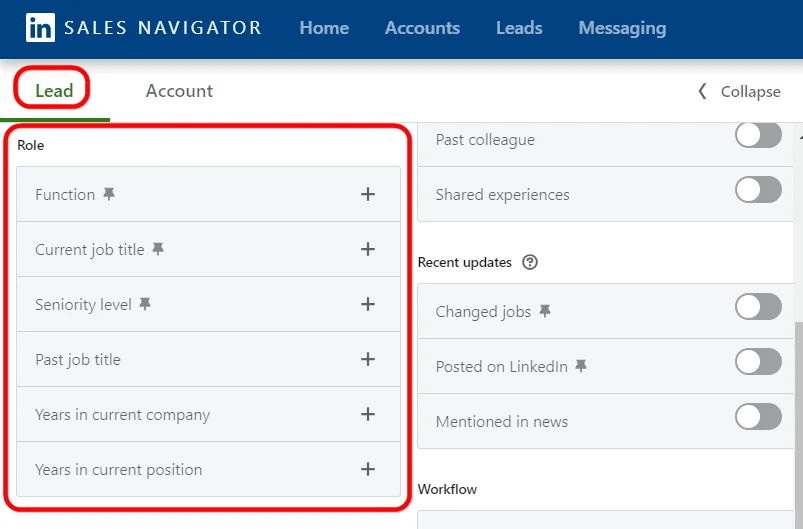
Two job-title-adjacent filters that get underused: years of experience and seniority.
Filtering by “VP” alone catches new VPs and tenured VPs at very different stages of buying. Adding years of experience tightens the picture.
Account filters: match your ICP
Account Filters operate at the company level.
The list includes:
- Industry.
- Company headcount.
- Headcount growth rate (overall and by department).
- Annual revenue.
- Funding round.
- Technologies used.
- Hiring activity.
- Headquarters location.
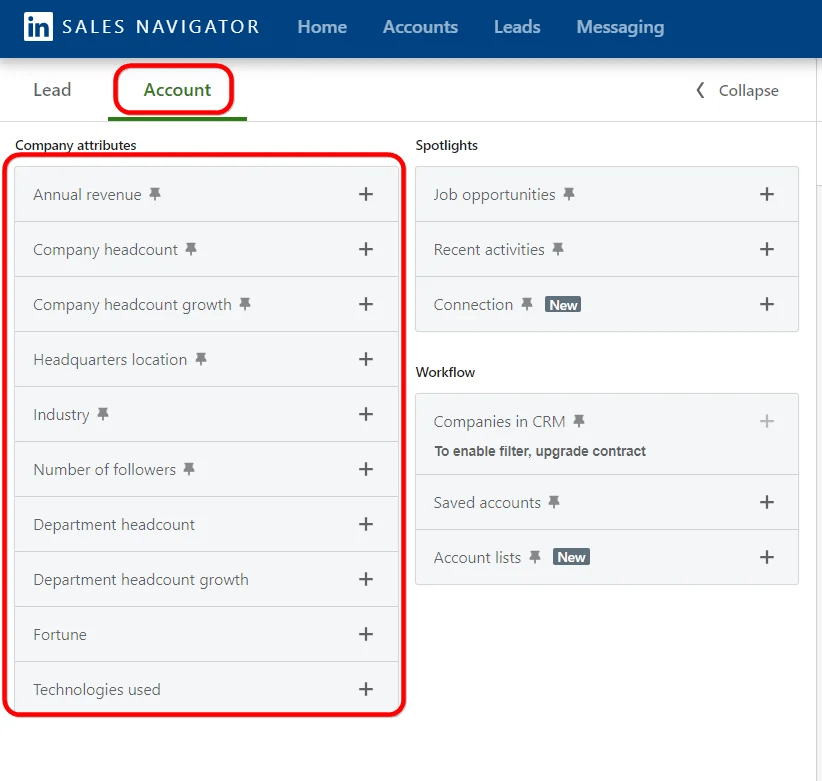
Two account-level filters that change the shape of a search:
- Headcount growth: a company growing 20%+ over six months is investing in new hires, new tools, and new vendor decisions.
- Technologies used: narrows the search to companies running tools that integrate with yours (or that you want to displace).
Spotlight filters: add the timing layer
Spotlight Filters are the intent layer.
The full list:
- Changed jobs in the last year.
- Posted on LinkedIn in the last 30 days.
- Mentioned in the news in the last 30 days.
- Viewed your profile.
- Following your company.
- Shared experiences (same school, past employer, group membership).
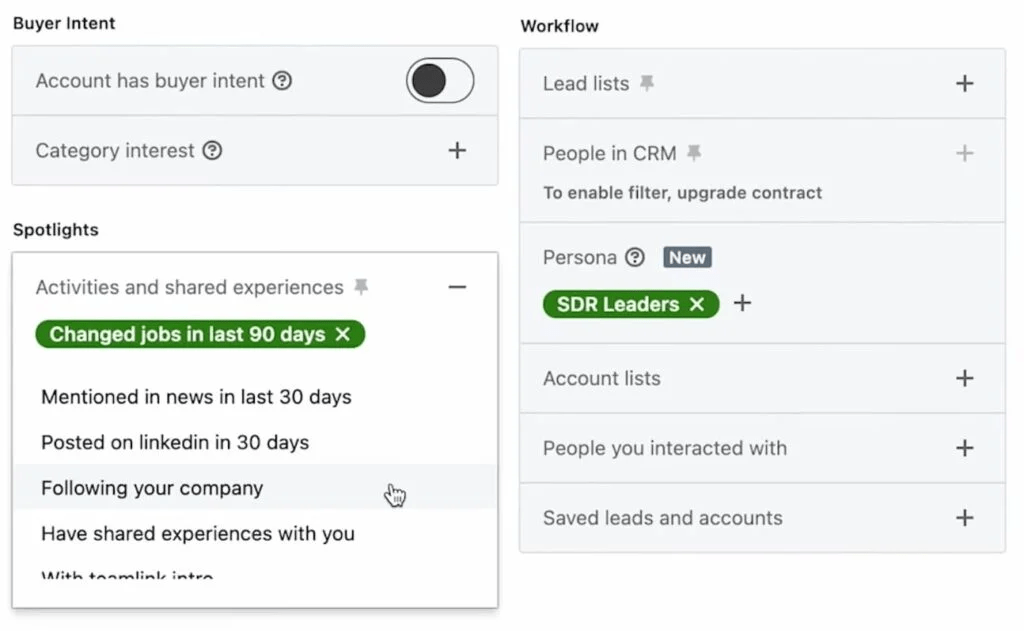
LinkedIn positions Spotlights as the highest-engagement segment — these are the people moving, posting, or paying attention. The two that carry the weight for outbound (and the focus of signal-based outreach): changed jobs, and posted on LinkedIn.
Workflow filters: layer on pipeline you already own
Workflow Filters route the search through assets you’ve already built:
- Saved leads.
- Saved accounts.
- Lead lists.
- Account lists.
- Personas.
- And with Sales Navigator Advanced Plus — the people or companies already in your CRM.
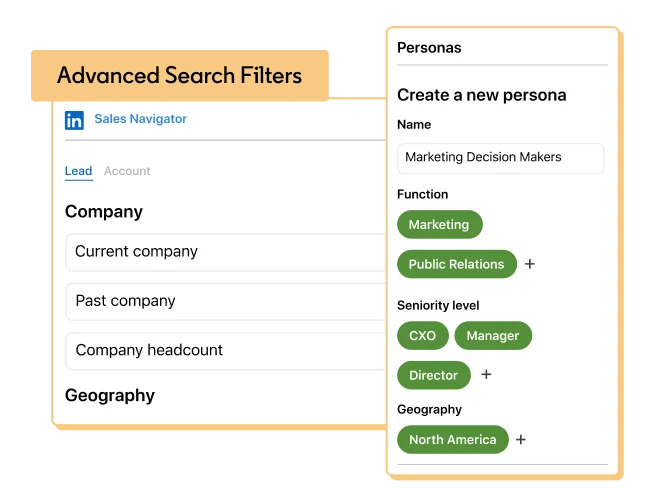
Where these earn their place: layering a Spotlight search inside an existing account list. “Run my intent filters across the 400 accounts my team already qualified” is a different search than “run my intent filters across all of LinkedIn” — and a tighter one.
Why ICP and buyer persona come before Sales Navigator filters
The filters only work when you already know who you’re looking for.
- ICP tells you which Account Filters to apply.
- Buyer persona tells you which Lead Filters to apply.
Skip either and the filter stack returns precise targeting for the wrong list.
A quick refresher:
- ICP describes the company profile that fits your product — industry, size, growth stage, geography, tech stack.
- Buyer persona describes the human inside that company who makes the purchase — role, seniority, daily pain points, where they spend time online.
For example, an ICP for a SaaS outbound tool might pair company filters and persona filters like this:
| Layer | Filter type | Filter inputs |
|---|---|---|
| ICP | Account Filters | Industry: Software, Information Technology / Company size: 50-500 / Headcount growth: 10-30% / Geography: North America / Technologies used: Salesforce, HubSpot |
| Persona | Lead Filters | Job titles: Revenue Operations Manager, Sales Operations Manager / Seniority: Manager-Director / Function: Operations |
When you skip this step, two things happen. Searches return either too many results (no narrowing logic) or perfectly narrowed results pointing at the wrong audience, so you end up with campaigns that flop.
How to stack LinkedIn Sales Navigator filters for buying intent
Per Salesforce’s State of Sales report, about half of sales leaders rely on intent data to prioritize accounts. Fit alone is no longer enough to decide who’s worth a touch.
The mistake to avoid: applying filters in the order Sales Navigator lists them in the sidebar. The order that shrinks the list intelligently goes from broad fit down to narrow timing.
The Sales Navigator filter stacking sequence in order
The sequence below is what takes a broad Sales Navigator search from 12,000 results to a few hundred ICP-fit leads inside a buying window.
Apply these in sequence. Each layer removes the noise that the previous step left behind.
- Industry — set the category.
- Job title — set the role.
- Seniority — separate ICs from managers from VPs.
- Geography — limit to regions your team covers.
- Company size — limit to budget bands you sell into.
- Headcount growth (optional) — narrow to companies investing.
- Changed jobs in the last year — apply the first intent layer.
- Posted on LinkedIn in the last 30 days — apply the second intent layer.
The first six layers are fit. The last two are timing.
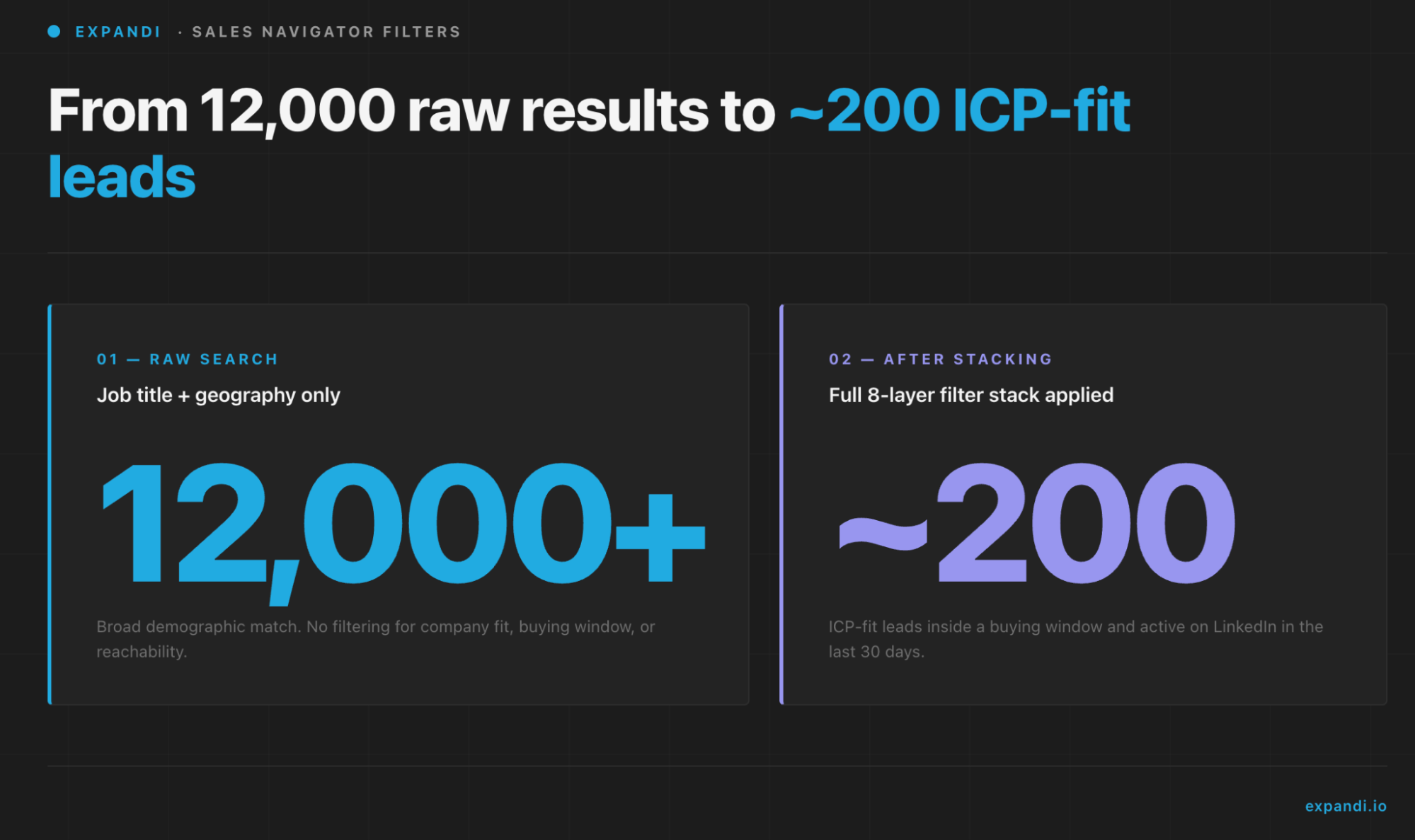
A list filtered through all eight is a list of people who match your ICP AND your buyer persona AND show signs they’re in a buying window AND are reachable on the platform.
Why a recent job change signals buying intent
Per UserGems’ research on new-hire buying triggers, new buyers spend 70% of their budget in the first 100 days — making the post-transition window the most consequential vendor evaluation period in an executive’s tenure.
A newly placed executive walks into a quarter of evaluations. Three things land on their calendar in the first 90 days, regardless of role:
- Budget conversations their predecessor ran six months ago, now sitting on their desk for sign-off.
- Vendor decisions they own from day one — including renewals they had no part in setting up.
- Stack inherited from someone else that needs a second look against their own strategy.
That combination is the foundation of warm outreach: finding the moment when timing and fit overlap. A VP of Sales eight weeks into seat responds to “I’ve worked with three VPs through this exact transition — here’s what I’d test first” differently than a VP two years into seat.
The window expires but the filter catches them inside it.
Apply when your prospect was recently promoted, joined a new company, or expanded their scope. Pair with job-title and seniority filters so the search stays focused on roles with purchasing authority.
Why LinkedIn activity is the reachability test
A perfectly targeted prospect dormant for three months goes silent in three ways:
- The connection request lands unseen.
- Your comment on their last post sits in a dead feed.
- The DM stays unopened.
The filter strips those people out by definition.
What someone is posting tells you what they’re working on — pipeline pressure, hiring problems, the new tool they’re testing. What they’re engaging with tells you what’s front of mind.
Both feed directly into the opening line of your message.
From 12,000 CROs to 200 ICPs: a filter stack walkthrough
Starting search: “CRO” + “North America” will give you a result count of 12,000+ people.
That list looks workable at first.
But if you run a campaign and the timing problem shows up, you’ll find some of those CROs have been in seat for two years, are tied to existing vendors, and have no reason to consider a new stack right now.
Layer the demographic filters first:
- Industry: Software, Information Technology.
- Company size: 200-1,000.
- Headcount growth: 10-30%.
Result count drops to a few thousand.
Now toggle the two Spotlight filters:
- Changed jobs in the last year.
- Posted on LinkedIn in the last 30 days.
The list drops to roughly 200 CROs.
That’s the list to run a campaign against. 200 CROs who are inside the role-transition window, actively checking LinkedIn, and matching the ICP for company size and growth.
The same logic scales up or down.
A tightly-defined ICP — say, founders at Series A startups in a single geography — collapses from thousands of broad results to a few hundred through the same two Spotlight toggles. The numbers vary by ICP; the principle holds.
Boolean logic: AND, OR, NOT filters
Sales Navigator quietly applies different Boolean logic to different filters.
- Selecting multiple industries returns results matching ANY of them (OR logic).
- Selecting Industry + Geography + Job Title returns results matching ALL of them (AND logic).
The keyword field supports explicit NOT exclusion.
Cases where this matters:
- Job-title variations — “Head of Growth” OR “Growth Lead” OR “VP Growth.” Use the title field’s multi-select rather than entering one title at a time.
- Industry stacks — Software OR Information Technology OR Internet, because LinkedIn industries overlap and your real audience sits across all three.
- Excluding noise — keyword search for “marketing director” NOT “intern” NOT “assistant” keeps junior roles out of a search you want senior people in.
Three LinkedIn Sales Navigator filter examples for different industries and buying intent
These are full stacks — demographic base through intent layer — that work for three common outbound use cases. Filters depend heavily on the offer and audience, so treat these as templates to adapt rather than copy-paste.
Sales Navigator filters for lead generation agencies targeting active growth teams
Lead generation agencies selling outbound services need decision-makers who are growing, investing, and have someone in seat to evaluate the offer. (For a deeper breakdown of this audience, see our guide to LinkedIn outreach for lead gen agencies.)
| Layer | Filter | Inputs |
|---|---|---|
| Account | Industry | Software, IT Services, Professional Services |
| Account | Company size | 11-200 |
| Account | Headcount growth | 10-20% YoY |
| Account | Job opportunities | Marketing, SDR |
| Account | Technologies used | HubSpot, Salesforce |
| Lead | Job title | Head of Growth, Marketing Manager, Demand Gen Manager |
| Lead | Seniority | Manager to VP |
| Lead | Groups | Growth marketing, B2B SaaS marketing, demand gen |
| Spotlight | Changed jobs | Last year |
| Spotlight | Posted on LinkedIn | Last 30 days |
Why it works: growing companies investing in marketing roles need outbound capacity their internal team lacks the headcount to deliver. New marketing leaders inside those companies are the ones evaluating agency partners.
The Spotlight layer catches them while the evaluation is open.
Sales Navigator filters for SaaS companies selling to revenue teams
If your buyer is a RevOps or Sales Ops manager at a SaaS company, the search rewards specificity at the company level and patience at the persona level.
Full stack:
| Layer | Filter | Inputs |
|---|---|---|
| Account | Industry | Software, Information Technology, Internet, Computer Software |
| Account | Company size | 50-500 |
| Account | Headcount growth | 10-30% YoY |
| Account | Technologies used | Salesforce, HubSpot, Outreach, Gong, ZoomInfo |
| Account | Job opportunities | Sales, SDR, RevOps |
| Lead | Job title | Revenue Operations Manager, Sales Operations Manager, Head of Sales Enablement |
| Lead | Seniority | Manager to VP |
| Lead | Function | Operations, Sales, Business Development |
| Lead | Groups | RevOps Co-op, SaaS Growth, Sales Operations Leaders |
| Spotlight | Changed jobs | Last year |
| Spotlight | Posted on LinkedIn | Last 30 days |
Why it works: SaaS companies growing 10-30% with existing GTM tooling are adding new tools (your buyer category) faster than companies outside that band. RevOps managers in those companies own the tool decision.
Sales Navigator filters for recruitment agencies targeting companies hiring heavily
Recruiting agencies sell into companies hiring faster than their internal HR team can handle.
The signals to look for are headcount growth, leadership changes in HR, and active job opportunities at scale.
| Layer | Filter | Inputs |
|---|---|---|
| Account | Industry | Technology, Healthcare, Professional Services |
| Account | Company size | 200-1,000 |
| Account | Headcount growth | 15-40% YoY |
| Account | Job opportunities | Engineering, Sales, Operations, Customer Success |
| Account | Department headcount growth | Engineering or Sales |
| Account | Recent activities | Funding raised, Leadership changes |
| Lead | Job title | Talent Acquisition Manager, HR Director, People Operations Manager, Head of Talent |
| Lead | Seniority | Manager to VP |
| Lead | Function | Human Resources, People Operations |
| Spotlight | Changed jobs | Last year |
| Spotlight | Posted on LinkedIn | Last 30 days |
Why it works: 200-1,000 employee companies growing 15-40% YoY are the band where internal HR teams break — too much hiring, too few recruiters.
A new HR Director or Talent Acquisition Manager in seat is the person who decides to bring in an agency. The Spotlight layer finds them while they’re still mapping out what they need.
From Sales Navigator list to outreach: Expandi workflow and message templates
A filtered list of 200 leads is only useful once it’s in motion.
Expandi is a LinkedIn outreach automation platform that imports Sales Navigator searches as lead lists, runs sequenced outreach on top, and refreshes the list automatically as new leads clear your filters.
“The numbers don’t lie—LinkedIn outreach isn’t just about sending messages; it’s about strategic, high-intent engagement. With automation done right, personalization scales, response rates increase, and connections turn into conversions. Expandi is proving that cold outreach isn’t dead—it just needed a smarter approach.” — Glenn Miseroy, CEO at Expandi (State of LinkedIn Outreach report)
Two parts to that workflow: getting the list out of Sales Navigator and into a campaign, and writing the message that earns the reply.
Exporting your Sales Navigator search to Expandi
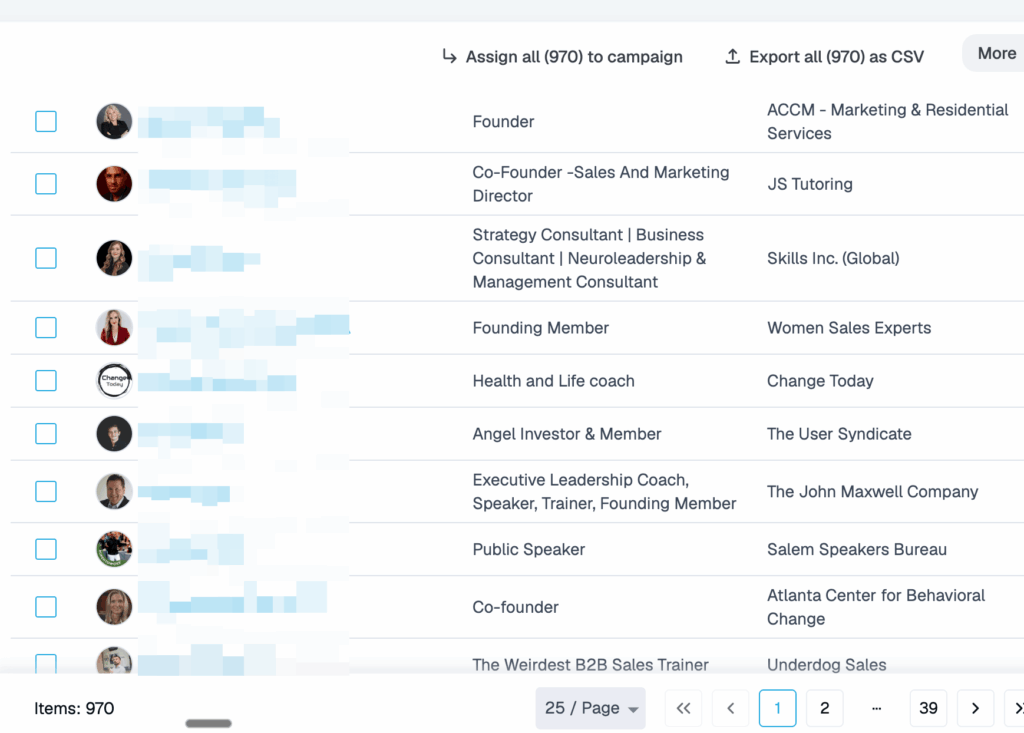
Once your filter stack returns a list you want to run a campaign against, copy the Sales Navigator search URL.
Inside Expandi:
- Go to Lead List.
- Click Add Leads.
- Select Sales Navigator URL.
- Paste the URL, give the list a name, and Expandi pulls the leads in while respecting LinkedIn’s rate limits.
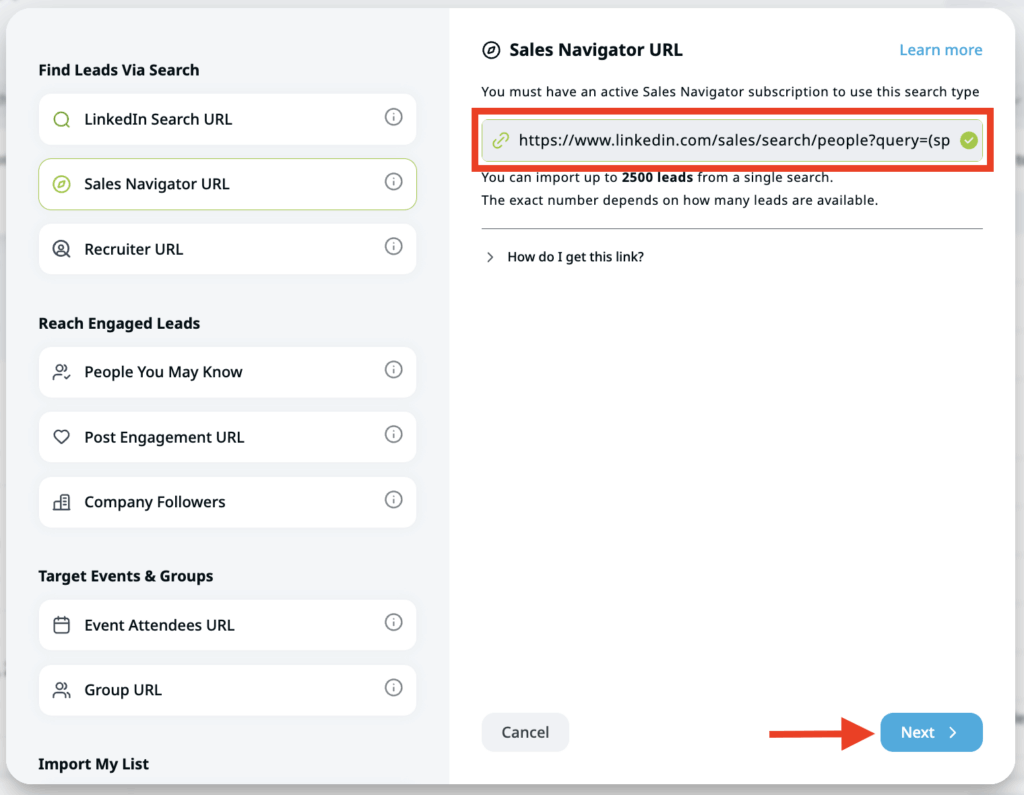
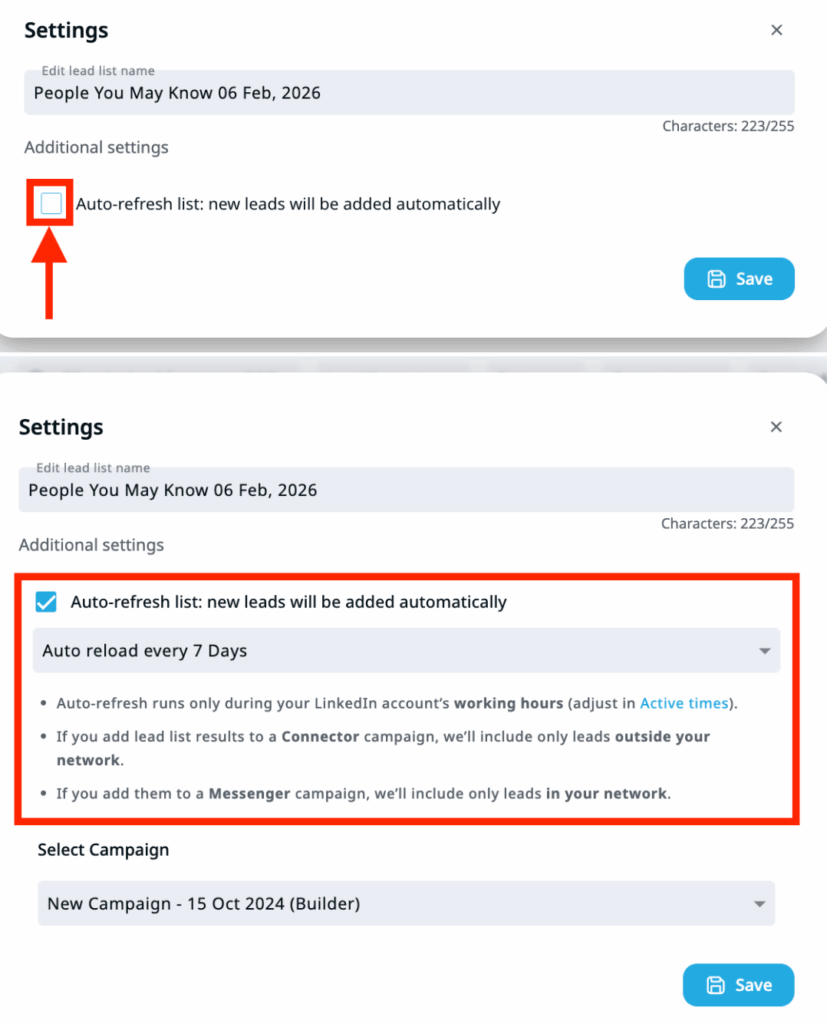
Two settings worth turning on:
- Auto-refresh — Expandi re-runs the search on a schedule you set (every 24 hours or every 7 days). New leads who clear your filters get added to the list automatically. The intent layer keeps producing fresh prospects as people change roles and post. This is the same pattern behind evergreen campaigns with Sales Navigator.
- Auto-assign to campaign — newly added leads route directly into the campaign you’ve already built. The filter-to-outreach handoff happens without manual list management.
If you need the list outside Expandi — for a separate tool or a manual review — you can export the lead list as a CSV from the same screen, with the file delivered to your email.
Opening with leads who just changed roles
The intent signal is your context. The mistake to avoid is treating the new role as a generic congratulations hook.
The real move is connecting the role to a specific pressure that role creates. For broader patterns that work at this stage, our library of LinkedIn connection message templates covers more openers.
Five openers that work across the new-role segment:
1. Connect the role to the problem
“Congrats on joining {company} — {role} at a {stage} company puts {specific challenge, e.g. rebuilding the outbound motion} on the table fast. Is that where your head is right now?”
2. Acknowledge the evaluation window without naming it
“You’re a few months into {company} — that’s the point where the real priorities separate from the noise. Is {pain point} one of the things you’re looking to solve in the first half?”
3. Use their LinkedIn activity as the bridge
“Saw you posting about on {topic} — that’s the problem we work on. You just joined {company}, so the timing might be right. Worth a short conversation?”
4. For post-funding placements
“Congrats on joining {company} post-Series B. That stage means {hiring targets / pipeline pressure / stack decisions} move fast. Is {pain point} already on the roadmap?”
5. For warm leads who engaged with content
“Saw you liked our post on {topic} and noticed you just joined {company}. If that’s front of mind in the new role, happy to share what’s working for similar teams.”
The thread across all five: the new role is the reason for the outreach. Each message connects the timing signal to something the role specifically creates — pressure, evaluation, stack decisions.
Turn your LinkedIn Sales Navigator filtered list into an outreach campaign
Filter stacks are only worth running if the outreach goes out.
Build the search in Sales Navigator. Set the demographic base, layer the two intent filters on top. Paste the URL into Expandi, name the list, turn on auto-refresh, and route into a campaign.
New prospects who clear your filters keep flowing in while the current campaign is targeting your ICPs.
Curious what your filtered Sales Navigator list looks like inside a live, auto-refreshed Expandi campaign? Try it free for 7 days — no card required.
Frequently asked questions about LinkedIn Sales Navigator filters
Changed jobs and Posted on LinkedIn are both available in Sales Navigator Core, the standard tier. Advanced adds CRM sync, TeamLink, and admin/reporting tools on top. Advanced Plus adds Salesforce and Microsoft Dynamics auto-sync. For the filter stack in this guide, Core is enough.
Sales Navigator searches update dynamically as people change roles, post, or shift employers — there’s no need to manually re-run the search. If you’re importing the search into Expandi via URL, set auto-refresh to every 7 days for steady inflow or every 24 hours if you’re running campaigns that need fresh prospects daily.
Both sit inside the Spotlight section of the Lead Filters panel. Open a new search, expand the Spotlight category, and toggle on Changed jobs and Posted on LinkedIn. They work as a narrowing layer on top of demographic filters — run them after the demographic base is set.
Technically yes, but the result is too broad to be useful. “Changed jobs in the last year” applied across all of LinkedIn is millions of people. Set your ICP and persona filters first (industry, job title, location, company size), then layer Spotlight filters on top. Set the fit foundation first; let the intent layer do its work on top.
Basic Search gives you a handful of high-level filters and broad audience targeting. Sales Navigator’s 50+ filters add seniority, function, years of experience, group membership, company headcount and growth, technologies used, intent signals, and CRM routing (on Advanced Plus).
For B2B outbound or recruiting work, the gap between Basic and Sales Nav is the difference between a contact list and a campaign-ready list.
Expandi pulls leads directly from your Sales Navigator URL into a named lead list, respecting LinkedIn’s per-pull caps. You can manually assign the list to a campaign or use auto-assign to route new leads automatically. Auto-refresh re-runs the search at your chosen interval and adds new leads who clear your filters, so the list stays current.


You’ve made it all the way down here, take the final step