LinkedIn Post Inspector: How to Use It & Fix Broken Link Previews

You shared a link on LinkedIn and the preview came out wrong: the old image, a missing thumbnail, a headline you swapped out weeks ago, or a grey box with no picture at all.
On LinkedIn, people decide in a fraction of a second whether to stop scrolling. A broken preview is exactly the kind of sloppy detail that makes them scroll past your link.
LinkedIn Post Inspector is the free, official tool that fixes it.
Paste in a URL and it shows exactly how LinkedIn will render the preview, lists the Open Graph tags it pulled from your page, and forces LinkedIn to re-scrape and refresh its cached version.
The whole fix takes about five minutes. I’ve been ghostwriting a lot of LinkedIn content over the years now, and a clean preview card is one of the cheapest wins there is.
Key Takeaways
- LinkedIn Post Inspector is LinkedIn’s free official debugger at linkedin.com/post-inspector. Paste any URL and it shows the preview LinkedIn will render, plus warnings on missing or oversized metadata.
- Submitting a URL forces LinkedIn to re-scrape the page and refresh its cached preview. This is the fix for a wrong or stale preview image.
- The catch LinkedIn states plainly: a refresh only updates the preview for new posts. Anything already shared keeps the old card, so you re-share the link to show the corrected version.
- Every tracked or UTM link you drop into a LinkedIn post or an outreach message renders a preview card. Running it through Post Inspector first means the card earns the click, the same clicks Expandi’s signal-based campaigns turn into pipeline.
What is LinkedIn Post Inspector and how it helps your content
LinkedIn Post Inspector is LinkedIn’s free, official debugging tool for checking how a URL will look when shared on the platform.
You paste a link, click Inspect, and it shows the title, image, description, URL details, redirect trail, and metadata LinkedIn reads, then refreshes LinkedIn’s cached preview when you submit the link.
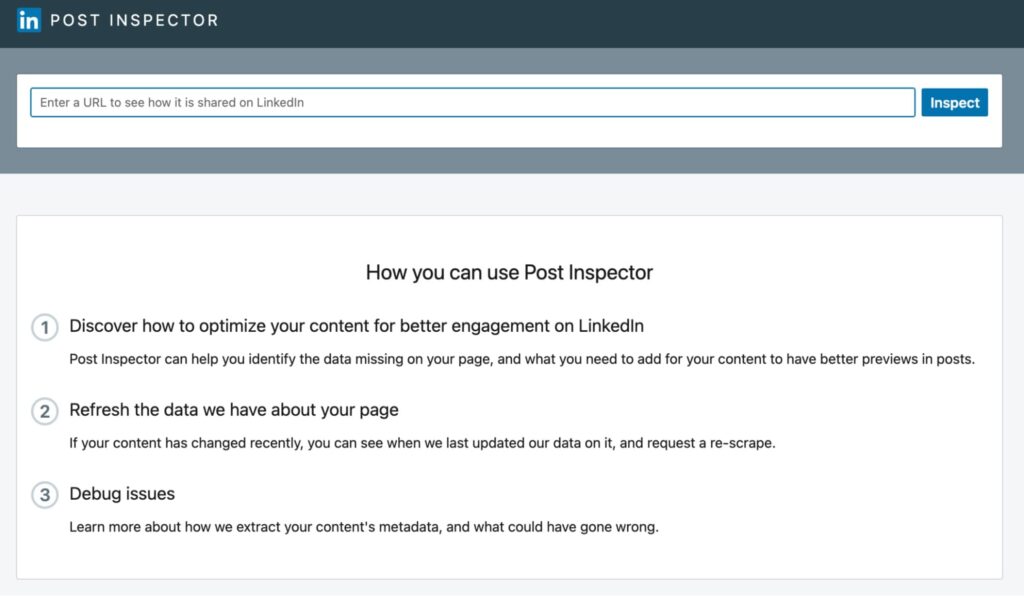
The tool lives at linkedin.com/post-inspector and works on any public URL:
- A blog post.
- A landing page.
- A product page.
- A YouTube video.
- A PDF, and more.
Per LinkedIn’s engineering write-up on Post Inspector, it reads either Open Graph tags or oEmbed tags, then annotates each value it found against LinkedIn’s criteria and flags which requirement was not met.
Post Inspector does two jobs.
- The first is diagnostic: see the exact title, description, and image LinkedIn will show before you publish, so a broken card never makes it into a live post.
- The second is corrective: every time you submit a URL, LinkedIn re-fetches the page, which refreshes the preview it has cached.
How to use LinkedIn Post Inspector to fix a broken preview
Using Post Inspector takes under a minute, and the act of submitting a URL re-scrapes the page, so you diagnose and refresh in one step.
To inspect a URL with LinkedIn Post Inspector:
- Go to linkedin.com/post-inspector.
- Paste the full URL, including https://, into the input field.
- Click Inspect.
- Review the result: the rendered preview card, the title, description, and image, plus the URL details (fetched URL, canonical URL, and any redirect trail) and the metadata LinkedIn read, including the last-scraped date.
- If anything looks wrong, fix the matching tag on your page and inspect the URL again.
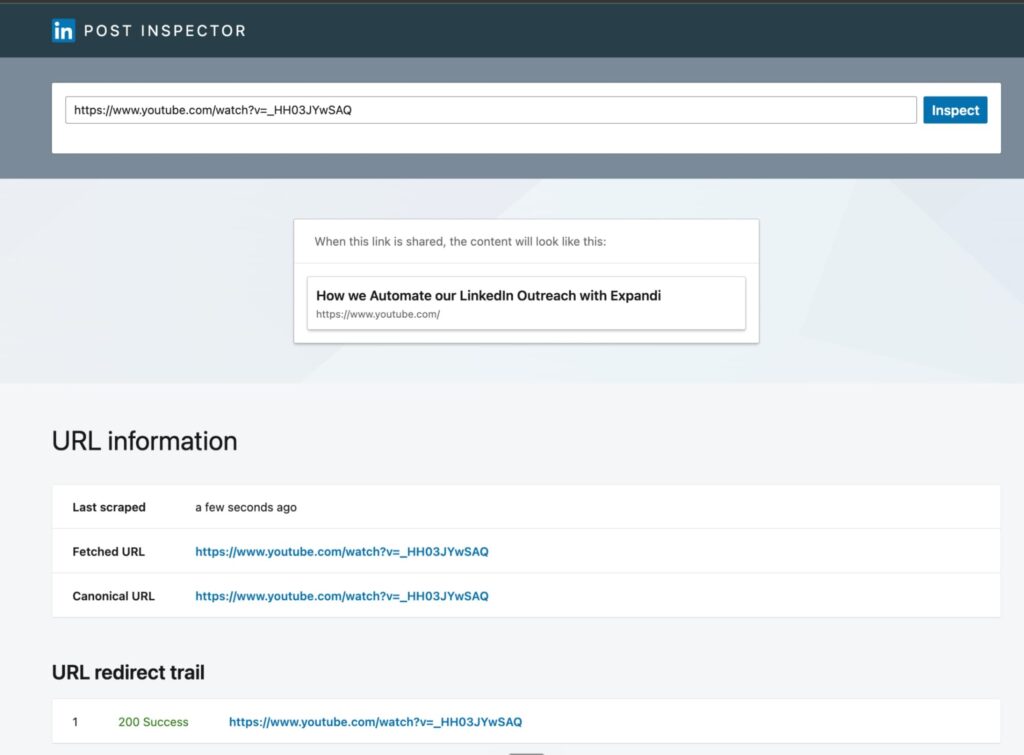
If the preview looks right, the link is ready to share. If it looks wrong, the report tells you which tag to fix, and the sections below walk through each case.
What LinkedIn Post Inspector checks
Inspect a URL and Post Inspector reports two groups of information: the preview itself and the technical details behind it.
Here is the full set it surfaces.
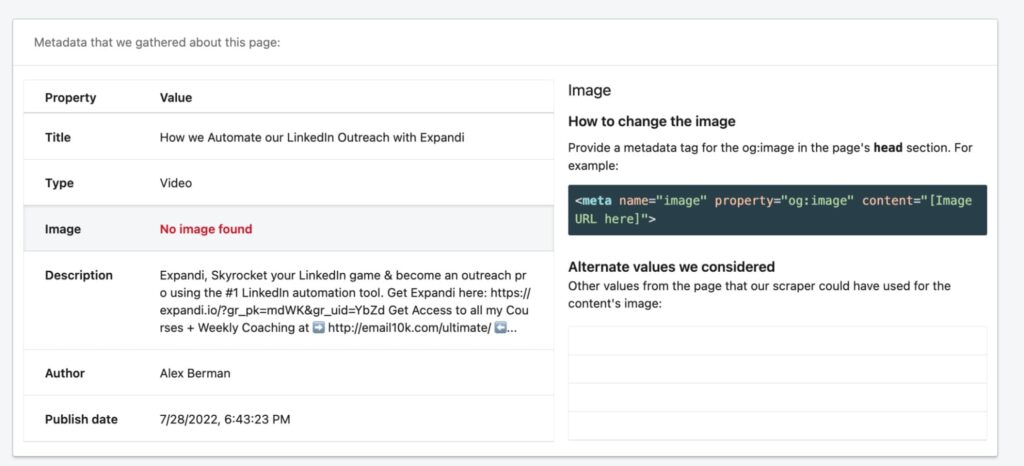
- Preview image. The thumbnail pulled from your og:image tag, with its dimensions.
- Title. The headline from og:title, where LinkedIn reads up to 150 characters.
- Description. The supporting line from og:description.
- Open Graph tags. The raw og: values it extracted from your page’s HTML head.
- Canonical URL. The preferred version of the page LinkedIn resolved to.
- Fetched URL and redirect trail. The URL LinkedIn actually loaded, plus any redirects the link passed through on the way there.
- Last scraped date. When LinkedIn last fetched the page, which tells you whether the preview is current.
- Publish date and author. Pulled from article:published_time and article:author when those tags exist.
Click into any value in the report to see the alternatives LinkedIn considered, which shows you exactly which tag it chose. That is how you catch a page serving two conflicting titles or pointing at the wrong image.
How to refresh LinkedIn’s link preview cache
Refreshing LinkedIn’s cached preview is the same action as inspecting: paste the URL into Post Inspector and submit it.
LinkedIn re-scrapes the page and replaces the version it had stored. There is no separate refresh button, and this is the fix when you have updated your page but LinkedIn keeps showing the old card.
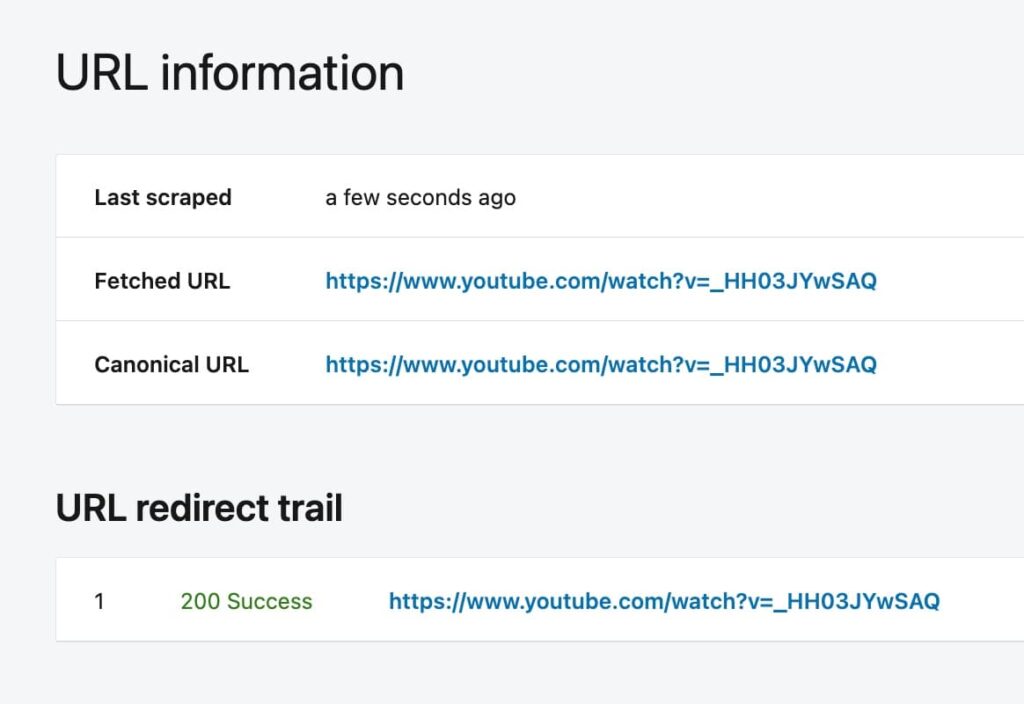
Why the cache exists: LinkedIn scrapes your Open Graph tags the first time a URL is shared, then stores the result so later shares reuse it.
LinkedIn does not publish how long it holds that version. Community testing puts it around seven days before LinkedIn re-fetches on its own. You do not have to wait it out, since re-inspecting forces the refresh on demand.
One caveat matters more than any other, and LinkedIn states it directly: the refreshed preview only applies to new posts that include the link.
Per LinkedIn’s help documentation, the preview on any post already published stays the same. So after you fix and re-inspect a URL, re-share it in a fresh post to show the corrected card.
The Open Graph tags LinkedIn Post Inspector needs
Open Graph is a small set of meta tags in your page’s HTML head that tell LinkedIn which title, description, and image to show.
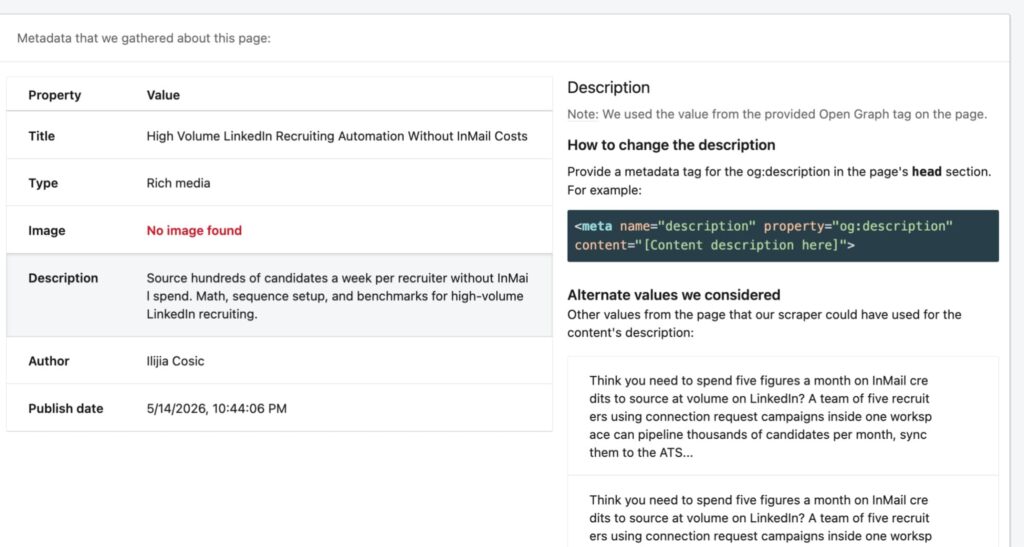
When they are missing, LinkedIn guesses from the page content, which is where wrong titles and missing images come from. Per LinkedIn’s guide to making a website shareable, these are the tags to set:
- <meta property=”og:title” content=”Your page headline here” />
- <meta property=”og:description” content=”A one or two sentence summary of the page.” />
- <meta property=”og:image” content=”https://yoursite.com/preview-image.jpg” />
- <meta property=”og:url” content=”https://yoursite.com/page/” />
- <meta property=”og:type” content=”article” />
What this means:
- og:title sets the headline.
- og:description the line beneath it.
- og:image the thumbnail.
- og:url the canonical link.
- og:type the content category (article, website, video).
On WordPress, an SEO plugin like Yoast or Rank Math exposes these fields per page. On a hand-coded site, you add them to the head directly. After saving, re-inspect the URL so LinkedIn picks up the new tags.
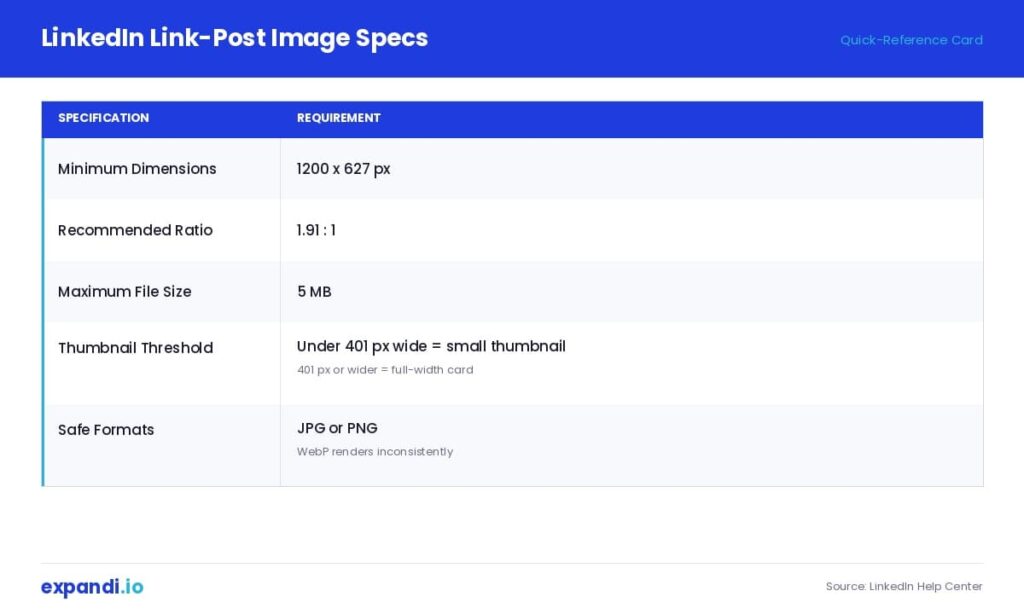
LinkedIn’s published specs for the preview image are specific, and missing them is the common reason a card shows a tiny thumbnail or no image at all:
Troubleshooting: common LinkedIn Post Inspector problems
When a preview comes out wrong, the fix is almost always a single Open Graph tag or a crawler-access issue. This table maps the common problems to their cause and fix.
| Problem | Likely cause | Fix |
|---|---|---|
| Wrong image showing | Missing or incorrect og:image | Add the correct image URL at 1200 x 627 px (1.91:1), then inspect again. |
| Old title or description | LinkedIn cached old metadata | Update the OG tags and rerun Post Inspector. |
| No preview appears | Page blocked, inaccessible, or not returning a normal 200 response | Check robots.txt, CDN and firewall rules, redirects, HTTPS, and server response. |
| Internal connector error | LinkedIn’s crawler cannot reach the page | Allow LinkedInBot through your security or CDN settings, then retry. |
| Title is cut off | Title is too long | Shorten it. Keep the title under about 150 characters with the key words first. |
| Multiple titles or descriptions | Duplicate SEO plugins or conflicting tags | Remove the duplicate OG tags and inspect again. |
When no preview appears at all, the cause is access: LinkedIn’s crawler could not load your page. Work through these:
- Confirm the page is public. A link behind a login, a staging password, or a noindex rule returns nothing to LinkedIn.
- Allow LinkedInBot through. Some firewalls and CDNs (Cloudflare, for one) block bots they do not recognize, so whitelisting LinkedInBot is a quick change for your host or developer.
- Rule out a basic site error. An expired SSL certificate or a timing-out page stops LinkedIn the same way it would stop a visitor.
- Purge your own cache. A caching plugin or CDN can hand LinkedIn a stale version of the page, so clear it, then re-inspect.
What you can’t do with LinkedIn Post Inspector
Post Inspector is a diagnostic tool, so it is worth being clear about its limits. It will not do these things:
- Rewrite your metadata. It reads your Open Graph tags and flags what is wrong. The edits happen on your site.
- Change your website’s code. You make fixes in your CMS or HTML head, then re-inspect to confirm them.
- Bypass a server block. If your firewall or CDN blocks LinkedIn’s crawler, the tool returns an error until you allow the bot through.
- Guarantee engagement. A clean card earns the click. Whether the post performs depends on the content and who sees it.
- Override LinkedIn’s feed algorithm. It controls how your link looks and has no effect on reach or ranking.
Knowing the boundary saves time: when a preview is broken, Post Inspector tells you which tag is at fault, and the fix is always on your end.
LinkedIn Post Inspector vs LinkedIn Debugger vs Open Graph Debugger
If you have searched for a LinkedIn debugger, a LinkedIn link preview checker, a LinkedIn Open Graph debugger, a share URL validator, or a LinkedIn cache refresh tool, you have been looking for Post Inspector.
LinkedIn ships one official tool for previewing and debugging links, and these are the different names people give it.
| Term you might search | What it refers to |
|---|---|
| LinkedIn debugger | LinkedIn Post Inspector |
| LinkedIn link preview checker | LinkedIn Post Inspector |
| LinkedIn Open Graph debugger | LinkedIn Post Inspector |
| LinkedIn share URL validator | LinkedIn Post Inspector |
| LinkedIn preview validator | LinkedIn Post Inspector |
| LinkedIn cache refresh tool | LinkedIn Post Inspector (re-inspecting refreshes the cache) |
| Open Graph / Sharing Debugger | Another platform’s tool, such as Facebook’s, with a separate cache |
The one genuine distinction is cross-platform.
Facebook’s Sharing Debugger and similar Open Graph debuggers do the same job for their own networks, and each platform caches independently. Refreshing a link in Facebook’s debugger does nothing for LinkedIn, and inspecting in Post Inspector does nothing for Facebook or X.
If you share the same URL across networks, validate it on each one.
Why clean link previews matter for outreach as well as content
A link preview is the click magnet on a LinkedIn post or message, and a broken one signals carelessness and costs engagement before anyone reads a word.
Whether it is a blog post in your feed or a case-study link an SDR drops into an outreach sequence, the preview card is the first thing a prospect sees. So, it is worth getting right with Post Inspector before the link goes out.
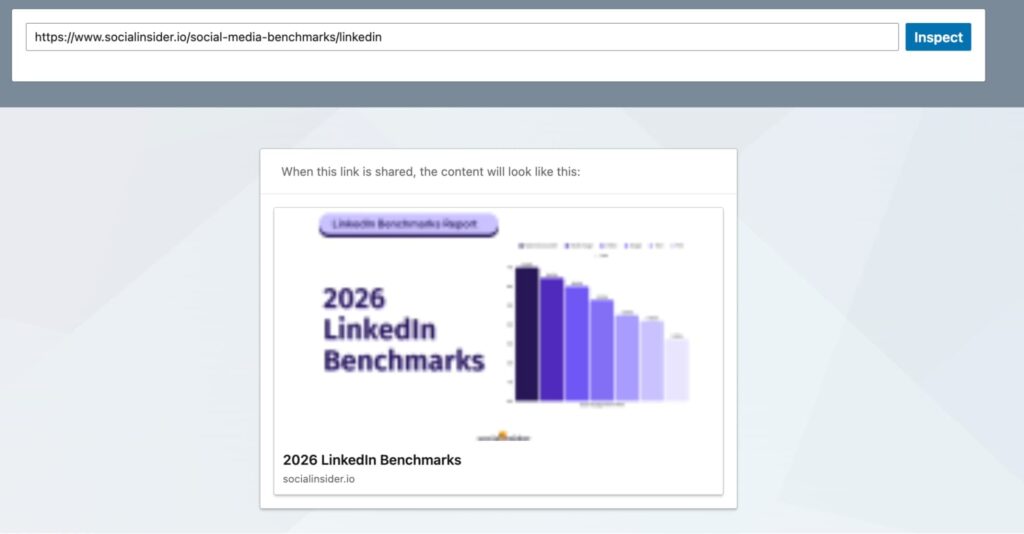
This matters more where the link is doing a job:
- A tracked or UTM-tagged link in a LinkedIn message automation sequence.
- An important piece of content you’re going to use for lead generation.
- A case study URL shared with a potential lead.
- Or a landing page behind an outreach campaign, depending on your buyer journey.
Each renders a preview, and each loses clicks when that preview is broken. The same Open Graph card shows up anywhere a link lives on LinkedIn. Always double check the link through Post Inspector before sending.
A shared link already starts at a disadvantage on LinkedIn. Socialinsider’s LinkedIn engagement benchmarks put link posts at a 3.25% engagement rate, the lowest of any format, against 5.30% for image posts, with the feed quietly favoring content that keeps people on-platform.
The preview card is the one visual a shared link has working for it, so a broken card throws away the only lever you control. Post Inspector wins that lever back, though a clean card only pays off if the right person sees the post in the first place.
That is the real ceiling on content: a clean preview makes a link worth the click, but sharing it does not put it in front of anyone.
Organic reach only carries a post so far, and it rarely hands you the exact accounts you want to win.
Reach comes from a bigger, more relevant network: the more of the right people you are connected to, the more eyes land on every post, case study, and link you share, which is exactly where a clean preview matters.
Building that network is the part Expandi runs.
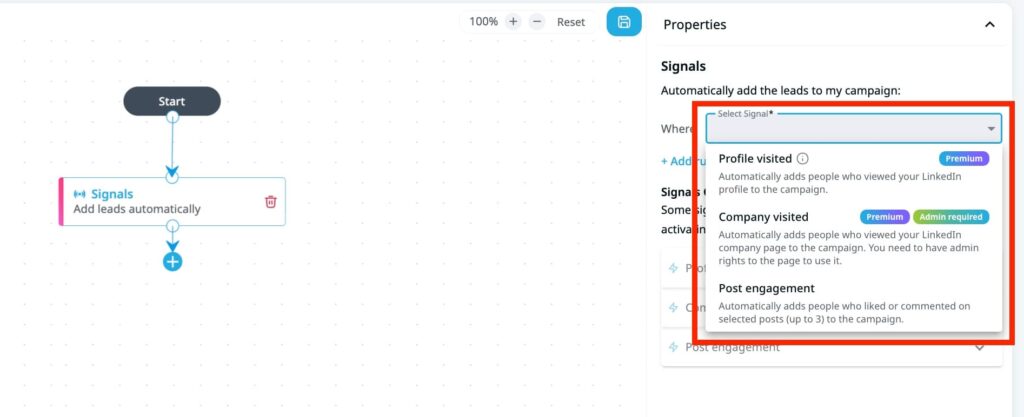
Expandi’s signal-based campaigns connect you with prospects who match your ICP, and when one of them clicks or reacts to the content you share, Expandi can fire a connection request and a personalized follow-up automatically, turning the audience your posts reach into real conversations.
Make every LinkedIn link render clean
A broken preview is a self-inflicted wound, and LinkedIn Post Inspector fixes it in about five minutes:
- Inspect the URL.
- Correct the Open Graph tag behind whatever looks wrong.
- Re-inspect to refresh LinkedIn’s cache, and re-share so the corrected card shows.
Build the check into your routine, alongside the rest of your LinkedIn marketing, and no link you post or send will go out looking broken again. The harder part is making sure the right people see those links in the first place.
That is where systematic LinkedIn outreach earns its keep. See how Expandi turns LinkedIn engagement into pipeline with signal-based campaigns. Start your 7-day free trial.
LinkedIn Post Inspector: frequently asked questions
Yes. LinkedIn Post Inspector is completely free, with no paid tier and no separate signup. You only need a public URL to inspect, and you do not have to be logged into LinkedIn. There is no published usage limit, so you can run it on every link before you post.
Paste the URL into Post Inspector at linkedin.com/post-inspector and click Inspect. Submitting the link forces LinkedIn to re-scrape the page and update the preview it has stored. There is no separate clear-cache button. The inspection itself is the refresh.
A wrong preview image traces to the og:image tag or LinkedIn’s cache: the tag is missing or undersized, or LinkedIn is still serving an older cached image. Point og:image at an image of at least 1200 x 627 pixels under 5 MB, then re-inspect the URL. Images under 401 pixels wide render as a small thumbnail.
When Post Inspector returns an error or a blank preview, LinkedIn’s crawler could not reach or read your page. Check that the page is public and returns a normal 200 response, that your firewall or CDN is not blocking LinkedInBot, and that your SSL certificate is valid. Purge your site cache, confirm the Open Graph tags are present, and inspect again.
Post Inspector is a web tool, so it loads in any browser, including a phone. The workflow of reading metadata and editing Open Graph tags is easier on desktop, where you can also reach your CMS. The result it returns is the same on either device.
Post Inspector works on URLs. You paste a link and it shows how that link’s preview will render when shared. It does not analyze an existing LinkedIn post’s performance or engagement. For that you use LinkedIn’s own post analytics.
LinkedIn does not publish an official duration. Community testing puts it around seven days before LinkedIn re-fetches a page on its own. You do not have to wait that out: re-inspecting the URL in Post Inspector forces a refresh immediately.
Use an image of at least 1200 x 627 pixels at a 1.91:1 ratio, kept under 5 MB. That renders as a full-width card. Anything under 401 pixels wide collapses to a small thumbnail, and a standard JPG or PNG is the safe format.
Indirectly. Post Inspector does not touch reach or the feed algorithm, so it cannot boost engagement on its own. What it does is make sure your link shows a clean, correct preview card, which earns more clicks than a broken one. The content and your audience do the rest.
You should have them. Without Open Graph tags, LinkedIn guesses your title, description, and image from the page, and the result is often wrong or incomplete. Adding og:title, og:description, og:image, and og:url gives you control over exactly how your link appears, and Post Inspector then confirms LinkedIn reads them correctly.
Both work, with a tradeoff. A link in the post body renders the full preview card, the thing Post Inspector helps you get right, but it sits in LinkedIn’s lowest-reach format. A link in the first comment keeps the post itself as text or an image for better reach, and you give up the big card. If the card is doing the selling, keep the link in the body and make it clean. If reach matters more, move it to the comment.

You’ve made it all the way down here, take the final step