How to Know If Someone Read Your Message on LinkedIn in 2026

TL;DR: On LinkedIn, you know someone read your message when their small profile photo appears beneath it. But that only works if both people have read receipts switched on. It won’t show up in InMail, pending connection requests, or when receipts are off. This guide covers what each message status icon means and gives you a simple framework, the Signal Stack, for deciding your next move when no receipt is coming.
Yes, LinkedIn has read receipts. When both people at different ends of a message’s path have them switched on, the recipient’s profile photo appears under your message when they open it. In most cold outreach, though, that signal never shows up. InMail hides it. So does a pending connection request, and some prospects, including senior buyers, may just keep the whole thing switched off. The skill that actually moves your pipeline is knowing what to do when there’s no receipt to read, which describes most of your outreach.
What LinkedIn’s Message Status Icons Actually Mean
Most of the confusion around read receipts comes from watching the wrong icon. Before anything else, it helps to know exactly what each status is telling you.
The Grey Check Mark Is Not a Read Receipt
The grey check mark means delivered, nothing more. Your message reached the recipient’s inbox. It doesn’t say anything about whether anyone opened it, read it, just glanced at it, or even noticed the notification. Treat the check mark as proof of delivery, and you’ll save yourself a lot of false hope.
A read confirmation looks different. According to LinkedIn’s own help documentation, when someone reads your message, a small version of their profile photo appears next to it. Without the photo, you have no confirmed read.
The Full Status Sequence
LinkedIn moves your message through a short sequence of states. Here’s the entire process in order, with the visual cue for each.
| Status | What you see | What it means |
|---|---|---|
| Sending | Empty circle or clock icon | The message is on its way. An error prompt means it failed and you should resend. |
| Sent | Grey check mark | Delivered to the target inbox. Zero information about whether it was opened. |
| Read | The recipient’s profile photo under the message. | They opened it. Only shows up when both of you have read indicators on. |
The important jump is the last one, from the grey check mark to the profile photo. That swap is the only on-platform confirmation LinkedIn gives you that a recipient opened your message. If you want the deeper mechanics, our LinkedIn read receipts guide breaks down each state with screenshots.
When LinkedIn Read Receipts Work — and When They Don’t
Read receipts are reliable inside a narrow set of conditions. Step outside those conditions, which most cold outreach does, and the signal disappears. The limitations you’ll see below aren’t edge cases; they define the majority of prospecting scenarios.
The Two-Way Rule
Read confirmations only appear when both the sender and the recipient have the feature switched on. LinkedIn’s documentation is blunt about this: when delivery and typing indicators are off, nobody in the conversation, including you, can see whether messages have been read. Turn yours off, and you go blind to everyone else’s read status at the same time.
So a missing profile photo can mean two completely different things. Either they haven’t opened your message, or one of you has receipts disabled and the data was never going to appear. You can’t tell which from the icon alone.
The Three Scenarios Where Read Data Is Unavailable by Design
Most read receipt guides stop before this part. What they don’t show is three structural blind spots that cover a huge share of cold outreach volume, and read receipts are switched off in all of them before you even hit send.
- InMail: LinkedIn confirms that read receipts and typing indicators never appear to senders of InMail messages. One of LinkedIn’s primary paid outreach methods produces zero read signal. If you’re a recruiter who leans on InMail as a default, that means most of your outreach runs without any read data at all.
- Unaccepted connection requests: On a connection request, the read receipt for your note only appears after the person accepts. A personalized connection message, often your most important first touch, stays invisible until then. Across 13.2 million connection requests sent through Expandi between May 2025 and April 2026, the average acceptance rate was 28.5%. Set that against LinkedIn’s rule: for around 7 in 10 first-touch requests, the recipient never accepts, so a read receipt was never possible.
- Recipient privacy settings: Many decision-makers and senior buyers choose to disable read receipts. The exact people most worth tracking are the ones who give you the least to track. Third-party tools and workarounds exist for viewing a message without the sender knowing, and some LinkedIn users (your prospects included) choose to use them.
Put those together, and a clear pattern becomes visible. The read receipt is a clean signal in a small slice of conversations, and a no-show across the bulk of true outreach.
Introducing the LinkedIn Signal Stack
There’s a better question than “did they read it?” It’s “which signal tier am I in, and what does that tier ask of me?” This reframe is the LinkedIn Signal Stack, a three-tiered system where each tier calls for a clear next move.
Green Light — Confirmed Open, Act On It
You see the profile photo. Both of you have receipts on, it’s a standard connected message, and the open is real. This is the one scenario where the read receipt earns its reputation.
Give it three to five business days, then send one follow-up that adds something new. A resource they haven’t seen, or a slightly modified ask that comes at the problem from a different direction. Restating your original message tells the prospect nothing changed and gives them no reason to react.
Yellow Light — Delivered, No Confirmation
Grey check mark, no profile photo. Could be unread or receipts are turned off for either one of you. Could be a connection request still sitting in their queue, unaccepted. The icon won’t tell you what the case is, so you may as well stop staring at it.
Look at their activity instead, like whether they’ve been posting or reacting to other people’s content recently. Someone who’s posted twice this week and liked a competitor’s launch is obviously around, just not around for you, and it’s a different kettle of fish from someone who hasn’t been online since last month.
Adjust your timing and your angle, and resist reading silence as a no.
Dark Channel — No Signal Possible
InMail, an unaccepted request, receipts disabled, they all lead to the same thing: no read data exists. And no amount of refreshing will make it suddenly appear. It’s easy to burn three days refreshing a thread, waiting on a read receipt that was never going to load, because the message was an InMail and InMail doesn’t carry one.
This tier covers most cold outreach volume, so a workflow that depends on read receipts will spend most of its time stuck.
The fix is to stop waiting for a signal that isn’t coming and build follow-up logic on timing and behavior instead. Expandi’s smart sequences let you define up to 19 actions and 11 conditions that fire based on a prospect’s engagement state, so your cadence runs on its own rather than on you watching for a profile photo that may never appear. When the platform gives you nothing, the automation does the work.
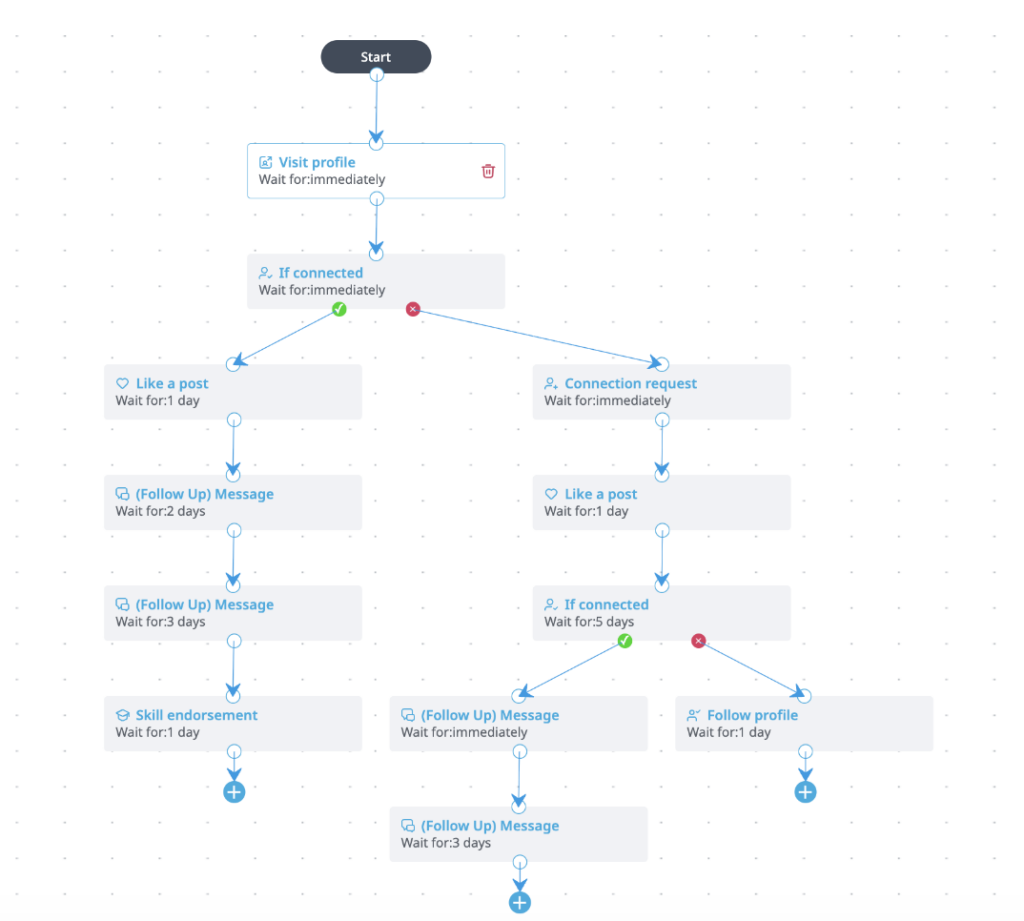
In Expandi’s Campaign Builder, each step is an action or an “If connected” condition with its own wait timer, so the follow-ups branch and fire on what the prospect does, as opposed to a read receipt that may never load. Source: Expandi
One caution, because it’s important. Automation here removes the busywork so you can focus on writing the right message at the right moment. It isn’t a license to shoot generic notes on autopilot and hope volume saves you. Good connection request messages still carry the campaign.
How to Turn Read Receipts On or Off
Some readers land here with a simpler question of “how do I switch this thing on or off?” The quick answer is below for both desktop and mobile. LinkedIn labels the setting ‘Delivery and typing indicators.’
Desktop Steps
- Click the ‘Me’ icon at the top of your LinkedIn homepage.
- Select ‘Settings & Privacy’ from the dropdown.
- Click ‘Data privacy’ in the left pane.
- Under ‘Messaging experience’, click ‘Delivery and typing indicators’.
- Toggle the setting on or off.
Mobile Steps
- Tap your profile photo, then tap ‘Settings’.
- Tap ‘Data privacy’.
- Under ‘Messaging experience’, tap ‘Delivery and typing indicators’.
- Turn the setting on or off.
What Turning Them Off Actually Does
The setting applies to your whole account. You can’t keep receipts on for warm conversations and off for cold ones. It’s all or nothing.
And it cuts both ways. Switch your receipts off and you lose the ability to see anyone else’s read status at the same moment you stop them from seeing yours. For more on managing this across a busy inbox, see our guide to smart LinkedIn inbox management.
Using Read Signal Strategically in LinkedIn Outreach
Knowing what each icon means is table stakes. Turning that into a pipeline is where SDRs and sales teams separate themselves.
What a Read Receipt Actually Tells You — and What It Doesn’t
A read receipt confirms exactly one thing: someone clicked on your message. It says nothing about message quality, timing fit, interest level, or buying intent. Plenty of people open a message and move on without properly reading it, never thinking about it again.
So, the read-tracking signal has one use. It’s an input helping you (a human who knows the context) send the right follow-up to the right person at the right time. It’s not an autopilot or a trigger for a canned reply the second a profile photo appears.
Timing Follow-Ups With Read Data
When you do have a green light and no reply after three to five business days, follow up once and make it count. Send a resource they haven’t seen, or reframe your ask so it approaches the problem from a new direction.
Across the same Expandi dataset, the message reply rate sat at 10.4% and the connection-request reply rate at 3%. By the end of the period (April 2026), the connection-request reply rate had fallen to 2.2%.
Most messages don’t get a reply on the first pass, so your follow-up game is where the pipeline gets built. If you’re weighing channels for those follow-ups, our take on email versus LinkedIn messaging is worth a look, as is the breakdown of InMail versus regular messages.
Managing Read Receipts at Scale With Expandi
After two or three conversations, tracking read signals by hand is fine. At the volume a serious outreach operation runs, manual tracking falls apart, and the Dark Channel problem (no signal available) multiplies across every campaign.
Expandi’s inbox management layer lets you filter by reply status, flag unread messages, handle replies in one inbox, and run automated sequences that fire on engagement state rather than on you refreshing tabs.
So the missing signal problem gets solved structurally, across the entire pipeline at once. You can dig into the mechanics in our guides to LinkedIn inbox management for sales and automating your LinkedIn responses.
For teams running outreach across several accounts, the global smart inbox pulls every conversation into one view. Team leads get pipeline-level visibility across every rep in one view, instead of a stack of individual dashboards. If you’re juggling more than one seat, here’s how to manage multiple LinkedIn accounts without the spreadsheet sprawl.
The data backs the approach for one group in particular. In the Expandi benchmarks, Staffing & Recruiting posted a 36.5% acceptance rate and an 18.9% message reply rate, about double the platform average on message reply, and the highest acceptance rate of any high-volume industry. As Expandi CEO Glenn Miseroy puts it in the company’s 2026 benchmark report, “when the platform’s purpose and the use case align, the numbers move.”
Recruiters live almost entirely in the (ominously sounding) Dark Channel because InMail is their default. Yet, they pull the strongest numbers, precisely because their follow-up cadence runs on timing and value, which is exactly what InMail can’t give them through a read receipt.
Conclusion
It comes down to three quirks with one cause. The grey check mark fools people into thinking a message was read, when all it gives is a confirmation of delivery. InMails shows the sender nothing at all. And a connection note keeps its read receipt hidden until the moment the person accepts.
None of them are bugs. They’re all deliberate privacy choices, and they leave outreach professionals operating in the dark for most of their conversations. Once you see that, the read receipt stops being the be-all and end-all and becomes one input among several.
The Signal Stack gives you a decision for all three states, including the two where LinkedIn leaves you guessing. Figure out which tier you’re in, then act on it. Follow up when you’ve got a confirmed open. Read the surrounding context and adjust when you don’t or, when there’s no signal to be read at all, stop refreshing the thread and let timing-based sequences carry the load.
If most of your outreach lives in the Dark Channel (and the 28.5% acceptance rate says it does), build the infrastructure to operate there. Start a free Expandi trial and set up sequences that follow up on their own, so a missing read receipt stops costing you replies.
FAQ
No. LinkedIn’s documentation states that read receipts and typing indicators never appear to senders of InMail messages. If you send InMail, you won’t see whether the recipient opened it, regardless of either person’s settings. This is one reason recruiters and anyone relying on InMail should build follow-up sequences on timing rather than on read confirmation.
Your message is almost certainly delivered. The grey check mark confirms exactly that: delivery to the recipient’s inbox. A check mark that never turns into a profile photo usually means one of two things: the recipient hasn’t opened the message, or one of you has read receipts switched off, in which case the read status was never going to show. Either way, it’s not a delivery failure.
Yes. Anyone with read receipts turned off in their settings can open and read your message without a profile photo ever appearing on your end. Some people also use the message preview pane or third-party tools to read without triggering a receipt. The reverse is true too. Switch your own receipts off and you can read incoming messages without the sender knowing.



You’ve made it all the way down here, take the final step