LinkedIn Outreach for Contacts With No Email Address: How to Reach the Decision-Makers Your Database Skips

Every SDR, RevOps lead, and sales manager running B2B outbound knows this moment: you enrich a contact list, push it to your sequencer, and a chunk of the records come back with no email address. The standard move is to skip them, a habit that quietly writes off a quarter to 40% of the database.
There is a better option: route the no-email contacts into a LinkedIn-only outreach campaign. A connection request reaches someone through their LinkedIn profile and never asks for an email address, so a contact you could not email becomes one you can reach within a day or two.
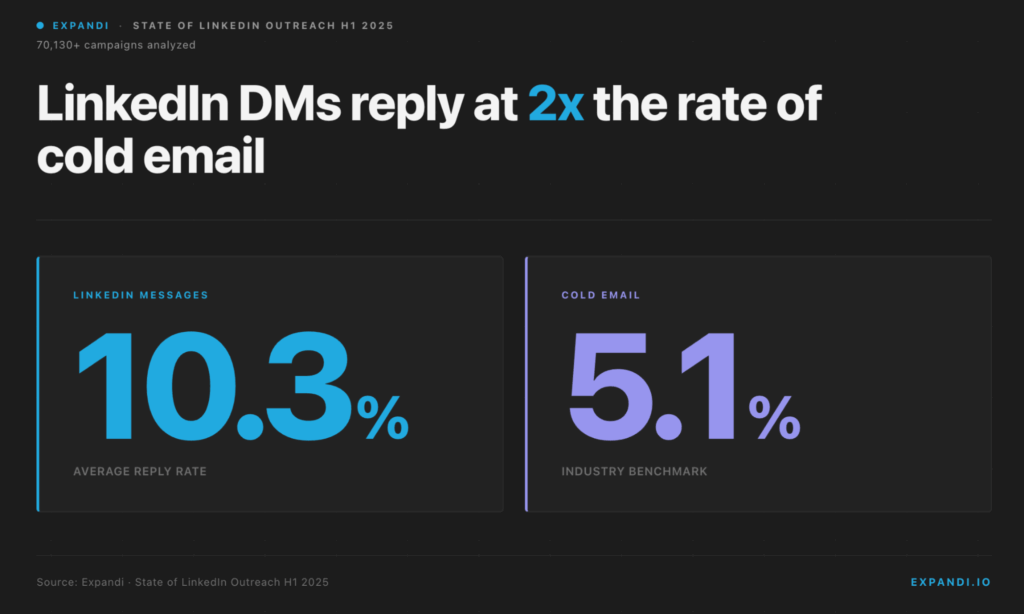
We analyzed 70,130+ campaigns for Expandi’s State of LinkedIn Outreach report, and one number reframes the problem: LinkedIn messages reply at 10.3%, against 5.1% for cold email. Every one of those replies started with a connection request: an action that never needs an email address.
This guide covers the full workflow: sizing the no-email segment, why it holds more decision-makers than you would expect, splitting your database into two lists by email presence, and running the LinkedIn-only half in Expandi.
Key Takeaways
- A typical enriched B2B database has no verified email for 25-40% of its contacts, and many outbound teams skip those records to focus on the emailable ones.
- The no-email segment skews senior: people change roles, the email on file dies, and senior titles are more likely to keep a gatekept or unlisted address.
- Split your database by email presence. Verified-email contacts run a standard email-and-LinkedIn sequence; no-email contacts run a LinkedIn-only campaign.
- A LinkedIn connection request needs no email address to send, and profiles stay current while email databases decay by roughly 22.5% a year.
- When a no-email contact accepts on LinkedIn, their contact details become visible, and Expandi’s My Contacts export pushes that data back to your CRM.
LinkedIn Outreach for Contacts With No Email Address: How to Reach the Decision-Makers Your Database Skips


How many B2B contacts have no email address?
Expandi’s internal data shows an enriched B2B database typically comes back with 25-40% of its contacts missing a verified email address. Some records never had an email, others carry one that bounces. If you skip that segment, you leave a meaningful share of every list untouched.
Two things drive the gap.
- The first is coverage. No data provider holds a verified email for every contact, so any list you pull arrives with blanks in the email column, and no amount of B2B data enrichment closes that gap completely.
- The second is decay. Email databases degrade by about 22.5% a year, according to HubSpot, as people leave jobs and abandon inboxes. It tracks with a wider data problem: Validity’s 2025 State of CRM Data Management report found 76% of organizations say less than half their CRM data is accurate and complete.
Many outbound teams handle this by filtering to the emailable contacts and dropping the rest. Those dropped records are unworked pipeline — a quarter to 40% of every list you paid to build, sitting untouched.
Why no-email contacts skew toward decision-makers
The no-email segment skews toward senior people.
The two things that erase an email address — changing jobs and keeping an address private — both correlate with seniority. The harder a contact is to email, the more likely they hold budget.
Job changes break the email on file: [email protected] stops resolving the day someone leaves.
When that happens to a senior contact, the gap costs more — because a senior contact holds budget you can’t replace by emailing a manager two levels down. Data providers catch up eventually, but eventually is a quarter or two — and in that gap, a VP sits in your CRM behind a dead address.
The seniority problem compounds because of intent, not just data decay.
Senior people field more outreach than anyone else, so a higher proportion of them route a public address to a gatekeeper or remove it from their profile entirely.
Skipping the segment skips your highest-value targets.
Why LinkedIn outreach works for contacts with no email address
LinkedIn-only outreach is a B2B sales motion that reaches contacts exclusively through LinkedIn connection requests and direct messages, with no email step, used when a contact has no verified email on file or when email has gone unanswered.
LinkedIn outreach works for no-email contacts for three reasons.
- A connection request needs no email address to send
- LinkedIn profiles update themselves when someone changes jobs, while email databases decay at 22.5% a year
- An accepted connection often surfaces the contact email that no data provider could supply
Across 70,130+ campaigns in Expandi’s data, LinkedIn messages reply at 10.3% versus 5.1% for cold email. Here’s what this means for your LinkedIn outreach for contacts with no email addresses.
- A connection request never asks for an email address. LinkedIn routes it through the recipient’s profile, so all you need is the LinkedIn URL — a field data providers supply far more reliably than a verified email.
- LinkedIn profiles update themselves. When someone changes jobs they update their own profile, because it is their public resume. You reach a self-maintained record. The email databases you’d otherwise be working from decay at 22.5% a year.
- Connecting unlocks the contact data. A LinkedIn member’s email is visible to their 1st-degree connections by default, so the moment a contact accepts, the campaign that reached them also starts to repair the record.
In our State of LinkedIn Outreach report, connection requests were accepted at 29.61% — roughly one in three no-email contacts becomes a reachable 1st-degree connection.
If you’re weighing cold email versus a LinkedIn message for hard-to-reach contacts, the math favors LinkedIn.
The two-list outreach strategy: split your database by email presence
Stop running your database as one list.
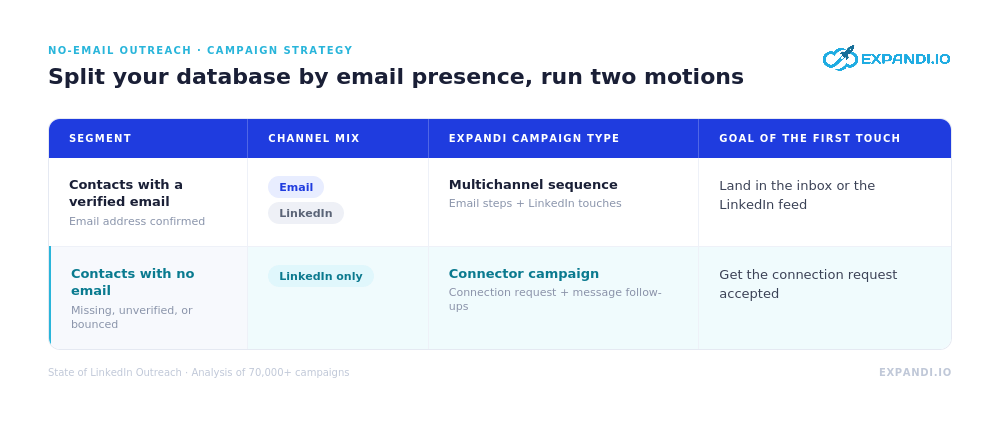
Split it by email presence into two segments with two motions:
- Verified-email contacts run a standard multichannel sequence of email plus LinkedIn touches.
- And no-email contacts run a LinkedIn-only campaign with no email step at all.
Running everyone through one sequence has a cost.
A sequence built for email contacts treats the LinkedIn touch as a secondary nudge while the email does the real work — the rhythm a standard multi-channel marketing sequence is built around. For a no-email contact, that nudge is the entire relationship, so it needs its own campaign and follow-up logic.
The split also keeps reporting clean. Run both groups together and the no-email contacts drag down every email metric — open rate, bounce rate, deliverability — because half the audience was never emailable. Separate the lists and each motion reports against the channel it uses.
Beyond reporting, the split mirrors how the work is already divided:
- RevOps or sales ops owns the segmenting.
- SDRs run the LinkedIn-only campaign.
- And the sales manager tracks each motion as its own number.
How to segment your CRM or CSV by email presence
To build the no-email list, filter your contact source by the email field and isolate the records that come back empty or unverified. The same filter works in Apollo, Clay, HubSpot, or a plain CSV.
To segment a CRM or CSV by email presence:
- Pull your full contact list into one view.
- Filter to records where the email field is empty, or the status reads unverified, catch-all, or guessed.
- Confirm each of those records has a LinkedIn profile URL — the LinkedIn-only campaign cannot run without it.
- Export the no-email, has-LinkedIn-URL segment as a separate CSV.
- The verified-email contacts stay in your normal email-and-LinkedIn sequence.
Apollo and ZoomInfo are sales intelligence platforms and Clay is an enrichment tool — they sit alongside LinkedIn outreach rather than replacing it. Any of them, or a CRM like HubSpot, can produce the export.
The only fields that matter downstream are email status and the LinkedIn URL.
How to set up a LinkedIn-only campaign in Expandi
A LinkedIn-only campaign drops the email step entirely. In Expandi, import the no-email list, run a Connector campaign for the connection requests, then follow up with messages once contacts accept — no email address required at any point.
To set up the campaign in Expandi:
- Import the no-email CSV as a lead list under Search, then Imports, then Upload CSV, mapping the LinkedIn profile URL column.
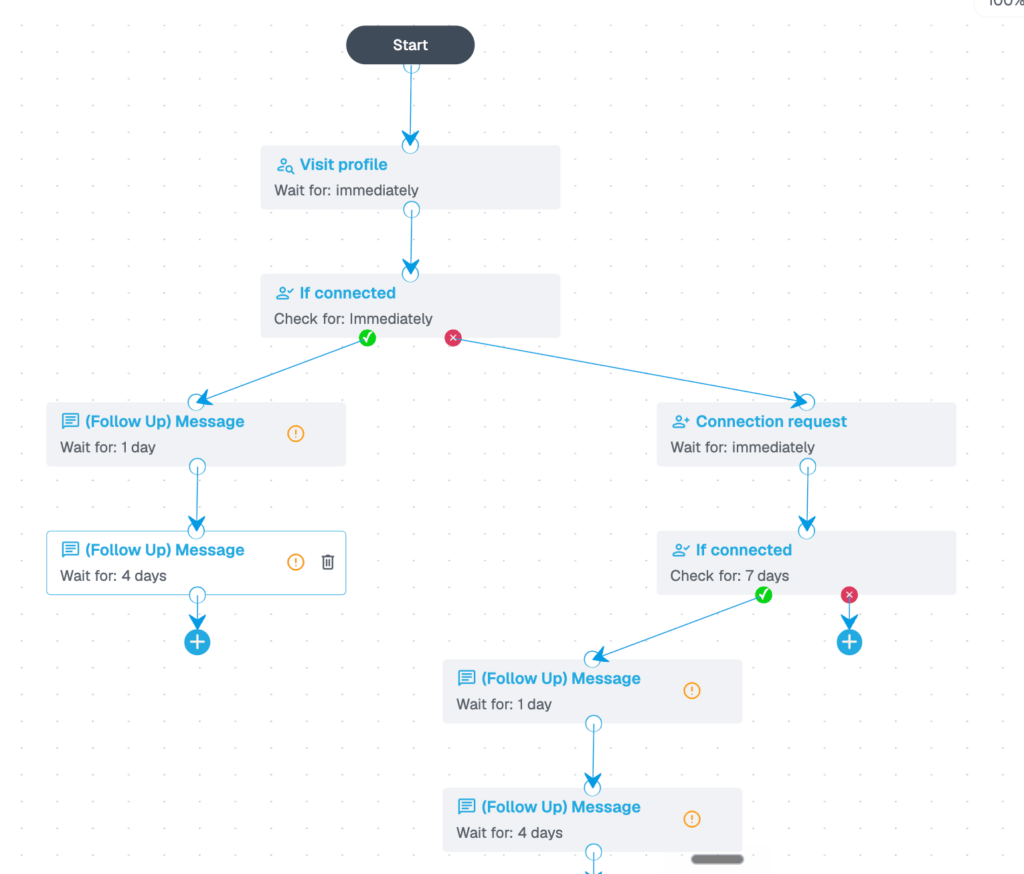
- Create a Connector campaign — it sends connection requests to 2nd and 3rd-degree contacts, with or without a note, and auto-revokes requests that go unanswered.
- Add the follow-up messages that fire after a request is accepted — Connector handles that chain in the same campaign. If your outreach needs more touches and branching — chaining profile visits, connection requests, and follow-ups with conditional routing on connection status or email presence — switch to a Builder campaign, which supports if-then sequences across 19 actions and 11 conditions.
- Leave every email action out — no email step, no “if email opened” condition. The campaign runs entirely on LinkedIn.
- Let profile warm-up and Expandi’s smart limits pace the sends. A new account starts around 5-15 actions a day, which keeps it inside LinkedIn’s connection request limits.
After the connection: using LinkedIn as a data source for your CRM
Once a no-email contact accepts the connection request, they become a 1st-degree connection — and LinkedIn shows a 1st-degree connection’s contact details by default. Expandi’s My Contacts page flags which connections carry a LinkedIn email and exports them to CSV.
This turns a coverage campaign into a data campaign. A LinkedIn member’s contact email is visible to their 1st-degree connections by default — a setting many people never change. The accepted request moves your account into that circle, so an address no data provider could sell you becomes visible on the profile.
On the My Contacts page, an email-availability filter isolates the connections that now carry a LinkedIn email, and from there you can export your LinkedIn contacts as a CSV.
Pipe that export into your CRM — Expandi natively integrates with HubSpot, Pipedrive, and Salesforce, with webhooks and Zapier covering everything else. A contact that arrived with a blank email field leaves with one.
This works only for connections who keep an email on their profile, so the list comes back partially repaired — a meaningful share of blank fields filled, at no extra cost.
The multichannel outreach stack: from data source to enriched CRM
The full workflow is a loop:
- A data source supplies the contacts.
- The email field splits them into two lists.
- The no-email list runs a LinkedIn-only Expandi campaign.
- Accepted connections flow back to the CRM with contact data attached.
Here is what the stack looks like end to end.
- Start with your data source — Apollo, Clay, ZoomInfo, or whatever feeds your pipeline.
- Pull your target list, and expect a meaningful share of it to come back with no verified email.
- Filter that segment into its own CSV: no email on file, LinkedIn URL present.
Upload CSV into Expandi as a Connector campaign — a connection request with a light, role-relevant note, then two follow-up messages for contacts who accept.
Meanwhile, the verified-email half keeps running on email plus LinkedIn.
A portion of the no-email contacts accept and reply. Tightening the connection request note compounds that rate, and the pipeline impact follows.
The quieter win lands in the CRM: every accepted connection with a visible email syncs back from My Contacts, so next quarter’s reporting runs on a cleaner list. The no-email segment becomes both a channel and a data source.
Stop skipping the contacts you can’t email
The contacts with no email address in your database are a LinkedIn-only campaign waiting to be built. Segment by email presence, route the no-email list into a connection-request sequence, and let accepted connections hand back the contact data your providers could not supply. You reach decision-makers email was never going to touch, and your CRM gets cleaner as a side effect.
Expandi runs LinkedIn-only campaigns from a dedicated IP with built-in warm-up and smart limits, plus the My Contacts export that closes the data loop. Upload your no-email contacts and start a 7-day free trial.
Multichannel outreach strategy FAQs
A short, specific note lifts acceptance when you have something real to reference — a recent post, a role change, a company news item, a mutual connection. Keep it under 200 characters and skip the pitch entirely. Save the ask for the first follow-up message after the request is accepted.
Yes, when the automation stays inside LinkedIn’s safe activity ranges. Accounts get flagged when they push too many requests too fast, skip the warm-up period on a fresh account, or run automation through a browser session LinkedIn can fingerprint. Cloud-based tools that operate from a stable IP per account and pace actions gradually keep activity well inside the safe envelope.
On a properly warmed-up account, the first connection acceptances land within 24-48 hours of a campaign going live. Replies trail in over the first one to two weeks as connections accept and engage.
Booked meetings and pipeline impact typically materialize four to six weeks in, once a meaningful share of the list has cycled through the connect → message → follow-up sequence.
No. Connection requests and messages to your 1st-degree connections work on a free LinkedIn account. You need Premium or Sales Navigator only for InMail to people outside your network, or for advanced search — a standard connect-and-follow-up campaign runs without either.
LinkedIn does not publish an official number, but the working assumption is around 100 connection requests per week per account. New accounts should start lower, roughly 5 to 15 actions a day, and ramp up — Expandi’s warm-up handles that pacing automatically.
Pending invites can sit indefinitely on LinkedIn, but they count against your weekly invitation quota until they clear. Most LinkedIn automation tools, Expandi included, auto-revoke unanswered requests after a configurable window so your quota stays free for fresh outreach.

You’ve made it all the way down here, take the final step