How to Manage Multiple LinkedIn Accounts for Outreach (With Expandi)

Key takeaways
- LinkedIn allows managing profiles of real team members, founders, SDRs, and clients. So, yes, you CAN manage multiple LinkedIn accounts. However, you cannot create multiple accounts for yourself. Duplicate or fake profiles violate their Terms of Service.
- The real reason teams manage multiple accounts is to scale outbound safely. Each profile has ~100 weekly invite limits, so 3-5 accounts = 300-500+ invites, multi-ICP targeting, and higher overall pipeline volume.
- That said, managing accounts manually can sometimes be risky and inefficient. Browser switching, mixed IPs, and inconsistent logins trigger restrictions, missed replies, and duplicated outreach.
- The safe way to manage multiple LinkedIn accounts is through dedicated IPs + consistent sessions + warm-up + unified reporting. These are the same operational rules LinkedIn expects from agencies and enterprise outbound teams.
- Expandi centralizes multi-account management in one secure dashboard. You get dedicated IPs, automated warm-up, cross-account safety rules, a global inbox, and unified analytics. If you manage multiple accounts, this is a great way to scale and automate outreach all in one place.
If you’re running outreach for a team or clients, managing multiple LinkedIn accounts manually becomes a nightmare fast…
Different inboxes, different outreach limits, constant 2FA codes, browser juggling, and the very real risk of getting someone restricted if you log in the wrong way.
But here’s the important part:
You CAN manage multiple LinkedIn accounts. You just can’t create multiple accounts for yourself. LinkedIn’s one-profile-per-person rule still applies, and violating it is the fastest way to get suspended from the platform.
So the real solution isn’t creating duplicate profiles. It’s managing multiple legitimate accounts safely and at scale, the same way agencies, SDR teams, and outbound-led companies do it every day.
In this guide, you’ll learn exactly how to do that, including:
- What’s allowed and what isn’t when it comes to managing multiple LinkedIn accounts
- Why manage multiple LinkedIn accounts in the first place (real benefits)
- When to consider managing multiple LinkedIn accounts (practical use cases)
- The right way to manage multiple accounts at scale safely
- Safety best practices to keep your accounts from getting flagged
- Top 3 outreach strategies you can run with multiple LinkedIn accounts
If you want to scale outbound, increase reach, and manage multiple LinkedIn accounts without risking bans, here’s what you need to know.
Can I Manage Multiple LinkedIn Accounts? (What’s Allowed & What Isn’t)
Short answer: Yes, you CAN manage multiple LinkedIn accounts. However, you can NOT create multiple accounts for yourself.
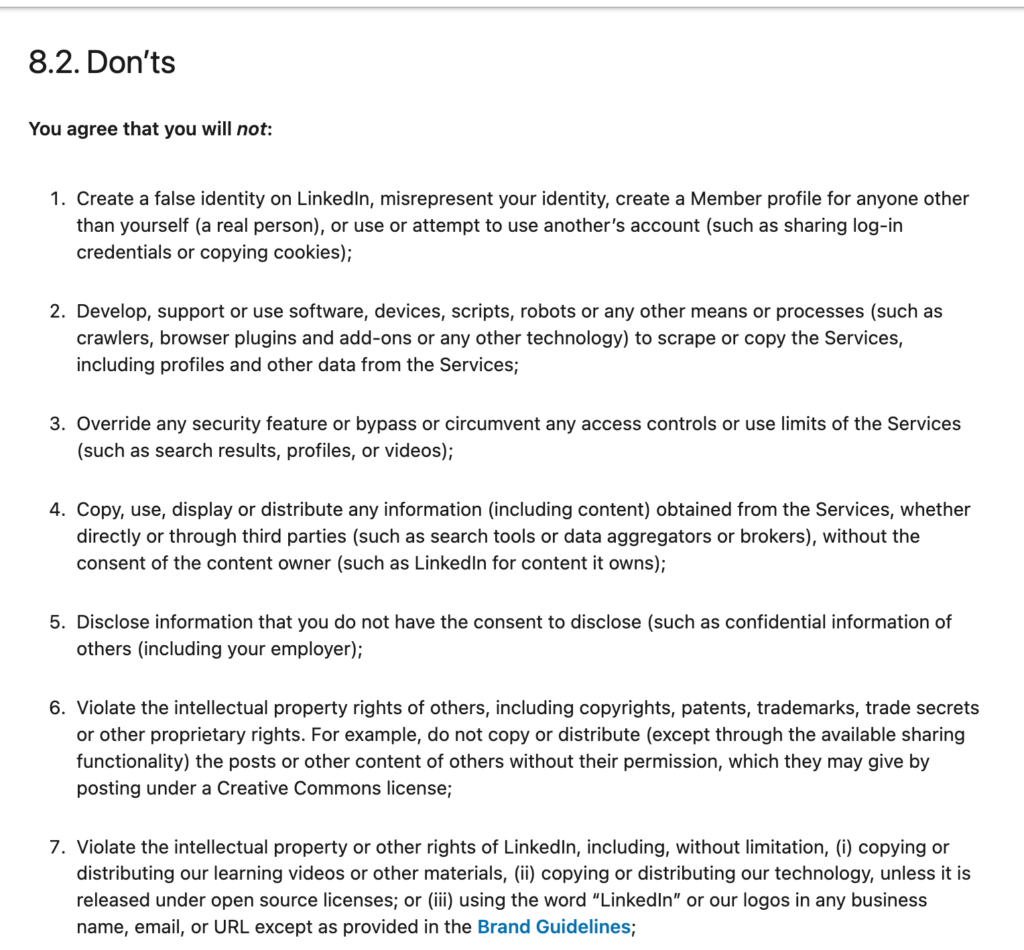
Here’s what LinkedIn explicitly prohibits:
- Creating more than one personal account.
- Using fake identities or aliases.
- Logging into multiple accounts from suspicious locations, IPs, or devices.
- Sharing accounts without proper security controls.
The power of multi-account outreach comes from leveraging different voices inside a company.
- SDRs handle volume.
- Marketing shapes narrative.
- Founders open doors.
- Agencies run their clients’ profiles in parallel.
And this is exactly how 99% of outbound teams scale without breaking LinkedIn rules.
Why LinkedIn doesn’t allow multiple accounts for one person
LinkedIn restricts multi-account behavior for one core reason:
To protect the integrity and safety of the platform.
If everyone was creating new accounts whenever they wanted to scale, that’d lead to:
- Breaking the integrity of the platform.
- Making spam detection harder.
- People using second accounts to bypass outreach limits.
- Spam and low-quality outreach.
So instead of allowing multiple accounts per person, LinkedIn expects users to:
- Use one personal profile.
- Add all roles & industries you’re involved in.
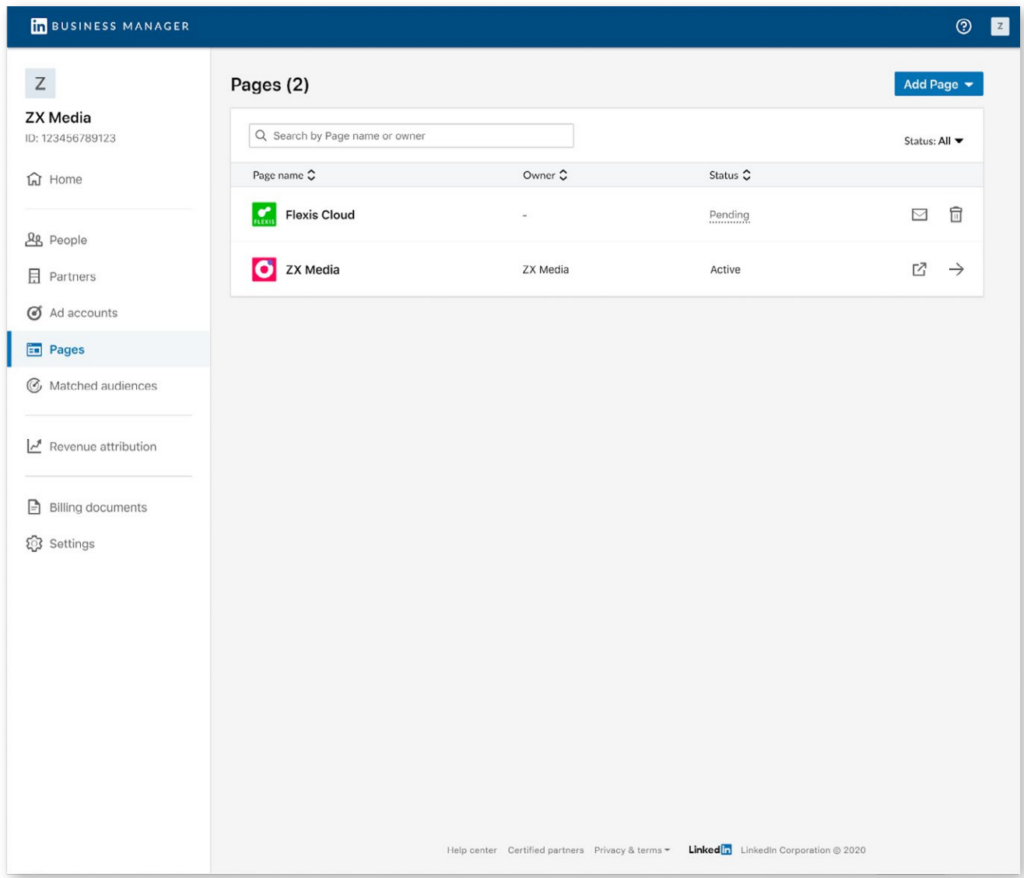
- Use Showcase Pages for separate services.
LinkedIn even has dedicated tools for managing unlimited Company Pages.
So how do teams legally run multiple outreach accounts?
This isn’t necessarily a tricky loophole workaround or anything.
There are teams managing multiple LinkedIn accounts by:
- Managing multiple real employees’ profiles for sales and outreach.
- Managing multiple client profiles (agencies).
- Using LinkedIn automation tools to manage accounts and schedule content.
- Keeping each account on its own dedicated IP (no login flags).
- Following warm-up and daily limit recommendations.
This is the correct way to manage multiple accounts without getting your account restricted.
Why Manage Multiple LinkedIn Accounts (and Not Create Them)
If your goal is to scale outreach, managing multiple LinkedIn accounts is one of the most effective ways to do so.
But here’s the key distinction:
- You’re not creating multiple accounts for yourself.
- You’re managing multiple accounts that belong to real people.
Why teams manage multiple accounts
This is standard practice for outbound-led companies, demand gen teams, and agencies. And it’s completely within LinkedIn’s rules as long as each profile belongs to a real user.
- You multiply the weekly outreach volume. LinkedIn connection limit is around ~100 connection requests per week. So, 3-5 accounts let you send 300-500 invites.
- You can reach different buyer personas and ICP segments simultaneously.
- You run parallel campaigns without overlap or audience fatigue.
- Each profile builds its own trust score and network.
- You lower the risk of throttling or restrictions on any single profile.
That said, managing multiple accounts manually can cause some problems:
- Inconsistent login locations trigger restrictions.
- Multiple inboxes = missed/opportunity-killing replies.
- No unified reporting across accounts.
- Different limits & warm-up schedules are impossible to track.
- Risk of duplicate outreach to the same leads.
- Teams waste hours switching browsers, devices, and 2FA codes.
This is exactly why high-performing outbound teams use a centralized, safe multi-account management tool. Whether they’re doing outreach or creating content. Below, we’ll cover how to do this in detail.
But first, here are some use cases for when you should consider automation software if you’re planning to scale outreach by managing multiple accounts.
When You Should Consider Managing Multiple LinkedIn Accounts (5 Use Cases)
There are many completely legitimate situations where managing multiple real users’ accounts is not only allowed, but essential for scalable outreach.
Here are the main use cases.
1. Agencies running LinkedIn outreach for clients
If you manage a LinkedIn lead generation company for multiple clients, you’ll need access to:
- Their SDRs’ profiles.
- Their founders’ profiles.
- Their internal team accounts.
This lets you launch, optimize, and monitor campaigns without logging in and out of each account manually. Which is both unsafe and impractical.
2. Outbound teams scaling SDR volume
Most companies have more than one SDR.
Each SDR also has:
- Their own network.
- Their own industry relevance.
- Their own weekly limits (~100 invites/week).
Managing these accounts centrally allows teams to scale outreach without violating LinkedIn’s policies.
3. Running multi-persona or multi-ICP outbound
If your business targets:
- CEOs.
- CMOs.
- RevOps.
- HR teams.
…one LinkedIn profile cannot credibly reach all personas. Multiple legitimate profiles let you run messaging that matches each persona’s tone, authority, and expertise.
4. Companies activating founders & leaders for social selling
Founders, CEOs, and Department Heads often outperform SDRs in reply rates.
Managing multiple accounts enables:
- Founder-led outreach.
- Multi-touch “Team Selling”.
- Higher conversion from top-of-funnel campaigns.
If you’re also creating content for them, you’re going to run into the same problem. Different content strategy for different people. You’ll also need a place to organize, manage, and edit the posts.
5. White-label lead generation providers
If you resell LinkedIn outreach under your brand, you must manage:
- Client profiles.
- Your team’s profiles.
- Reporting (for each campaign).
- Inbox responses…
All from a single dashboard. Without sharing passwords or breaking LinkedIn security rules.
This is why high-performing teams don’t manage accounts inside LinkedIn directly. They manage them in a safe, controlled environment designed for multi-account operations.
Here’s how.
Introducing the Right Way to Manage Multiple LinkedIn Accounts (Safely)
This is where Expandi comes in.
Instead of logging into LinkedIn manually across multiple profiles, Expandi lets you manage all accounts in one secure dashboard. Each with:
- Its own dedicated IP address (prevents login flags).
- Safe automation aligned with LinkedIn daily limits.
- A global inbox for all accounts.
- Role-based permissions for SDRs, clients, and co-workers.
- Unified analytics across all accounts.
- Built-in warm-up settings to protect new profiles.
- And more.
Here’s the full setup for safely managing multiple LinkedIn accounts with Expandi in 5 simple steps:
Step 1 – Create your agency workspace and roles
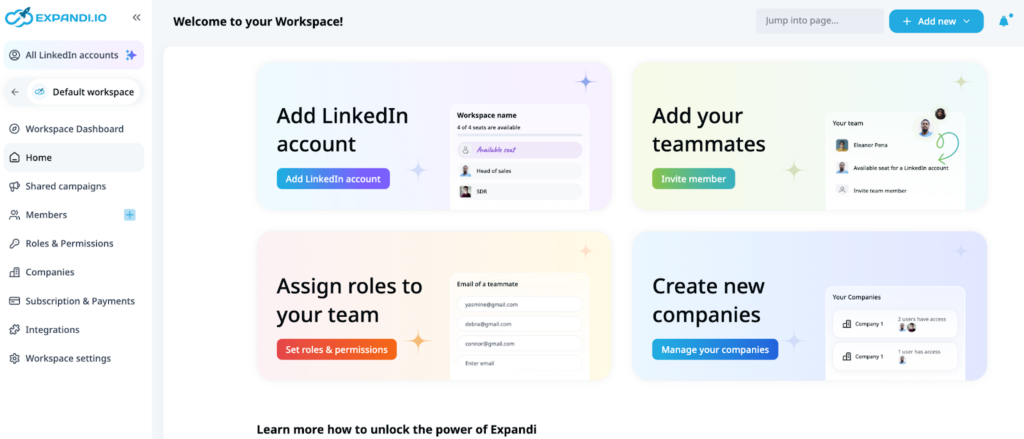
Your Agency workspace is the “command center” where all LinkedIn accounts, team members, and clients live.
Inside it, you can:
- Add unlimited LinkedIn accounts.
- Create roles (Admin, SDR, Client).
- Assign 110+ permissions.
- Keep client access clean and separated.
This prevents security risks and gives each user only the access they need.
If you haven’t done so yet, you can claim your free 7-day trial or see if Expandi is right for you here.
Step 2 – Safely add LinkedIn accounts
Every LinkedIn account you manage must:
- Belong to a real person.
- Use its own dedicated IP.
- Maintain a stable session.
Expandi handles all this automatically.
To add an account:
- Click + Add LinkedIn Account

- Enter the user details
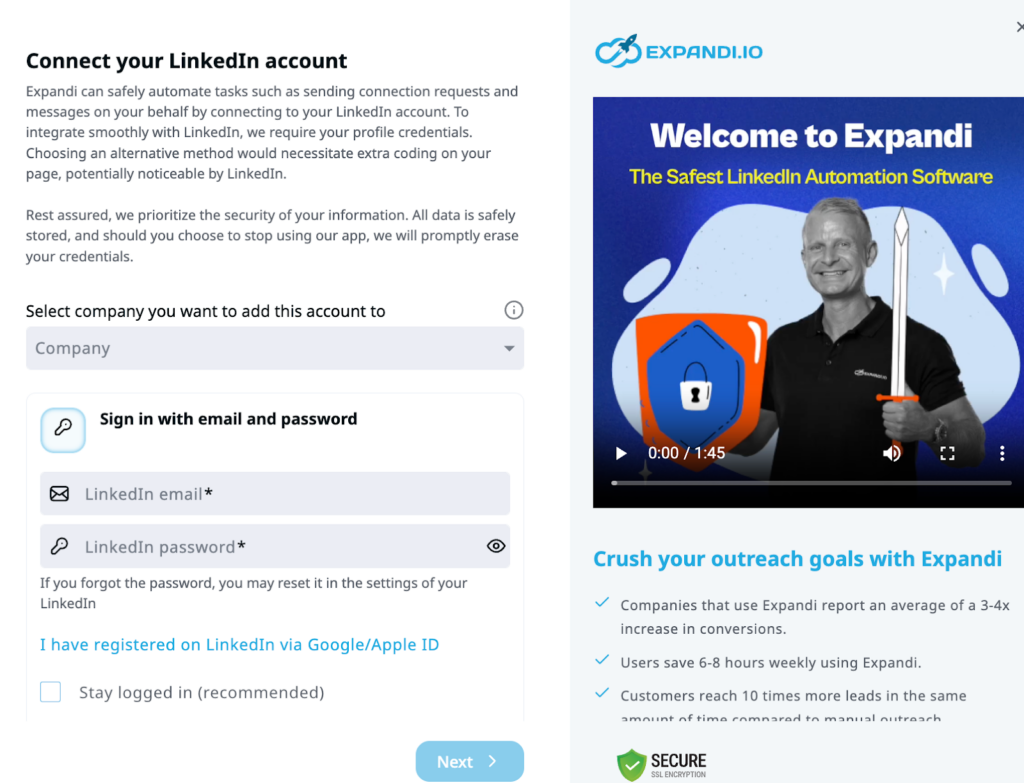
- Once it’s done, a new user will appear in the list under the ‘All users’ section.

Step 3 – Connect accounts to companies inside your agency
Each LinkedIn profile is assigned to a Company inside your Agency.
This enables:
- Clean reporting.
- Easy account switching.
- Client-by-client organization.
- Separation of SDR teams.
- Unified inbox.
You can also create different workspaces for different projects or accounts, depending on your setup.

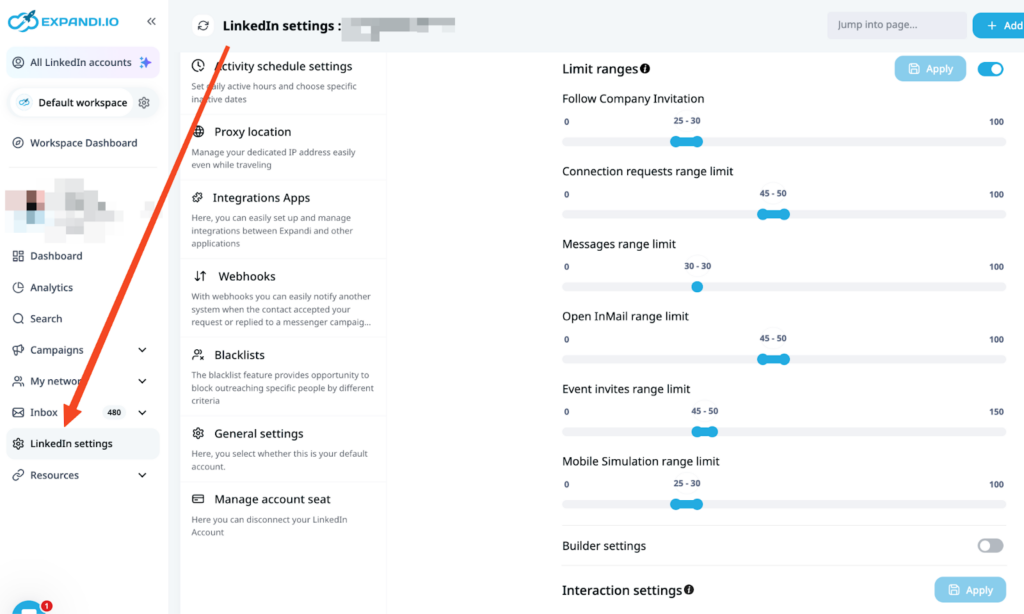
Step 4 – Activate automated account warm-up
Every LinkedIn account (especially new ones) needs warming up, or LinkedIn will flag sudden activity spikes.
Expandi warms accounts safely by:
- Gradually increasing daily actions.
- Respecting platform limits.
- Building a strong “trust score”.
- Avoiding sudden invite spikes.
Set it up once in:
LinkedIn Settings → Account Warm-Up
Step 5 – Run outreach & manage all inbox replies from one dashboard
Once accounts are set up and connected, you can:
- Run connector campaigns.
- Send Open InMails.
- Launch post engager sequences.
- Run multichannel email + LinkedIn flows.
- Duplicate campaigns across multiple SDR accounts.
And the best part, use the unified global inbox to manage all messages from all accounts flow into a single inbox. Where you can also add tags, filter for messages, and reply accordingly.

LinkedIn Safety Best Practices for Managing Multiple Accounts (and How Expandi Keeps You Safe)
You can manage multiple LinkedIn accounts. But only if you follow the same safety rules LinkedIn expects from enterprise teams, SDR orgs, and agencies.
Here are some core best practices every team should still follow to stay compliant.
- One profile per person (never create duplicates) – This is LinkedIn’s strictest rule and the #1 cause of account restrictions. Expandi works only with real, individual LinkedIn profiles, keeping you fully compliant.
- Each account must use a stable, dedicated IP – If multiple accounts share one IP, LinkedIn flags it as suspicious activity. Expandi automatically assigns a unique dedicated IP to each LinkedIn account.
- Warm-up every new account gradually – A cold account suddenly sending 50+ actions per day is a red flag. Expandi includes a built-in automated warm-up, which slowly increases daily actions to build trust safely.
- Stay within realistic daily & weekly limits – LinkedIn considers anything outside normal human behavior risky. Safe baselines:
- ~100 connection requests per week
- 100-150 messages daily
- 800 free Open InMails/month (Sales Navigator)
- Keep behavior consistent (devices, browsers, locations) – Switching IPs, browsers, or devices is one of the fastest ways to trigger 2FA loops or temporary blocks. Expandi maintains a stable session for each account.
Teams often unintentionally overlap ICPs and can hit the same prospect from different accounts.
This hurts trust and reply rates.
With Expandi, you can set up campaigns to prevent duplicate targeting with cross-account lead deduplication and clean list management.
Top 3 Outreach Strategies With Multiple LinkedIn Accounts
While these campaigns are already ideal for lead generation, they become even more effective if you’re running them with multiple accounts.
Let’s take a look.
1. CSV LinkedIn import connector campaign to avoid the 100 connection per week limit
Since LinkedIn now allows you to only send up to 100 invites per week, this strategy is ideal with multiple accounts.
Here’s how it works:
1. Filter and define your target prospects on LinkedIn. Sales Navigator helps with this.
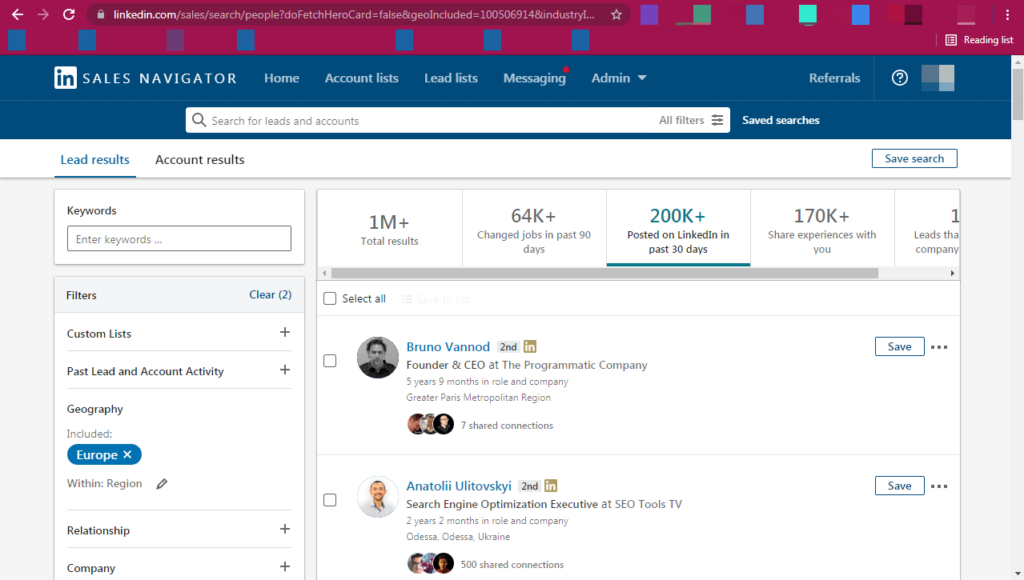
2. Optional: Shortlist only active prospects (in Sales Navigator, select “users who have posted on LinkedIn in the past 30 days”) and copy the search URL.
3. Create a new LinkedIn Sales Navigator type search on Expandi.
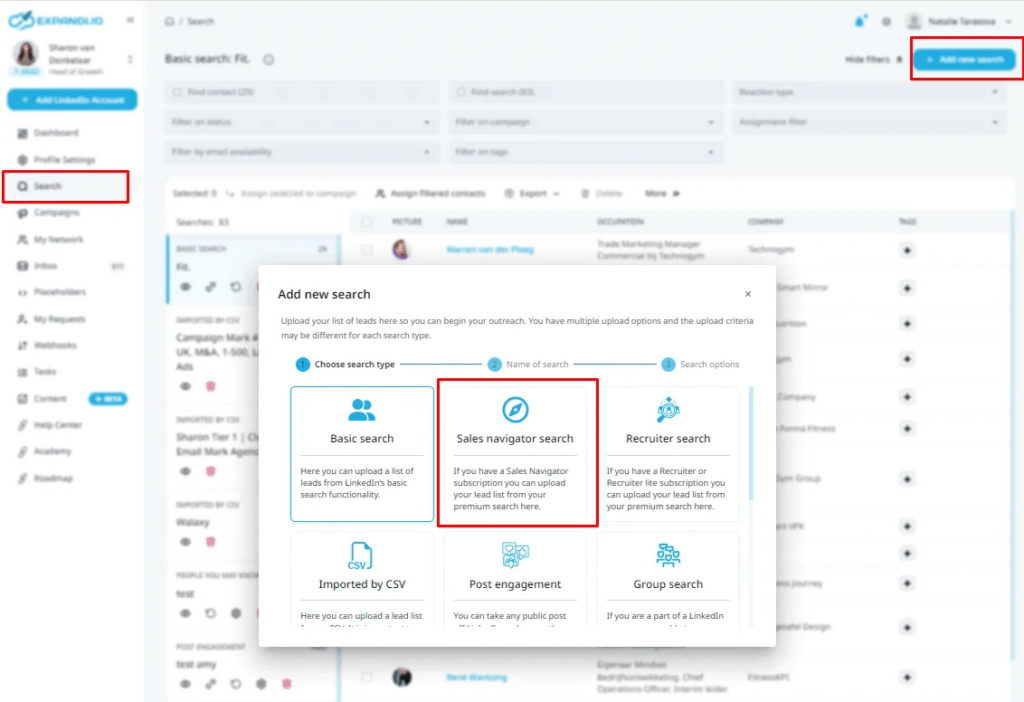
4. Paste in your LinkedIn search URL and click Export.
5. Choose “Mail all contacts as CSV”, enter email address to receive your CSV spreadsheet file, and click Send.
6. Once you receive your spreadsheet file you need to clean it up.
7. Delete all rows that have no email data and all columns except first name, last name, and email in one sheet.
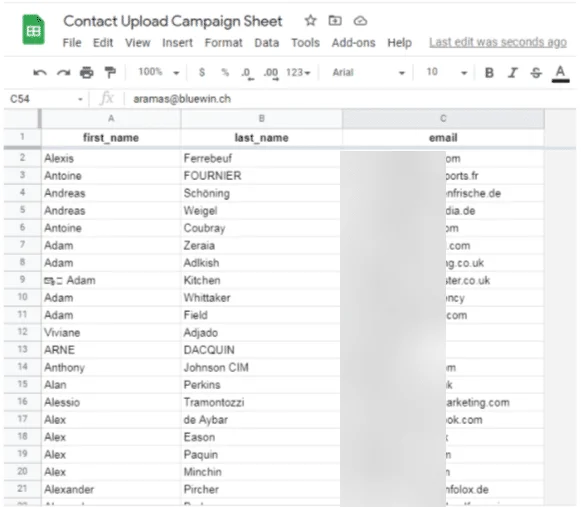
Once you have a clean list, create a new Connector Campaign in Expandi.
Then, click on the ” People” tab and click “Import CSV” and upload the sheet with the emails you just cleaned up.
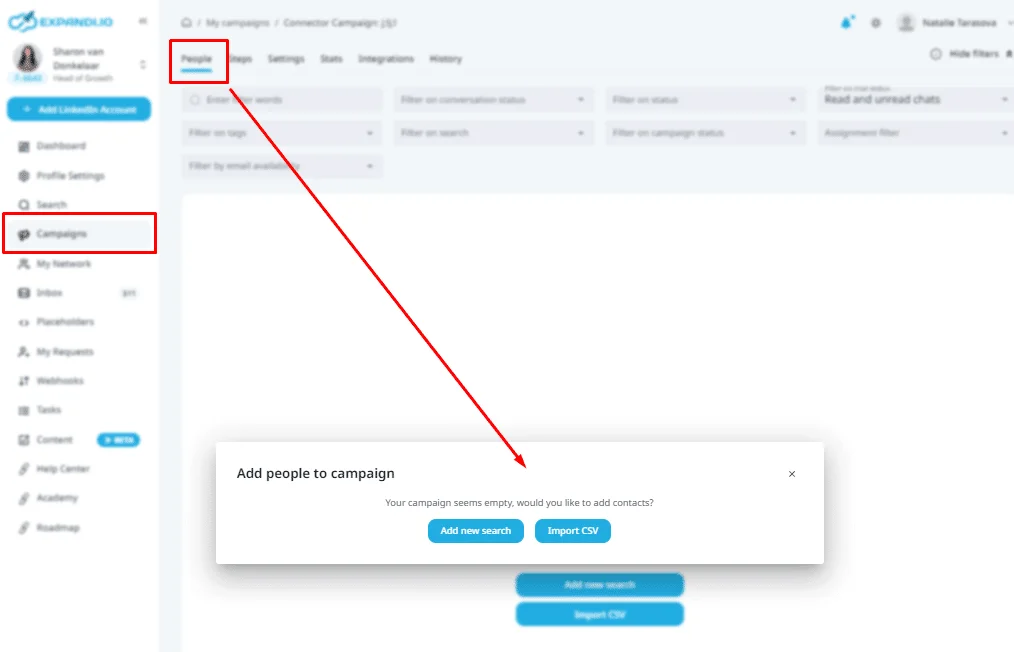
Now, because you’re importing contacts, you can’t send a personalized connection request.
However, this is a great way to avoid the new LinkedIn connection limit and you can still automate your cold message follow-ups.
And by managing multiple LinkedIn accounts, you can reach even more people than if you were running this campaign from only your account.
2. Hyper-personalized outreach campaigns with dynamic images and GIFs
This outreach strategy is a great way to add some human touch and personality to your campaigns.
And if anything, the more LinkedIn accounts you have warmed up for this – the better.
The idea is to use dynamic images and GIFs like the one below to show there’s a real person at the end of the message.
This is a great way to stand out, especially when many people on LinkedIn keep reusing the same outreach templates.
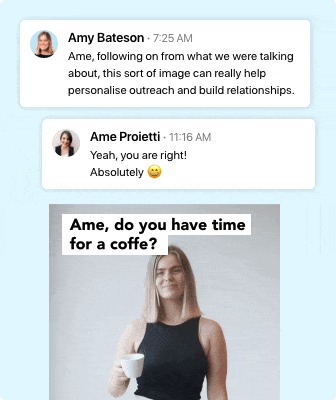
And no, you don’t have to create the GIFs manually.
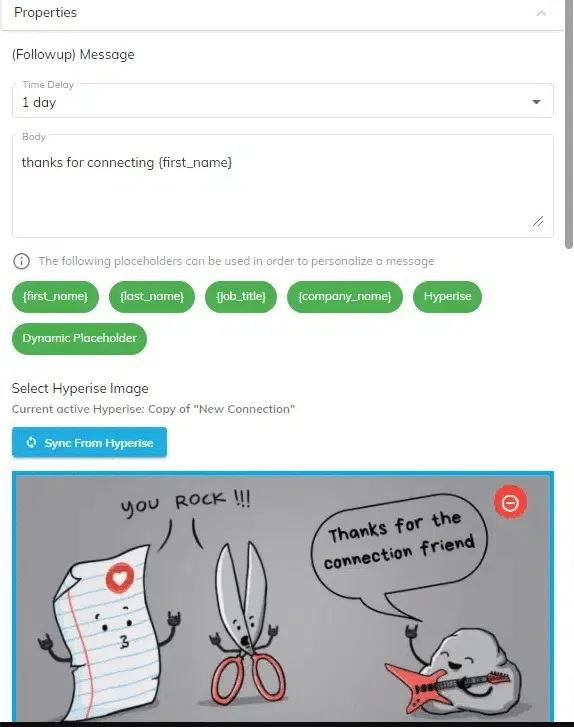
This is done through the Hyperise integration, which creates images and GIFs with placeholder tags so that once you send them to your leads, the tool will do all the work for you.
The process is simple too:
- Create a Hyperise account.
- Connect Hyperise with Expandi with your API key.
- Create a campaign in Expandi and select your Hyperise visuals.
Learn how we achieved a 78.9% connection rate and a 61.7% reply rate with a similar strategy here.
3. LinkedIn open InMail outreach campaign
Depending on your LinkedIn account type, you can send open InMails to other accounts that are also open. Even if they’re outside your network.
Users have a set limit of 800 free open InMails which are allowed in 1 calendar month.
See where I’m getting at here?
Simply by having one other LinkedIn account with Sales Navigator, you can already double your reach to 1800 prospects per month.
And this campaign avoids the new connection request limit too!
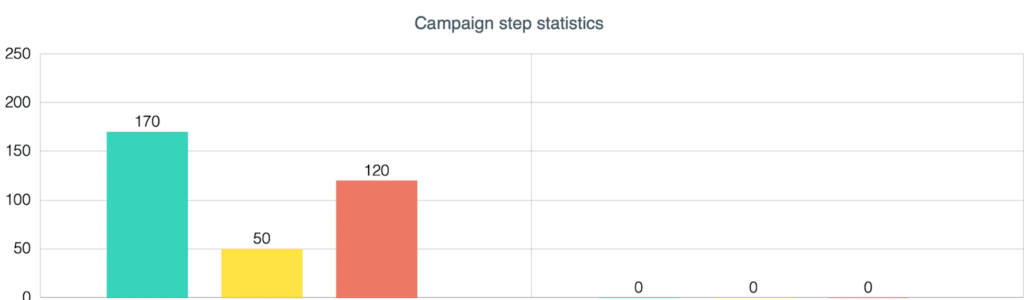
With this strategy, which we managed to automate, we achieved the following results from a campaign of 170 people:
- 170 people contacted.
- 50 people replied.
- 14 calls booked.
Here’s how to set this up within Expandi:
1. Create a new Open-InMail campaign.
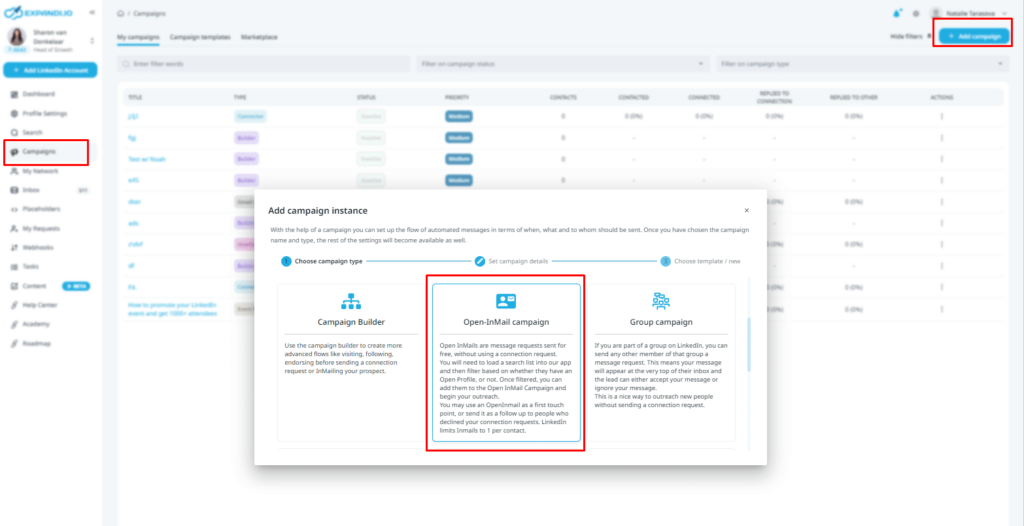
2. Write your messages and add your follow-up sequence.
3. Add your leads to the campaign from the “search” option.
This campaign also works great with the above-mentioned dynamic GIFs strategy!
To see how we manage to book 14+ calls per week with this outreach strategy, check out our full guide to LinkedIn InMail outreach for more info on the exact templates and best practices we follow.
FAQ: Managing Multiple LinkedIn Accounts Safely
1. Can I manage multiple LinkedIn accounts?
Yes, you can manage multiple LinkedIn accounts, but only if each one belongs to a real individual.
LinkedIn’s Terms of Service prohibit a single person from creating more than one personal profile. Managing accounts for team members, founders, or clients is allowed, as long as each account represents an actual person.
2. How do I safely manage multiple LinkedIn accounts without getting restricted?
To avoid triggering LinkedIn’s security systems, follow these principles:
- Use one personal profile per person.
- Each account should have a consistent IP, device, and browser session.
- Avoid frequent logins across different locations.
- Warm up new accounts gradually instead of sending high volumes of actions immediately.
- Keep daily/weekly limits reasonable (e.g., ~100 invites/week).
- Keep behavior natural and steady – avoid sudden spikes in activity.
These steps minimize login flags and maintain a stable trust score.
3. What’s the best method to manage multiple LinkedIn accounts for outreach?
The safest and most practical method is to use a centralized management system that:
- Keeps each account on its own stable login session.
- Separates account access by user.
- Prevents IP/device mismatches.
- Organizes inboxes and reporting.
- Avoids duplicate targeting across profiles.
Trying to manage accounts manually (switching browsers, VPNs, spreadsheets, shared passwords) is what typically leads to account restrictions.
You should also avoid Chrome-based, browser extension tools.
4. Do I need separate LinkedIn profiles to scale outreach?
No. You should not create multiple profiles for yourself, it violates LinkedIn rules.
Businesses scale outreach by managing the profiles of multiple real team members, such as:
- SDRs.
- Founders.
- Marketing staff.
- Recruiting teams.
- Client profiles (for agencies).
This is standard practice and fully allowed.
Then, with tools like Expandi, you can manage multiple outreach campaigns all in one place with a unified inbox.
Conclusion
To recap, to manage multiple LinkedIn accounts, don’t look for loopholes or workarounds.
Instead, use real profiles, real people, and a structured system that keeps everything safe, consistent, and scalable.
You now know:
- What LinkedIn allows (and what gets accounts restricted).
- Why businesses manage multiple profiles to scale outbound.
- The biggest operational challenges.
- How to set everything up safely with proper warm-up, IP consistency, and workflows.
- Proven outreach strategies that multiply results when run across multiple accounts.
If you’re ready to run multi-profile outreach the way top-performing teams do it, safely, efficiently, and without manual headaches, now’s the perfect time to streamline your setup.
See if Expandi is right for you and claim your free, 7-day trial for scalable outreach here.





You’ve made it all the way down here, take the final step