Export LinkedIn Contacts: Methods, Tools, and Best Practices

As a sales professional, building your LinkedIn network is the start of your outreach campaign. But you can take it a step further by exporting your LinkedIn contacts.
When you export LinkedIn contacts en masse, you can push the details to a CRM for outreach. Targeted outreach means more ideal buyers who could advance your business’s growth. So, how do you do that?
This article is here to help. Here, you will learn how to export LinkedIn contacts. You’ll also learn about the top tools for exporting contacts and best practices for managing them. Let’s get started.
Why export your LinkedIn contacts?
Your LinkedIn contacts play a crucial role in your sales operations. Exporting for further use on other third-party platforms helps streamline the process of connecting with and building relationships with leads. But that’s not all the benefits. Let’s check out the rest below!
1. Data ownership and backup
Even with a platform like LinkedIn, there’s a need to protect your data. Taking the data off the platform and storing it in a list you own protects it from account issues or loss.
2. CRM import
Syncing your leads with a CRM helps you organize and store their data. Some CRMs also have a visual pipeline to view your leads’ status across the sales cycle and manage effectively.
3. Segment leads
Having a list filled with different job titles, companies, intent, or geography disrupts your sales workflow. Import your leads to a platform you own to create and improve personalized experiences for potential buyers.
4. Data enrichment
LinkedIn contacts don’t come with email addresses or phone numbers. Importing to a source like an email verifier helps fill in missing details (such as valid email addresses) so you can contact them easily.
5. Align sales and marketing efforts
Export your LinkedIn contacts into a third-party marketing and sales platform to align your teams’ efforts. For instance, they can gain a holistic view of potential buyers, create targeted marketing campaigns, or improve lead nurturing to enhance the customer experience.
What data can you export from LinkedIn?
Not all data can be exported from LinkedIn. The table below explores what you can and what you can’t export from LinkedIn.
| What you can export from LinkedIn | What you can’t export from LinkedIn |
| Prospect’s full name | Phone numbers |
| Email address (only if they choose to share with you) | Mailing address |
| Current company | Government-issued ID such as a passport, driver’s license, or a national ID |
| Current job title | Message history |
| Their profile URL | Any personal data without consent |
How to export your contacts with LinkedIn’s native features
This is a basic way of exporting your LinkedIn connections. It’s free, easy to perform, but has some limitations. In this section, we’ll walk you through how to export your LinkedIn contacts with LinkedIn’s native features
1. Visit LinkedIn.com and log in to your account.
2. Click “Me” under your profile picture section on the top right of the screen.
3. Click “Settings and Privacy” and navigate to “data privacy” on the left side of your screen.
4. Click “Get a copy of your data” and select to “Download larger data archives, including connections, contacts, verification, and more.” When you’re ready, hit “Request archive” to export the data.
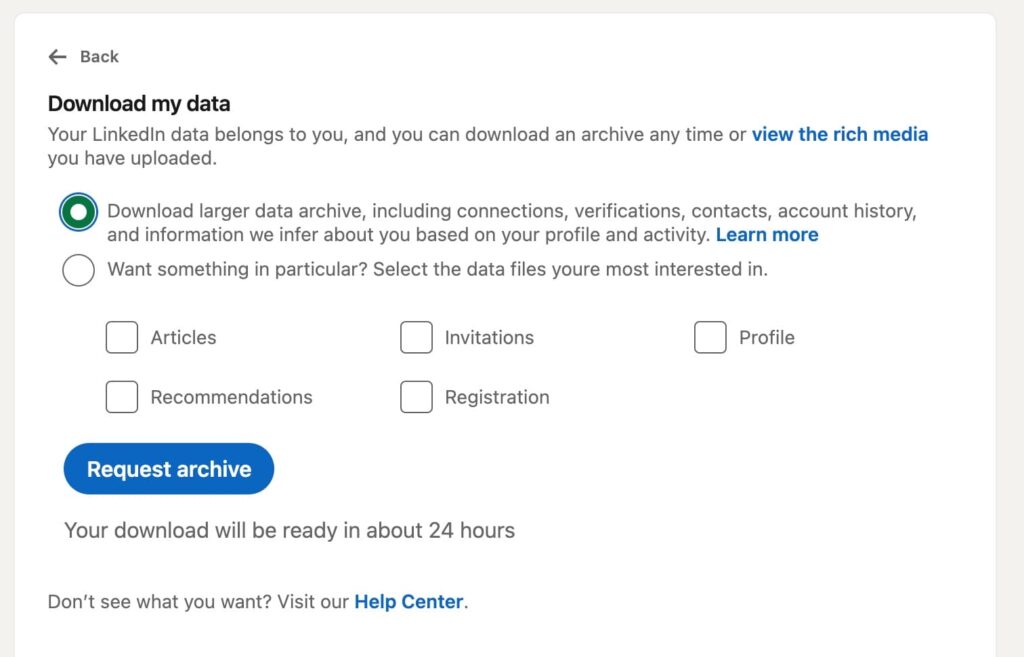
Once you do, the platform will take about 10 minutes to generate the data in a CSV file. You will receive a download link to access your connections at your registered email address. Although this process is free and easy, it requires manual import into a CRM, which wastes time and involves additional manual steps.
Exporting contacts with LinkedIn Sales Navigator
Unlike a standard LinkedIn account with native features, LinkedIn Sales Navigator doesn’t have built-in functionality. What you do instead is create saved lists and add your leads’ data (full name, job title, profile URL) there.
Then, manually import your lead’s data into a CRM or use a third-party tool like Expandi to extract the details. In the next section, we’ll walk you through how to use Expandi to pull leads’ data from LinkedIn Sales Navigator.
Exporting your LinkedIn contacts with Expandi: A step-by-step guide
There are different tools you can use to export your contacts from LinkedIn. But we recommend Expandi, a LinkedIn automation tool that streamlines your LinkedIn outreach process to generate qualified leads.
Here, you’ll learn how to scrape data from LinkedIn Sales Navigator with Expandi. But remember that you can only export 2,500 individuals from LinkedIn per search.
1. Visit your LinkedIn Sales Navigator Account and choose whether you want to export your saved searches or the new one you’re about to create.
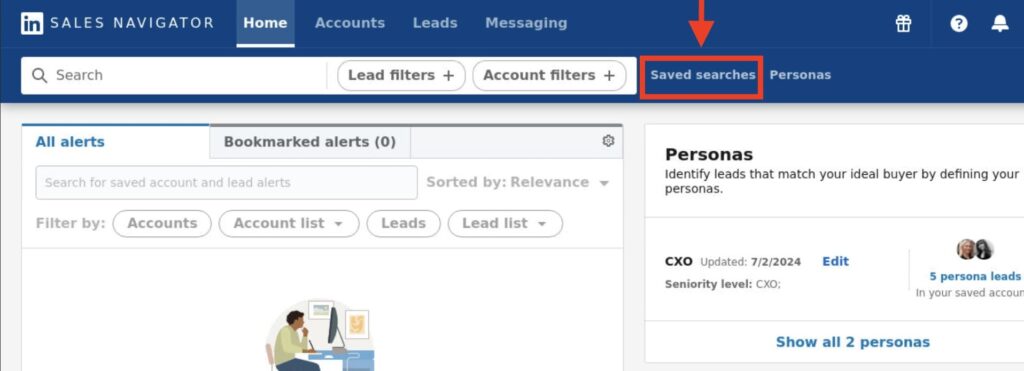
2. From your search bar, apply filters to your search result and identify the leads you wish to import to Expandi.
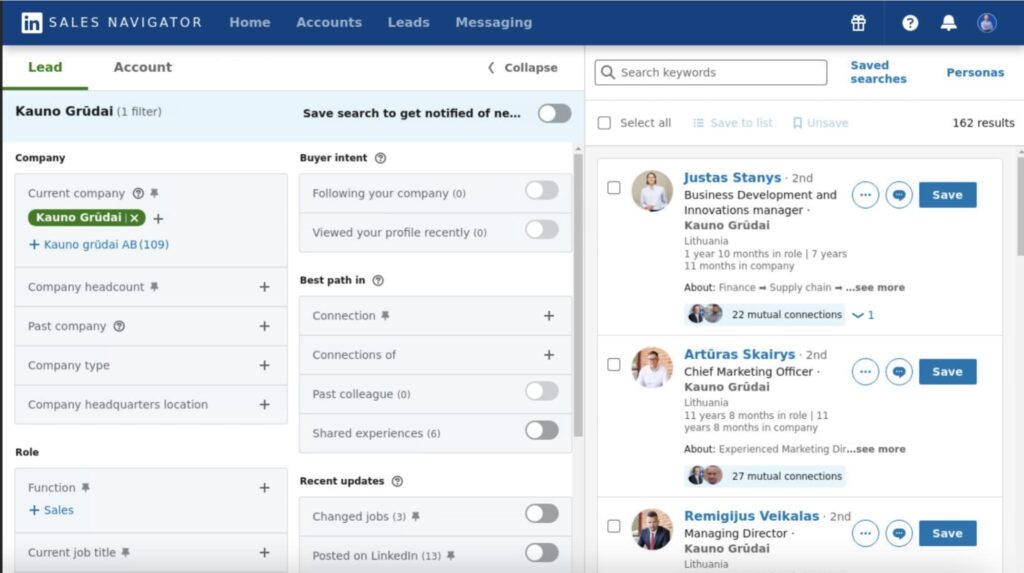
3. Once you’ve identified your leads, copy the search URL from Sales Navigator.

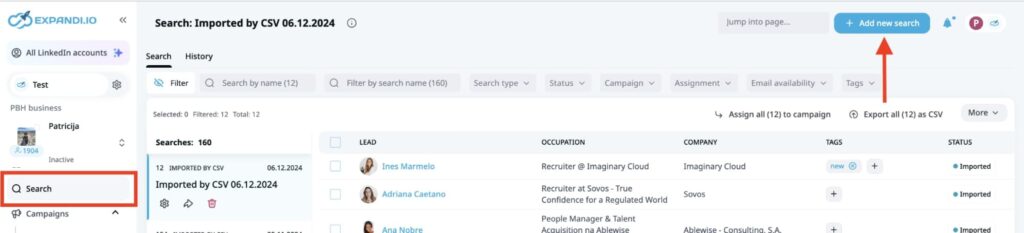
4. Sign up or log in to your Expandi account. On the left side of your screen, click “Search.” Create a new Sales Navigator search list by pressing “Add New Search” on the dashboard.
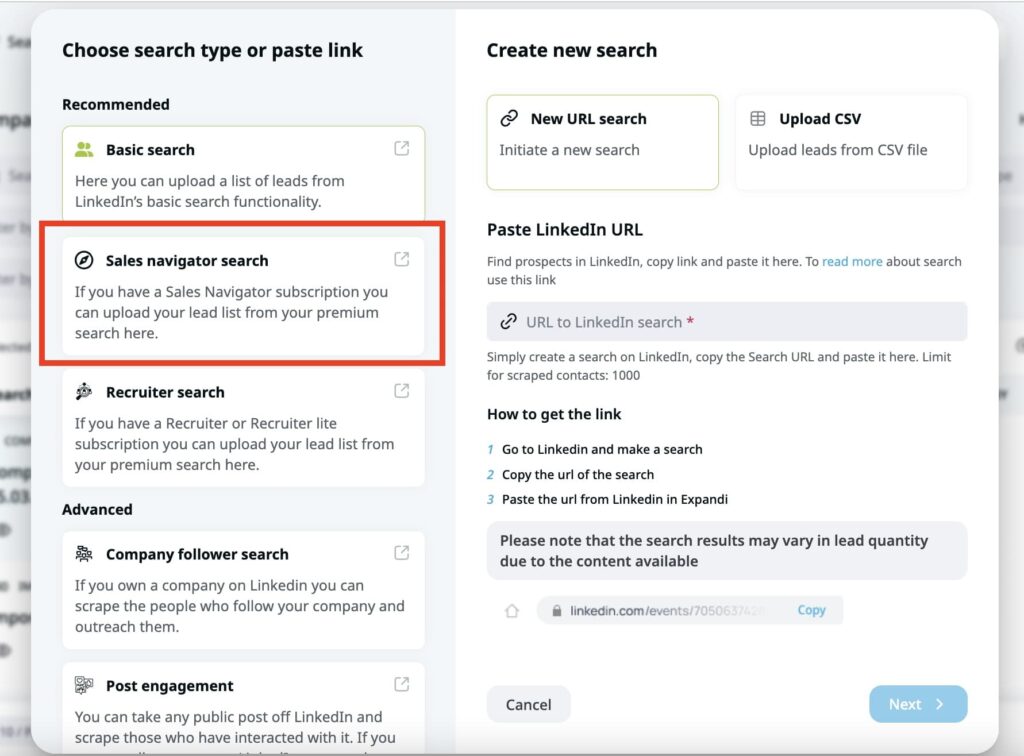
5. Select “Sales Navigator search” from the options displayed.
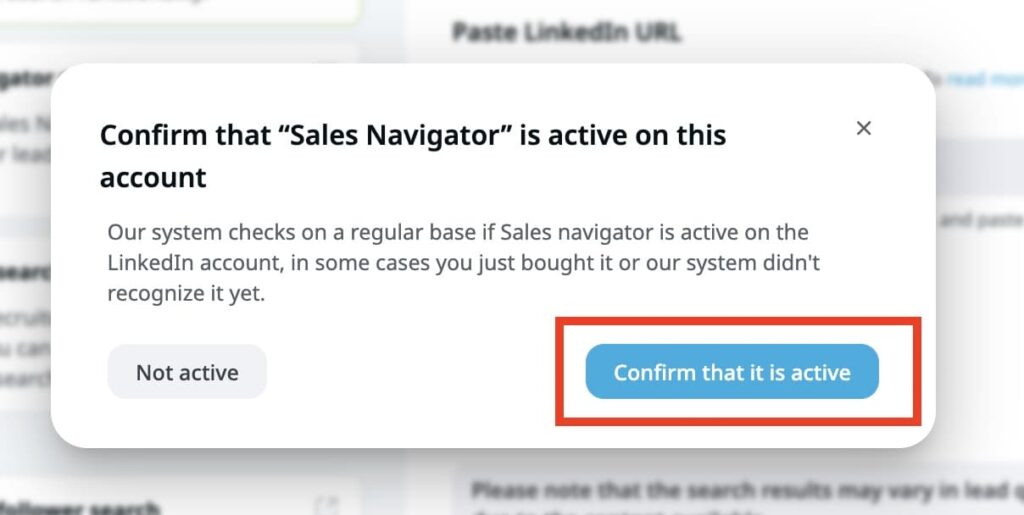
6. If you’re creating a LinkedIn Sales Navigator search on Expandi for the first time, confirm you have an active Sales Navigator subscription.
7. Paste the link you copied earlier from LinkedIn Sales Navigator’s search result in the URL section. Then, click “Next.”
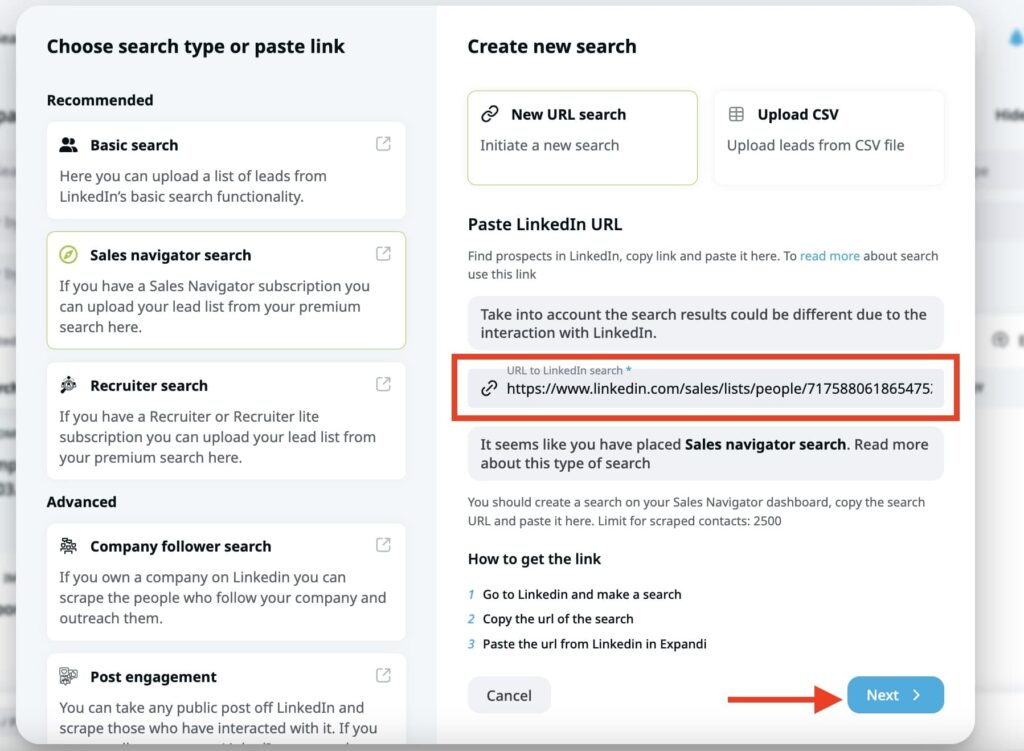
Note that the message above the URL field, “Take into account the search results could be different due to the interaction with LinkedIn,” means the search results you see in Sales Navigator might differ slightly from the number of leads imported into Expandi. This happens because LinkedIn’s search algorithm sometimes returns different results.
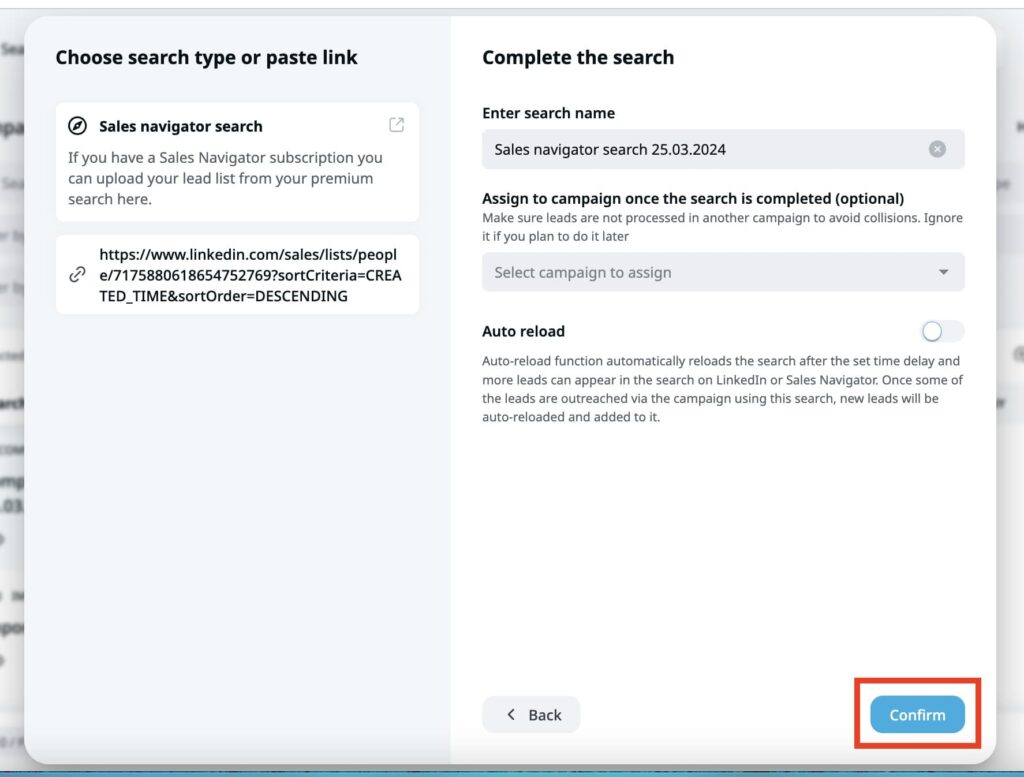
8. Enter the title of your lead list and assign it to a campaign if you want. Choose whether to enable auto-reload for the search, then click “Confirm.”
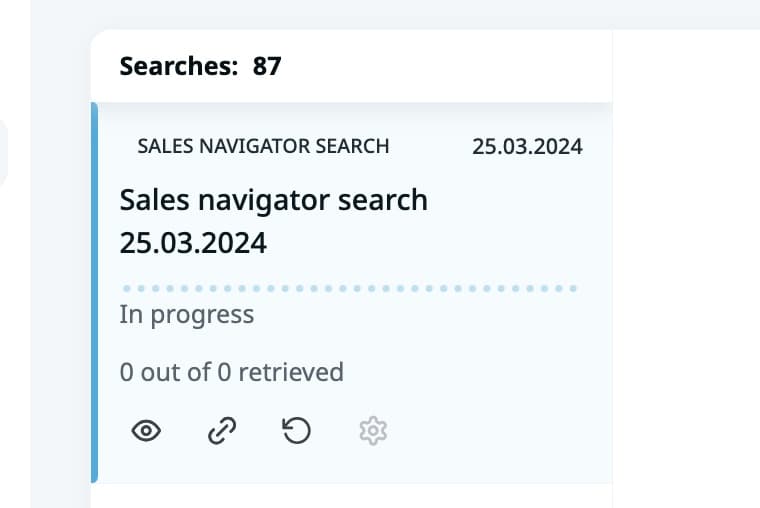
9. Expandi will export the LinkedIn contacts from the search results, appearing like the image below.
How to export LinkedIn contacts to a CSV file with Expandi
Now that you know how to export LinkedIn contacts from LinkedIn Sales Navigator to Expand, here’s how you can export the data from the tool to a CSV file.
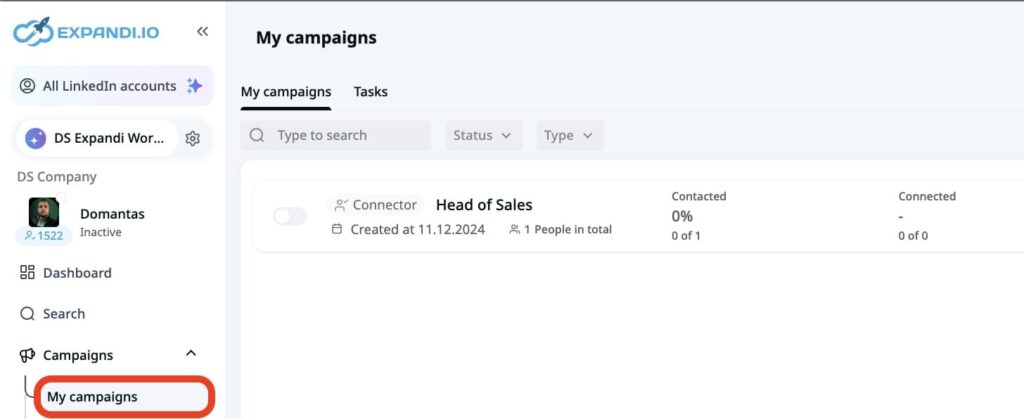
1. From your dashboard, click “My Campaign” and select the lead list that you wish to export.
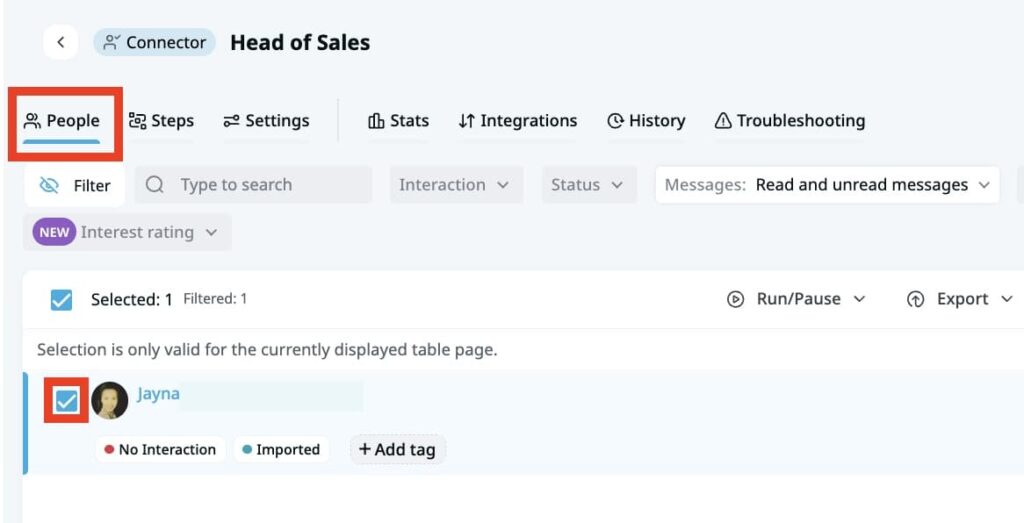
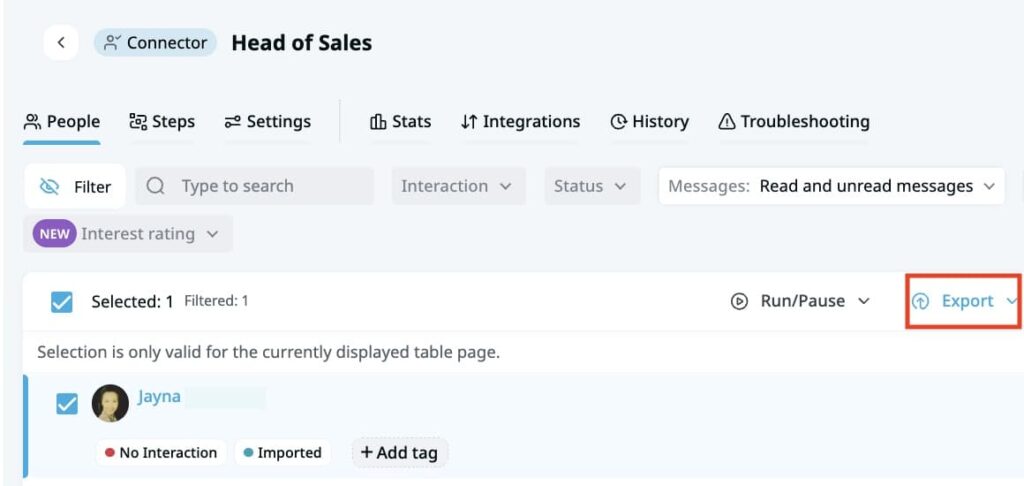
2. Open the list and go to the “People” tab at the top of the screen. Expandi lets you select leads individually or at once. If it’s the former, select the individuals you wish to export. If you want to export all your contacts, skip this stage.
3. Once you’ve selected the individuals, click “Export” on the right side of the screen. Do the same if you want to export all contacts at once.
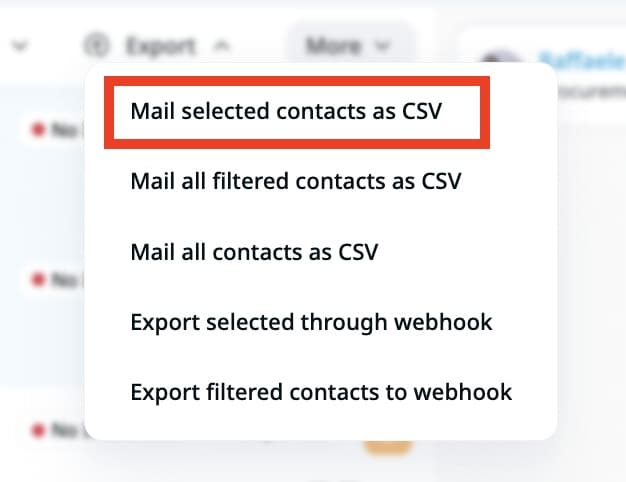
4. Click “Mail selected contacts as CSV” to export the selected individual. But if you’re exporting all contacts, click “Mail all contacts as CSV.”
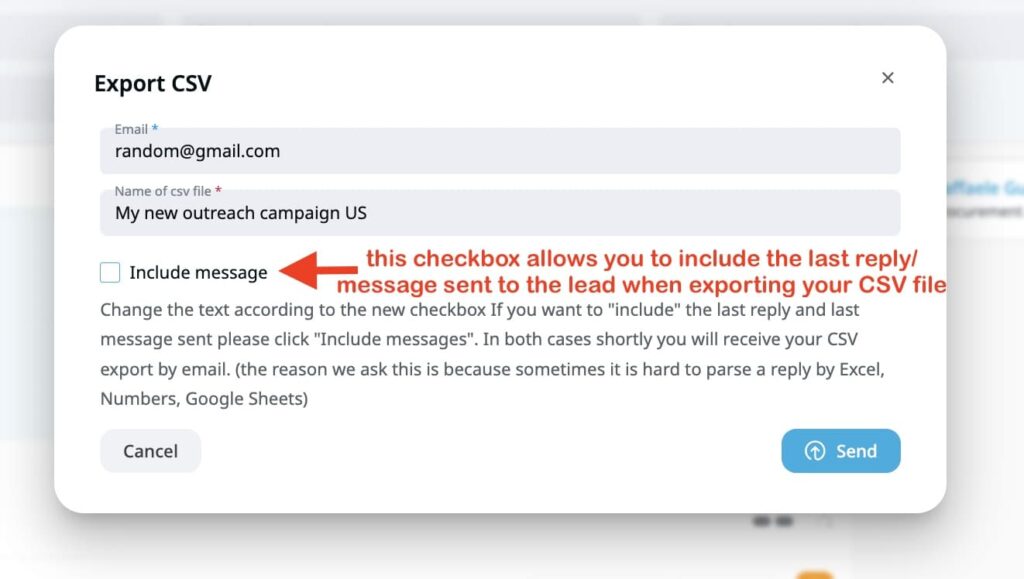
5. Enter the email address where you wish to receive your CSV file. Name the file and hit the “Send” button. This will send the CSV file to your preferred email address.
10 other top tools for exporting LinkedIn contacts
Although Expandi is notable for exporting contacts and LinkedIn outreach, there are other tools you can use. These include:
1. Jason AI by Reply.io

Jason AI by Reply is an AI agent and contact enrichment tool designed to automate your LinkedIn outreach efforts. It identifies high-intent leads and pulls their data ( email addresses, job titles, company sizes) into a usable sheet that you can export.
Beyond contact enrichment, the sales engagement tool is also known for engaging clients across multiple channels and booking meetings on your behalf. The AI agent runs around the clock to keep your pipeline full.
Key features of Jason AI
- Lead discovery: Jason AI analyzes 1 billion data points to identify high-quality leads to boost your LinkedIn lead generation efforts.
- Contact enrichment: The AI agent pulls leads’ data, such as verified emails, current job titles, tech stacks, and locations, into a usable sheet for LinkedIn export.
- Multichannel sequences: Reply runs cold outreach campaigns across multiple channels, including LinkedIn, email, phone, WhatsApp, and more.
Pricing
Jason AI’s pricing plan starts at $300 per month.
2. Dripify

Dripify is another LinkedIn automation tool you can use to export LinkedIn contacts. With a few clicks, it collects data from a LinkedIn profile into a CSV file so you can use it outside of LinkedIn for outreach campaigns. You can add labels, filter results, or group leads by preference after generating your list.
Beyond exporting LinkedIn data, Dripify also automates your LinkedIn outreach efforts. You can streamline activities such as sending connection requests, messages, or follow-ups automatically within the platform. The tool also supports integration with other tools, such as Google Sheets or CRMs.
Key features of Dripify
- LinkedIn automation: Run your LinkedIn outreach campaign on autopilot with these features.
- Contact enrichment: Enrich your lead list with over 30 attributes to maximize usage.
- Integration: Connect natively to other third-party platforms for a streamlined workflow.
Pricing
Dripify’s pricing plan starts at $39 per month.
3. PhantomBuster

PhantomBuster is a renowned LinkedIn automation and data extraction tool designed to export LinkedIn contacts at scale. Upon connecting to your LinkedIn account, it pulls data from your 1st-degree connections, search results, or Sales Navigator saved list and compiles it into a CSV or Excel file. This helps lead generation and outbound sales experts access fresh data.
Similar to Expandi, the LinkedIn scraping tool respects LinkedIn’s limits. You can’t export more than 1,000 profiles per day from a regular account or 2,500 from a LinkedIn Sales Navigator account. This is to protect your LinkedIn account from getting restricted or banned.
Key Features of PhantomBuster
- Outbound workflow: Use this to find, qualify, and engage your prospects.
- Real-time lead sourcing: Get intent signals to find the right leads at the right time.
- PhantomBuster extension: Integrate with any browser to add and enrich leads straight from LinkedIn.
Pricing
PhantomBusters’ pricing plan starts at $56 per month.
4. Dux-Soup

Next on the list is Dux-Soup. The LinkedIn automation tool is a browser extension that exports your LinkedIn contacts. It pulls information such as names, job titles, company data, or LinkedIn profile URLs from searches, Sales Navigator, or existing connections.
Similar to other tools, Dux-Soup balances its LinkedIn automation efforts. You can determine which data to extract and stay compliant with LinkedIn usage limits. It’s perfect for recruiters, marketers, or sales reps who want to scrape LinkedIn data for further use.
Key features of Dux-Soup
- LinkedIn profile data export: Export leads’ details (full names, company, location, profile URL) into CSV or Excel files for easy use.
- Lead engagement: Visit profiles, send connection requests, and perform LinkedIn message automation to start conversations with prospects.
- Integrations: Connect with other tools to streamline your sales workflow.
Pricing
Dux-Soup’s pricing plan starts at $11.25 per month.
5. folk

folk is a CRM designed to organize and export LinkedIn contacts. It’s perfect for marketers, sales teams, and recruiters who want to store and manage their relevant contacts in a usable database.
If you want to export LinkedIn contacts, folk relies on a Chrome extension to capture lead information and send it into the CRM. From there, you can view your lead’s journey in the sales cycle, track and manage conversations, and follow up on prospects over time.
Key features of folk
- LinkedIn Chrome extension: Lets you export leads’ details from a standard LinkedIn account and Sales Navigator without manual engagement.
- Contact enrichment: Enrich leads’ information with useful details such as email addresses and phone numbers to engage the audience.
- Pipeline management: Visualize your sales pipeline to track and manage leads’ status.
Pricing
folk’s pricing plan starts at $20 per month per member.
6. Salesrobot
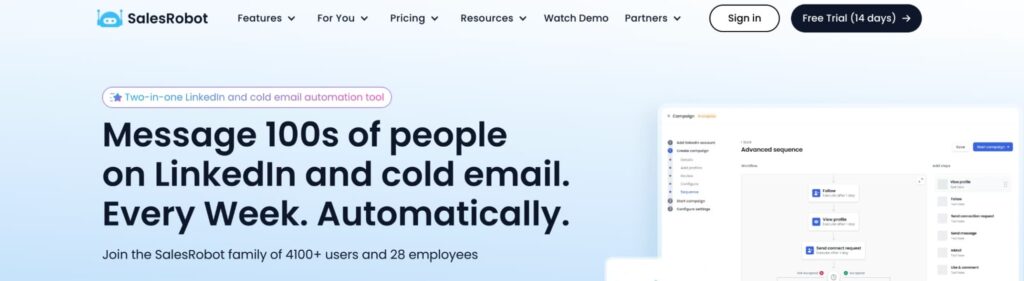
Salesrobot is a LinkedIn automation and cold email outreach tool designed to efficiently export your LinkedIn contacts. Similar to others, you can extract LinkedIn data from searches and Sales Navigator into a clean database.
With this extraction, you can create message sequences, follow-ups, and manage your inbox efficiently to engage your prospects. It’s perfect for sales professionals, recruiters, and marketers who want to move from finding prospects to having real conversations with them.
Key features of Salesrobot
- LinkedIn contact export: Helps you ot build a targeted lead list from LinkedIn searches and Sales Navigator.
- LinkedIn automation: Streamline LinkedIn activities such as sending messages, connection requests, follow-ups, or profile visits to drive efficiency in your workflow.
- Team collaboration: Allows teams and agencies to manage multiple LinkedIn profiles from a centralized workspace.
Pricing
Salesrobot’s pricing plan starts at $39 per month.
7. Heyreach
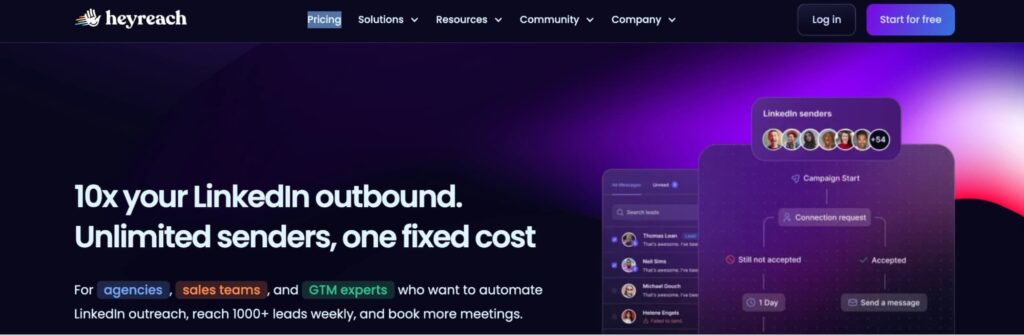
Designed for LinkedIn automation and outreach, Heyreach helps to scale your LinkedIn prospecting efforts with ease. It connects with your LinkedIn accounts and imports from various sources (Searches and Sales Navigator) to manage your outreach campaigns from one place. You can also export the contact list to a CSV file or to a CRM.
Aside from exporting LinkedIn contacts, the platform offers outreach features to streamline your workflow. For example, it supports multi-account sending, a system where you rotate LinkedIn accounts to stay within limits. It also helps to automate repetitive tasks such as sending connection requests, messages, or visiting profiles.
Key features of Heyreach
- LinkedIn contact export: Use HeyReach to lead from LinkedIn search and Sales Navigator.
- Unified inbox: Centralize conversations from multiple LinkedIn accounts into a single view.
- LinkedIn outreach automation: Automate repetitive tasks such as sending LinkedIn messages or follow-ups.
Pricing
Heyreach’s pricing plan starts at $79 per month.
8. Kaspr
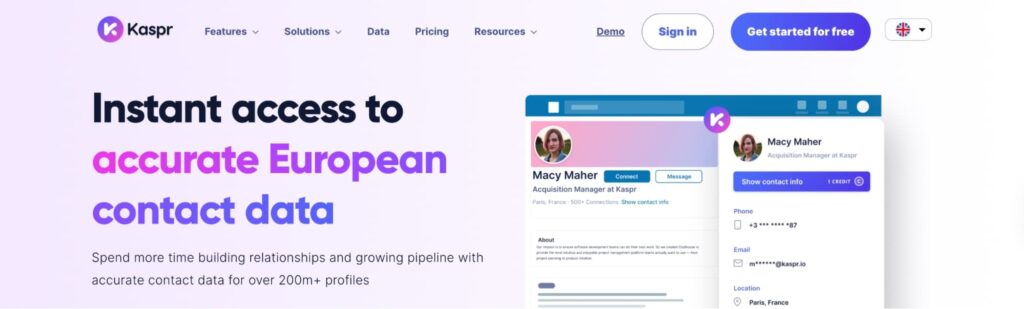
Kaspr is a LinkedIn contact export tool that extracts data from profiles. It works as a browser extension that integrates with standard LinkedIn and Sales Navigator to capture leads’ information from the search results.
When you visit a profile or run a search, Kaspr overlays the available leads’ information and lets you save individually or in bulk. You can then export to a CSV file or push into your CRM. This is perfect for sales or recruiting teams that want to use their lead list for other purposes, such as prospecting.
Also, note that Kaspr doesn’t just export contact details; it also enriches these profiles with verified email addresses and phone numbers.
Key features of Kaspr
- LinkedIn contact export: Export contact directly while browsing a profile or search results.
- Contact enrichment: Provides verified contact details to help you reach prospects.
- Integrations: Syncs leads with CRM integration and other third-party platforms for easy transfer.
Pricing
Kaspr’s pricing plan starts at $49 per month.
9. Evaboot
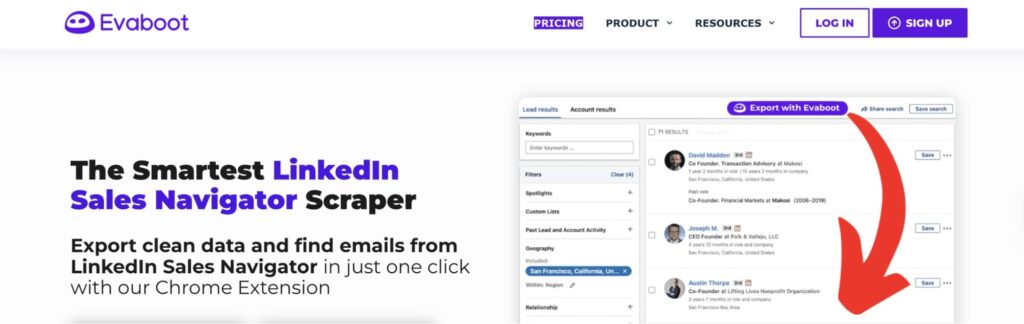
Evaboot is a specialized LinkedIn data scraper designed to extract contact data from LinkedIn Sales Navigator. With its Chrome extension, you can capture lead data and turn it into a clean file, which you can push into your CRM.
What makes Evaboot stand out is that it doesn’t just extract raw data; it also cleans it by removing symbols or duplicates from your list. That makes it easy to identify and target qualified leads on LinkedIn.
Beyond export, Evaboot can enrich leads’ data with verified email addresses and other contact details, enabling you to reach out to your prospects with ease.
Key features of Evaboot
- Contact export for LinkedIn Sales Navigator: Obtain leads’ data from search results or saved lists so you can use it anywhere.
- Email finder and verifier: Enrich prospects’ data with valid contact info to help you reach leads.
- Data cleaning and standardization: Remove clutter like symbols and emojis to make lists ready for outreach.
Pricing
Evaboot’s pricing plan starts at $9 per month.
10. LinkedHelper
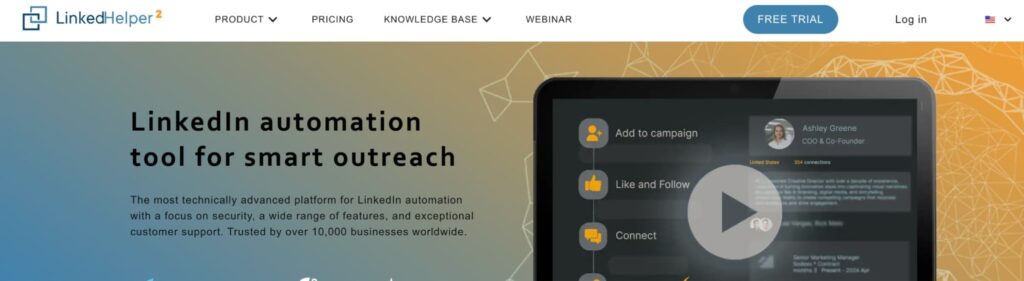
Our final option on the list is LinkedHelper. The LinkedIn automation tool helps to export leads’ data at scale for prospecting and outreach. It’s a web-based application that integrates with your LinkedIn account to collect contact details from connections, search results, events, and more.
LinkedHelper exports data by pulling details such as names, job titles, company information, and profile URLs, and either exporting them as a CSV file or pushing them into your CRM. You can also filter results before exporting with this platform. The LinkedIn data scraping tool also lets you connect with prospects or follow up via messages to engage your prospects.
Key features of LinkedHelper
- Contact export: Export LinkedIn contacts from search results, connections, or events into a clean CSV file or CRM.
- Advanced filtering: Segment your lead list by job title, company, location, connections, and more.
- LinkedIn outreach automation: Send and automate connection requests, initial messages, or follow-ups at scale.
Pricing
LinkedHelper’s pricing plan starts at $15 per month.
Best Practices to Keep in Mind When Exporting LinkedIn Contacts
While you export your LinkedIn contacts, here are some best practices to keep in mind.
1. Respect LinkedIn’s terms and local regulations
LinkedIn allows you to export up to 2,500 profiles per search. Don’t overdo it. Besides, comply with local regulations such as GDPR and CCPA to prevent your LinkedIn account from being restricted.
2. Clean exported data
Exporting data doesn’t make it free of errors or duplicates. Use a tool like Expandi to automatically remove irrelevant characters or symbols that can impede your LinkedIn outreach. With accurate data, you can stay in touch with prospects and build meaningful relationships.
3. Maximize the full potential of the exported data
Your exported data shouldn’t waste away in your CRM. Enrich with valid contact details and push the list to a LinkedIn outreach tool or a sales engagement tool to generate sequences that engage prospects.
Conclusion
Exporting LinkedIn contacts grants access to having hundreds or thousands of contacts in your CRM or CSV file at once, which lets you mass message them on LinkedIn. However, it comes with limitations due to LinkedIn’s terms and data privacy policies. But if you want to export contacts from LinkedIn without risking your account being restricted, we recommend using a tool like Expandi.
Whether it’s standard LinkedIn or LinkedIn Sales Navigator, Expandi can help extract your LinkedIn contact data with just a few clicks. The best part is that our system aligns with LinkedIn’s terms, so you don’t have to trespass or risk your LinkedIn accounts. Sign up for a free trial today!
FAQs about exporting LinkedIn contacts
Yes, you can export contacts from LinkedIn manually, or use an automated tool like Expandi to save time and safeguard your process.
To export your LinkedIn contacts as a CSV file, log in to your Expandi account, click “My Campaigns” > “People” > “Select People” > “Export” > “Mail selected contacts as CSV,” and “Send.”
Yes, exporting LinkedIn contacts is legal only if you do it right. You can only export from first-degree connections, not the second-degree or third-degree connections. You can also use Expandi, a tool that complies with GDPR and CCPA, for additional protection when exporting these LinkedIn contacts.






You’ve made it all the way down here, take the final step