How to Connect Expandi to ChatGPT

If ChatGPT is open all day, your outbound is probably the one thing you keep leaving it for: building the list, setting up the sequence, figuring out why a campaign went quiet on Tuesday. Connect Expandi to ChatGPT and you can do that work by asking, in the same conversation, while you still decide what goes out.
This guide walks through the setup, including the one ChatGPT setting that stops most people. Want the bigger picture first? Read Expandi MCP: Run Your Outbound From Claude or ChatGPT.
What you’re actually connecting
Expandi is where your team runs its LinkedIn outreach: the campaigns, the lead lists, the inbox, and the daily limits and warm-up you set for each LinkedIn account. We didn’t add AI to Expandi. We made Expandi something your AI can run.
The link between the two is Expandi MCP. MCP (Model Context Protocol) is the open standard that lets an assistant like ChatGPT work inside another piece of software, so everything already in your account becomes something you can reach by describing what you want. The product underneath doesn’t change. How you get into it does. More on that in What Is MCP, and Why Does Your Outbound Stack Need One?
What ChatGPT can do once it’s connected
With the connection live, ChatGPT can:
- Qualify leads against your ICP and build a custom lead list from the ones that pass
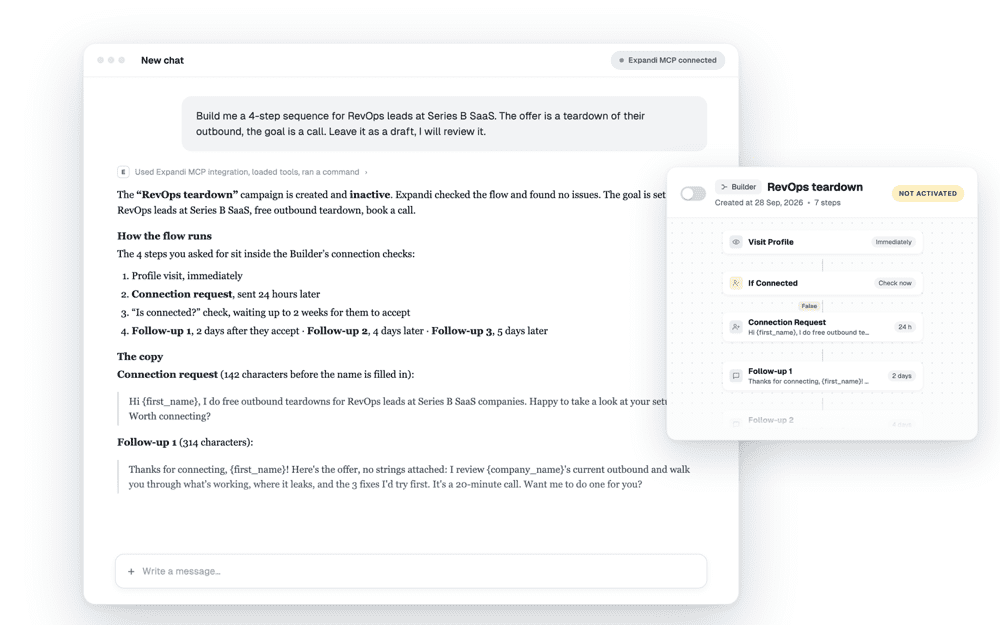
- Draft a full campaign from a brief: the flow, the copy in each step, the timing
- Tell you why a campaign under-sent, and resume the leads that got stuck
- Read your inbox, pull the full context on a conversation, and draft a reply
- Read your leads and write extra data back onto them as placeholders you can use in messages
- Add, pause and resume leads in your campaigns as things change
- Read your acceptance, reply and conversion rates, and show you the leads behind any number
The boundary that matters: ChatGPT drafts, you approve. It doesn’t send messages on its own, and it doesn’t switch campaigns on. It works inside the daily limits and warm-up you already set, and before it adds leads to a campaign it checks how much room those limits have left. It can only do what you can already do in your own Expandi account.
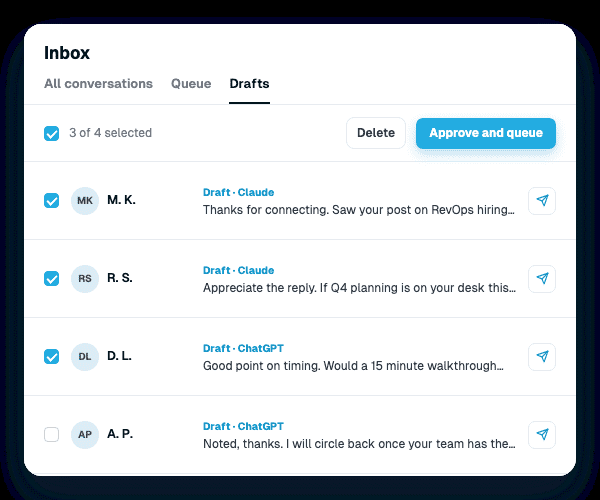
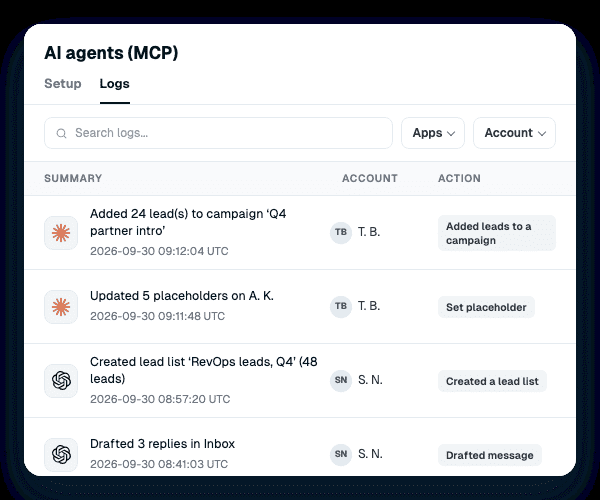
You can also see everything it did. Replies it writes land in your Inbox under Drafts, and nothing goes out until you approve them, one at a time or in a batch. Lists it builds are tagged “Generated by MCP”. And the Logs tab under AI agents records every action, when it happened, and on which LinkedIn account.
One honest note on quality. Expandi gives ChatGPT the tools; ChatGPT does the thinking and the writing. So a draft is only as good as the context you give it. Tell it your ICP, your offer and how you sound, and what comes back gets much closer to what you’d have written yourself.
See every use case on the Expandi MCP page, or how it sits next to your other tools on the Integrations page.
Before you start
You need three things:
- An Expandi account you can log in to. New to Expandi? MCP works from day one of the 7-day free trial.
- A ChatGPT account, free or paid. The steps below were done on ChatGPT on the web.
- The Expandi server address, which you’ll copy from Expandi in Step 2.
One naming note. ChatGPT calls this feature Plugins, and adding your own plugin is still in beta on ChatGPT’s side, so menu names may have moved since this was written.
Using Claude instead? Follow How to Connect Expandi to Claude.
Step 1: Turn on Developer mode in ChatGPT
This is the step people miss. Without Developer mode, the Plugins menu doesn’t appear at all.
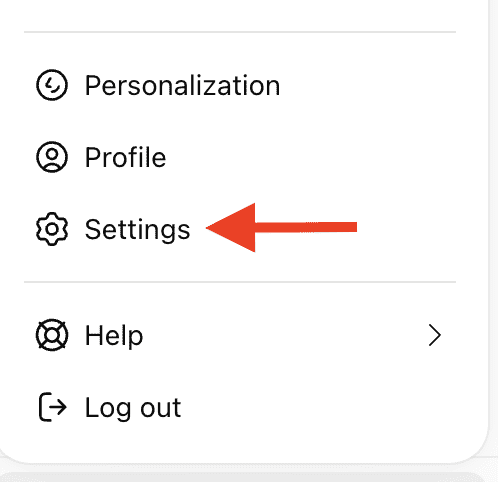
- In ChatGPT, click your profile, then open Settings
- Go to Security and login and scroll down to the Developer mode section
- Turn on the toggle
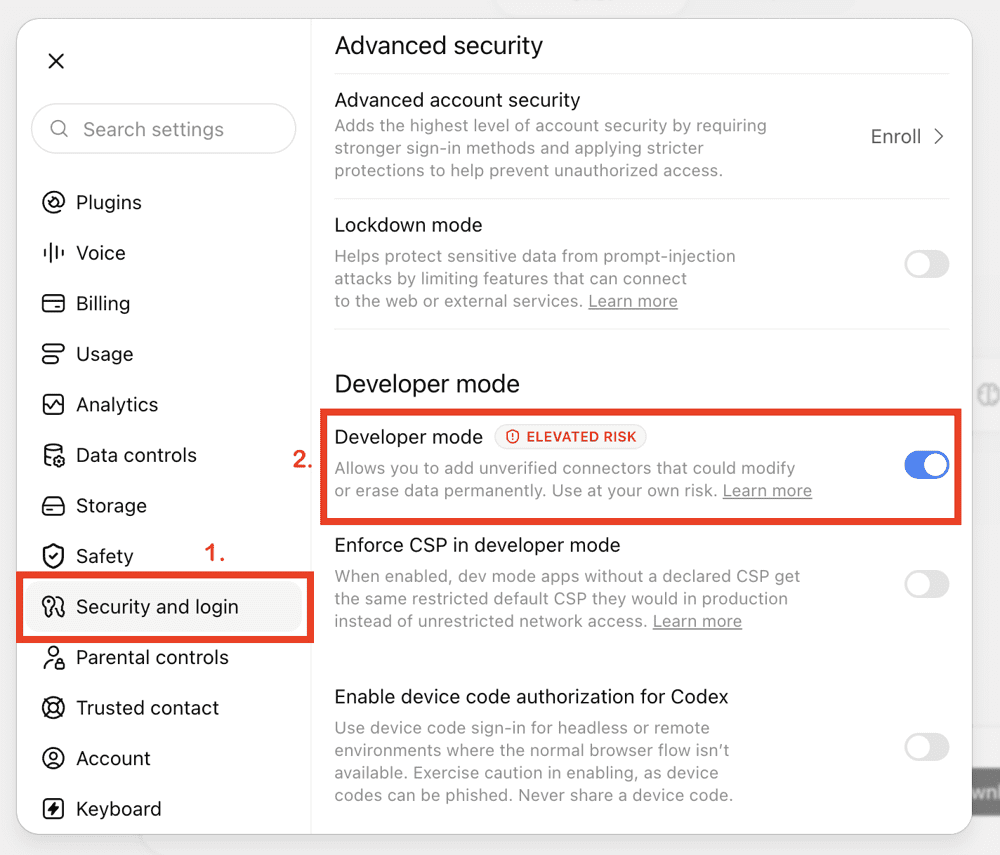
You’ll see a red ELEVATED RISK label next to it, and a line about adding unverified connectors that could modify or erase data.
That label is about the setting, not about Expandi. Developer mode lets you add any custom plugin to ChatGPT, including ones nobody has reviewed, so ChatGPT flags the whole capability. You decide which plugins you actually add.
What protects your Expandi data is the next part. You approve the connection from your own Expandi account, you see the full list of what the plugin can do before you approve it, and you can disconnect at any time.
Leave Enforce CSP in developer mode as it is.
Step 2: Copy the Expandi server address
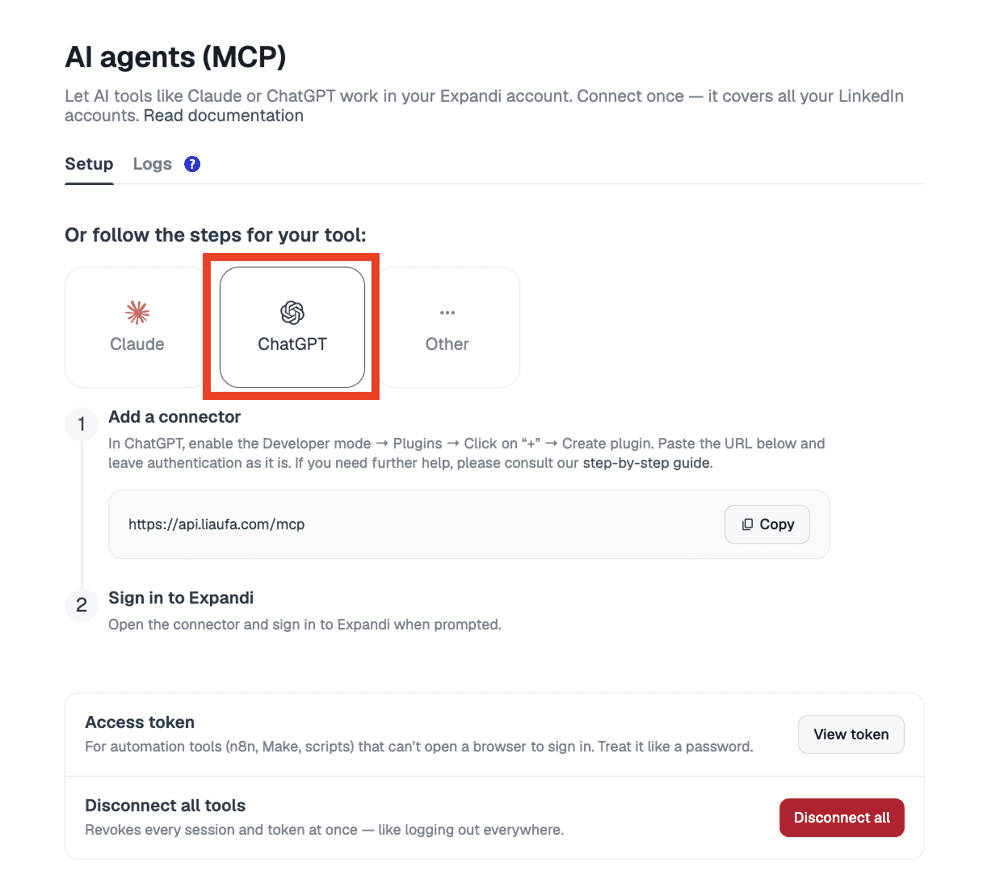
- In Expandi, go to Account Settings, then AI agents
- Click the ChatGPT option
- Click Copy next to the server address
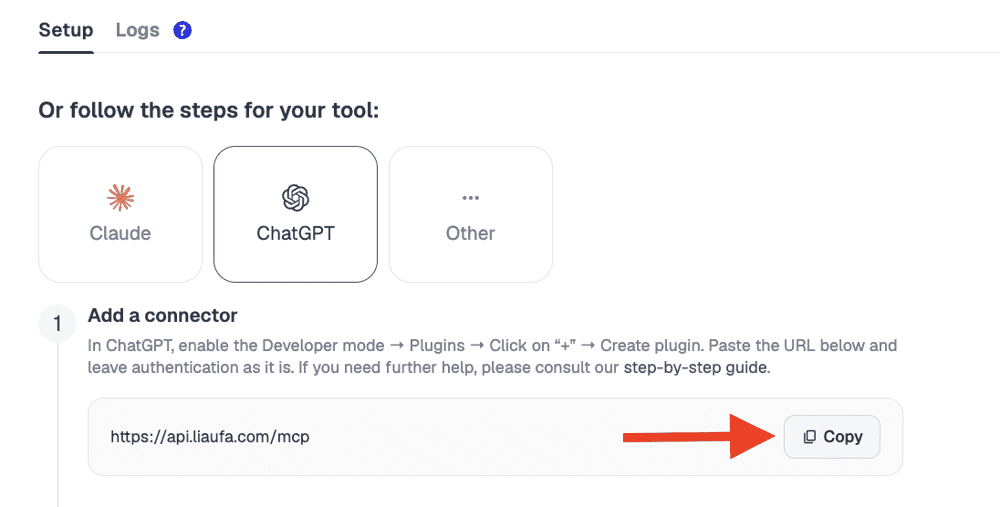
The address is https://api.liaufa.com/mcp.
Step 3: Add Expandi as a plugin
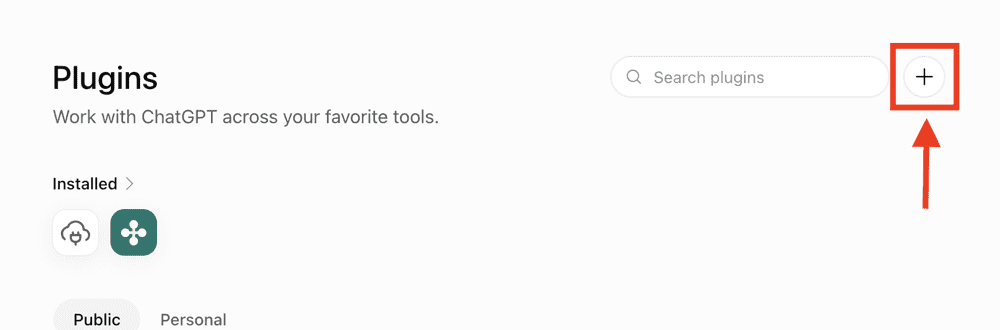
- In ChatGPT, open Plugins from the main menu
- Click the + button in the top right corner
- In the New Plugin window, fill in:
- Icon: optional, you can leave it empty
- Name: something you’ll recognize, for example Expandi MCP
- Description: optional
- Connection: leave it on Server URL, and paste the Expandi server address in the field below
- Authentication: choose OAuth. It isn’t the default, so set it yourself.
- Leave Advanced OAuth settings as it is. You don’t need an access token.
- ChatGPT shows a warning that custom MCP servers introduce risk. It shows this for every custom plugin, because OpenAI hasn’t reviewed it. Read it, then tick I understand and want to continue.
- Click Create
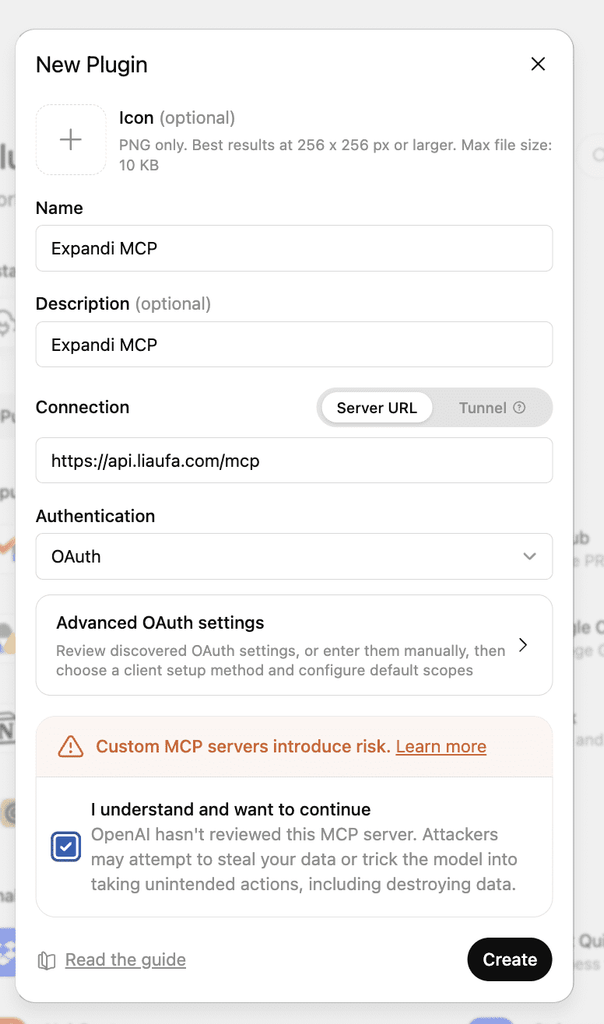
If Create seems to do nothing, you haven’t ticked the box. It fails silently.
Step 4: Approve the connection in Expandi
This is the part that keeps your account secure, and you do it yourself, from your own Expandi account.
An authorization screen opens. It shows which Expandi account ChatGPT will connect to and everything ChatGPT will be able to do. It also confirms that the connection covers every LinkedIn account you manage in Expandi, and that you can disconnect at any time. If it all looks right, click Authorize.
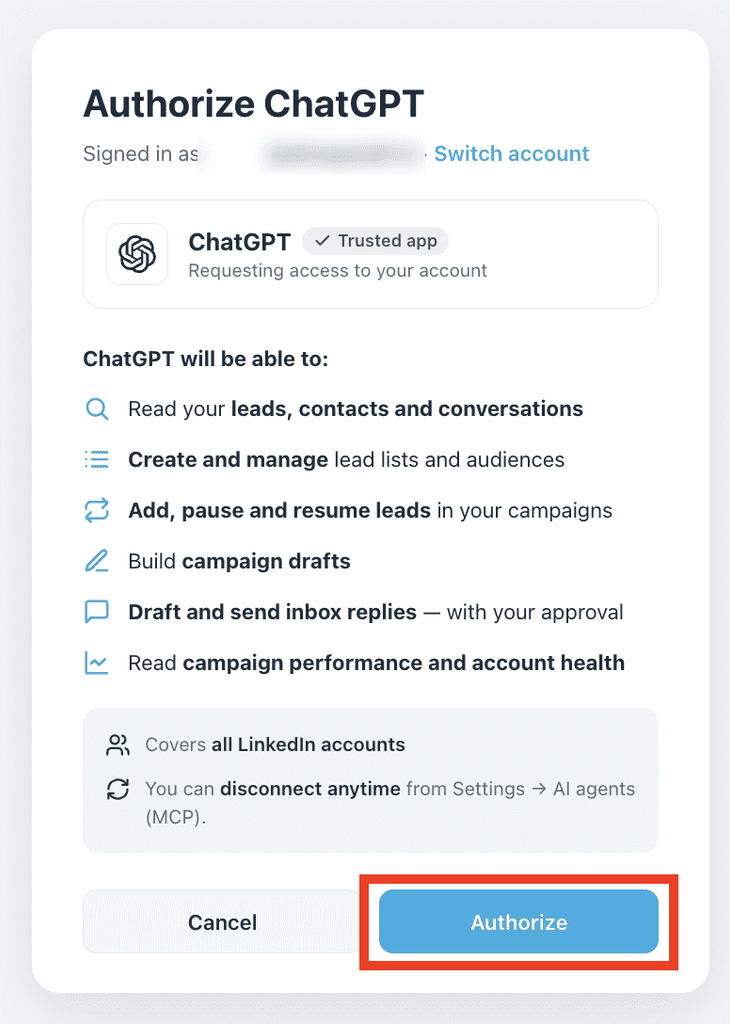
If it shows the wrong Expandi account, use Switch account at the top before you approve. The connection is tied to the account you authorize as.
How to check it worked
The plugin now shows up in your Plugins list in ChatGPT, under Installed.
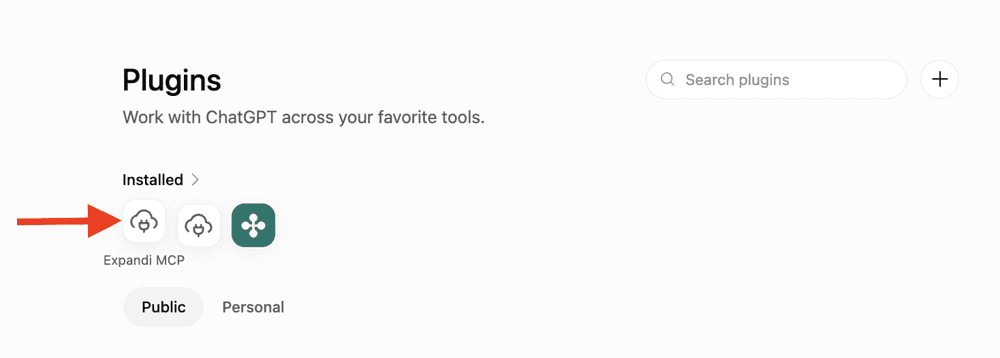
Click it, then click Try in chat.
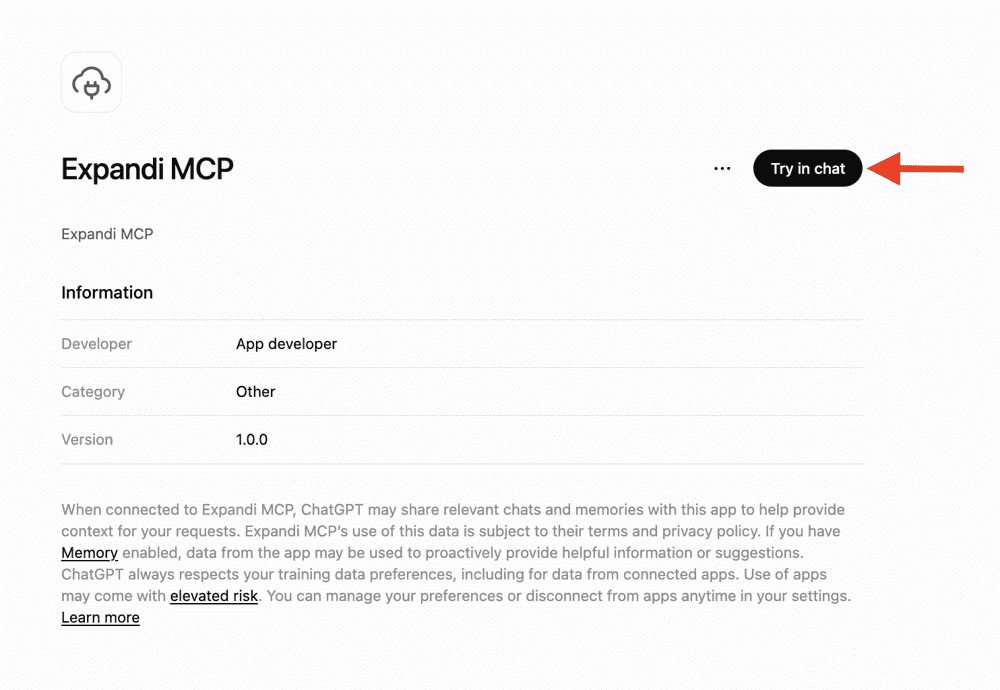
Then ask a question. “Which LinkedIn accounts can you see in Expandi?” works well. Any answer, even an empty one on a brand new account, means you’re connected.
Choosing when ChatGPT asks you first
Open the plugin, click the ⋯ menu and choose Manage. You’ll see the connected account, a Permissions setting and, under Actions, every Expandi tool ChatGPT can use.
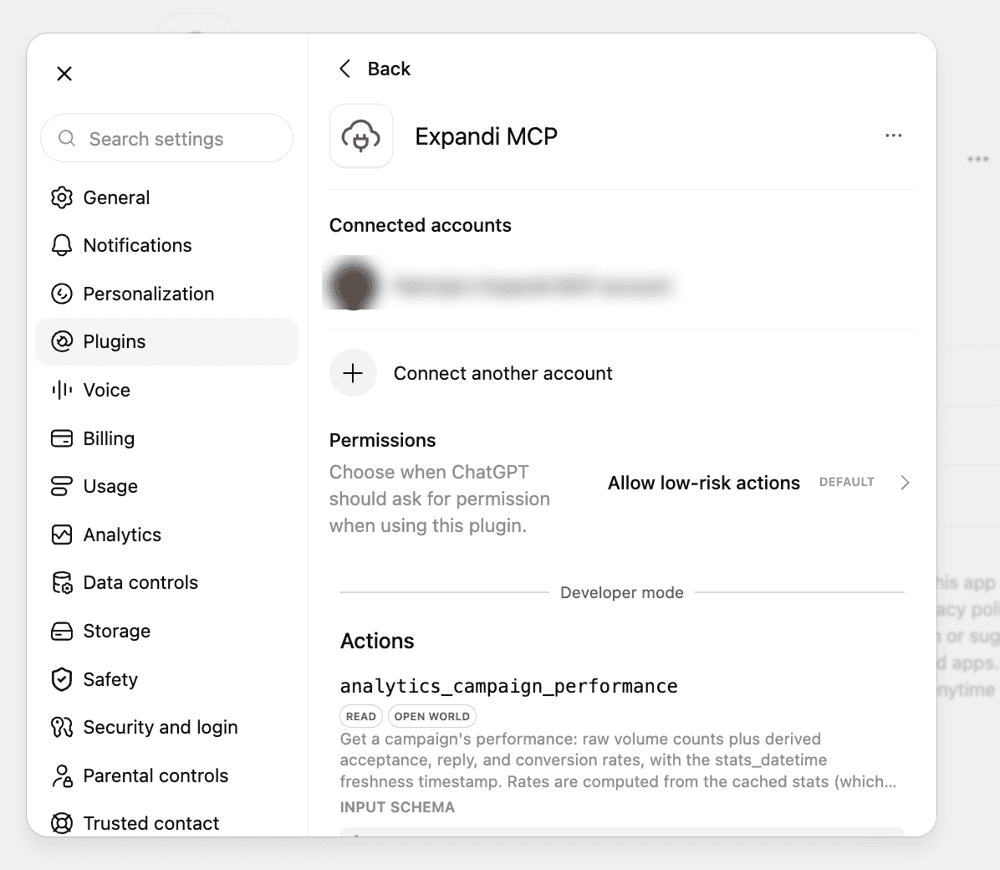
Permissions decides when ChatGPT checks with you before it uses Expandi. The default, Allow low-risk actions, lets it read your data on its own and asks you first for anything that changes something in your account. Leave it there unless you have a reason not to, or make it stricter while you get used to it.
If it doesn’t connect
- Create does nothing: you haven’t ticked I understand and want to continue
- No Plugins menu: Developer mode is off. Go back to Step 1.
- The authorization didn’t finish: your browser may be blocking pop-ups from ChatGPT. Allow them and try again.
- You authorized the wrong account: disconnect, connect again, and use Switch account on the authorization screen
How to disconnect
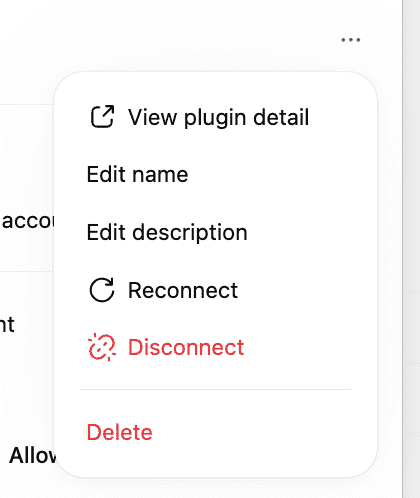
Inside ChatGPT, open the plugin, click the ⋯ menu at the top and choose Disconnect, or Delete to remove the plugin entirely. This removes ChatGPT’s access and leaves any other AI tool you connected working.
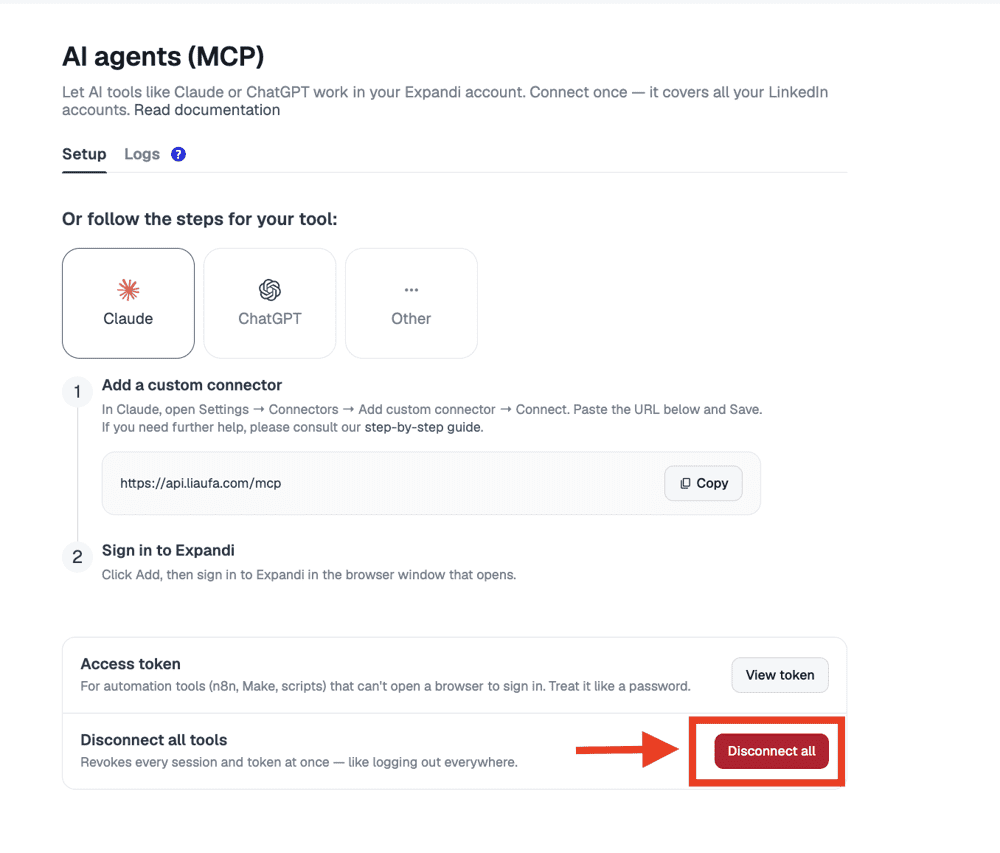
Inside Expandi, go to Account Settings, then AI agents, and click Disconnect all. This revokes every session and token at once, like logging out everywhere, so every connected AI tool loses access. There’s no per-tool disconnect on the Expandi side yet.
Who this is for
Sales teams where one person sets things up for everyone. Usually that’s RevOps. The connection is permission-scoped, so ChatGPT can only do what you can already do in Expandi. An admin can ask about the whole team in one question, and a rep with a limited seat stays limited.
Anyone whose ChatGPT tab is open all day. Your outreach stops being the reason you leave it.
People who never got comfortable in the campaign builder. Describing a sequence is a shorter path than learning every screen, and you still review the draft before anything runs.
Agencies running several client accounts. One connection covers every LinkedIn account you manage, so “which client had a campaign stall this week” becomes one question instead of five logins.
For more on where AI fits into prospecting, read AI for Sales Prospecting: The LinkedIn Playbook.
FAQ
No. Custom plugins are available on all ChatGPT plans, including free.
No. ChatGPT’s own wording around Developer mode often mentions organizations, which makes it look Enterprise-only. It isn’t.
No. ChatGPT opens a browser for you to approve the connection, so OAuth handles it. Access tokens are only for tools that can’t open a browser, like n8n or Make.
The warning is about the setting, not about Expandi. It lets you add any unreviewed plugin, so ChatGPT flags it. You still choose what you add, you approve the connection from your own Expandi account, and you see everything the plugin can do before you do.
No. It drafts replies and builds campaigns for you to approve. It works inside your normal limits and warm-up, it can only do what you can do in your own account, and every action it takes shows up in the Logs tab.
Yes. You connect once at the user level, and it covers every LinkedIn account you manage in Expandi.
Yes. Expandi MCP works from day one of the 7-day free trial.
Yes. Just remember that Disconnect all inside Expandi disconnects both.
Try it with one question
Once you’re connected, skip the workflow planning. If your account is new, start with a build: describe who you want to reach and ask ChatGPT to draft your first campaign. If you already have campaigns running, ask it why one sent less than you expected yesterday. It checks your limits, your sending hours and the LinkedIn account before it answers, which is usually faster than you clicking through to find out.
Start your 7-day free trial and connect ChatGPT to your account, or see everything it can do on the Expandi MCP page first.





You’ve made it all the way down here, take the final step