How to Connect Expandi to Claude


If Claude is where you already think through your outbound, your Expandi account is the one thing it can’t see. So you describe the campaign to Claude, then go and build it yourself in another tab. Connect Expandi to Claude and it can do that work inside your account, from the same conversation, while you still decide what goes out.
Setup takes a few minutes and no code. Here are the steps, including the one that catches almost everyone. Want the bigger picture first? Read Expandi MCP: Run Your Outbound From Claude or ChatGPT.
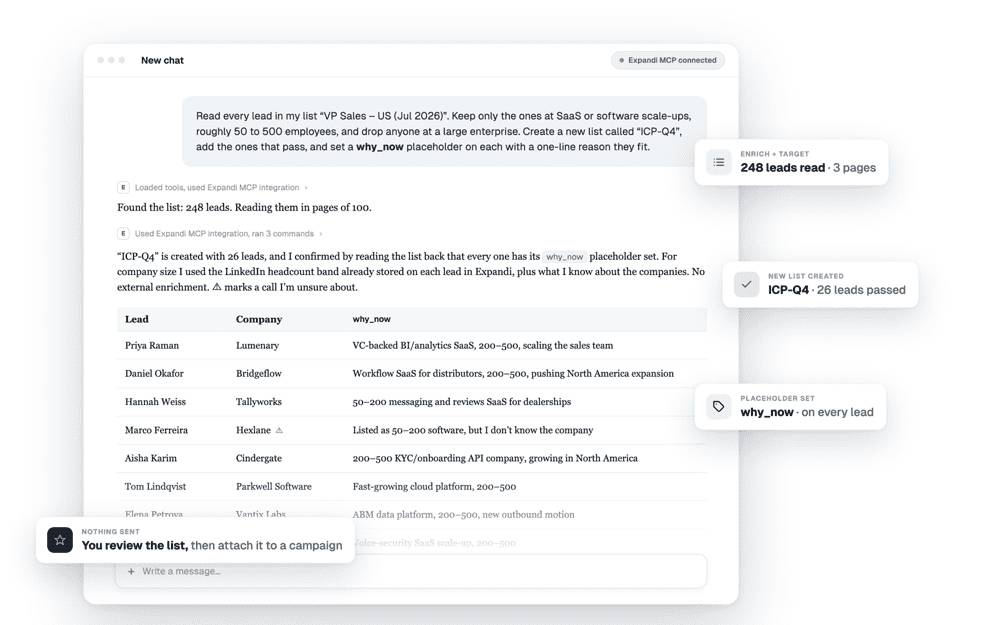
What you’re actually connecting
Expandi is where your team runs its LinkedIn outreach: the campaigns, the lead lists, the inbox, and the daily limits and warm-up you set for each LinkedIn account. We didn’t add AI to Expandi. We made Expandi something your AI can run.
The link between the two is Expandi MCP. MCP (Model Context Protocol) is the open standard that lets an assistant like Claude work inside another piece of software, so everything already in your account becomes something you can reach by describing what you want. The product underneath doesn’t change. How you get into it does. More on that in What Is MCP, and Why Does Your Outbound Stack Need One?
What Claude can do once it’s connected
With the connection live, Claude can:
- Qualify leads against your ICP and build a custom lead list from the ones that pass
- Draft a full campaign from a brief: the flow, the copy in each step, the timing
- Tell you why a campaign under-sent, and resume the leads that got stuck
- Read your inbox, pull the full context on a conversation, and draft a reply
- Read your leads and write extra data back onto them as placeholders you can use in messages
- Add, pause and resume leads in your campaigns as things change
- Read your acceptance, reply and conversion rates, and show you the leads behind any number
The boundary that matters: Claude drafts, you approve. It doesn’t send messages on its own, and it doesn’t switch campaigns on. It works inside the daily limits and warm-up you already set, and before it adds leads to a campaign it checks how much room those limits have left. It can only do what you can already do in your own Expandi account.
You can also see everything it did. Replies it writes land in your Inbox under Drafts, and nothing goes out until you approve them, one at a time or in a batch. Lists it builds are tagged “Generated by MCP”. And the Logs tab under AI agents records every action, when it happened, and on which LinkedIn account.
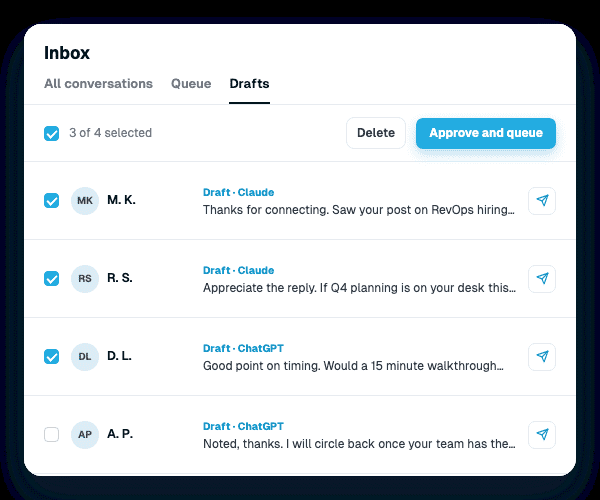
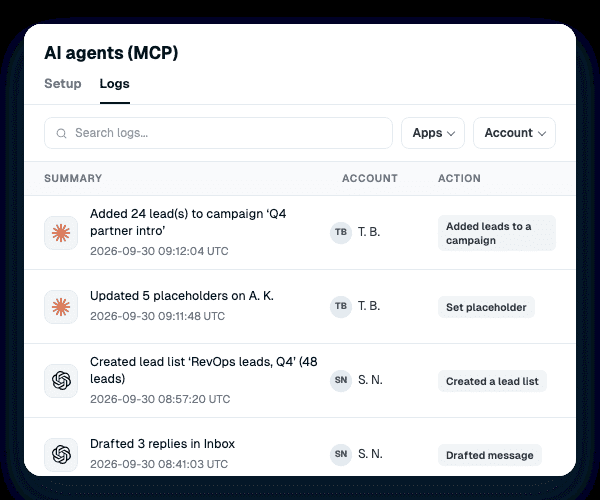
One honest note on quality. Expandi gives Claude the tools; Claude does the thinking and the writing. So a draft is only as good as the context you give it. Tell it your ICP, your offer and how you sound, and what comes back gets much closer to what you’d have written yourself.
See every use case on the Expandi MCP page, or how it sits next to your other tools on the Integrations page.
Before you start
You need three things:
- An Expandi account you can log in to. New to Expandi? MCP works from day one of the 7-day free trial.
- A Claude account. You can connect from the desktop app or from Claude on the web.
- The Expandi server address, which you’ll copy from Expandi in Step 1.
One naming note. Claude calls this feature Connectors. Unlike ChatGPT, there’s no developer setting to turn on first.
Using ChatGPT instead? Follow How to Connect Expandi to ChatGPT.
Step 1: Copy the Expandi server address
- In Expandi, go to Account Settings, then AI agents
- Click the Claude option
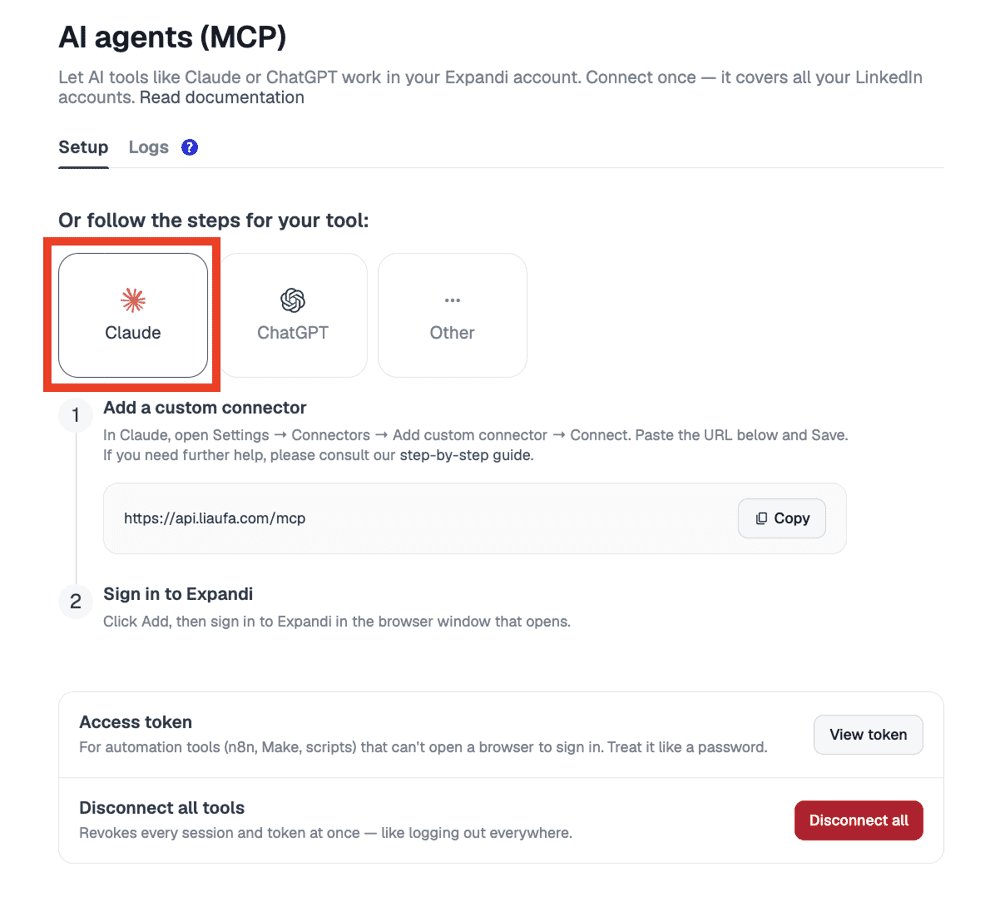
- Click Copy next to the server address
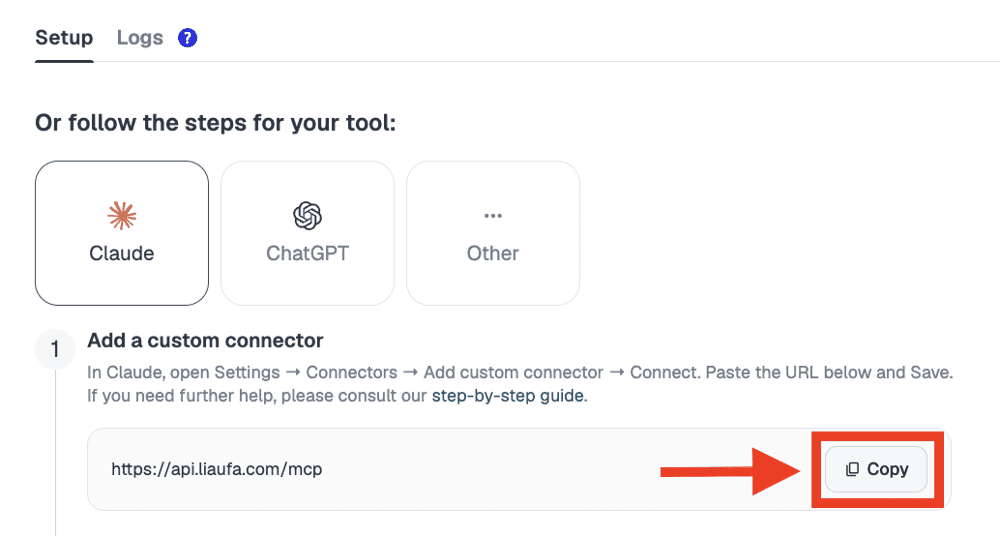
The address is https://api.liaufa.com/mcp.
Step 2: Open Connectors in Claude
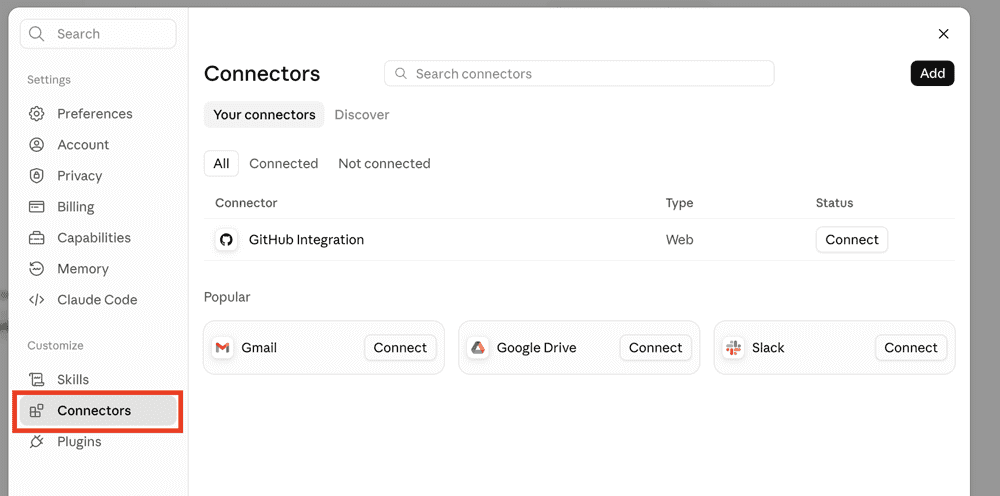
- In Claude, click your name at the bottom left, then open Settings
- Click Connectors in the left menu
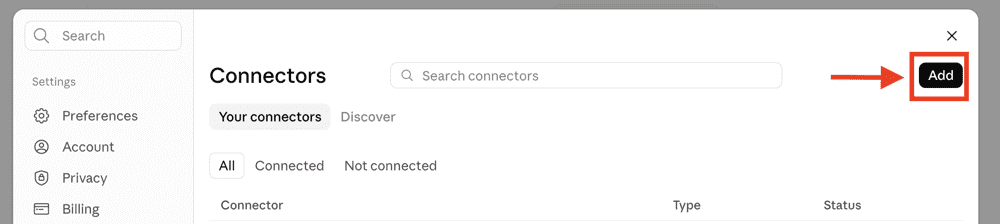
- Click Add in the top right corner. The Add custom connector window opens.
Step 3: Add the Expandi connector
- In the first field, type a name you’ll recognize, for example Expandi MCP
- In the second field, paste the Expandi server address
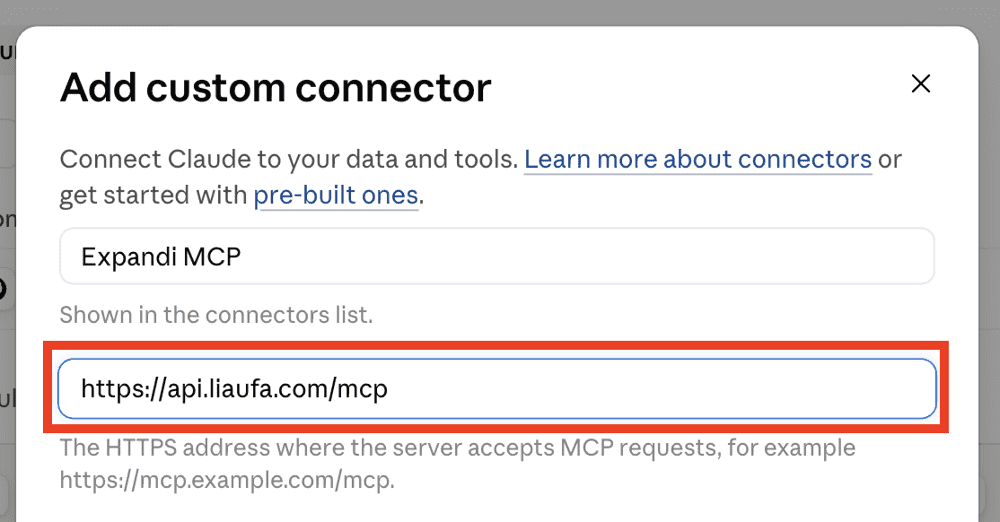
- Click Continue
- Claude detects the connection settings for you. Keep them as they are:
- Authentication: Sign in now
- OAuth client: Register automatically
- Advanced, Transport: Streamable HTTP
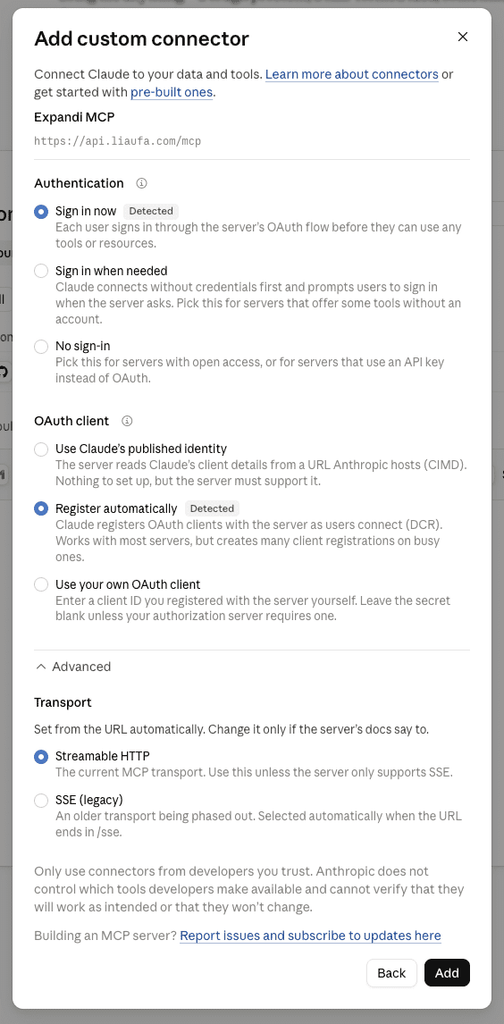
- Click Add
Claude shows a line saying to only use connectors from developers you trust, and that Anthropic can’t verify them. It shows this for every custom connector, because Anthropic doesn’t review them. It isn’t about Expandi. You’re connecting to Expandi’s own server, and you approve the connection yourself in the next step.
Step 4: Connect and approve
Adding the connector doesn’t connect it. This is the step people skip, and it’s why a connector can sit there looking finished while nothing works.
- Claude opens the connector page and shows You’re not connected to Expandi MCP yet. Click Connect.
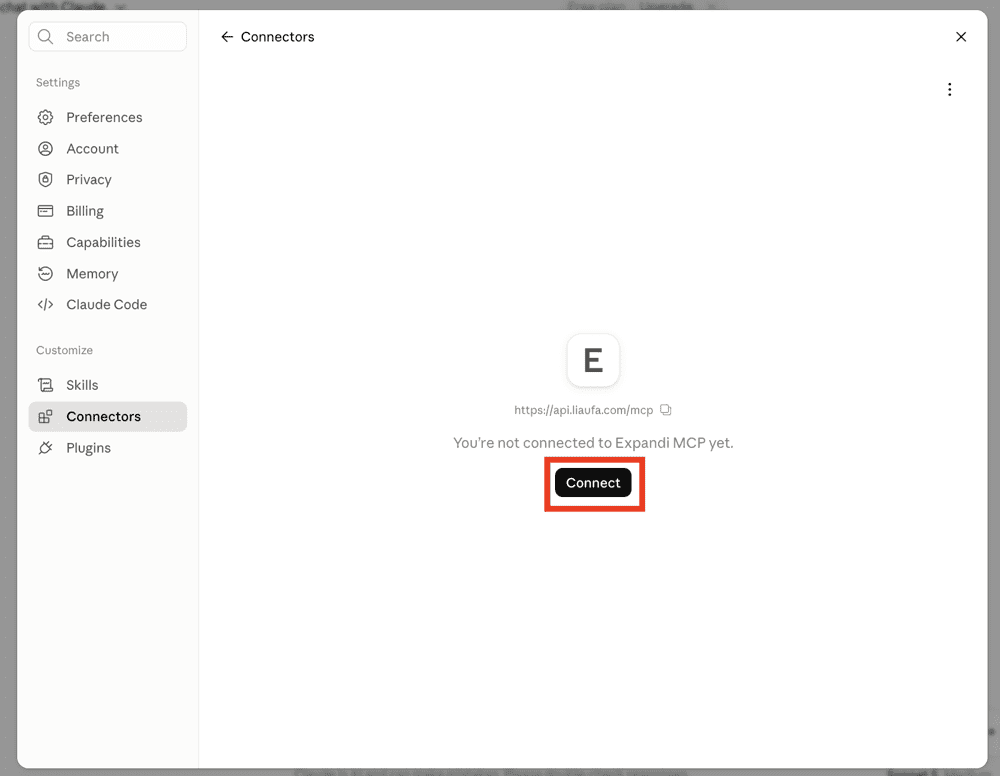
- A browser window opens. Sign in to Expandi if you aren’t already, with Google or with your work email and password.
- Read the authorization screen. It shows which Expandi account you’re connecting as and everything Claude will be able to do. It also confirms that the connection covers every LinkedIn account you manage in Expandi, and that you can disconnect at any time.
- If everything looks right, click Authorize
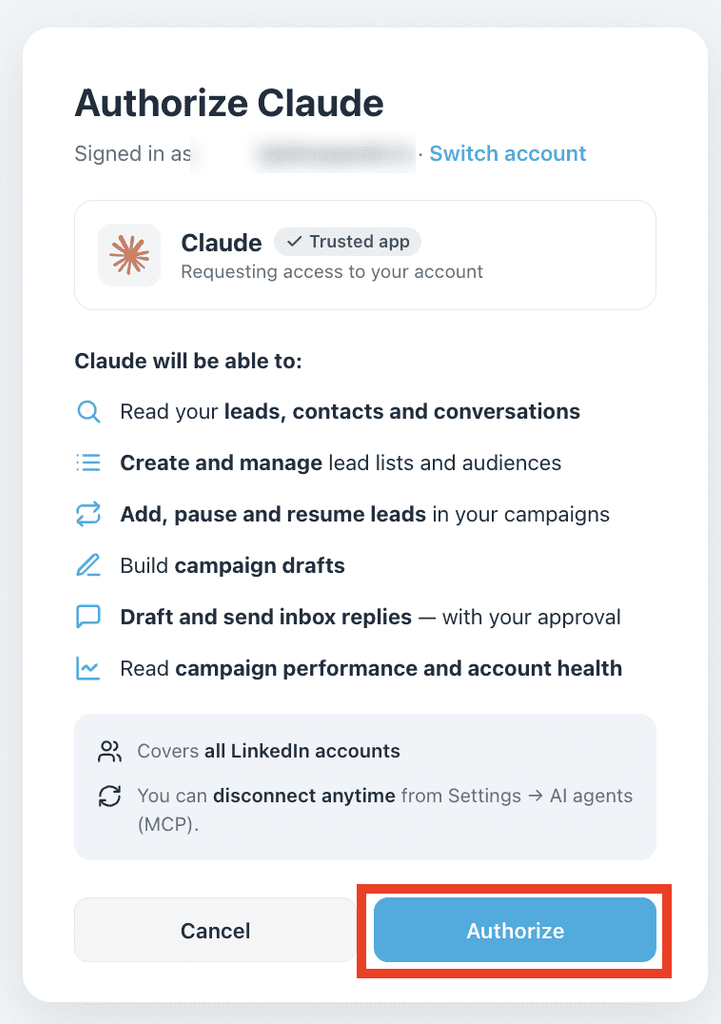
If you’re signed in to the wrong Expandi account, use Switch account at the top before you approve. The connection is tied to the account you authorize as.
How to check it worked
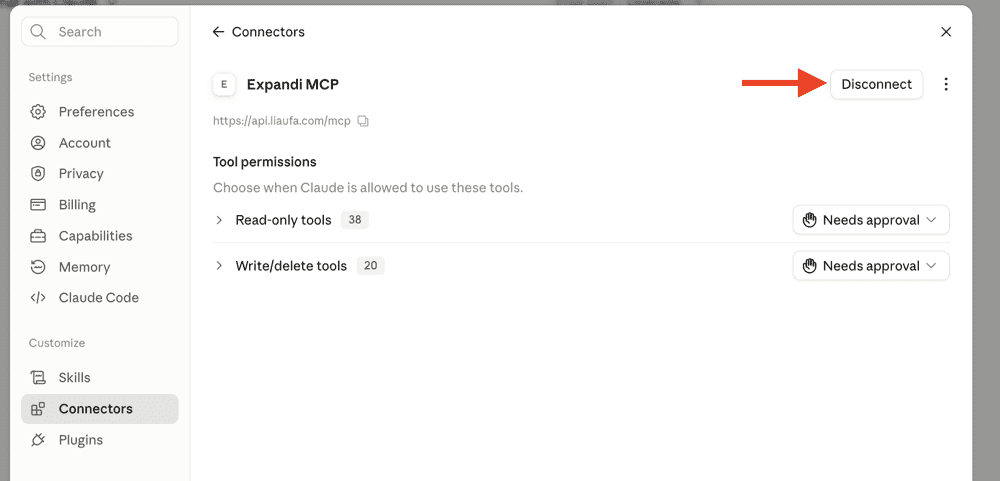
Open Settings, then Connectors. Expandi MCP now shows in your list of connectors. Click it and you’ll see the server address, a Disconnect button and a Tool permissions section.
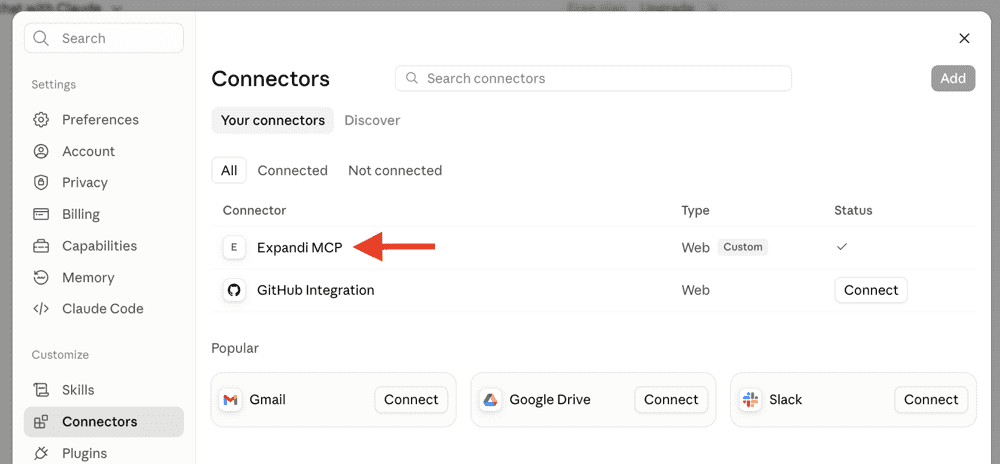
Then ask a question. “Which LinkedIn accounts can you see in Expandi?” works well. Any answer, even an empty one on a brand new account, means you’re connected.
Decide what Claude is allowed to do
This is the most useful control in the whole setup, and it’s worth two minutes.
Under Tool permissions, Claude groups everything Expandi offers into read-only tools, which only look at your data (campaign performance, lead lists and so on), and write/delete tools, which change something. Click a group to open it.
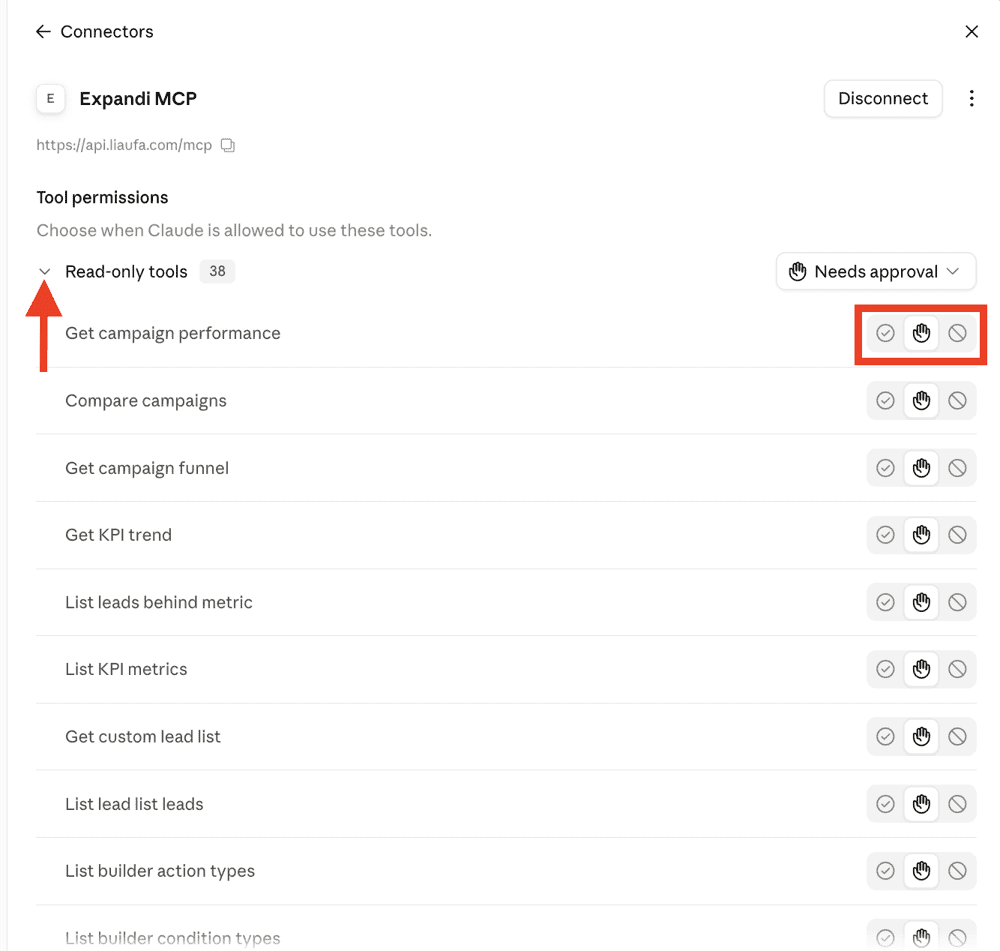
Each tool has three options on the right: let Claude use it on its own, ask you first, or block it. There’s a dropdown next to each group to set them all at once.
The defaults are a sensible starting point. If you’d rather approve everything yourself while you get used to it, set the tools to ask you first and relax them later.
If it doesn’t connect
- You added the connector but nothing happens: adding isn’t connecting. Open the connector and click Connect, as in Step 4.
- The sign-in window doesn’t open, or closes immediately: your browser may be blocking pop-ups. Allow them and try again.
- Claude says it can’t do something in Expandi: open the connector and check Tool permissions. That tool may be blocked.
- You authorized the wrong account: disconnect, connect again, and use Switch account on the authorization screen
How to disconnect
Inside Claude, go to Settings, then Connectors, open the Expandi connector and click Disconnect. This removes Claude’s access only, and leaves any other AI tool you connected working.
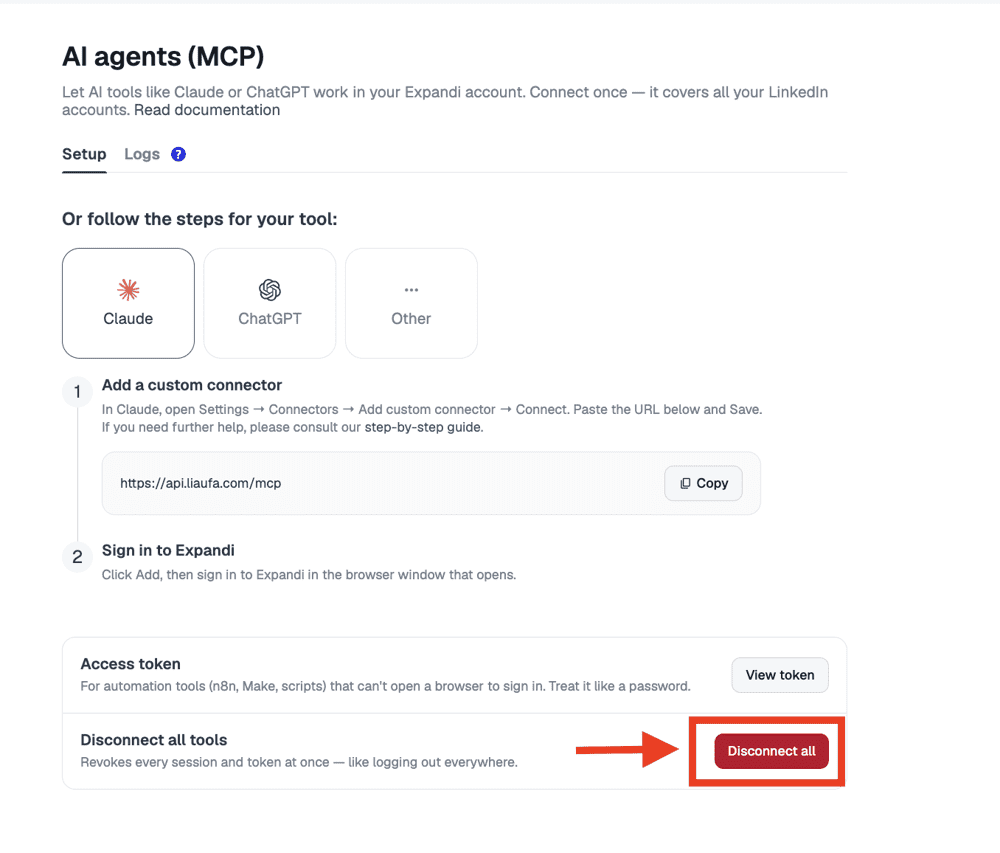
Inside Expandi, go to Account Settings, then AI agents, and click Disconnect all. This revokes every session and token at once, like logging out everywhere, so every connected AI tool loses access, not just Claude.
Who this is for
Sales teams where one person sets things up for everyone. Usually that’s RevOps. The connection is permission-scoped, so Claude can only do what you can already do in Expandi. An admin can ask about the whole team in one question, a rep with a limited seat stays limited, and Tool permissions let you allow reading while requiring approval for anything that writes.
People who already think in Claude. If that’s where you draft your messaging and argue with yourself about ICP, this puts the execution in the same place as the thinking.
People who never got comfortable in the campaign builder. Describing a sequence is a shorter path than learning every screen, and you still review the draft before anything runs.
Agencies running several client accounts. One connection covers every LinkedIn account you manage, so “which client had a campaign stall this week” becomes one question instead of five logins.
For more on where AI fits into prospecting, read AI for Sales Prospecting: The LinkedIn Playbook.
FAQ
No. Custom connectors are available on Claude’s free plan.
No. Claude opens a browser for you to sign in, so signing in to Expandi handles it. Access tokens are only for tools that can’t open a browser, like n8n or Make.
No. Claude detects them for you. Keep Sign in now, Register automatically and Streamable HTTP as they are.
It says that for every custom connector, because Anthropic doesn’t review them. You’re connecting to Expandi’s own server and approving it by signing in to Expandi yourself.
No. It drafts replies and builds campaigns for you to approve. It works inside your normal limits and warm-up, every action it takes shows up in the Logs tab, and you can restrict it further under Tool permissions.
Yes. You connect once at the user level, and it covers every LinkedIn account you manage in Expandi.
Yes. Expandi MCP works from day one of the 7-day free trial.
Yes. Just remember that Disconnect inside Claude only removes Claude, while Disconnect all inside Expandi removes everything.
Try it with one question
Once you’re connected, skip the workflow planning. If your account is new, start with a build: describe who you want to reach and ask Claude to draft your first campaign. If you already have campaigns running, ask it why one sent less than you expected yesterday. It checks your limits, your sending hours and the LinkedIn account before it answers, which is usually faster than you clicking through to find out.
Start your 7-day free trial and connect Claude to your account, or see everything it can do on the Expandi MCP page first.





You’ve made it all the way down here, take the final step