How to Run LinkedIn Automation With ChatGPT & MCP Servers


You already have ChatGPT open all day. It writes your connection notes, rewrites your follow-ups and helps you think through your ICP. Then you copy the result, switch tabs, paste it into your outreach tool, build the list by hand and check the dashboard on Friday to see what happened.
That copy-paste loop is where most people get stuck when they try to run LinkedIn automation with ChatGPT. The writing got faster. Running the outreach didn’t.
The short answer: ChatGPT can’t safely send LinkedIn messages by itself, and it shouldn’t. The way to run LinkedIn automation with ChatGPT is to connect it to the tool that does the sending, through MCP (Model Context Protocol). Once connected, ChatGPT builds your lead lists, drafts the campaign, drafts replies and explains why a campaign stalled. The sending tool keeps your daily limits and warm-up in place, and you approve everything before it goes out.
This guide covers the three ways people combine ChatGPT and LinkedIn today, what our own data says about AI-written outreach, and the exact prompts to run each stage of the loop.
Three ways to use ChatGPT for LinkedIn automation
There are three setups, and they differ in one thing: who actually operates the outreach. In the first two, you still do. In the third, ChatGPT does the operating and you do the deciding.
| Setup | What ChatGPT does | Who runs the campaign | Limits and warm-up | Best for |
|---|---|---|---|---|
| ChatGPT as copywriter | Writes notes, messages and follow-ups you paste elsewhere | You, by hand in your outreach tool | Whatever your tool enforces | Testing angles, one-off messages |
| ChatGPT in a no-code workflow (Make, n8n) | Generates text inside a trigger-and-action flow you design | The workflow you built and maintain | Only what you build in | GTM engineers who enjoy wiring flows |
| ChatGPT connected through MCP | Reads and writes inside your outreach platform: lists, drafts, replies, diagnostics | ChatGPT prepares, you approve and activate | Enforced by the platform on every action | SDRs, AEs and agencies who want the week back |
Why not let ChatGPT click around LinkedIn directly?
ChatGPT’s agent mode can operate a browser, so it’s tempting to point it at LinkedIn and ask it to send invites. Don’t. A browser agent has no concept of your daily caps, sending hours or account warm-up. It will do exactly what you asked, as fast as it can, and that pattern is how LinkedIn accounts get restricted.
The sending layer needs to be a tool built around those limits. ChatGPT belongs one level up, operating that tool.
Why not let ChatGPT write everything unedited?
Our own data says AI-written outreach isn’t ready to run without a human edit. In the State of LinkedIn Outreach H2 2026 report, we compared AI-personalized campaigns against human-written templates from the same accounts. The human-written copy won on acceptance by about 12%, and reply rate was flat.
The accounts that performed best used AI to get a draft fast, then rewrote it with what they knew about the prospect. That is the model this guide follows: ChatGPT does the operating and the first draft, you keep the final word.
“The best LinkedIn tip is to use warm introductions… Once we nail the messaging, then we go and scale up.”
Alexandra Harris, Co-founder and CMO at CogniStream AI, speaking to GTM Society
Harris learned this the expensive way: her team scaled outreach before they knew which segments and messages converted, and had to pull back. Faster tooling makes that mistake faster too.
How to set up ChatGPT to run your LinkedIn outreach
Setup takes two steps: give ChatGPT the context it needs to make good decisions, then connect it to Expandi through MCP. Skip the first and you’ll get fast, generic drafts.
Step 1: Give ChatGPT your ICP, offer and voice
ChatGPT does the thinking and the writing. Expandi gives it the tools. So a draft is only as good as what ChatGPT knows about your market before you ask for anything.
Put this in a ChatGPT Project or your custom instructions, so you don’t retype it every session:
- Your ICP: industry, company size, funding stage, the titles you sell to and the ones you skip
- Your offer: what you’re proposing in the first conversation, not your whole product
- Your voice: two or three messages you’ve sent that got replies, pasted in as examples
- Your goal: a booked call, a reply, a demo request
If you need help writing these inputs, our guide to ChatGPT prompts for sales has templates for ICP and account research.
Step 2: Connect ChatGPT to Expandi
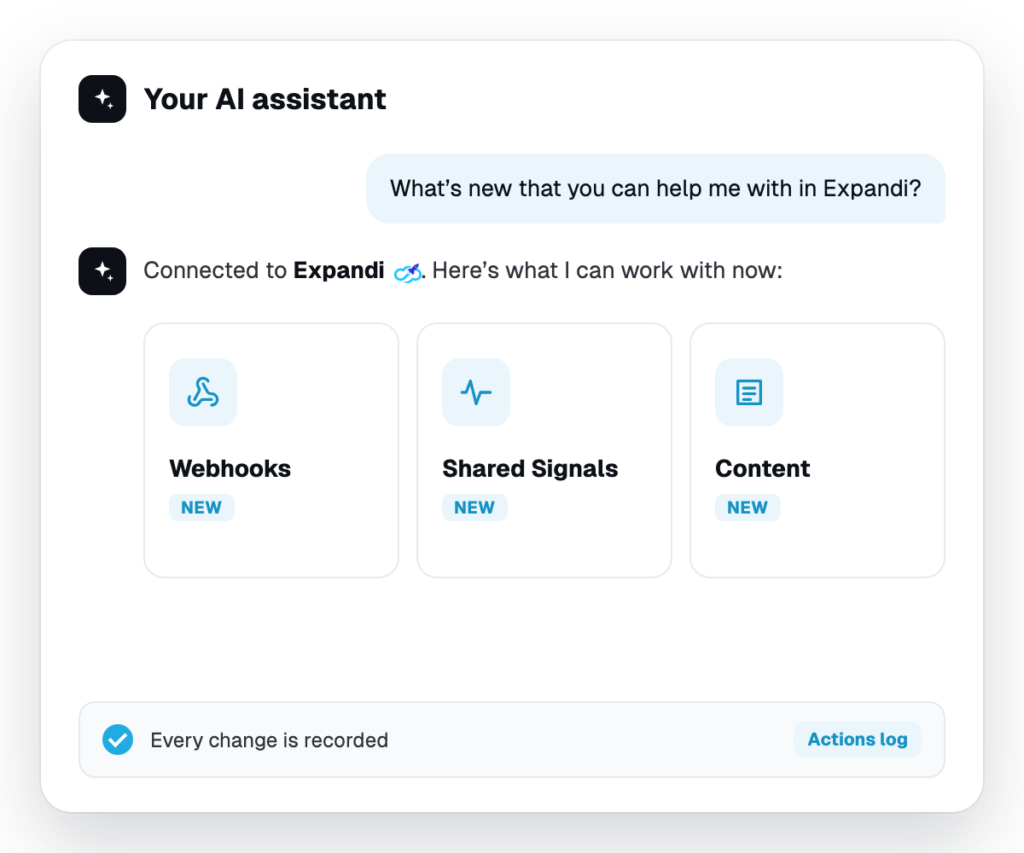
Expandi MCP is the connection that lets ChatGPT read and write inside your Expandi account. MCP is an open standard for connecting AI assistants to other software, so you don’t need to understand it to use it. You connect once and then ask in plain language.
The short version of the setup:
- In ChatGPT, open Settings, then Security and login, and turn on Developer mode. Without it, the Plugins menu doesn’t appear.
- In Expandi, go to Account Settings, then AI agents, choose ChatGPT and copy the server address.
- In ChatGPT, open Plugins, click +, paste the address and set authentication to OAuth.
- Approve the connection from your Expandi account. The authorization screen lists everything ChatGPT will be able to do.
The full walkthrough, with screenshots and troubleshooting, is in How to connect Expandi to ChatGPT. Using Claude instead? Follow How to connect Expandi to Claude.
One connection covers every LinkedIn account you manage in Expandi. To check it worked, ask: “Which LinkedIn accounts can you see in Expandi?”
Running the outreach loop from ChatGPT
Once ChatGPT is connected, each stage of LinkedIn outreach becomes something you ask for. Here is what it does at each stage, the prompt to use and where the boundary sits.
1. Build a lead list from your ICP
ChatGPT reads every lead in your Expandi account, including title, company, industry, company size, connection degree and conversation status. It qualifies them against your criteria and puts only the ones that pass into a custom list.
Go through my leads, keep only Series B or later SaaS companies with 50 to 200 employees, and put them in a new list called ICP-Q4.
It can also fill in what LinkedIn leaves out, using data sources you already pay for, and write the result back onto each lead as a placeholder you can drop into a message. LinkedIn-sourced contact data stays read-only. Lists it builds are tagged “Generated by MCP”, so you can always tell them apart from yours.
2. Draft a campaign from a brief
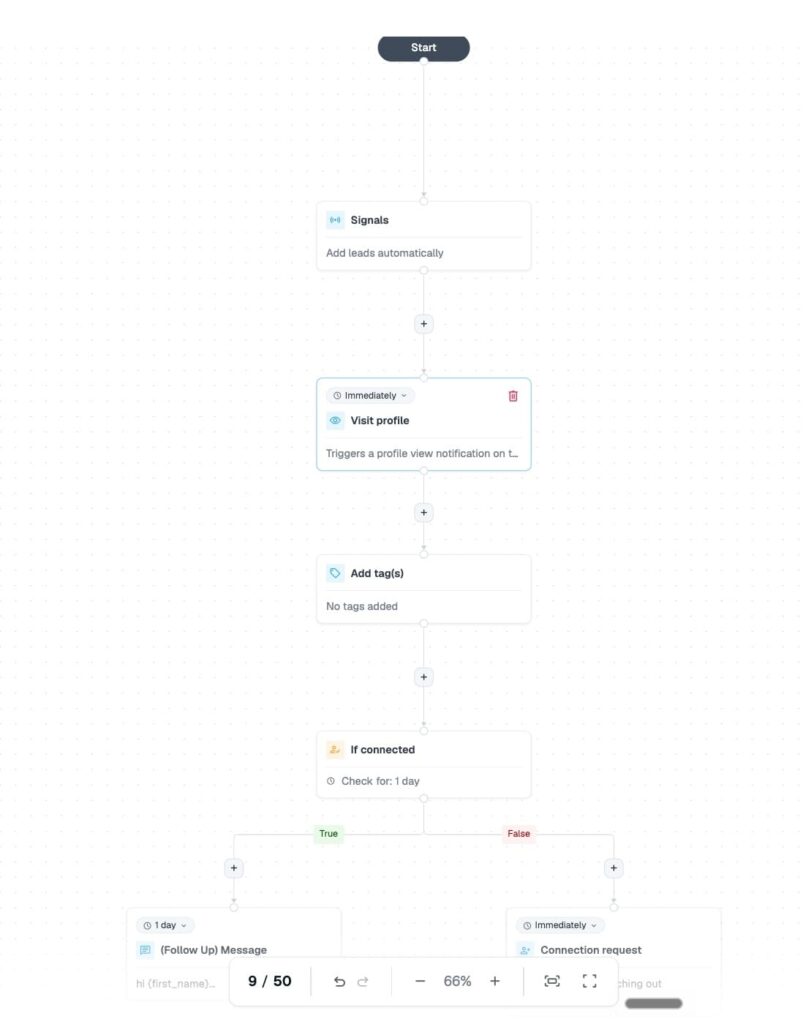
Describe who you’re going after, what you’re offering and what a win looks like. ChatGPT lays out the flow, writes the copy in each step and sets the delays. The result lands as a draft in the Campaign Builder.
Build the brief around what our benchmark data shows works, and say so in the prompt:
Build a 3-message sequence for RevOps leads in the ICP-Q4 list. The offer is a teardown of their outbound, the goal is a call. Keep each message under 200 characters, put the strongest pitch in message 2, and reference a shared group or follow in the connection note where one exists.
Those constraints aren’t arbitrary. Campaigns with three messages replied at 9.8% in our H2 2026 data, while five or more dropped to 5.0%. The second message had the highest per-send reply rate at 8.8%, and messages of 150 to 200 characters peaked at 8.5%.
ChatGPT never activates a campaign and never edits one that’s already running. You attach the audience, read every step, rewrite what doesn’t sound like you and switch it on.
3. Work the replies
The inbox is where deals start and where the afternoon disappears. ChatGPT reads the full thread and everything Expandi knows about the lead, then drafts a reply that fits the conversation and the campaign it came from.
Show me my unread replies with the warmest first, and draft a response to each.
Drafts land in the Expandi Inbox under Drafts. Nothing sends until you approve, one at a time or in a batch. ChatGPT only works existing threads. It doesn’t start new outreach or send connection requests from the inbox.
4. Find out why a campaign stalled
“Why didn’t it send?” is the most expensive question in outbound, because the answer is usually buried three screens deep. ChatGPT checks your account health, limit headroom and per-lead failure reasons, then names the cause: daily limit reached, outside sending hours, LinkedIn account disconnected, out of leads, or actions failing.
My campaign was set to 40 invites a day and sent 12. Why?
It can resume leads that errored and retry failed actions. It won’t reconnect a LinkedIn account for you. It tells you plainly that you need to.
5. Measure what’s working
ChatGPT reads acceptance, reply and conversion rates, funnel drop-off and trends over any date range, and shows you the leads behind each number. This gives you real-time campaign monitoring on demand.
Which of my campaigns is performing best this month, and what are the actual numbers behind that?
This is where the loop closes. Ask which segment converted, then ask ChatGPT to build the next list from leads that look like them.
What it does, what you do
| Stage | ChatGPT does | You do |
|---|---|---|
| Lead lists | Qualifies leads, builds and tags lists, writes enrichment to placeholders | Set the ICP, check the list |
| Campaigns | Drafts the flow, copy and delays | Edit the copy, attach the audience, activate |
| Replies | Drafts responses with full thread context | Approve, edit or discard each draft |
| Diagnostics | Names the cause, resumes errored leads | Reconnect accounts, adjust limits |
| Reporting | Reads rates and the leads behind them | Decide what to change next |
Every action ChatGPT takes is recorded in the Logs tab under AI agents, with the time and the LinkedIn account it touched.
Best practices that keep your LinkedIn account healthy
More automation used to mean more account risk. With an MCP connection, the limits sit in the platform rather than in your memory, so ChatGPT can’t talk its way past them.
- Daily caps, sending hours and warm-up still apply. Before ChatGPT adds leads to a campaign, it checks how much room your limits have left.
- It can only do what you can do. The connection is scoped to your own Expandi access. A rep with a limited seat stays limited.
- You choose when it asks first. In ChatGPT’s plugin settings, the default permission lets it read data on its own and asks before anything that changes your account. Make it stricter while you get used to it.
- You can turn it off in one click. Disconnect from ChatGPT, or click Disconnect all under AI agents in Expandi to revoke every connected AI tool at once.
Read our full safety guide for a detailed breakdown of LinkedIn automation best practices and ethics.
Four mistakes to avoid
- Scaling before the message works. Run one small campaign, read the replies and fix the copy before you ask ChatGPT to build five more. Speed multiplies whatever is already there, good or bad.
- Shipping drafts unedited. Treat every ChatGPT draft as a first pass. Our data shows unedited AI copy underperforms the same sender’s own templates, so the edit is where the reply rate comes from.
- Writing vague prompts. “Build me a campaign” gets you an average campaign. Name the list, the offer, the goal, the number of steps and the character limit.
- Ignoring send times. Connection requests sent between 7 and 11am accepted at about 32% in our H2 2026 data, compared with about 24% in the evening. Ask ChatGPT to check your campaign’s sending window when it drafts the flow.
If you want outreach to land while interest is still warm, pair this with Signals, which surfaces engagement like profile visits and post interactions so you know who to reach first.
FAQs
No, according to our setup testing: custom plugins worked on all ChatGPT plans, including free. OpenAI changes plan features and menu names often, so check ChatGPT’s current plugin settings if something looks different. You need an active Expandi subscription or trial.
LinkedIn’s User Agreement restricts automated activity, so any automation carries some risk, whoever drives it. What you control is how it behaves: sending inside daily limits, during working hours, with warm-up on new accounts and a human approving what goes out. Those controls stay in place when ChatGPT is the one preparing the work.
Yes, Expandi is built for lead generation agencies and teams. One connection covers every LinkedIn account you manage in Expandi, so “Which client had a campaign stall this week?” becomes one question instead of five logins. The connection stays scoped to your own permissions.
Yes. Expandi MCP works from the first day of the 7-day free trial.
Yes. Each connects separately. Note that Disconnect all in Expandi removes access for both.
Start with one question
You don’t need a new workflow to try this. Connect ChatGPT, then ask it one thing you’d normally click through three screens to find out. If your account is new, describe who you want to reach and ask for a first campaign draft. If campaigns are already running, ask why one sent less than you expected yesterday.
Start your 7-day free trial and connect ChatGPT, or see every use case on the Expandi MCP page first. For the bigger picture, read What is MCP, and why does your outbound stack need one?





You’ve made it all the way down here, take the final step