How to Automate LinkedIn Lead Generation With Claude (2026)

Key Takeaways
Connect Claude to Expandi using the Model Context Protocol (MCP) to qualify leads and build out campaign drafts effortlessly. Claude can also help draft reply options or troubleshoot stalled sending. You retain total control over message approvals and campaign launches. Always give draft copy a personal polish—Expandi’s H2 2026 data shows human-edited messages beat raw AI copy by ~12% from the same accounts, even though initial reply rates were virtually identical.
How to Automate LinkedIn Lead Generation With Claude (2026)

With AI models like Claude and ChatGPT transforming sales workflows, team leads are naturally eager to put them to work where they shine—like streamlining time-consuming LinkedIn outreach (with the right human guardrails, of course).
The good news? You can automate LinkedIn lead generation with Claude without handing over the keys to your account. Connect it once, share your campaign context, and let Claude handle the tedious multi-screen prep work. Campaigns stay safely as drafts until you choose to launch, and every draft reply waits for your explicit thumbs-up.
What is automated LinkedIn lead generation with Claude?
Automating your LinkedIn lead generation with Claude gives the AI secure, controlled access to your Expandi workspace via the Model Context Protocol (MCP). MCP allows Claude to work directly inside supported tools within your existing user permissions.
This goes far beyond standard copy suggestions. The Expandi MCP handles heavy backend prep directly in your account and hands off completed tasks for your review.
| What you ask | What Claude prepares in Expandi | What you approve or handle |
|---|---|---|
| Find and prepare leads | Qualifies leads and creates a custom list. Approved research can populate message fields. | You set the filters and approve the audience. |
| Build a campaign | Creates a campaign draft with messages and timing rules. | You edit the copy and choose a sending window. You activate it. |
| Work through replies | Reads existing threads and drafts responses. | You decide the final reply and send time. You can hand the thread to a colleague. |
| Diagnose and measure | Checks the campaign’s sending eligibility. It also reads results. | You fix account issues and decide what to do next. |
Claude inherits the connected user’s Expandi access. The connection covers every LinkedIn account that the user manages, including those in Expandi Workspaces.
What you need before you start
Prepare these items before connecting Claude:
- An Expandi account with an active subscription or 7-day trial, plus a LinkedIn account with pre-configured sending limits and hours. Configure warm-up before launching outreach.
- A Claude account. Custom connectors are available across Claude’s plans. Free accounts can add one custom connector.
- A context document defining your ICP and offer. Add the campaign goal and exclusions, along with voice examples and approved proof.
- Two or more past messages that earned useful replies, plus examples of wording you never want Claude to use.
Claude works from the web app or desktop app, so you don’t need a terminal. On Team and Enterprise, an Owner or Primary Owner must add the connector first.
Step 1: Connect Claude to Expandi
The connection uses Expandi’s server address and Claude’s custom connector settings. Claude opens the browser sign-in after you add it, so your Expandi password never belongs in a prompt.
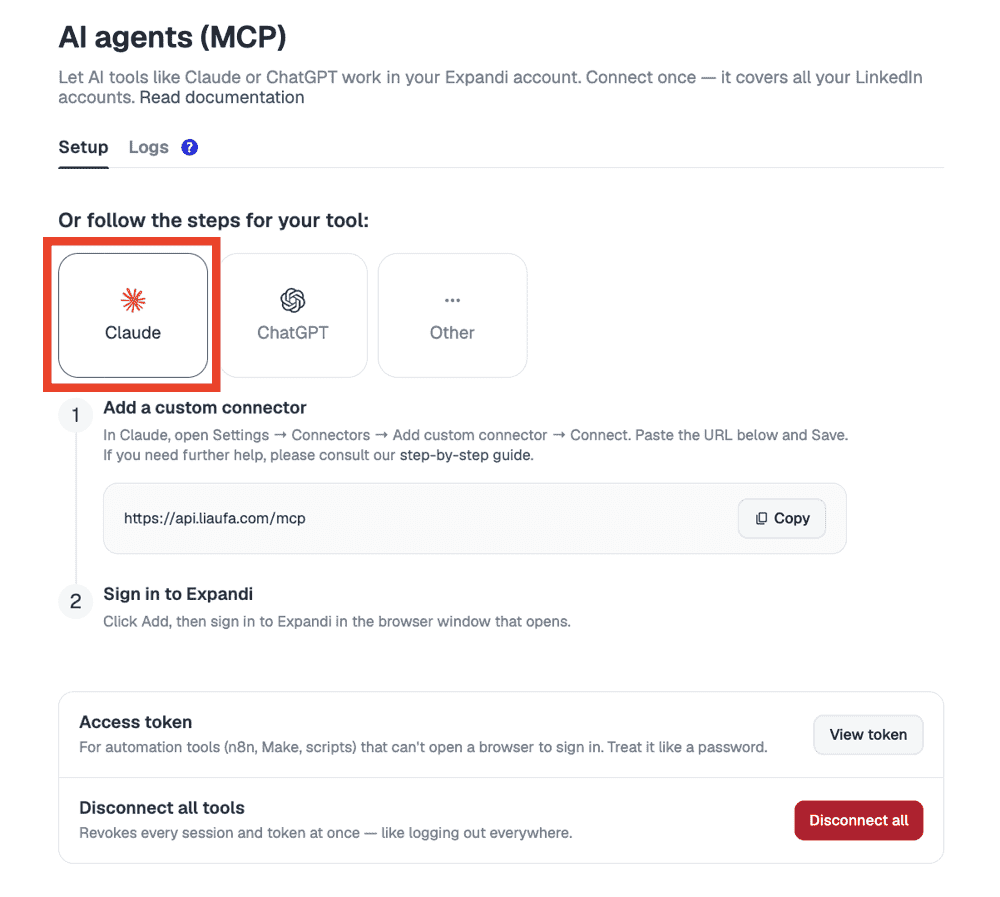
- In Expandi, open Account Settings > AI agents. Select Claude.
- Copy the server address shown there: https://api.liaufa.com/mcp.
- In Claude, open Customize > Connectors. Click Add. Under Custom, choose Web. If your account still shows Connectors under Settings, use that route instead.
- Enter a name and paste the server address. Click Continue.
- Leave the automatically detected options unchanged. Claude should show Sign in now for Authentication and Register automatically for OAuth client. Under Advanced, the Transport should be Streamable HTTP. Click Add.
- Open the new Expandi connector and click Connect. Sign in through the browser window. Check the account and requested permissions before clicking Authorize.
Under Tool permissions, choose Always allow, Needs approval, or Blocked for each tool. Start with the defaults, then set tools that change account data to Needs approval as you test.
Run this verification prompt:
Which LinkedIn accounts can you see in Expandi, and what actions are available to you?
An empty list can still confirm access on a new account.
Config-based clients use this address with the Expandi access token. Keep the token as private as your password.
Step 2: Give Claude the context that decides output quality
To make smart, accurate decisions, Claude needs rich context about your target audience and messaging strategy. Add your core brand guidelines to a dedicated Claude Project so every prompt automatically adheres to your rules.
Copy this template into the Project instructions and replace the brackets:
Company: [name and one-sentence description]
Offer: [what the prospect receives]
ICP: [role and company criteria; required signals]
Exclusions: [customer or competitor exclusions; unsuitable roles]
Campaign goal: [the conversion you want]
Voice: [tone and sentence length; words to avoid; examples]
Proof: [approved results and sources Claude may cite]
Past messages: [two or more messages that received useful replies]
Handoff rule: [when Claude should stop drafting and flag the thread for a person]
Expandi H2 2026 benchmark: In a comparison of 118 campaigns from 73 accounts, human-written messages outperformed unedited AI messages by about 12% within same accounts. Expandi compared AI and human campaigns from the same accounts, which reduced the effect of differences between accounts. Reply rates were effectively identical.
As Expandi CEO Glenn Miseroy writes in the report:
“Technology should help teams be more relevant and more human at scale and not to just send more.”
The Project gives Claude the details needed to support that standard.
If your team calls this an AI SDR, make human approval explicit for every customer-facing decision. Claude alone can plan outreach, but it can’t read or act on live Expandi account data.
The MCP connection adds that access and keeps human approval in the workflow.
Step 3: Turn your ICP into a qualified lead list
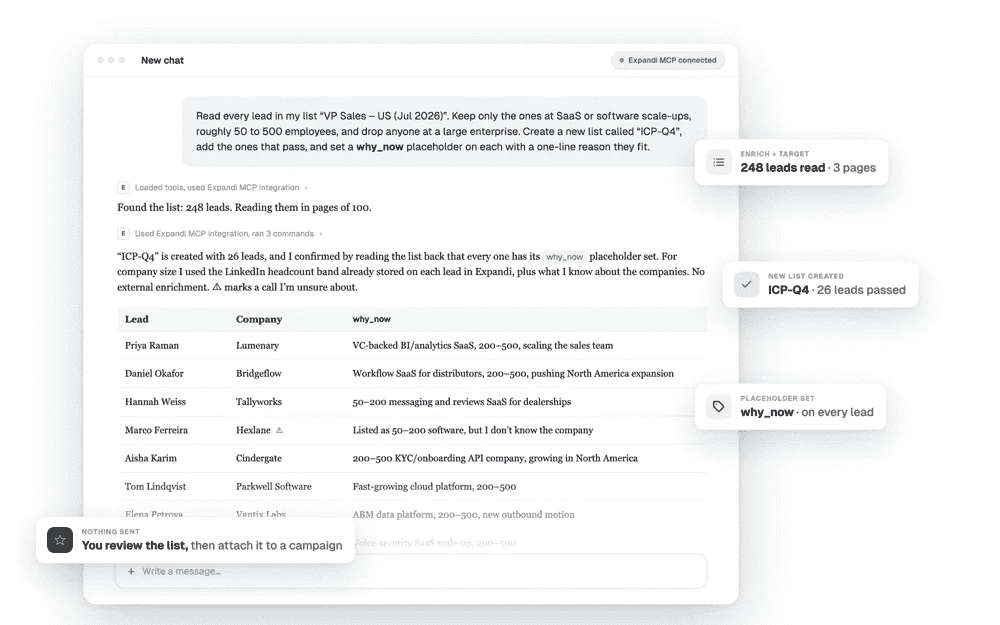
Start with leads available to the connected Expandi account, then ask Claude to apply criteria it can check. Request a visible qualification reason for each lead. This example relies on company and CRM data that may not exist in Expandi. Tell Claude to exclude a lead only when the relevant field is available and to flag missing data instead of guessing:
For [LinkedIn account], create a lead list named “ICP-Q4” from the leads available in Expandi.
Include RevOps leaders at Series B or later B2B SaaS companies with 50 to 200 employees. Exclude agencies and consultants. Remove current customers and open opportunities. Also exclude anyone active in another campaign.
Show the pass or fail reason for each lead and list any missing fields before creating the final list.
LinkedIn contact fields stay read-only. Claude can add company information from another connected source to custom fields called dynamic placeholders. Those fields can appear in messages, so check their source first.
When the list is ready, connect it to the campaign that should receive qualified leads.
Start from signals when the context is available
Expandi Signals can collect people who visited a profile or company page. It can also collect post engagers. Their actions give Claude a factual opening angle.
Expandi’s H1 2026 report found a 13.4% reply rate for profile-visitor campaigns and 14.21% for event-attendee campaigns, against 10.3% across LinkedIn DMs. It didn’t publish a separate post-engagement rate.
Use post engagement outreach when the post supplies a relevant opening.
Step 4: Brief a campaign and review the draft
Give Claude the audience and offer. State the desired response, then set the sequence rules. Edit the resulting copy inside Campaign Builder:
Create a campaign draft for the “ICP-Q4” list.
Build a four-step campaign. Visit the profile first, then send a connection request with a short note. Send the main message after acceptance. Follow up three working days later.
The offer is a teardown of the prospect’s outbound process. The goal is a reply from someone open to reviewing it. Keep the customer-facing copy to three messages. Put the strongest point in the first post-acceptance message and use only approved dynamic placeholders.
Claude prepares the campaign as a draft, including its messages and timing rules. Check:
- The campaign contains three customer-facing messages.
- Message 2 carries the clearest version of the offer.
- Each message makes one point and stays near 150 to 200 characters where the idea fits.
- Connection requests fall within the morning sending window configured for the account.
- Every placeholder renders correctly for several sample leads.
- The wording sounds like your approved examples.
What Expandi saw in H2 2026: Three-message campaigns recorded a 9.8% reply rate. Four-message campaigns reached 7.9%, whereas 5 or more messages fell to 5.0%. Messages between 151 and 200 characters recorded an 8.5% reply rate. These are observational benchmarks, so use them as starting points for your own tests.
Claude can’t activate the campaign
Expandi MCP creates drafts and cannot edit a running campaign. Choose the audience and check the settings. You activate the campaign yourself.
Step 5: Work through replies from Claude
Claude can read existing threads and prepare replies in Expandi. The reply tool can’t start fresh outreach or send a connection request.
For [LinkedIn account], show unread campaign replies with the strongest buying signals first.
Draft one response for each existing thread. Keep explicit opt-outs excluded. Flag any message that needs pricing approval. Do the same when technical input or a colleague’s decision is needed.
When a prospect confirms a meeting, pause that person in every active campaign and show me the affected campaigns before making the change.
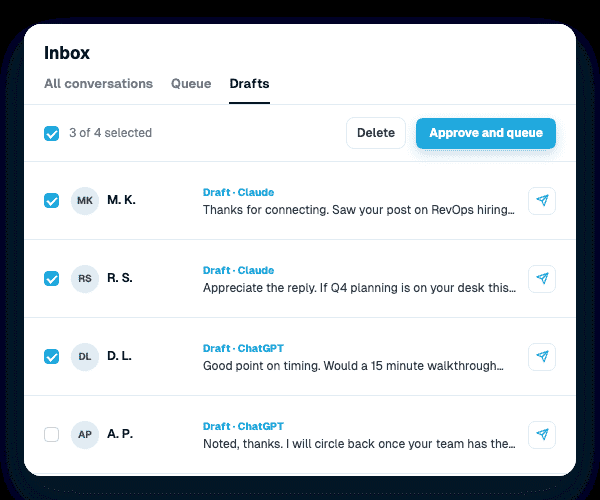
Review drafts in the Expandi inbox, one at a time or in bulk. Choose a send time or send immediately. The Global Inbox brings conversations from several accounts together.
For a colleague handover, ask Claude to summarize the conversation and identify the open question.
Step 6: Ask why a campaign stalled, then recover it
Campaign diagnosis is one of the strongest reasons to use an AI agent for LinkedIn outreach. Claude can check the campaign state and the conditions that control sending in one request.
My campaign was set to 40 connection requests a day and sent 12 yesterday.
Check the daily limit and the configured sending window. Report the LinkedIn account status. Count the remaining eligible leads and list failed actions.
Explain the cause with the supporting account data. Tell me what you can recover and what needs me.
Common causes include a reached limit or a closed sending window. The LinkedIn account may also be disconnected, or the list may be exhausted. Failed actions are another possibility.
Claude can resume errored leads or retry supported actions. If another source is available, it can also help add qualified leads.
Claude won’t reconnect a LinkedIn account or dismiss a restriction. It should report the problem and leave that fix to you. The same LinkedIn connection limits and account settings apply in the dashboard and through MCP.
Step 7: Measure conversions and improve the next list
Ask Claude for the counts behind each rate before changing the campaign. This keeps small samples and missing conversion data visible:
For [account], report the acceptance and reply rates for [campaign] over [period]. Include the counts and denominator definitions.
Report [conversion event] only if its source data is available, and list the leads behind that event.
Flag missing data and definition mismatches. Note when the sample is too small to support a change.
Use a second prompt once the conversion data is available:
Compare the converted leads with the rest of the contacted audience. Identify supported patterns in role and company context. Look for an explanation in the source or Signal.
Use those findings to prepare a new draft list. Show the proposed criteria and exclusions before creating it.
Compare the result with the appropriate LinkedIn outreach benchmark. Check its metric definition and sample size. Your own past campaigns aimed at a comparable audience are a better baseline.
Case study: A17 kept the conversation human
A17 Technologies used Expandi to contact C-level executives for research interviews. According to the case study, the company scheduled 20 C-level interviews through LinkedIn outreach. Founder Andrew Bush recommends starting with 400-600 Sales Navigator profiles and uses a 20% connection rate as a planning assumption.
Expandi handled the sequence, and Bush reviewed incoming messages each day and replied himself. The A17 case study supports the approval model used in this guide: automation handles follow-up until someone responds.
Do note that the case study predates Expandi MCP. It supports the human-handoff pattern, but it provides no evidence for MCP time savings or a performance lift.
Keep the LinkedIn account within its existing limits
Claude works within the account’s existing Expandi settings. Limits and sending hours still control campaign activity. The account’s warm-up and status also apply. Claude can’t raise the limits or rewrite the warm-up schedule through MCP.
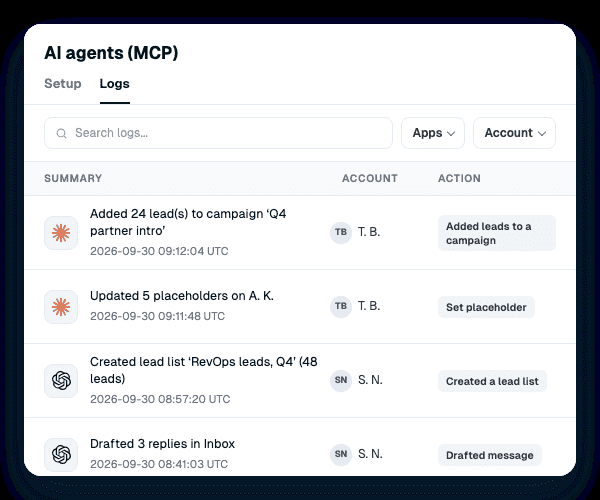
You must activate each campaign yourself. Every proposed reply also needs your approval. LinkedIn data stays read-only, apart from approved information added to dynamic placeholders. Every MCP action appears in the Expandi log.
Access follows the connected user’s Expandi role. Review the authorization screen and tool permissions, then follow these MCP security best practices.
Disconnecting inside Claude removes Claude’s access. Disconnect all in Expandi revokes every connected AI tool at once.
Common mistakes when automating LinkedIn lead generation with Claude
Most campaign mistakes happen long before launch. Keep an eye out for these five common pitfalls before approving Claude’s output:
- Skipping the context document: Claude fills missing direction with generic assumptions. Supply the audience rules and approved proof first.
- Approving the first draft unchanged: Expandi’s comparison of AI and human campaigns from the same accounts gives you a reason to edit before activation.
- Turning every follow-up into a long sequence: Start with the 3-message benchmark and test changes against your own segment.
- Importing a huge list with weak qualification: Ask why each lead passed and inspect samples before assignment.
- Prompting Claude to “just send it”: Campaigns remain drafts, and replies still need approval.
Start your first prompted campaign draft
Connect Claude and add the context document. Then ask it to prepare one qualified list and campaign draft. Review the leads and every message before activation.
Start a free 7-day Expandi trial, then open Account Settings and choose AI agents.
Frequently asked questions
Yes, Expandi supports compatible remote MCP clients. Browser-capable clients authenticate through Expandi, though scripts may need an access token. Expandi documents Claude’s web and desktop apps, but not Claude Code. Confirm Claude Code before relying on it in production.
Yes. On Claude Team or Enterprise, an Owner or Primary Owner first adds the connector. Each member then authenticates it, and Expandi applies that member’s permissions.
Yes. One authorized connection covers every LinkedIn account the connected Expandi user manages. The authorization screen shows the scope before approval.
No. The Open API supports software that calls Expandi through code your team maintains. MCP gives an AI client conversational access to supported tools under the user’s permissions. A team may use both.
Yes. ChatGPT connects to the same Expandi MCP server and uses Expandi authorization. Follow the current ChatGPT connection guide because its setup differs from Claude’s.
Disconnecting inside Claude removes only Claude. Disconnect all under Account Settings > AI agents revokes every connected tool. You can reconnect later.





You’ve made it all the way down here, take the final step